

Our purpose
“Digitally capable staff should be a basic student entitlement”
The Learning and teaching Innovation Team support staff with the research, development and use of technology to enhance the student experience.
We work in partnership with faculty, professional services and the Student Union to offer a wide range of continuing professional development (CPD) opportunities and bespoke one-to-one training.
We support lifelong learning by creating a safe and supportive environment for colleagues to experiment, develop and share their experiences.
How we can help you?
Meet the team

Roz Hall
Learning Technologies & Skills Development Manager
Roz has over a decade of experience working in Learning Technologies, having been involved with the original launch of Moodle at the University of Chichester. Since those early days, he’s overseen the adoption of Turnitin, Panopto, Digital Accessibility, Distance Learning, Electronic Management of Assessment, Microsoft Teams and Digital Literacies.
He is a member of the Association of Learning Technologists (ALT) and a Fellow of the Higher Education Academy (FHEA) and is currently working towards Senior Fellowship status. Roz teaches on the Post Graduate Certificate in Learning and Teaching in Higher Education, specialising in blended learning.

Darren Thompson
Learning Technologist
Darren Thompson is a Learning Technologist at the University of Chichester. He has 17 years’ experience of teaching, learning and people development gained through working in HE, FE and work-based learning since 2004. His areas of specialism include Learning Design, Gamification, Student Experience & Engagement, and Digital Literacies. Darren is a member of the Association of Learning Technologists (ALT).

Matt Davidson
Learning Technologies Trainer
Matt Davidson is Learning Technologies Trainer here at the University of Chichester. He is our newest team member and brings with him over five years of academic administration experience from his time in Academic Registry within the University. There he gained valuable insight into the system that drives the student and staff data behind Moodle. Whilst a student at the University, he saw first-hand the value that Moodle could bring to the learning experience, and brings that understanding with him to this role. His personal technology interests range from 8-bit retro computing through to virtual reality.

Alison Wright
Academic Skills Advisor
Alison has worked supporting students in further and higher education for over twenty years and has specialised in academic skills support for the last thirteen. She is a Fellow of the Higher Education Academy (FHEA) and has a Master’s degree in Education in which her research focused on the student experience of transition to higher education.
Alison works with students across all disciplines and years at the University, helping them to develop skills such as academic referencing, critical thinking, essay planning, and effective writing. She also works on developing digital tools to help students to improve their academic skills. Alison also runs sessions for staff to help them to enhance their writing skills.

Dan Carline
IT Skills Advisor
Dan is the University IT trainer, with extensive experience supporting staff and students of all abilities. Before joining the university in 2016, he ran an independent IT support service alongside his own photography business. His areas of expertise include Microsoft Office 365 applications, assistive technologies, and classroom technology.
Beyond his core training role, Dan enjoys exploring creative software particularly within the fields of photography, video editing and any other digital media production. He is also enjoying experimenting with the latest generative AI technologies to discover innovative and imaginative ways to create digital content from existing artworks or completely from scratch.
Dan is available for group sessions but is also able to deliver bespoke one-to-one training to meet your individual needs.
Our teaching toolkit
Supporting flexible learning
In 2009, alongside the launch of Moodle, the University of Chichester adopted Blended Learning as its format for module delivery. This is described as timetabled face-to-face teaching, enhanced with asynchronous or scheduled synchronous online activities to be completed outside of timetabled teaching sessions.
The diagram below shows the tools that we have in place to allow the successful delivery of blended learning.
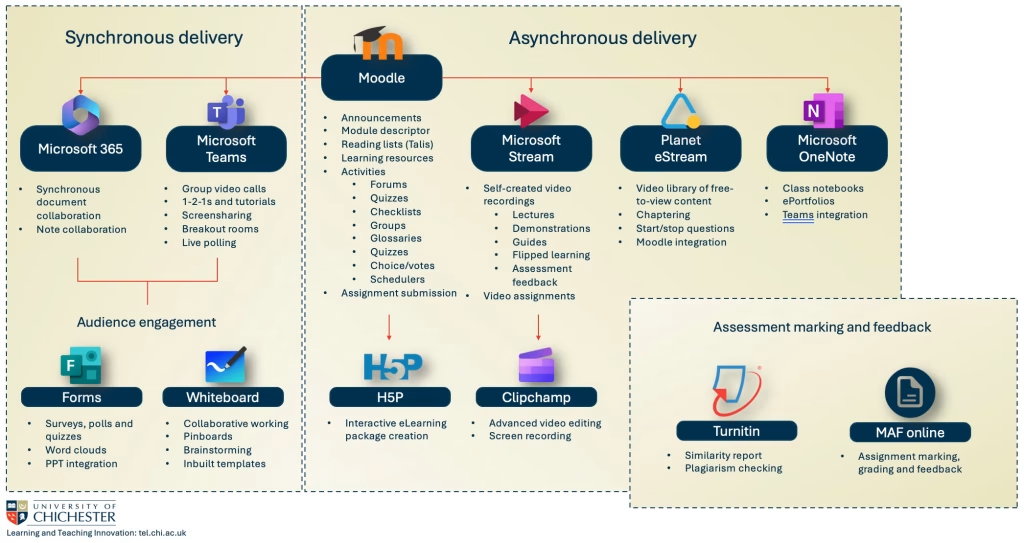
Supported platforms
Moodle
Moodle #
Moodle is our virtual learning environment, which is where students find their course materials, communicate and partake in activities.
Moodle pages can have activities such as forums, blogs, checklists, choice/votes, glossary, questionnaires and quizzes. You can also set up a Moodle scheduler to simplify booking tutorials and add an assignment submission link to Moodle where students must submit their assignments. You can also add a module evaluation activity with pre-set standard questions.
Pages can also have resources such as text, images, files, folders, links to websites, videos, galleries and reading lists.
Please note that the university has a minimum requirement for Moodle pages, which can be found here: Moodle Minimum Standards
Support available:
Help page articles
- Moodle overview for staff – help site guidance
- Start of semester checklist for Moodle – help site guidance
Online interactive courses
Bespoke support
- Moodle follow-up session – request bespoke support, to review your pages and to discuss digital pedagogies.
Microsoft Clipchamp (Stream)
Clipchamp #
Clipchamp (previously called Stream) is Microsoft’s easy‑to‑use video recorder and editor: a tool designed to make video creation accessible to everyone, including those with little or no editing experience. It allows you to combine video clips, images and audio, as well as add text overlays, transitions and filters.
Support available:
Help page articles
If you are recording lectures, please make sure that you have read and understood our Lecture Recording Policy
Planet eStream
Planet eStream #
eStream is the secure video platform for education and offers TV, radio and satellite recordings, interactive videos and quizzes and Connect, which allows access to content from lots of other institutions around the world to include in your Moodle pages.
Support available:
Microsoft Teams
Microsoft Teams #
Microsoft Teams is a tool designed for team communication and collaboration, combining chat, audio/video calling, file storage, and apps. You can use Microsoft Teams either from the Teams App or by using the Teams web version.
You will get the best user experience by using the Teams Desktop App this is installed on all university computers.
Support available:
Help page articles
Poll attendees during Teams meetings – external website
Multiple choice – quick stand-alone question with different options
Quiz – question with correct answer to gauge comprehension
Word cloud – open text responses displayed in a dynamic word cloud
- Show or collaborate on information
- Draw, add images and text
- Pin sticky notes
- Collaborate on inbuilt templates designed for
- brainstorming
- problem-solving
- design and research
- strategy
- project planning
- retrospective
- games
- workshops
- learning
If you are using Teams to record lectures, please make sure that you have read and understood our Lecture Recording Policy
Microsoft 365
Microsoft 365 #
- Each student and member of staff will have a Microsoft 365 account, which acts as their email, calendar and OneDrive cloud storage, as well as giving them access to the suite of Microsoft Office applications, such as Word, PowerPoint, Excel, OneNote and Forms.
These applications can be used for online synchronous and asynchronous group collaboration
Support available:
- IT Skills – help site
Find support for Microsoft 365 applications from our own IT skills trainer, Dan Carline
Microsoft Whiteboard
Microsoft Whiteboard #
Whiteboard is a new application available alongside Word, PowerPoint, Excel and Teams. It can be used online via a browser and via a downloaded app. You can utilise it to promote collaboration whether you are in a Teams meeting, or working face to face in a classroom.
Support available:
Microsoft Forms
Microsoft Forms #
With Microsoft Forms you can create surveys or quizzes for people to contribute to during a live session or in their own time. Using Present mode or by embedding into a PowerPoint presentation, you can share results in real-time they’re submitted. Use the built-in analytics to evaluate responses, or export results to Excel for additional analysis or grading.
Support available:
Online lead lectures
Starting this academic year, some lead lectures will be delivered online using Microsoft Teams. These guides will help you set up these online lead lectures in advance, and show you the various things you can do once in the lecture.
Advice for the lecturer
#
Useful additional advice
#
Student participation and interaction
#
Lead Lecture Recording
You are not required to record your lectures but students find it useful to be able to review the content in their own time. Online Lead Lectures can simply be recorded in Microsoft Teams.
Advice you can share with your students
Hybrid teaching
Hybrid Teaching is where timetabled teaching is delivered where participants (tutors and/or students) are at the same time in the classroom and online. The hybrid model of teaching and learning uses both online and in-person options in a purposeful way. Not only does this model give increased flexibility, but it also gives students more ownership over their learning.
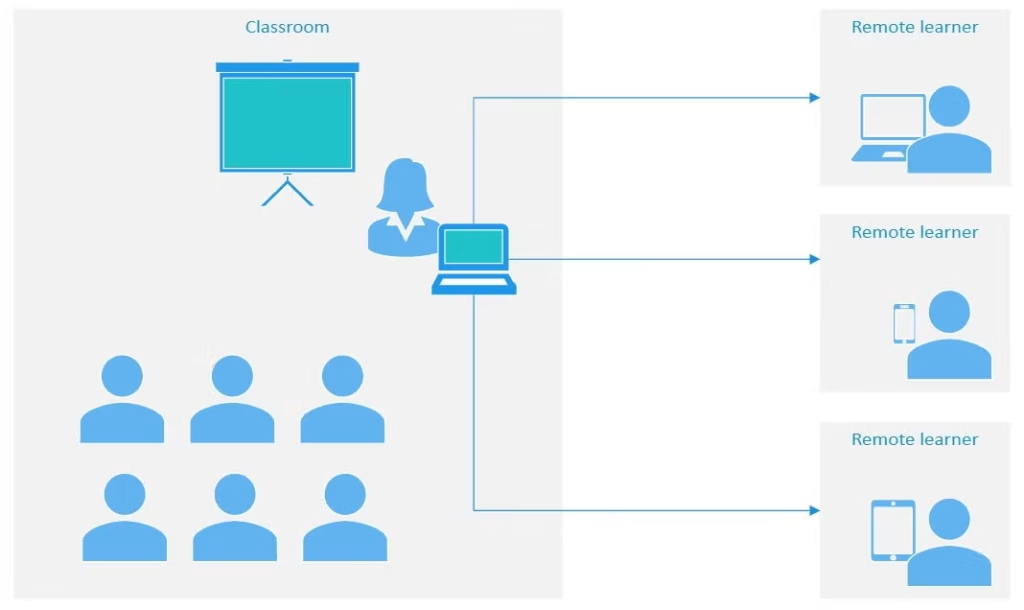
Many first encountered the hybrid model during the Covid-19 outbreak, however, there are many reasons why a student may not be able to come into the classroom. From personal commitments, travel issues, to health problems, hybrid delivery means that they do not need to miss out on their education.
Practicalities to consider for successful hybrid teaching
- To allow students to access the live session online, you will need to use Microsoft Teams
- You can setup a Teams meeting link on your Moodle page ready for those to access if and when they need it
- Share the PC screen so that those online can see learning content
- Make sure you place yourself where the classroom camera and microphone can pick you up
- Familiarise yourself with the classroom AV. A full list of available technology is published on the university help site: Classroom Equipment Instructions by Room
- What to see your online students whilst sharing your screen?
- You can join the Teams call on an additional device, such as your laptop or smartphone, and choose to view just the participants. Just remember to switch the mic and speakers off else you may hear feedback
- You can also use this function with your smartphone to set up a roaming camera to be able to show online users things in close-up
#
Digital Pedagogies
- Consider how you will promote engagement with the online students as well as the students present in the classroom
- Utilise the various tools in Microsoft Teams, such as chat, online whiteboard, polls, word clouds and quizzes. The students in the classroom can also join in on their smartphones or laptops
- If you are inviting students to break out into groups, consider setting up a Breakout room for those joining remotely
- Remember to check in on those accessing remotely as they may feel disconnected during the session, maybe schedule opportunities for them to contribute
Myths associated with hybrid learning and teaching
Scenario four: effective hybrid learning (2021)
Apocryphal stories surround effective hybrid learning, which can often have an unhelpful impact on staff when approaching the topic. Here are a few that might surface in your conversations when discussing effective hybrid learning. The following myths are worth reflecting and we offer strategies that you can adopt to mitigate them.
Myth: delivering effective hybrid learning involves the latest digital technologies
The allure of shiny new technology is seductive. It’s tempting to think that if we adopt cutting-edge technologies then these things will automatically transform our practice. However, the issue is that using innovative technology doesn’t inevitably make us more innovative. It’s entirely possible to transform practice using the simplest of digital tools.
It’s often better to start with more tried and tested platforms that both staff and students already have a degree of familiarity with. Many staff may feel left behind and lack confidence with technology. It’s important to ensure staff have opportunities to share knowledge, practices and experiences with colleagues.
Myth: young people are “digital natives” and will just “get” how to be part of a learning community online
The critique of Prensky’s Native and Immigrants model is detailed but simply, a familiarity with certain types of technologies in certain contexts does not necessarily translate into using technology to support learning. Age is not the prime determiner.
Distance learning
Overview
Distance Learning (also known as Online Learning) could be used for an entire programme, a specific module, or a type of lesson (such as lead lectures) to increase learners’ flexibility and enable opportunities not suited to traditional delivery.
Distance learning, whilst delivered 100% online, is still tutor-led and comprised of a mixture of synchronous and asynchronous activities and interactions in which to engage with a more diverse student population.
Areas to consider
Distance learning should not be seen as a quick, cheap or easy way to access more students. Distance programmes, modules, or classes, need to be designed specifically with distance learners in mind in order to enhance the student experience.
Redesigning the curriculum
Online learning isn’t just a matter of translating established techniques onto new platforms without altering delivery – it requires real transformation. Where institutions are already modifying their pedagogies and methods of delivery for online learning, they report good engagement from learners (van Ameijde, Weller and Cross, 2018, p.41-50). We equally need to consider what our students will need in the future. Today’s students will have to respond with agility over their lifetimes to shifting labour market requirements and fast-changing developments in technology. The TEL Team can support you with digital pedagogies and learning theories suitable for online delivery.
Learning theories
Various educational models and theories can inform curriculum design. Course design teams may engage deeply with particular models or may find those which suit their subject discipline well. Some models or educational approaches suit the use of specific types of technologies.
- Behaviourist approaches (Instructivism)
- Constructivist approaches (Collaboration and sharing)
- Situated Learning approaches (Problem, project or inquiry-based learning)
- Collaborative approaches (Social interaction, social networking)
- Connectivist approaches (Developing connections, rhizomatic learning)
- Gamification (badges, progress markers, ranking, simulation)
Building a community
The development of a sense of community is an effective and efficient way to help ensure the success of the distance education program and can directly address the challenge of distance education attrition. By developing a sense of community, an instructor can create an environment that is conducive to student success. (Moore, 2014, p.20)
The TEL Team can support you to design a learning environment which allows students to develop their own social presence.
Tools for delivering successful distance learning
Moodle and Teams
When planning the delivery of distance learning, we advise that you utilise the benefits of both Moodle and Microsoft Teams. These two systems can integrate seamlessly with each other enabling an excellent platform which support both asynchronous and synchronous delivery.

Learning online can be just as personal, engaging and socially connected as learning in a classroom. Students and tutors can stay in touch and help each other using conversations, and can feel like they are meeting in person using live meetings. Tutors can track student engagement using Insights. No one needs to feel out of touch. Many students who learn online say they feel they have more of a voice, and they feel more connected to their educators and peers than they did in the classroom. And, just like in a classroom, tutors can use the apps and functions of Teams to support how they work best.
Microsoft Teams is a digital hub that brings synchronous activities such as conversations, live lectures, chats, noticeboards/discussions, file sharing and collaboration, letting tutors create vibrant learning environments and social spaces.
Setting up the distance learning experience
Moodle: Your distance course will automatically get a Moodle page, on which you can build the course information (as described by the Moodle Minimum Standards) and asynchronous learning activities such as assignment submission, H5P content
Teams: The TEL Team can help you to manually set up a Microsoft Teams site for your online programme.
You can link your Moodle page to your Teams site and your Team site to your Moodle page for easy access
Create channels for specific topics or weeks (and private channels for group working or privately collaborating with colleagues)
Set up channels to encourage student social activities. Allow the students to take ownership of these areas once they are active
Consider how to set up file areas; you can create different places to store learning content (students can only view) and collaborative content (students can all edit the resource synchronously)
Familiarise yourself with Teams apps, such as MS Forms (for surveys, polls, quizzes and word clouds) and MS Whiteboard (for collaborative pin-boards, brainstorming, problem-solving, games, etc)
Designing the learning experience
Here are some questions it will be important for you to ask when preparing for a distance learning course. Make sure that the answers are shared with AQSS and everyone who is working on and supporting the programme to ensure consistency.
1. Planning
What opportunities does online distant delivery offer you and your students?
What are the risks of delivering fully at distance?
How will delivering fully online impact the working patterns of faculty and support staff?
Who is responsible for writing the course material?
Who is responsible for designing and building the course material?
2. The style of delivery
How is the student journey designed specifically with distance learning in mind?
How will you make the best use of synchronous and asynchronous delivery?
How will tutors make sure that students don’t feel isolated?
How will tutors introduce social elements, in order to build community outside of the scheduled timetable?
How will tutors keep track of student engagement and attainment to make sure issues are highlighted quickly?
3. Support
Will there be set hours for tutor contact?
Will there be out-of-hours support, such as a help desk?
Are participants (including the teaching staff) clearly directed to support for a variety of issues? (Academic support, administrative support, IT issues, wellbeing, financial support)
Will the content be delivered in a single or multiple languages?
Are all online tools available globally? Do they need to be?
Are all library resources available online and globally?
Are all tools and resources supported by the university?
4. Policies and procedures
Do all Moodle pages comply with the University’s Moodle minimum requirements?
Do all resources and tools comply with the University’s Digital Accessibility Policy?
Do all recordings comply with the University’s Lecture Recording Policy?
5. Skills and requirements
Are all tutors familiar with online pedagogies and learning/teaching theories?
Have all teaching staff had experience with, or completed training on, the required tools?
Do all staff and students have the hardware and software required for delivery?
Do all staff and students have the required home internet connection?
How will prospective student digital skills be assessed?
Online Assessment
- Use Moodle for the submission of written and video/multimedia assignments. Written submissions will be checked for originality via Turnitin
- Use Microsoft Teams for the delivery of live presentations/performance assignments.
Student support
We’ve set up a help page that you can share with your distance learning students
Assessment and feedback
Supported workflow guides
We have curated support pages for both staff and students on the University’s supported electronic assessment management processes
Staff online assignment submission, marking and feedback guide #
Training materials:
- Setting up
- Options for annotation
- Additional guides
- Online marking tips
- FAQs
#
Student Assignment Checklist #
- Check the assessment criteria
- Academic study skills
- Formatting your assignment
- Submitting your assignment
- Using Turnitin to check references
- Collecting feedback in ChiView
Digital Accessibility
Introduction
The Government’s Public Sector Bodies Accessibility Regulations (PSBAR), to be implemented before 23rd September 2020, require all content posted online to be accessible. This online guide has been produced to support content creators in understanding what they need to do to comply with these national regulations.
- The Government Central Digital and Data Office (CDDO) has used the web-standard WCAG 2.2 AA as their benchmark for accessibility
- The University Digital Accessibility Policy can be read here: Digital Accessibility Policy
PGCert in Learning & Teaching in HE
Postgraduate Certificate in Learning and Teaching in HE
Fellowship recognises those from a wide variety of different contexts whole professional practice in higher education teaching and/or support for learning enables you to evidence all 15 Dimensions of the new Professional Standards Framework 2023. Typically, those suited to FHEA, will include:
- those with substantive teaching responsibilities
- those who support academic provision across all Dimensions *e.g. learning technologists, learning developers, learning resource and library staff, specialists in aspects of learning support, those responsible for learning in work-based settings)
- experienced staff members working in a relevant professional areas who mau be new to teaching and/or supporting learning
In other words, FHEA is for those form a wide variety of different contexts whose practice with learners has “breadth and depth” (Advance HE’s words). We will explore your “breath and depth” ith you and help you fill gaps with mentor suopport throughout. You do not need to demonstrate the full “breadth and depth” at the start, but you do by the end!
For more information on the University’s routes, please visit the Learning and Teaching pages on Staffnet
Research and networking
TEL webinar series
These academic discussions are designed to promote the great and innovative work happening across the University. If you would like to contribute to a future session, please email TEL@chi.ac.uk
TEL Podcast 1…Effective Practice in Blended Learning – Student Engagement
TEL Podcast 2…Effective Practice in Blended Learning – Student Engagement
TEL Podcast 3…What does good feedback look like – Exploring approaches to effective feedback)
TEL Podcast 4…What does good feedback look like – Video feedback at the University of Chichester
TEL Podcast 5…1-1 Discussion around the use of technology to enhance learning
Generative AI
AI tools can be a valuable support in your learning journey — helping you to brainstorm ideas, summarise academic texts, generate revision questions, and consolidate your understanding of complex topics. These tools range from everyday AI like grammar checkers and search engines, to more advanced generative AI (GenAI) tools that can create entirely new content, such as essays, code, or images, based on your prompts. While these technologies can enhance your productivity and creativity, they also come with important limitations and responsibilities. GenAI tools, in particular, can produce inaccurate or misleading information (known as “hallucinations”), including fabricated citations, data, or visuals. There are also concerns around data privacy, copyright, and academic integrity.
As such, it’s important that you understand how to use these tools responsibly and in line with university guidance.