University Teams Backgrounds

< 1 min read

University Computers

To change your Teams background on University computers

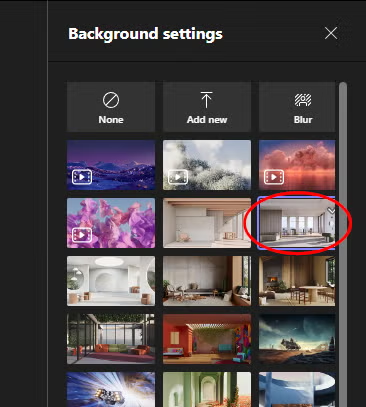
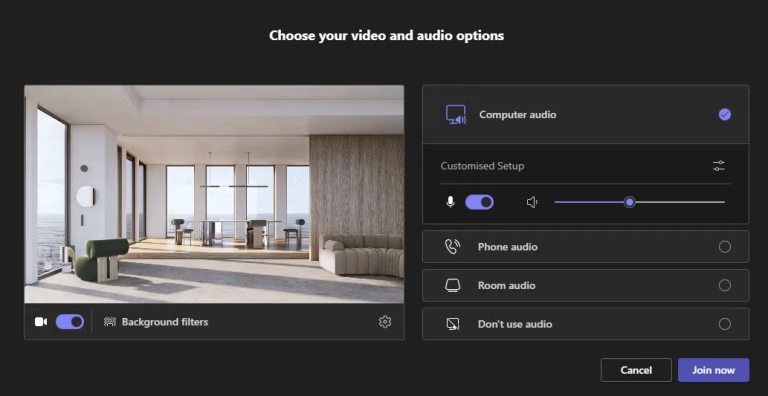
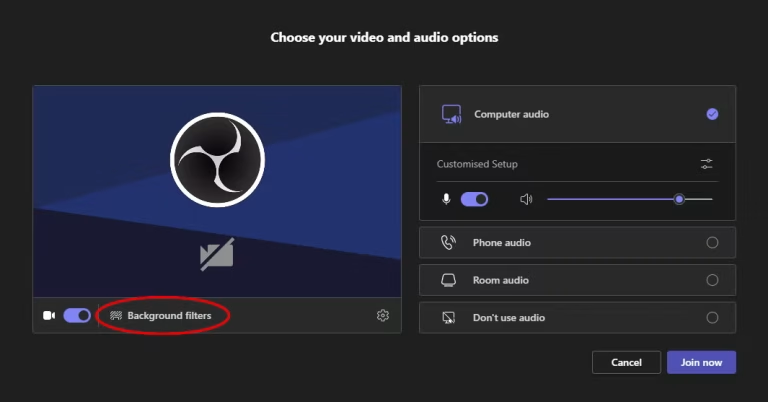
  • Open a Teams meeting – but before joining click ‘Background filters’
  • Choose a background image from the list
  • Your selected image should now be shown in the preview window
  • Join your meeting


If you don’t see any of the University corporate Teams backgrounds, please try the method below for personal computers.


Personal Computers

Follow these instructions if you are using your own personal computer, or if the corporate Teams backgrounds are not appearing on your University computer.
  • Go to Marketing’s MS Teams Backgrounds page on the Staff Intranet
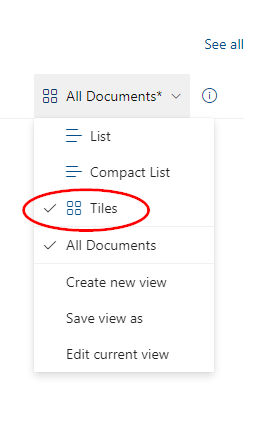
  • Switch the view to ‘Tiles’
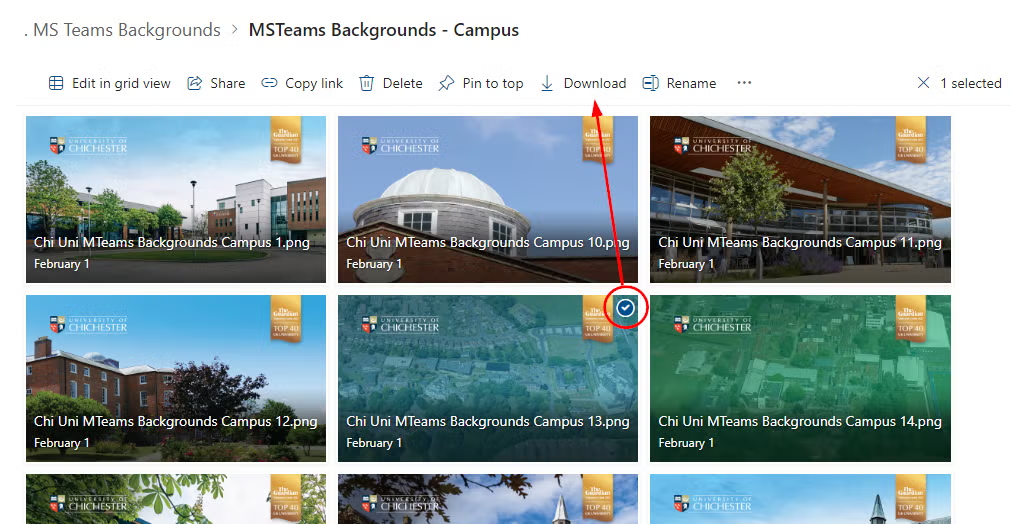
  • Navigate the folders to find an image you like
  • Tick the image and press ‘Download’ which saves the image to your computer
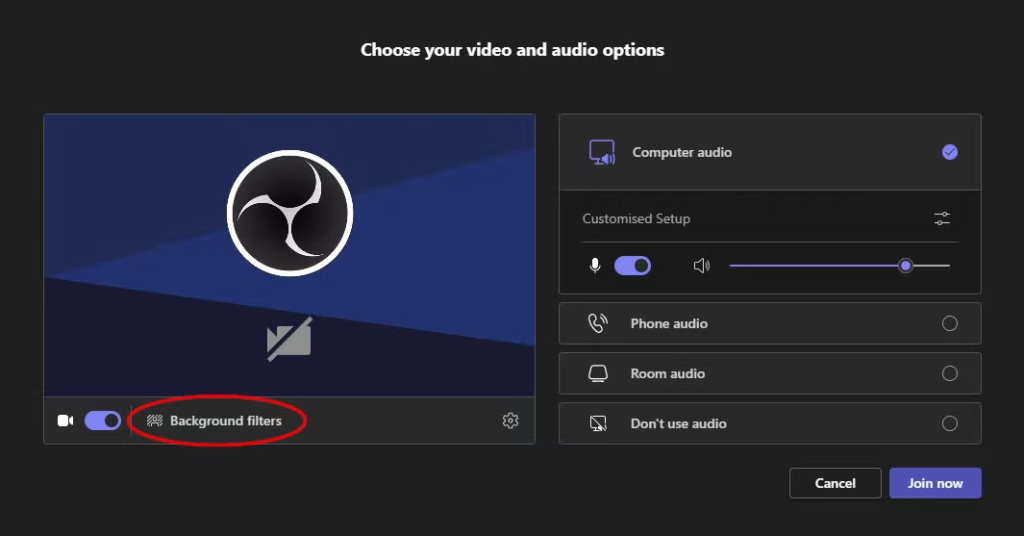
  • Open a Teams meeting – but before joining click ‘Background filters’
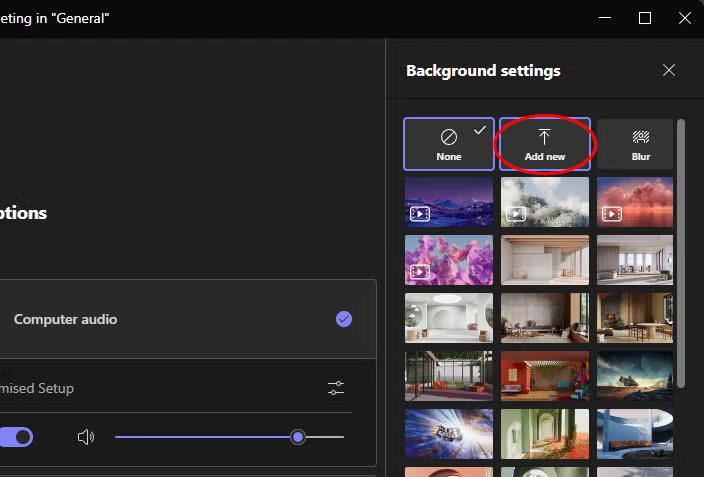
  • Click ‘Add new’
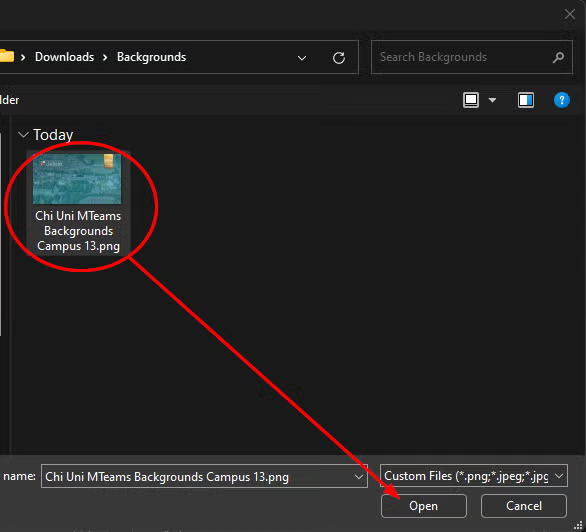
  • Choose the image that you saved on your computer and click ‘Open’
  • Your background image should now be loaded
  • Join your meeting
Was this article helpful?
Updated on January 21, 2026