
H Drive
Email
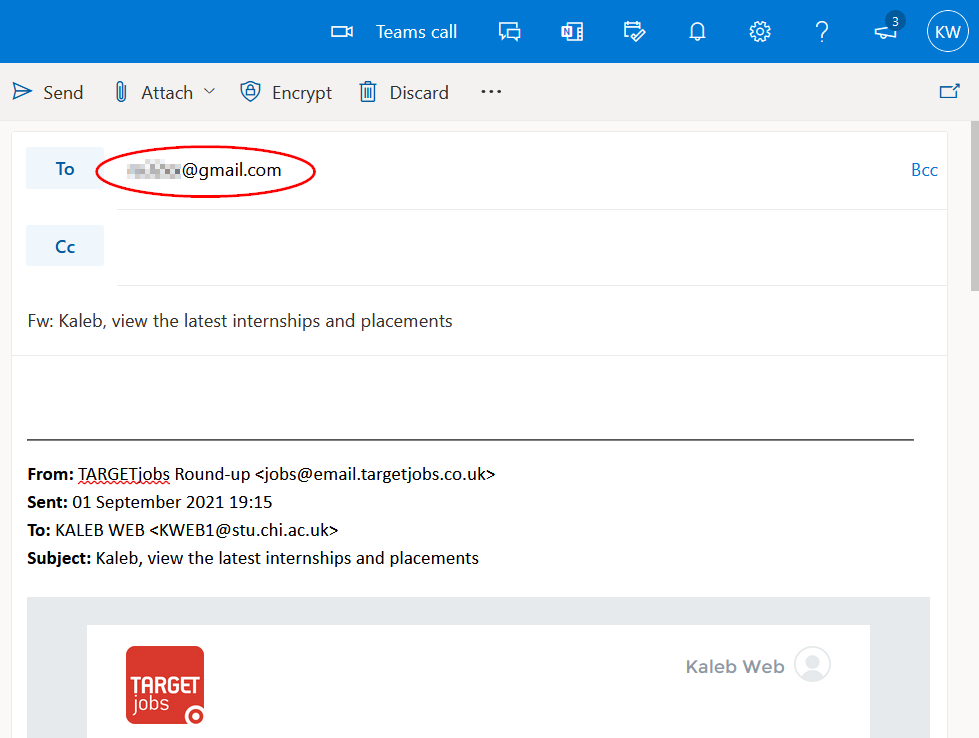
Any important emails should be forwarded to your personal email account:
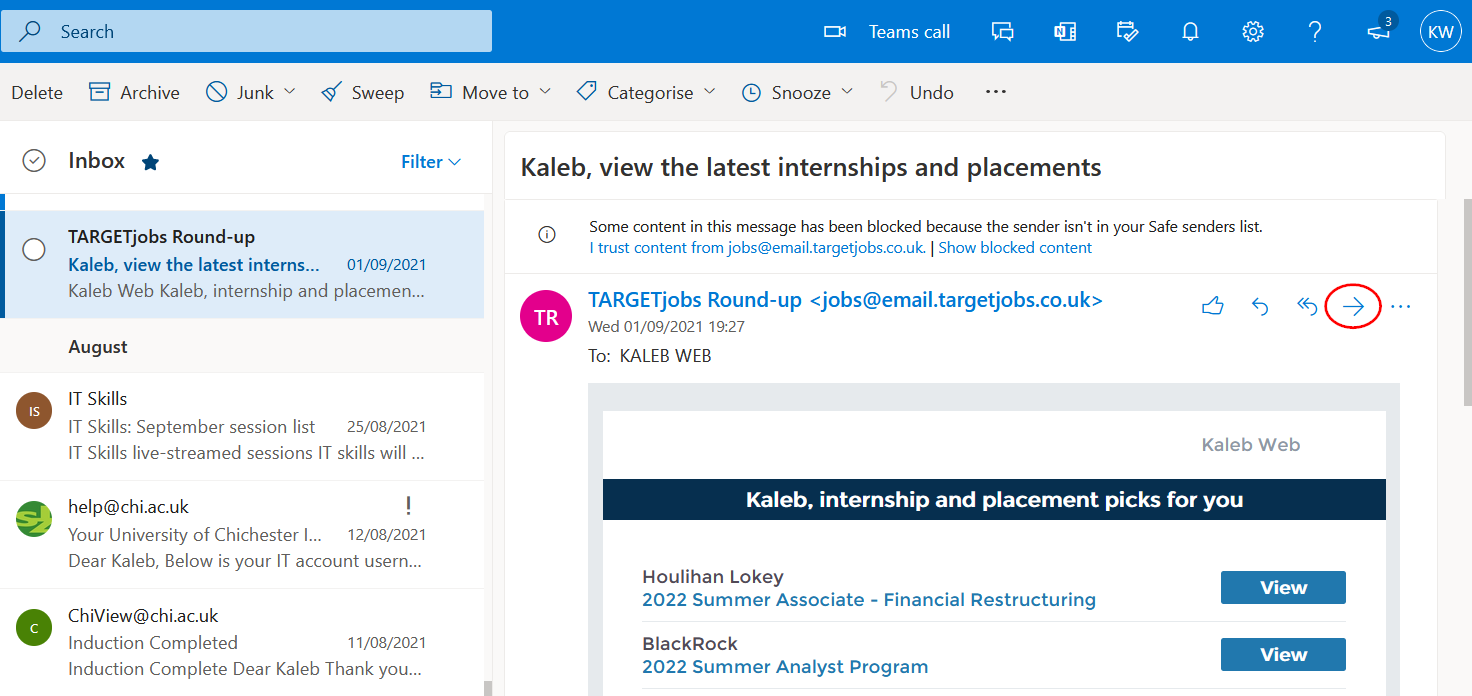
- Open your email in a browser via mail.chi.ac.uk
- Open an email and click ‘Forward’
- Input your personal email address and ‘Send’
Note: you cannot bulk send more than one email at a time
OneDrive
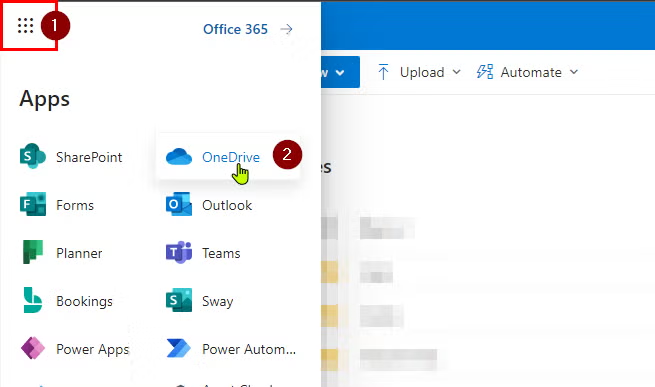
- Visit OneDrive in your browser via mail.chi.ac.uk
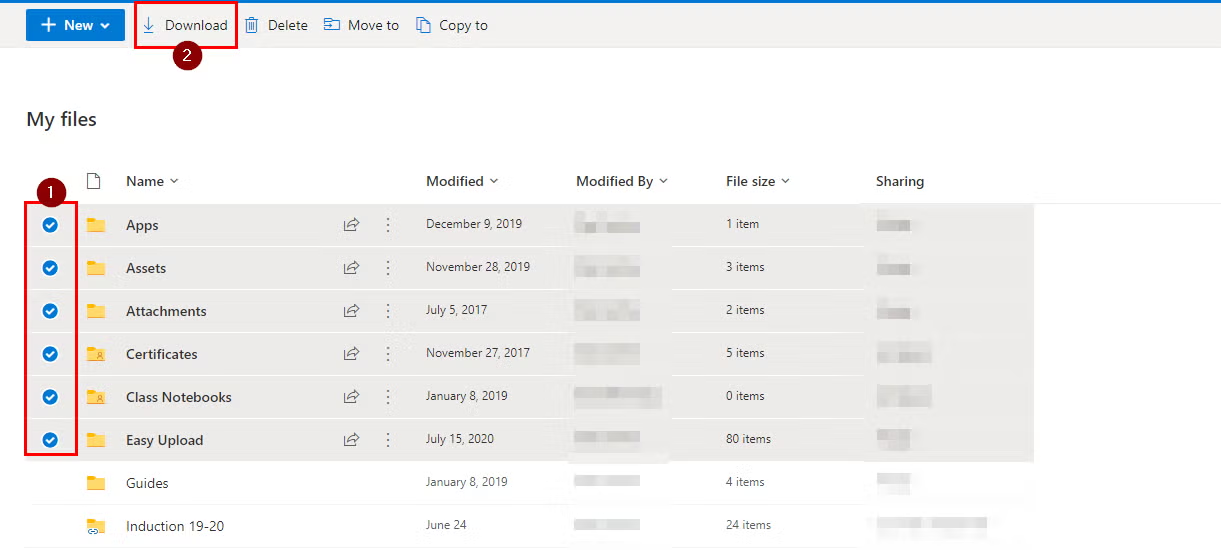
- Tick all of the files and folders you wish to take a copy of and once selected, select Download:
- This will then place all the folders/files you have selected into a ZIP folder and will downloaded to your downloads folder unless you have specified otherwise
Note: you cannot download OneNote files, they must be transferred within OneNote to a new notebook on a different account
Microsoft Teams
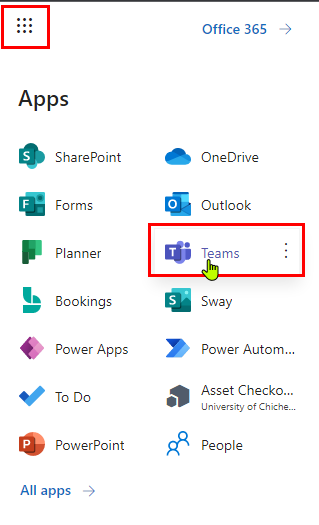
- To download files from a Team within the Microsoft Teams app, open Microsoft Teams from mail.chi.ac.uk
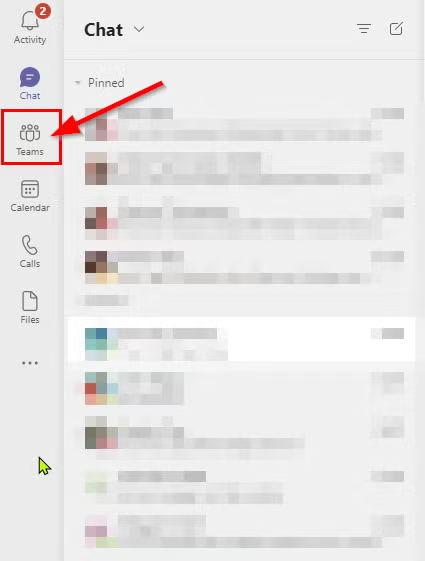
- Select the ‘Teams’ section of the navigation pane
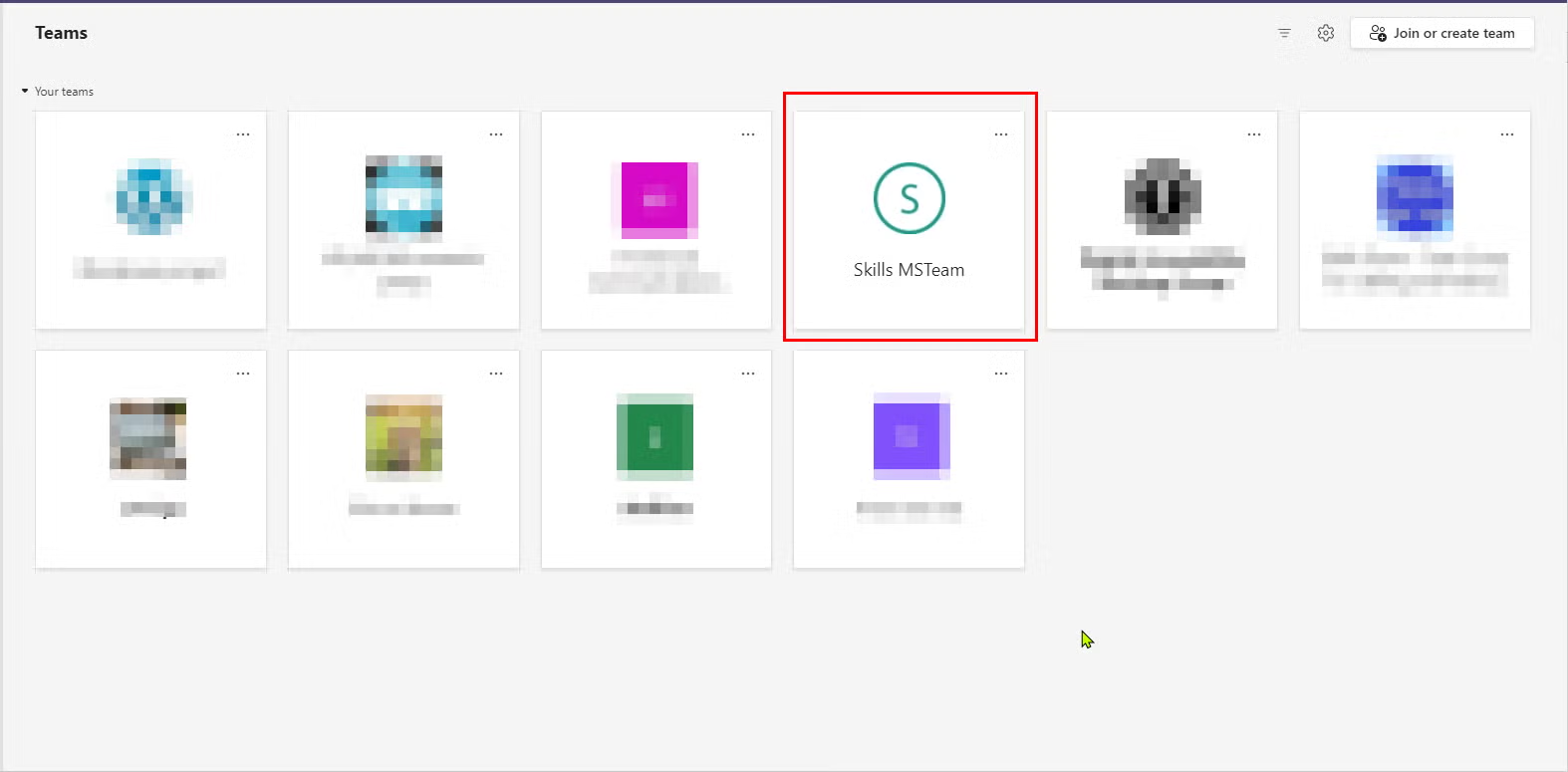
- Once on the Teams page, select the team you wish to copy the files from
- When Inside the Team, select the channel you wish to download files from, then select the ‘file’ tab of this channel, Press ‘download’ to download the entire content of the channel’s file tab to a ZIP folder
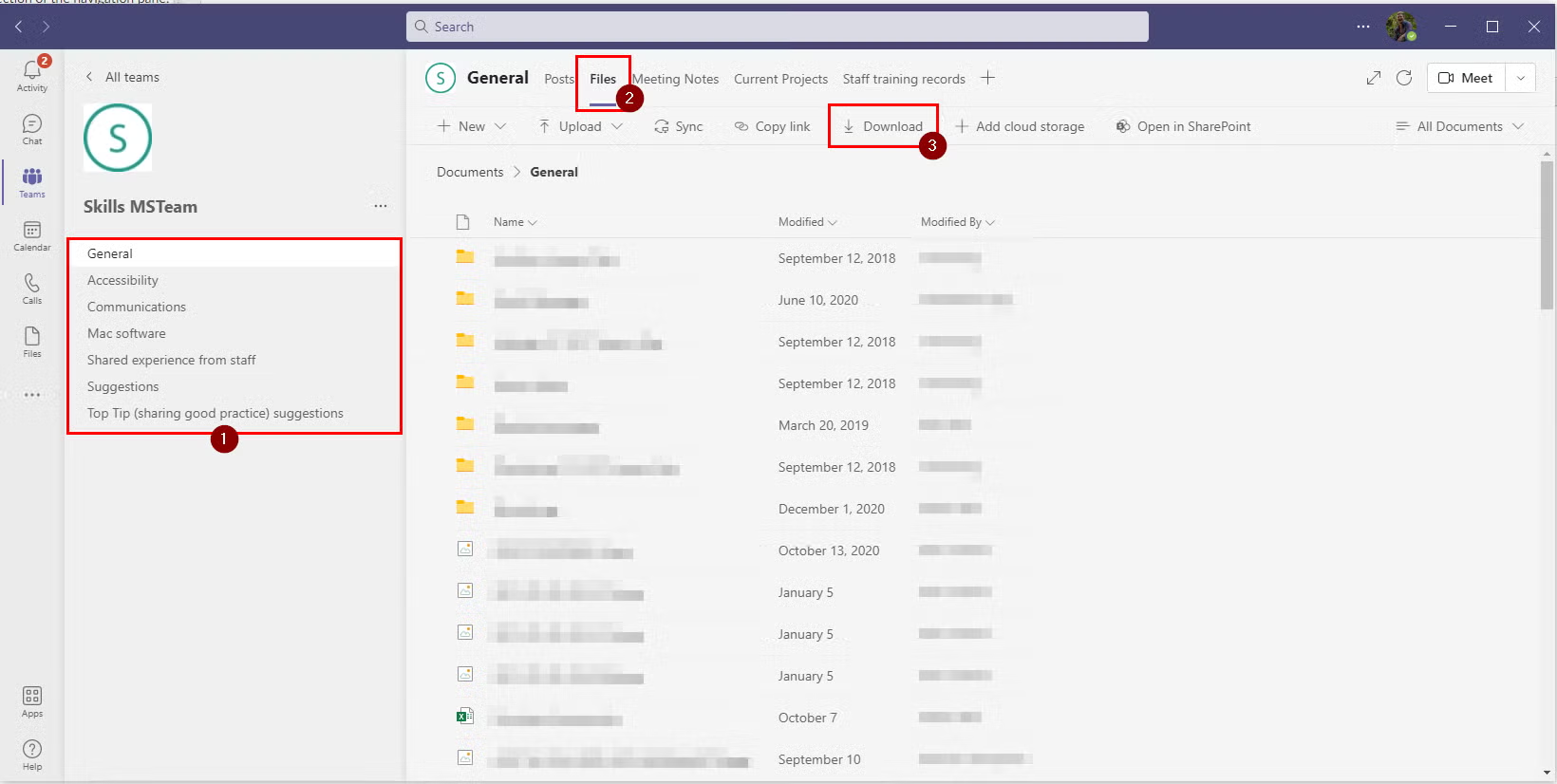
Note: this download will be saved to your Downloads folder on your computer unless you specify otherwise
Moodle
You may wish to download your assignments and course files from Moodle to your computer:
- Log on at moodle.chi.ac.uk
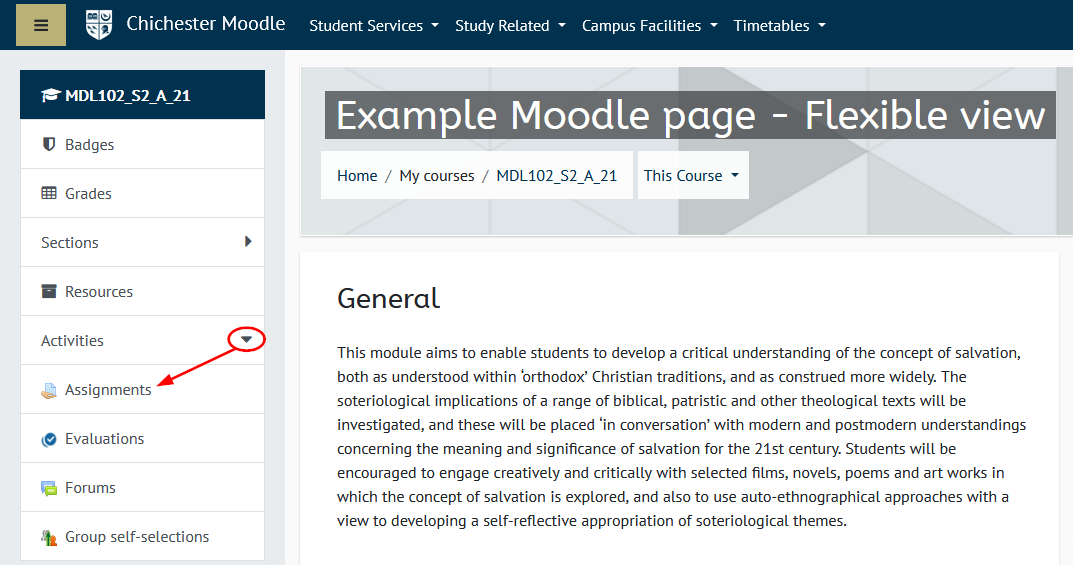
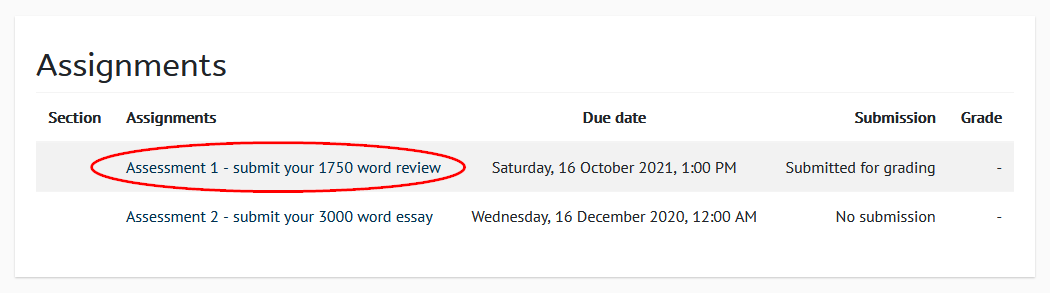
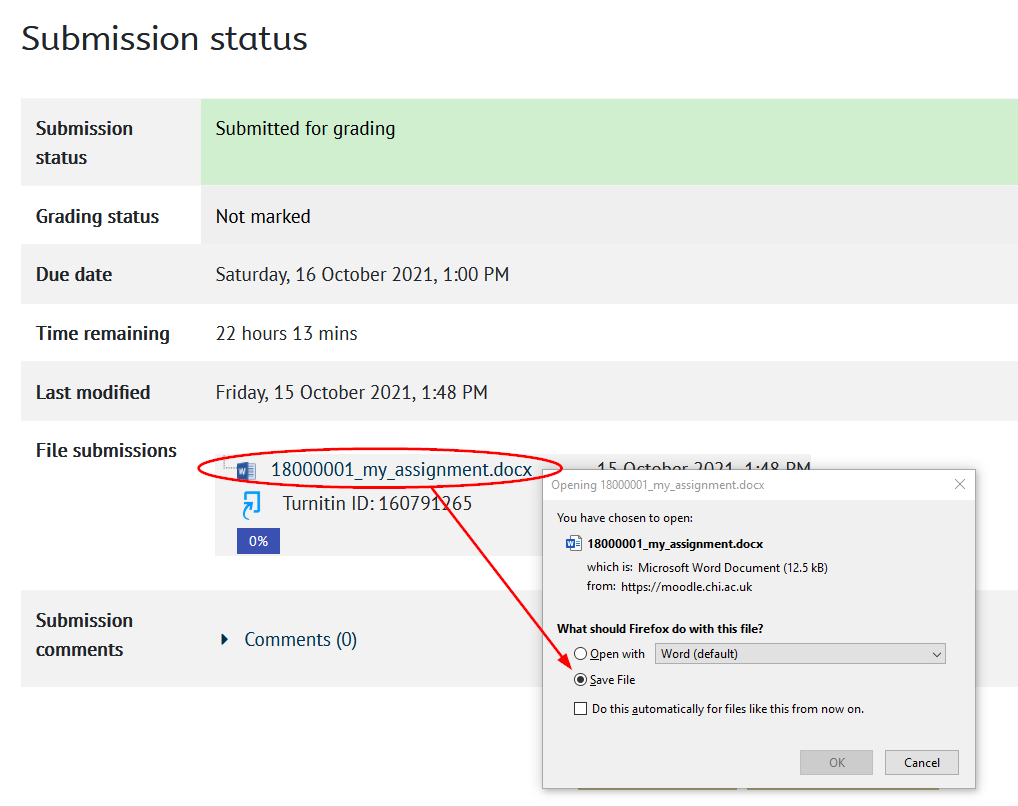
- To download assignments: open your Moodle page, expand ‘Activities’ and click ‘Assignments’ Open your assignment then click the assignment to download to your computer
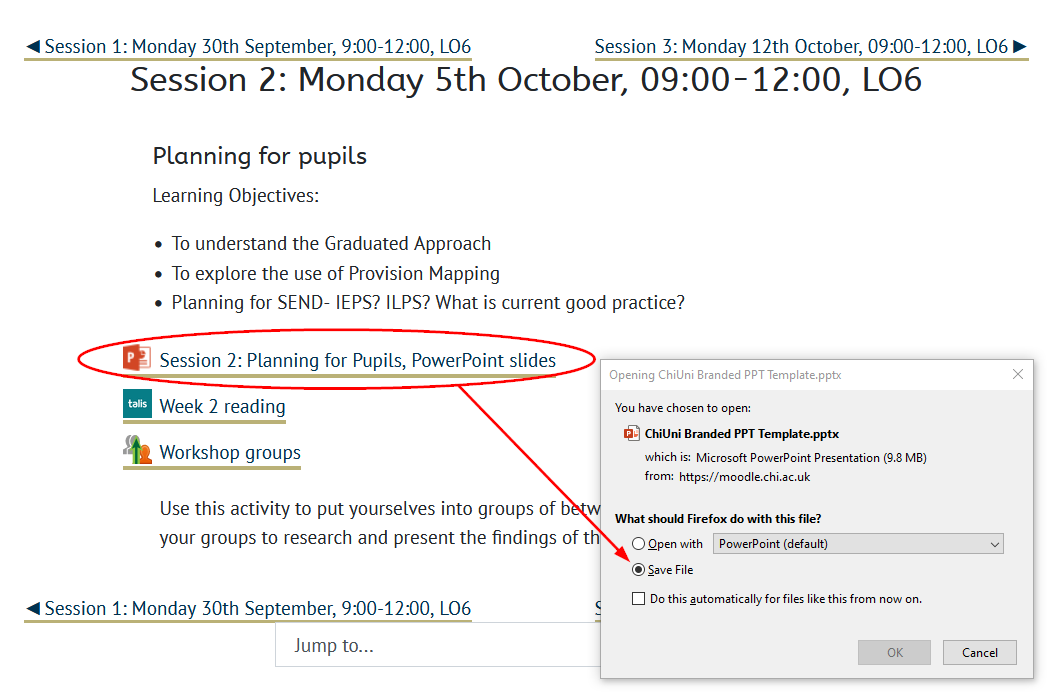
- To download course files: from any Moodle page click a file to download to your computer
Adobe Creative Cloud
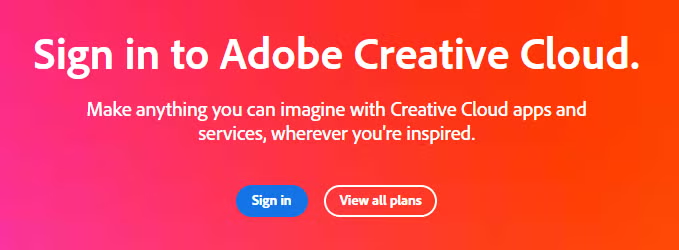
- Visit the Adobe Creative Cloud webpage and click ‘Sign in’
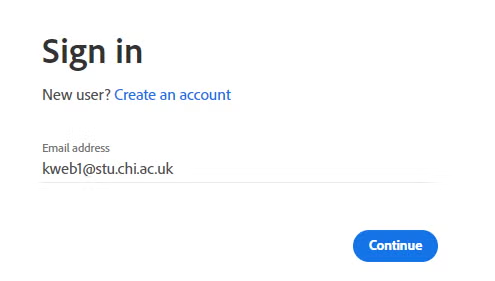
- Log on using your University email address
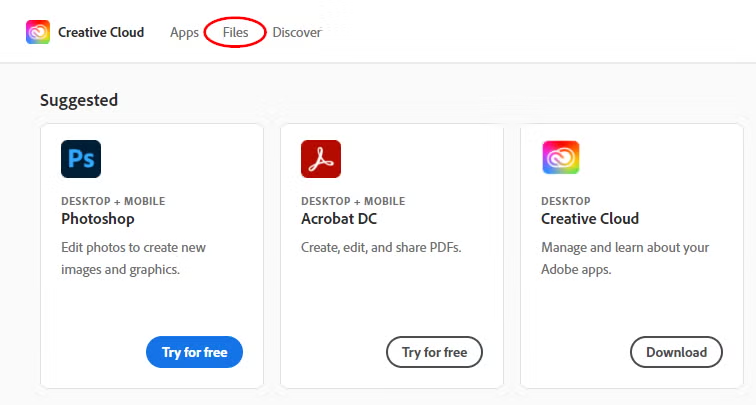
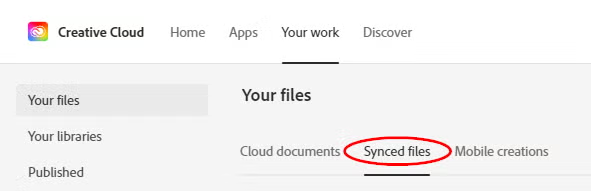
- Click ‘Files’ at the top then ‘Synced files’
- Select 1 of your files to download, click the 3 dots icon, then click ‘Download’
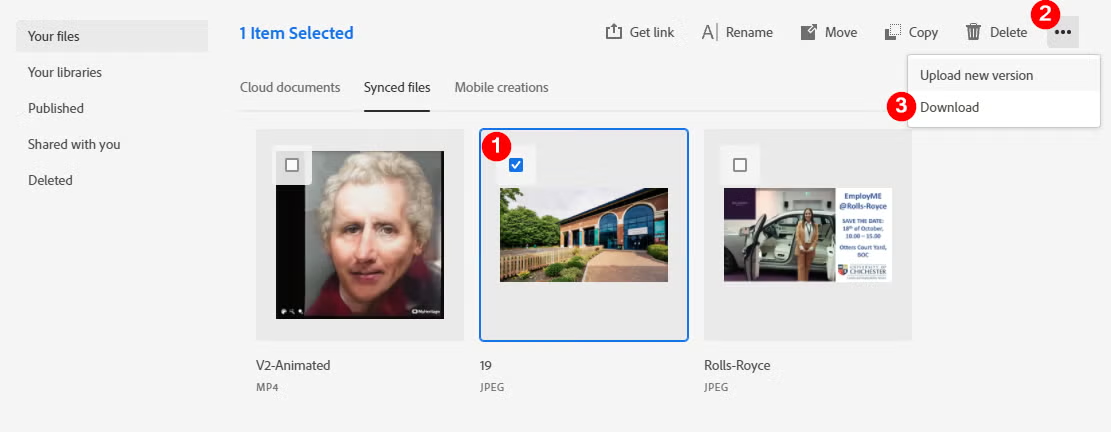
Note: you cannot select more than one file to download