
Show or Hide Formatting Marks (¶)
What it does
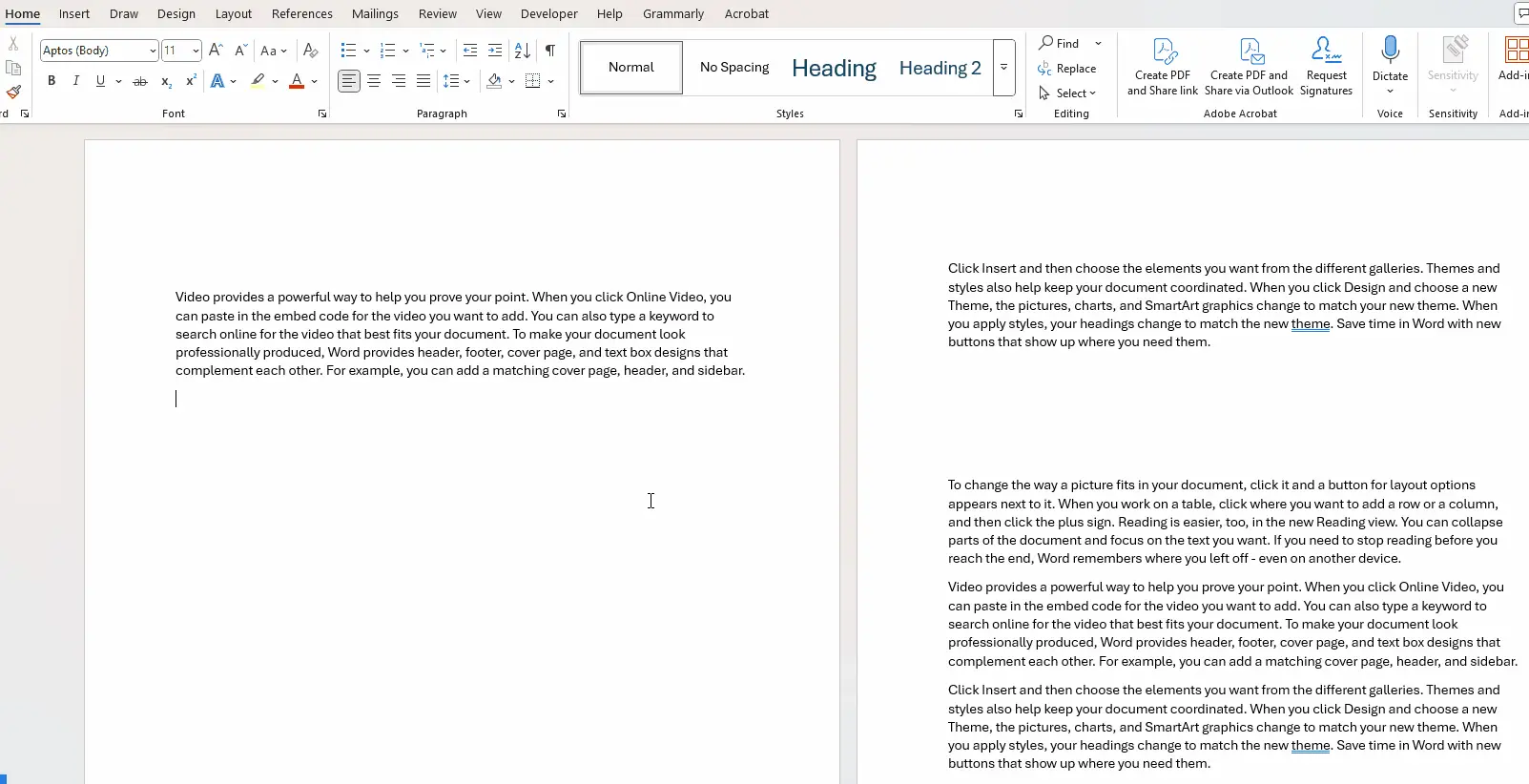
The Show/Hide button (¶) on the Home tab toggles the display of hidden formatting marks—such as spaces, paragraph breaks, tabs, section breaks, page breaks, hidden text, object anchors, optional hyphens, and optional breaks. These marks don’t appear in print but are helpful for understanding and troubleshooting document formatting
Why use it
- Editing clarity: Makes structure clear—especially helpful in complex documents with multiple breaks or hidden content.
- Troubleshooting layout issues: If spacing, alignment, or sections behave oddly, these symbols reveal the cause.
- Consistent formatting: Helps replicate or correct formatting in other parts of a document.
How to Turn It On or Off
- Open your document in Word.
- Go to the Home tab.
- Click the ¶ (Show/Hide) button in the Paragraph group to toggle the display of all formatting marks.
Picture
What Each Symbol Means
| Symbol | Meaning |
→ | Tab character |
· | Space between words |
¶ | Paragraph mark (Enter/return key) |
¬ | Optional hyphen (only appears when breaking words at line ends) |
…page break… | Manual page break |
…section break… | Section break (e.g., Next Page, Continuous) |
🔒 Hidden Text | Text formatted as hidden (underlined with dots) |
📌 Object Anchor | Indicates where an object (e.g., image, text box) is anchored |
↲ or similar | Optional line break control, mainly for East Asian typography |