Use Styles instead of Format Painter
If you use Styles in Word, you rarely need the Format Painter. Styles apply consistent formatting, such as font, size, colour, and paragraph settings across your entire document with a single click.
Format Painter
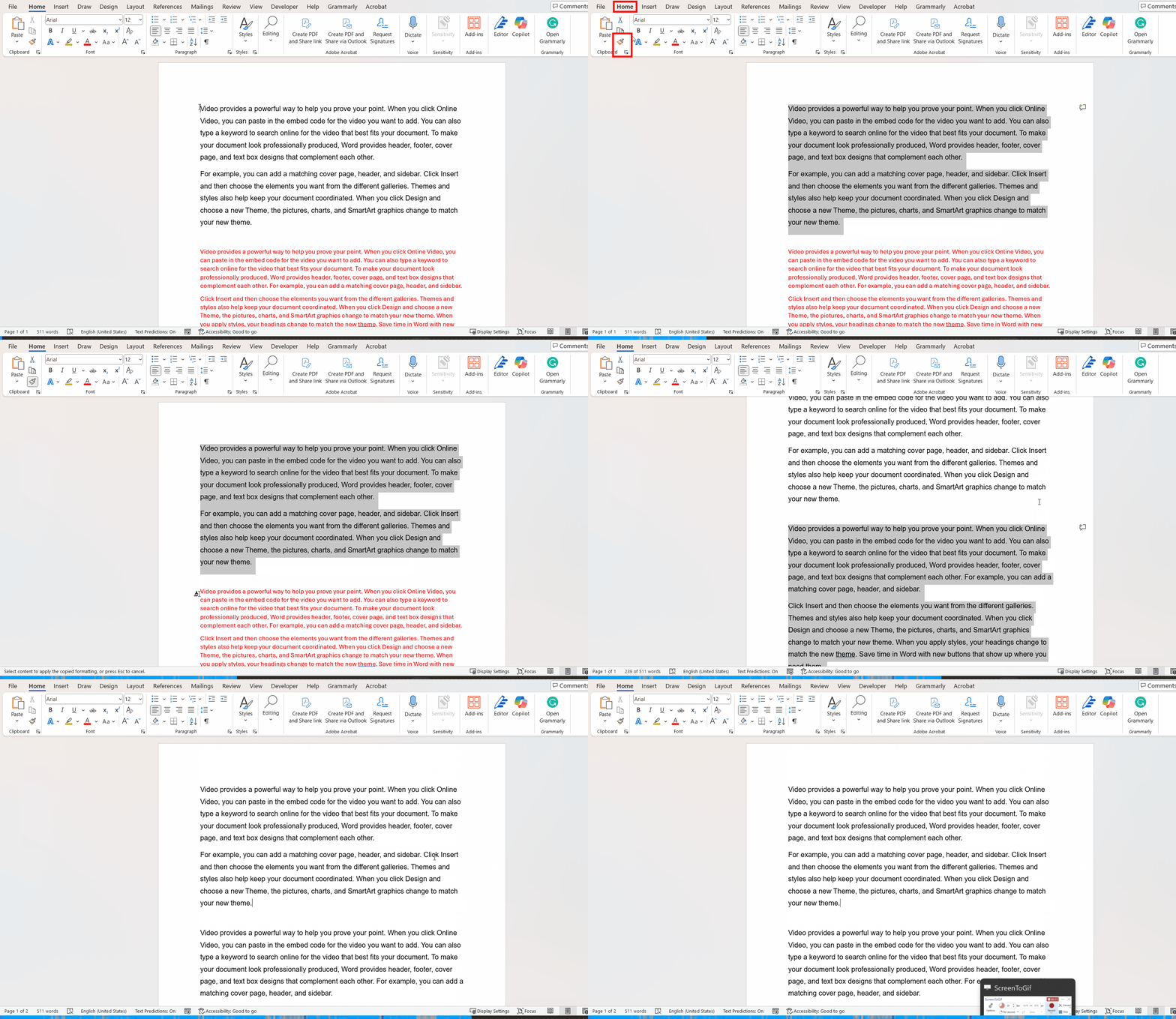
The Format Painter (the paintbrush icon in the Clipboard group on the Home tab) lets you copy all formatting—such as font style, size, color, borders, alignment, line spacing, and paragraph attributes—from one block of text or object and instantly apply it to another.
When to Use It
- Quickly replicate formatting across headings, paragraphs, tables, shapes, or images.
- Maintain visual consistency in documents like reports, newsletters, or training materials.
- Save time instead of manually adjusting each style.
How to Use It
1. Copy Formatting
- Select the text or object with the formatting you want to copy.
- Click the Format Painter icon once. The cursor changes to a paintbrush.
2. Apply Formatting (Single Use)
- Drag or click over the target text or object.
- Format Painter turns off automatically after one use.
3. Apply Formatting (Multiple Uses)
- Double-click the Format Painter icon to lock it on.
- Click or drag over each target to apply formatting to multiple areas.
- Press Esc or click the icon again to deactivate.
Picture