
MATLAB is a high-performance language for technical computing. It integrates computation, visualisation, and programming in an environment where problems and solutions are expressed in mathematical notation.
Simulink is a block diagram environment for multidomain simulation and model-based design. It supports simulation, automatic code generation, and continuous test and verification of embedded systems. Simulink is integrated with MATLAB.
MATLAB and Simulink are available to everyone at the University.
Click the headings below for step-by-step instructions for creating a MATLAB account, downloading MATLAB and installing MATLAB.
How to Register
Students and staff can download MATLAB by going to the MATLAB Portal.
MATLAB Portal requires a valid university email address. This gives you access to the licence.
- Go to the MATLAB Portal
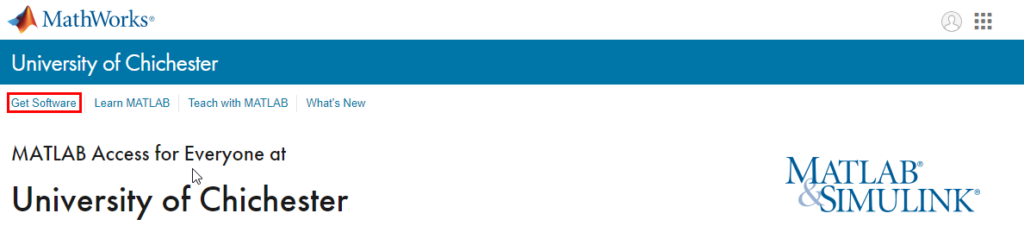
- At the top of the page select “Get Software”
- Press the “Sign in to get started” button
- At the sign in screen select “Create one!” to create a new account
- Complete the form, remembering to use your University email address e.g. kweb1@stu.chi.ac.uk
- You will receive a verification email to your University email account, ensure you press verify or follow the link provided
- Complete the form to create your Profile and then select the create button
The MATLAB Portal also includes training resources
How to Download
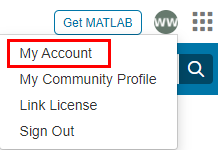
Once you have completed your profile you will be taken to your account page. To return to the account page at any point select your initials in the top right and then select “My Account”
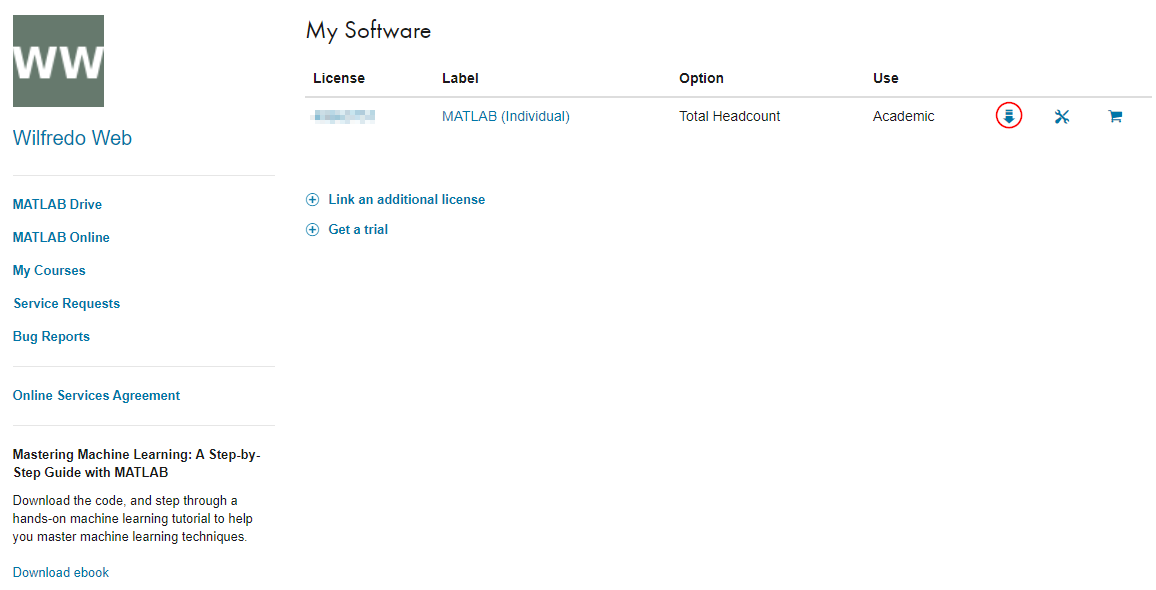
- From the Account Page select the download Icon, do not select “Install MATLAB” if presented with the option
- On the right of the page scroll down and select the R2017b (this is the currently version installed on University computers)
NB. Users running macOS will need to check their system requirements on this page System Requirements, it may be necessary to install a more recent version of MATLAB. - On the download page select the OS installer you require under step one. You may need to install update packs after you have installed MATLAB.
How to Install (Windows)
After downloading the Windows Installer follow the steps below.
- Run the Windows installer from your downloads folder.
- When prompted to select an installation method select “Log in with a MathWorks Account”
- Accept the Licence Agreement
- Enter the University Email that you used during the sign up steps
- Select the University Licence from the list of available licences, there should only be one unless you have purchased your own
- Keep the installation location as the default
- From the list of available components select those which you require
- Select if you wish to have a desktop shortcut, start menu link and whether you wish to share user experience data with MathWorks then proceed to installation.
- When the installation complete ensure the “Activate MATLAB” box is ticked, press next until activation is complete.
You may be advised on the Download page that a bug fix is available, download this and run the update
Once complete instal the Bug Fix pack available on the download page. Use all the default settings for the Bug Fix installer.
How to Install (macOS)
- Run the macOS dmg from your downloads folder.
- Double click the “InstalForMacOSX” file.
You may be warned about opening files from the internet. Select the open option if prompted.
Provide your local device password if prompted. - When prompted to select an installation method select “Log in with a MathWorks Account”
- Accept the Licence Agreement
- Enter the University Email that you used during the sign up steps
- Select the University Licence from the list of available licences, there should only be one unless you have purchased your own
- Keep the installation location as the default
- From the list of available components select those which you require
- When the installation complete ensure the “Activate MATLAB” box is ticked, press next until activation is complete.
Once complete instal the Bug Fix pack available on the download page. Use all the default settings for the Bug Fix installer.