There are several ways to re-size a column or row, each has a specific use and will benefit you in different ways depending on what you wish to accomplish.
Click and drag a column or row header’s boundary: #
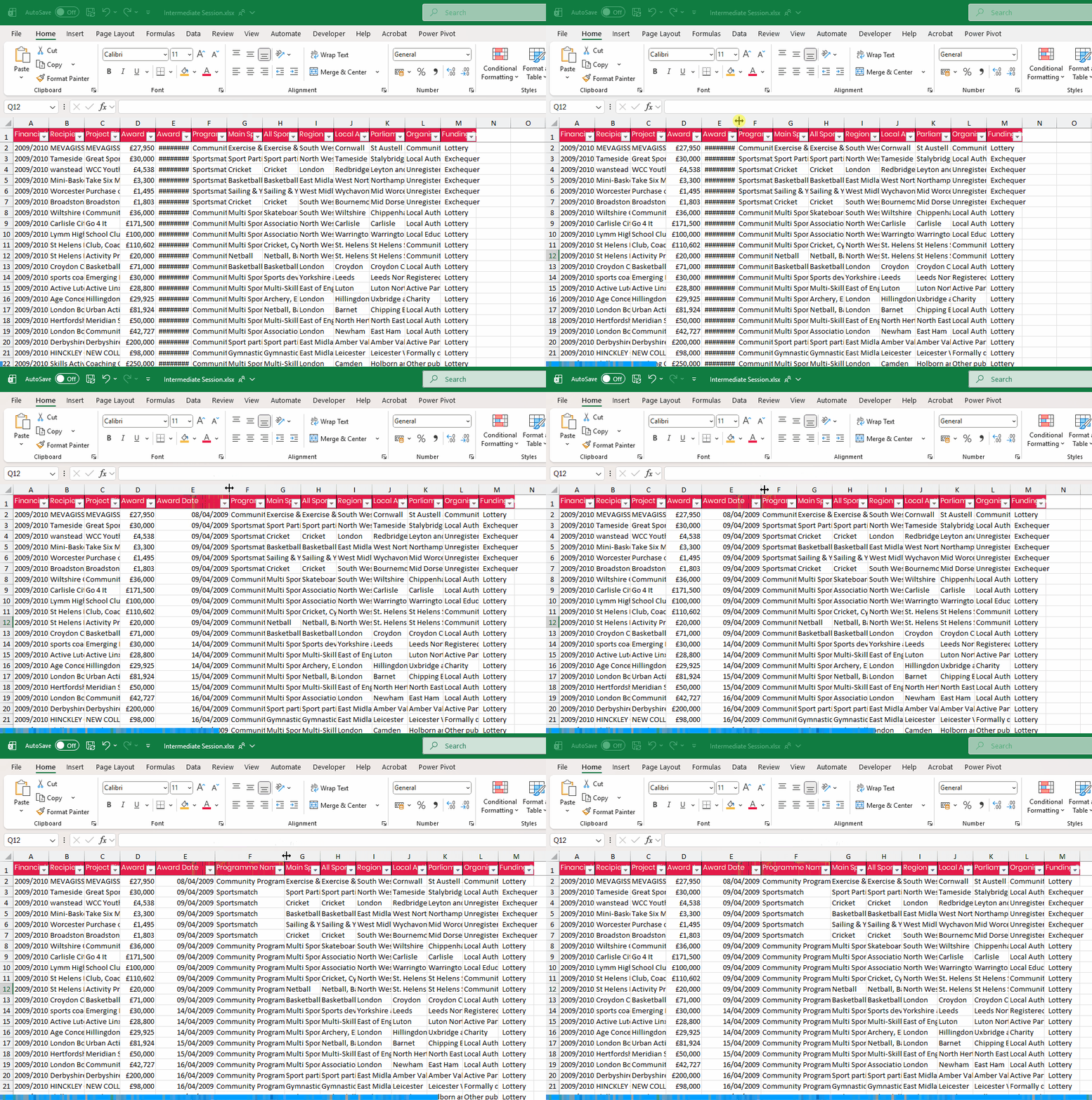
To resize an individual column or row you can click and drag wider or small the header’s boundary. The is the separating line that runs between the letter or number between the column or row.
Double clicking a column or row header’s boundary: #
If instead we double-click the column/row header boundary it will automatically resize said row or column to the maximum extent of it’s contents. What’s meant by this is that it will re-size to the minimum size required to fit in the data in within that row or column.
Selecting multiple columns and then dragging or double clicking a boundary: #
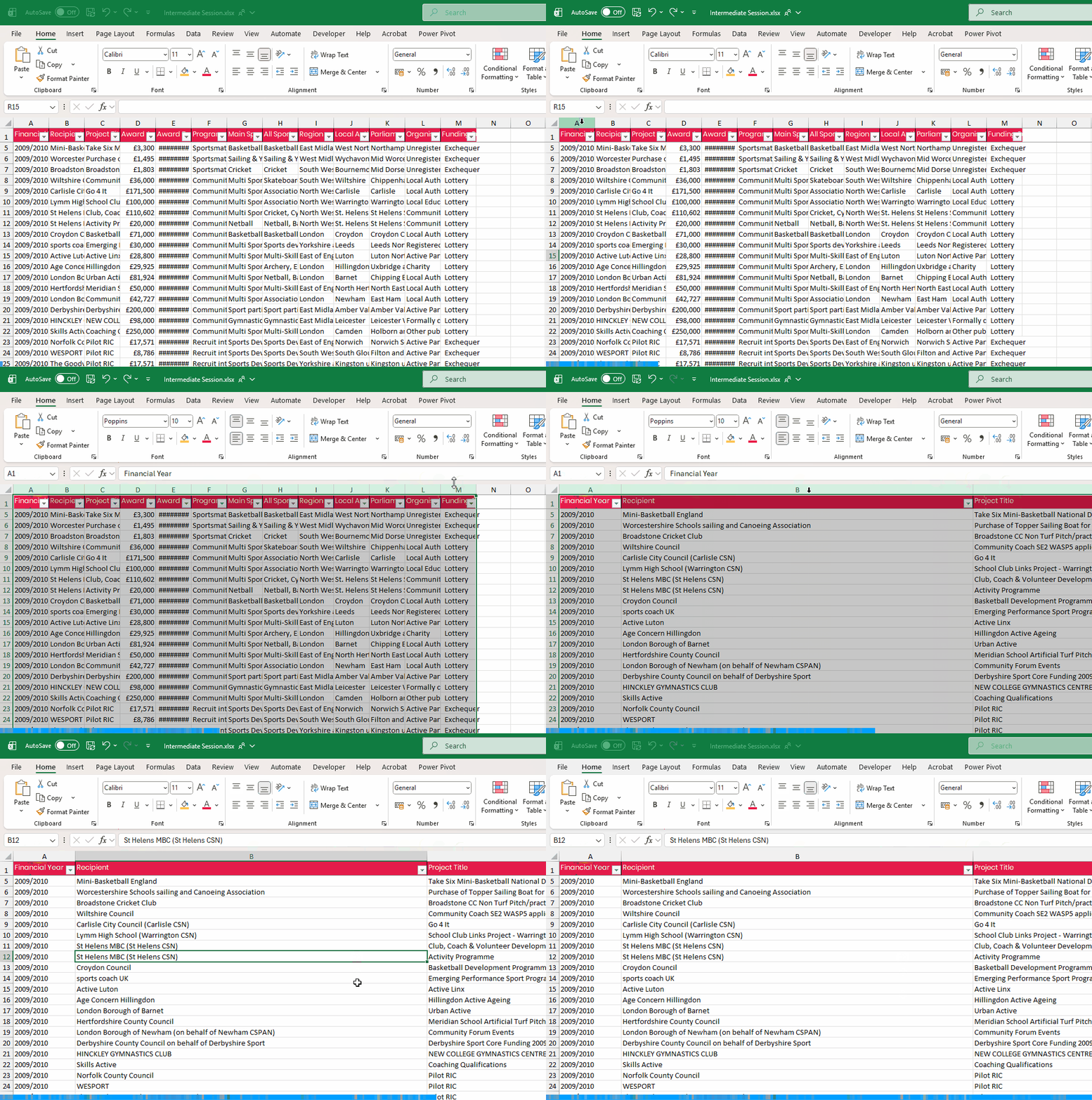
If you need to re-size multiple columns or rows at once you can click and drag around all the column or row headers you want to resize and you use either the double click method or click and drag method mentioned above to apply this across all rows or columns selected.