Step by step guides #
Windows
Connecting to eduroam #
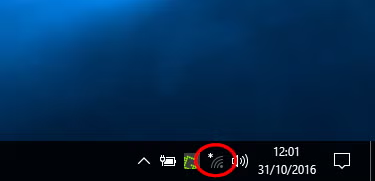
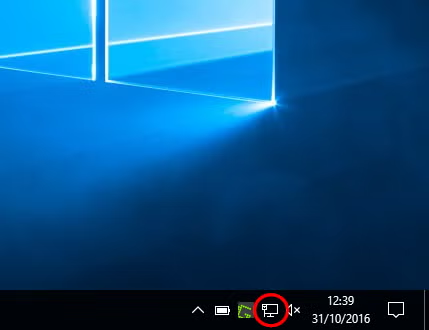
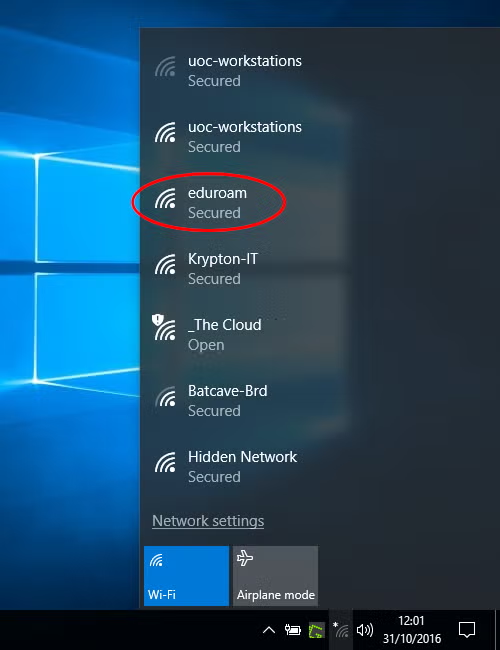
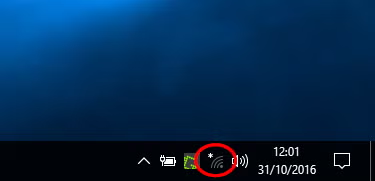
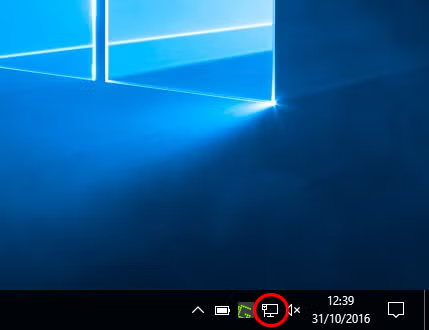
- Left-click the network icon in the system tray. This is next to the time/date in bottom right corner and may look like a dot with a curved lines or a computer screen with a cable
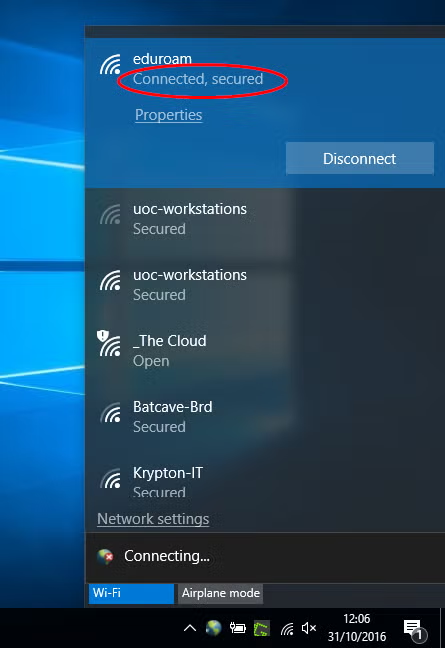
- From the list of networks click ‘eduroam‘
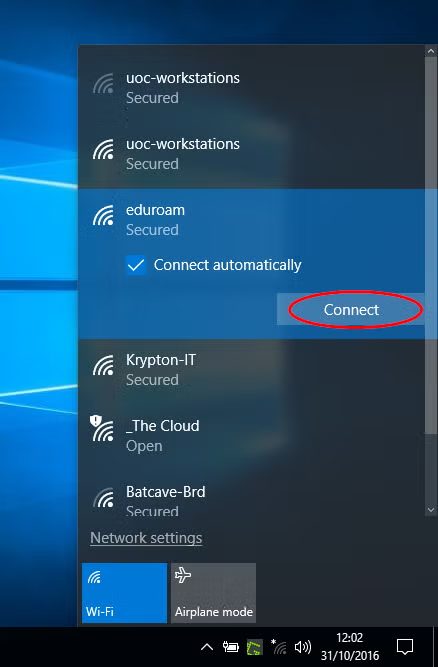
- Decide if you want to connect automatically, then click ‘Connect‘
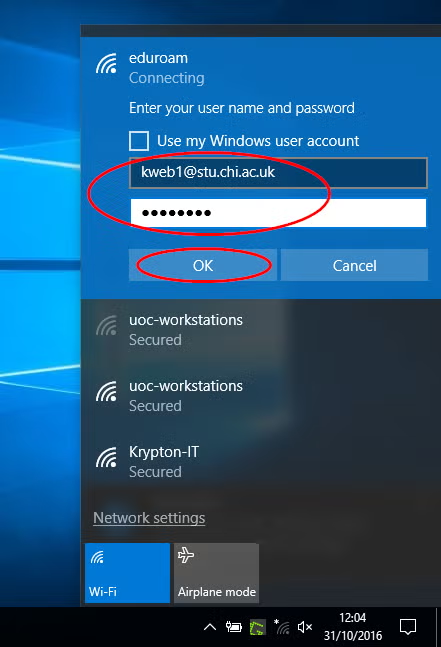
- Input your University email address and password (not your username), then click ‘Ok‘
Student example: dweb1@stu.chi.ac.uk or 2504934@stu.chi.ac.uk
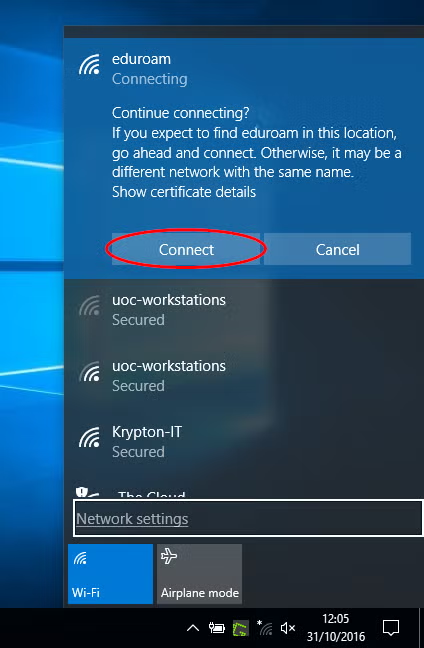
Staff example: b.reynolds@chi.ac.uk - Click ‘Connect‘ when prompted to continue
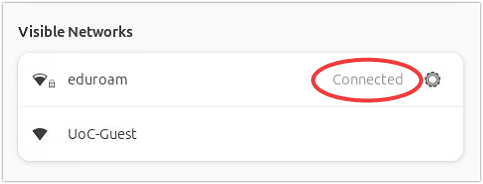
- If your email address and password was successfully entered, you’ll see the word ‘Connected‘ appear under the eduroam network
Wi-Fi connection problems #
If you are still having difficulties connecting to Wi-Fi after following instructions on this page, please get in touch with the SIZ by emailing help@chi.ac.uk or by phone on 01243 816000.
Removing the eduroam Wi-Fi network #
- Click the network icon in the system tray. This is next to the time/date in bottom right corner and may look like a dot with a curved lines or a computer screen with a cable
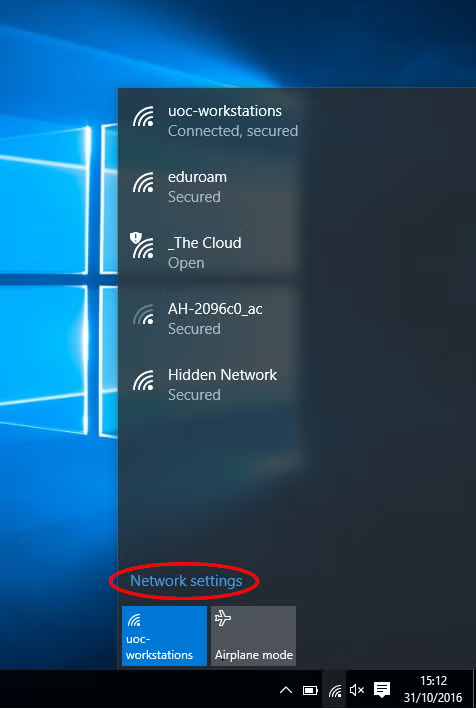
- Select ‘Network settings’
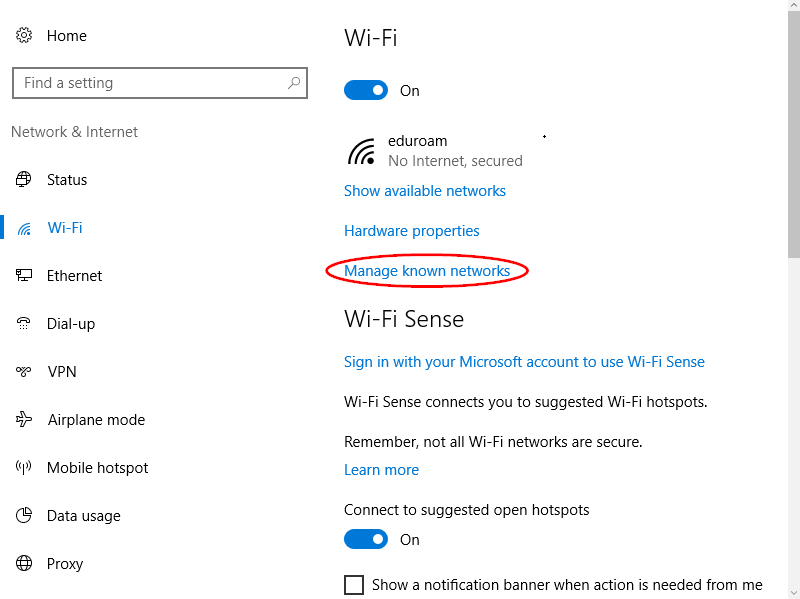
- Choose ‘Manage known networks’
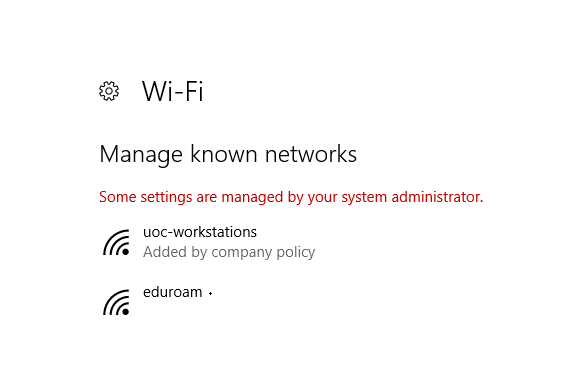
- From the list of known networks, select the one you would like to edit
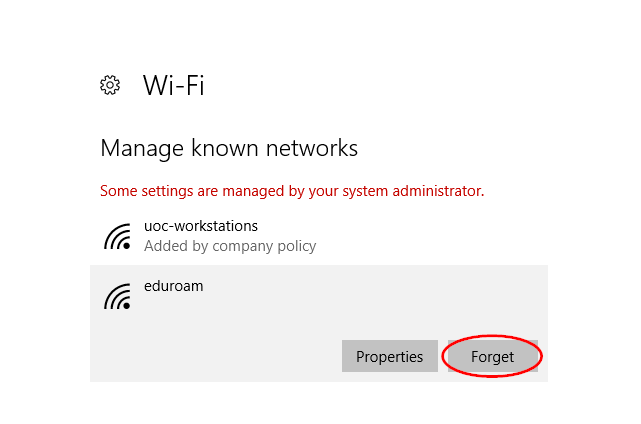
- Select ‘Forget‘
Apple Mac
Connecting to eduroam #
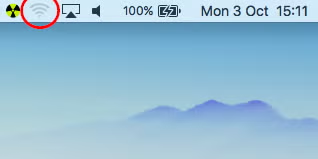
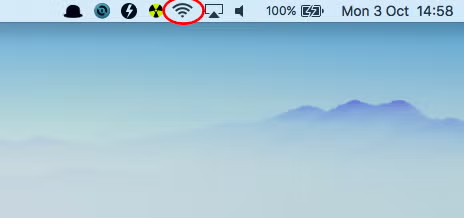
- Click on the Wi-Fi status icon in the top menu bar
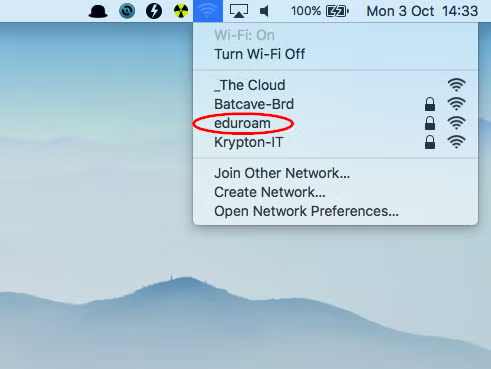
- Check Wi-Fi is turned on, then select ‘eduroam‘
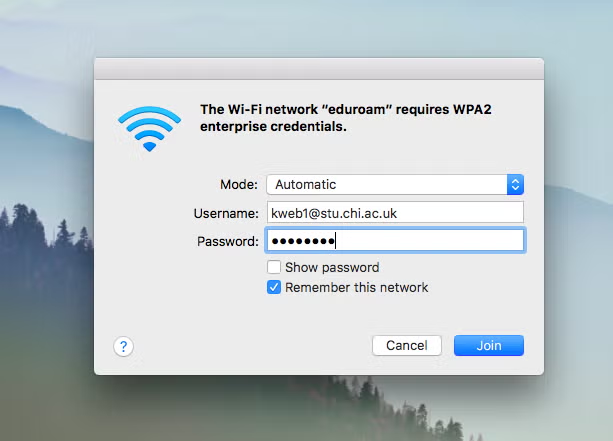
- Insert your university email address and network password
selecting ‘Remember this network‘ and click ‘Join‘ - If prompted to verify certificate, click ‘Continue‘ entering your Mac username and password, and click ‘Update Settings’
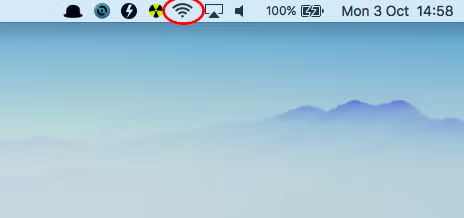
- You should now be connected, with the Wi-Fi status icon showing active
Wi-Fi connection problems #
If you are still having difficulties connecting to Wi-Fi after following instructions on this page, please get in touch with the SIZ by emailing help@chi.ac.uk or by phone on 01243 816000.
Removing the eduroam Wi-Fi network #
- Click on the Wi-Fi status icon in the top menu bar
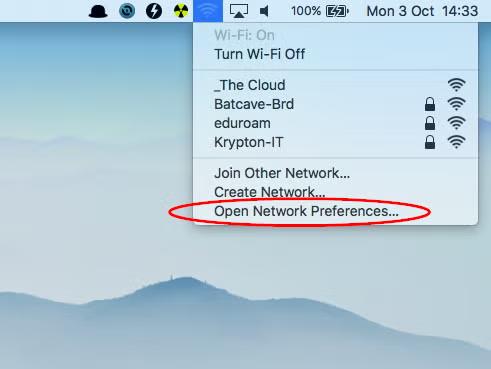
- Select ‘Open Network Preferences’ from the dropdown menu
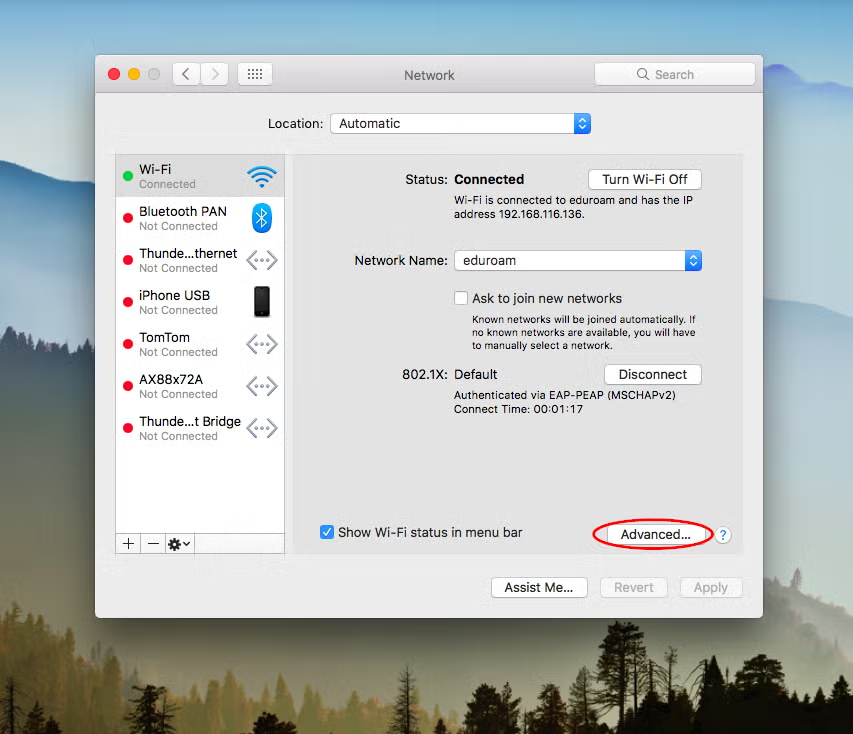
- Click ‘Advanced’
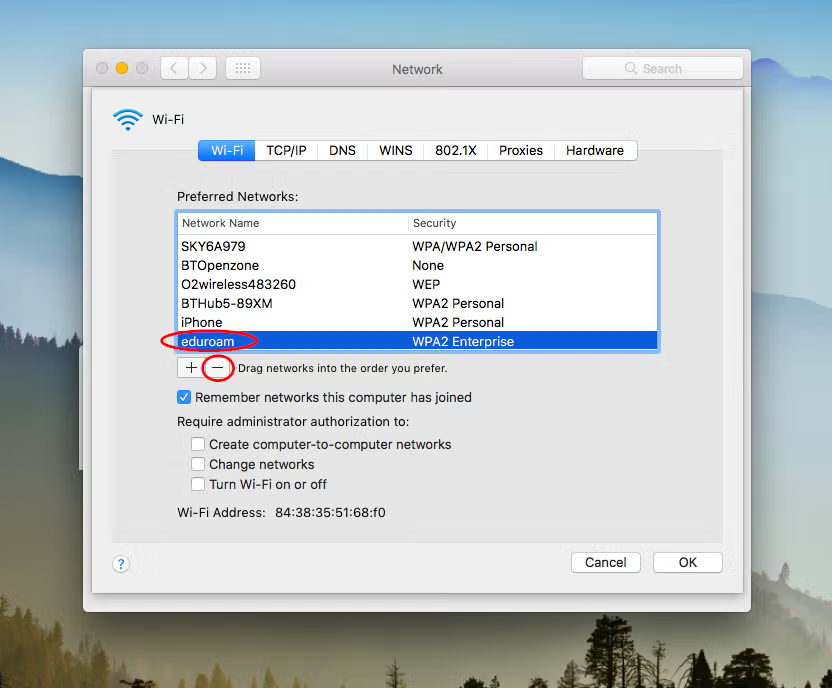
- Make sure ‘eduroam‘ is highlighted, and click the ‘minus’ sign to remove the eduroam network
- Finally click ‘OK’ then ‘Apply‘ to save, which will auto disconnect from Wi-Fi
For older versions of Mac OSx you may need to manually click ‘Disconnect‘
iPhone and iPad
Connecting to eduroam #
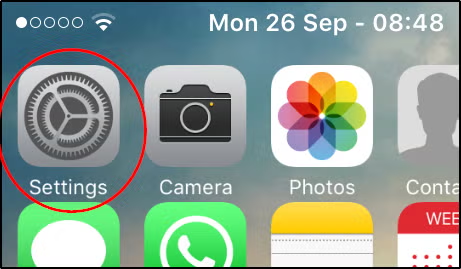
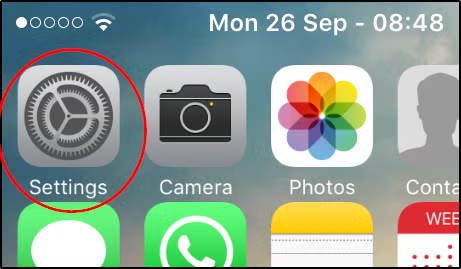
- Tap ‘Settings‘ on your iPhone/iPad
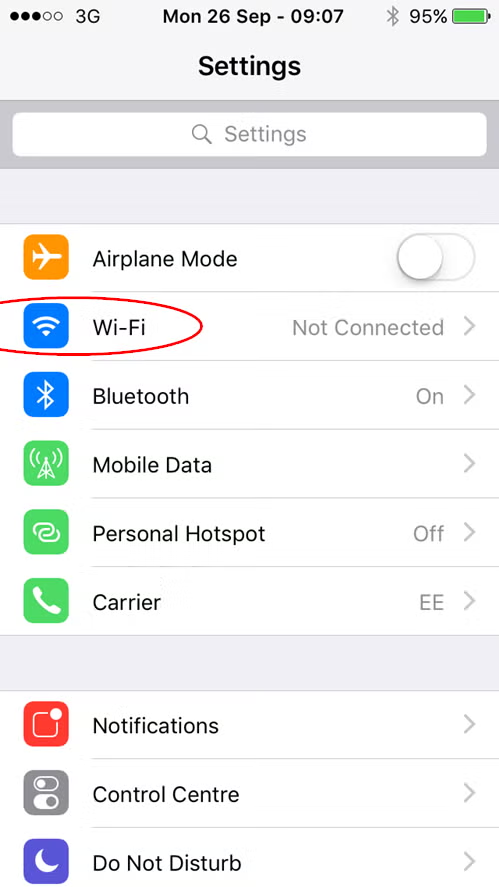
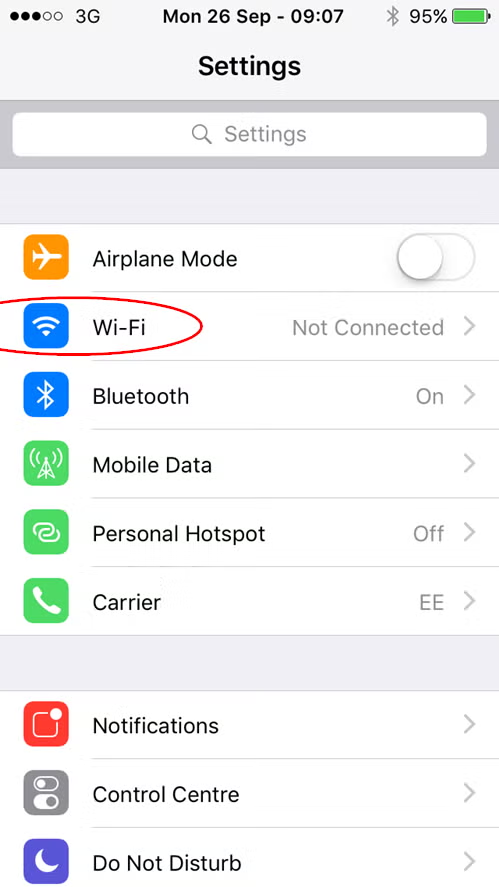
- Choose’Wi-Fi’
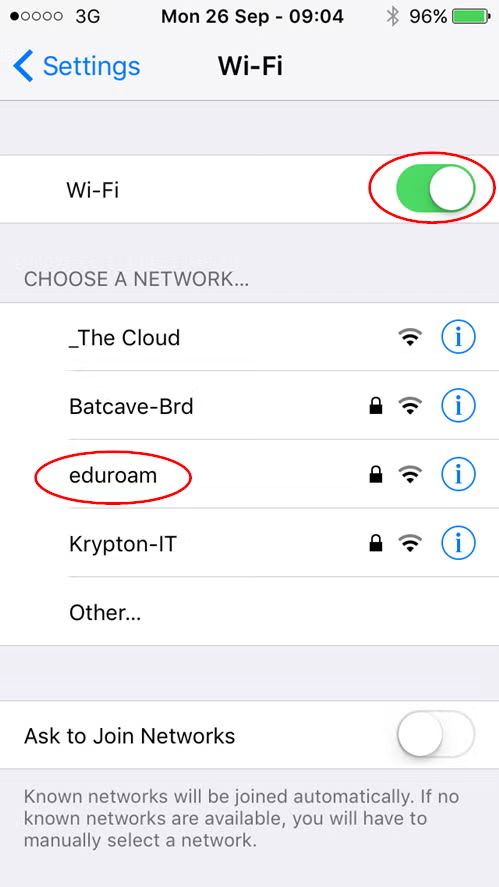
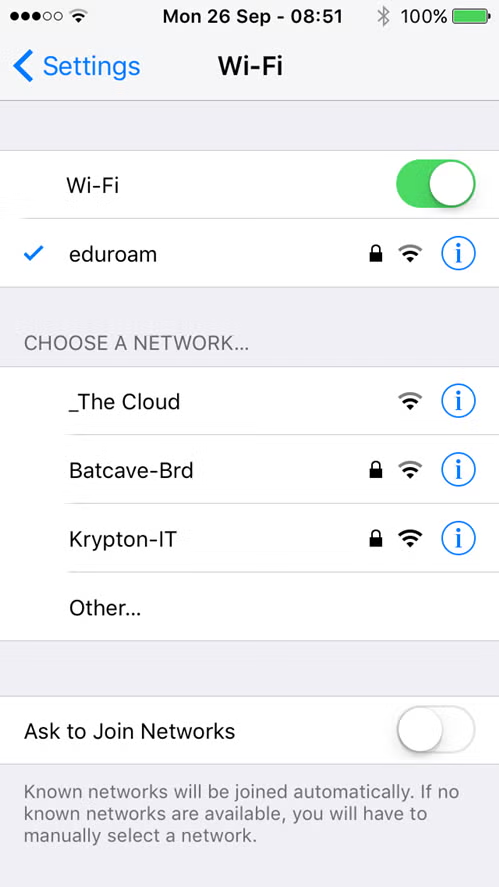
- Make sure Wi-Fi is on, then select the ‘eduroam‘ network
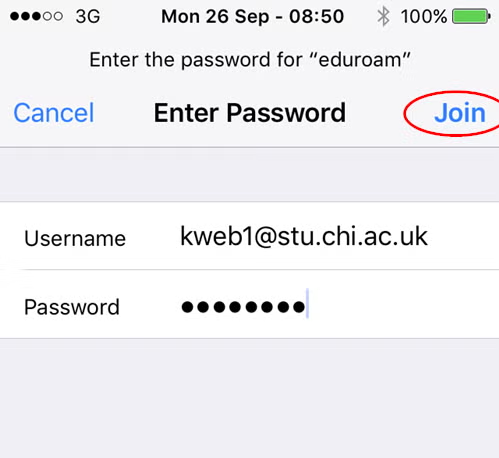
- Enter your University email address and password, then tap ‘Join‘
- Student example: cweb1@stu.chi.ac.uk or 2598734@stu.chi.ac.uk.
- Staff example: b.reynolds@chi.ac.uk
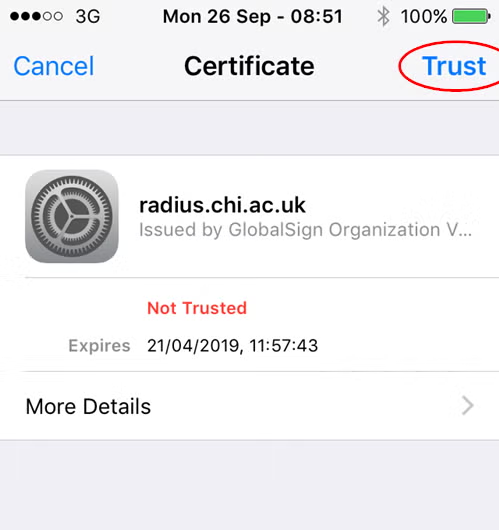
- Click ‘Trust‘ for the GlobalSign certificate
- If you see a tick to the left of eduroam then you’re connected
Wi-Fi connection problems #
If you are still having difficulties connecting to Wi-Fi after following instructions on this page, please get in touch with the SIZ by emailing help@chi.ac.uk or by phone on 01243 816000.
Removing Wi-Fi networks #
- When in range of the Wi-Fi network, tap ‘Settings‘ on your iPhone/iPad
- Choose ‘Wi-Fi’
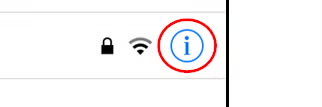
- On the list of Wi-Fi networks, tap the ‘i‘ icon next to eduroam
- Tap ‘Forget This Network’
- You will be asked to confirm this action, tap ‘Forget‘ if you do indeed want to forget this network
Android
Connecting to eduroam #
- From home screen select the ‘Programs/Apps’ icon, then choose ‘Settings‘
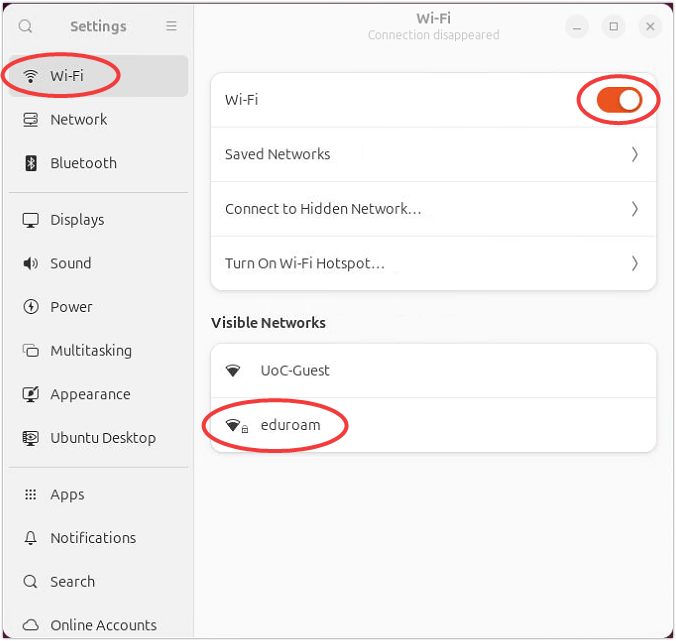
- Make sure the Wi-Fi switch is on then tap ‘Wi-Fi’
- Choose the ‘eduroam‘ network
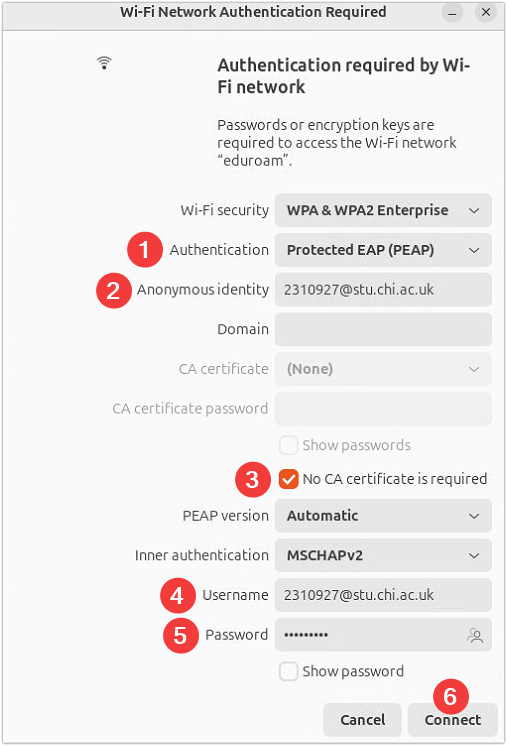
- Set the following authentication information, then ‘Connect‘
EAP method | PEAP |
Phase 2 authentication | MSCHPAV2 |
CA certificate up to Android 11 | ‘Do not check/validate’ or ‘Please select’ |
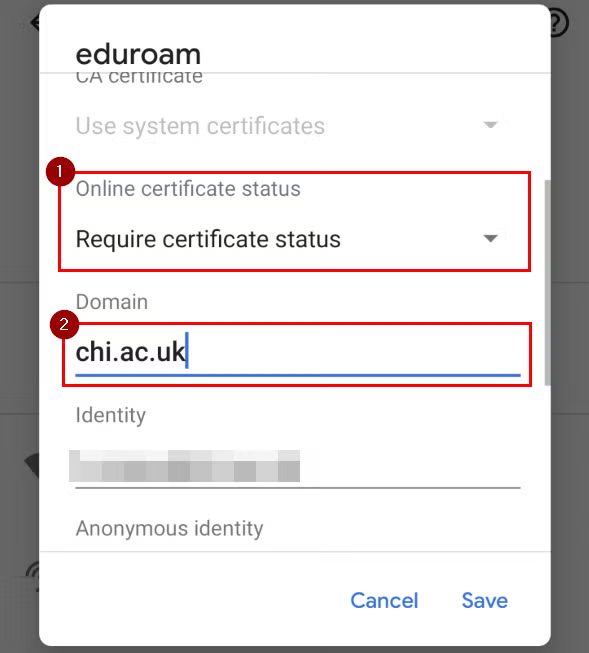
CA certificate Android 11 onwards | ‘Use system certificates’ then set Online certificate status (1) to ‘Require certificate status’ and set Domain (2) to ‘chi.ac.uk’ |
Identity | Your university email address e.g. 2310927@stu.chi.ac.uk (for Google Pixel devices see section below) |
Password | Your university password |
Google Pixel devices (eduroam) #
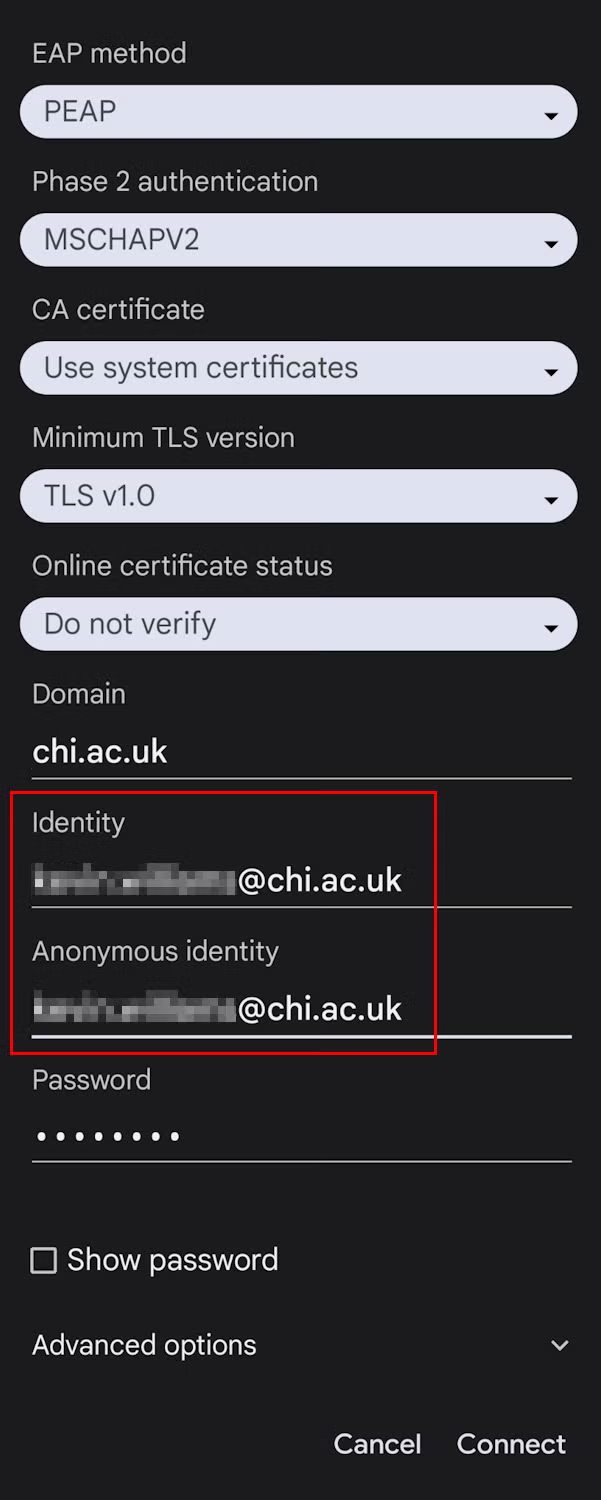
Some newer Google Pixel devices require you to input your email address into both the ‘Identity’ and ‘Anonymous Identity’ fields.
Manually installing the CA certificate #
For older versions of Android you may need to manually install a certificate, then connect to eduroam setting the ‘CA certificate’ to ‘GlobalSign’.
eduroam Services #
The eduroam service at Chichester does not use any application or interception proxies
The University of Chichester (UoC) is a participating organisation in eduroam(UK) and has:
- Visited organisation status which allows visitors to UoC, from other member institutions, to access the network using the credentials provided by their home institution.
- Home organisation status which allows UoC users who are visiting an instiution that is a member of eduroam (including eduroam(UK)) to access the network using their UoC credentials
eduroam links: