Password manageris accessed via password.chi.ac.uk.
The service can be used from any device, anywhere, including mobile phones.
How to guides
Reset Password
If you’ve forgotten your password, or your password isn’t working, follow these steps to reset your password:
- Visit password.chi.ac.uk on a mobile phone or personal device
- Click ‘Reset password’
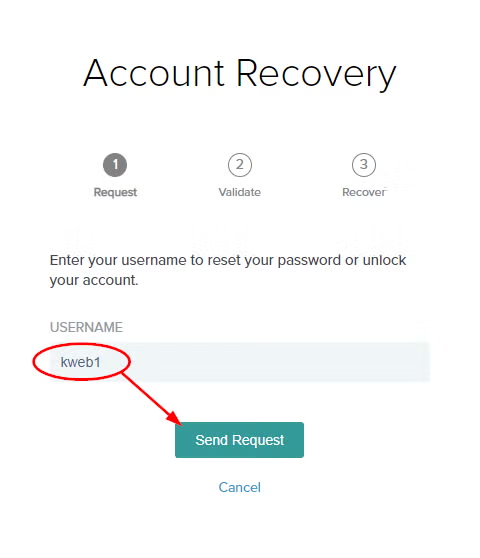
- Enter your username and click ‘Send Request’ which sends an email to your personal email address e.g. gmail account
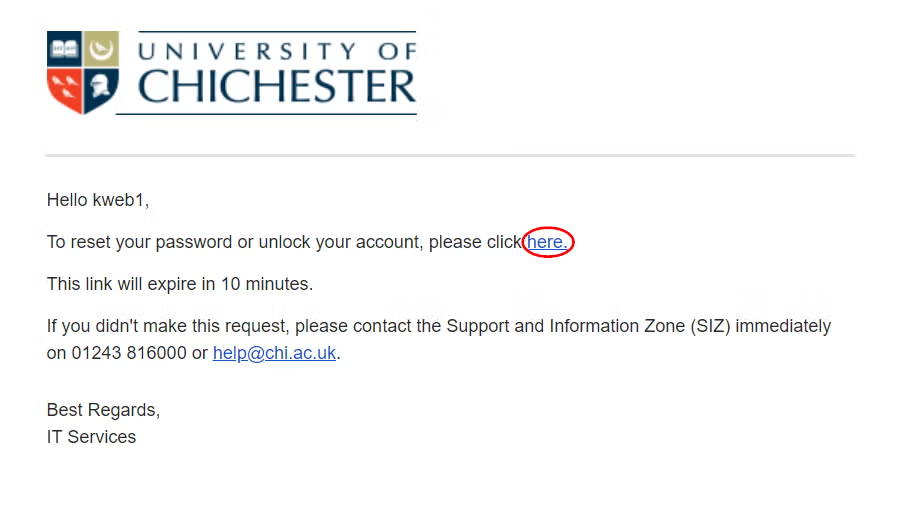
- Click the reset link in the email which is valid for 10 minutes
- Follow instructions to reset your password
Note: you will only receive an email if your personal email address has been updated on our system – see last section.
Still need help? You can chat to a SIZ advisor during working hours.
Unlock Account
If your account is locked due to 3 failed logon attempts, follow these steps to unlock your account:
- Visit password.chi.ac.uk on a mobile phone or personal device
- Click ‘Unlock account’
- Enter your username and click ‘Send Request’ which sends an email to your personal email address e.g. gmail account
- Click the unlock link in the email which is valid for 10 minutes
- Follow instructions to unlock your account
Note: you will only receive an email if your personal email address has been updated on our system – see last section.
Still need help? You can chat to a SIZ advisor during working hours.
Change Password
To change your current working password:
- Visit password.chi.ac.uk on a mobile phone or personal device
- Click ‘Change password’
- Insert your username and current working password, set and confirm a new password, then click ‘submit’
Still need help? You can chat to a SIZ advisor during working hours.
If logged on to a University Windows computer, you can also change your password by performing a ‘ctrl + alt + del’ on the keyboard, then click ‘Change password’.
Accessing Password Manager vis the Help Account
Password manager can be accessed from University computers without needing to log on with your own username & password:
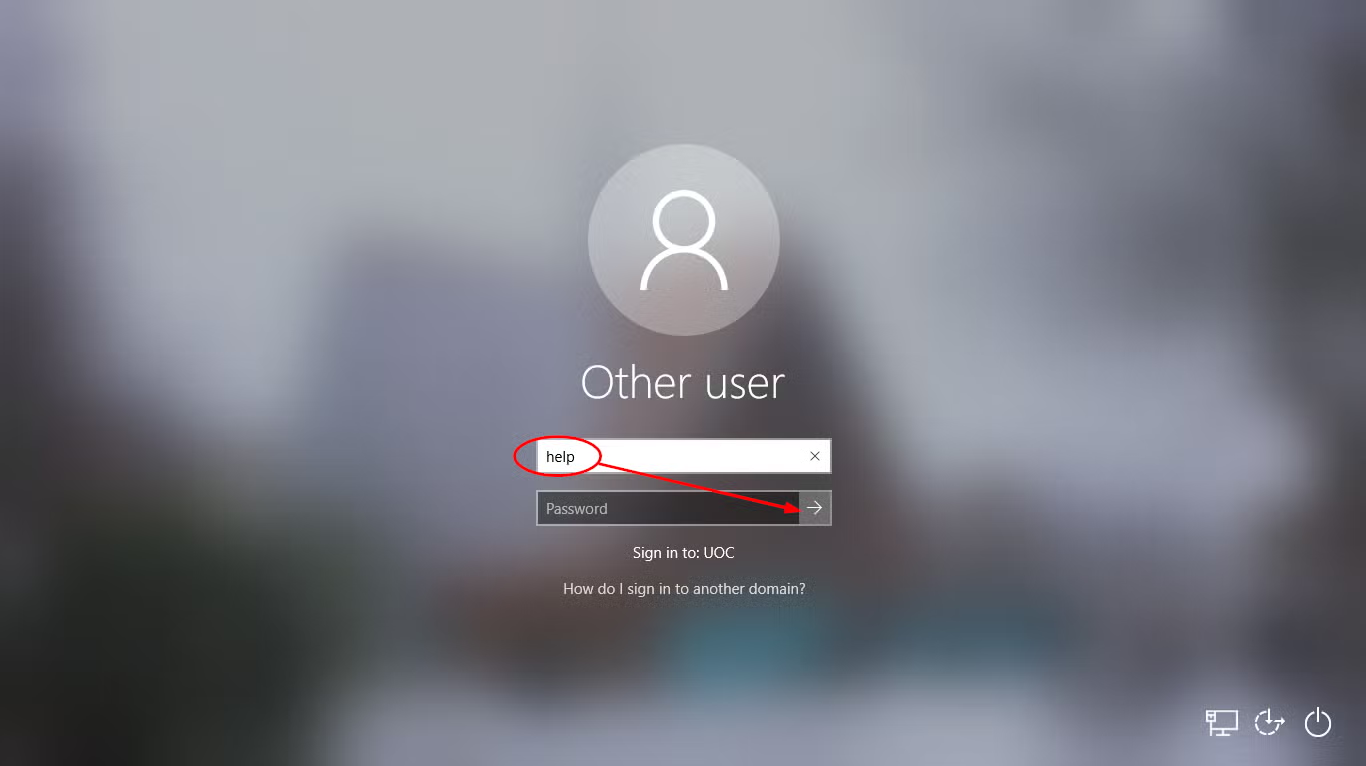
- From any University computer log on with the username ‘help’ leaving the password field empty
- Once logged on wait about 30 seconds for the main menu to appear
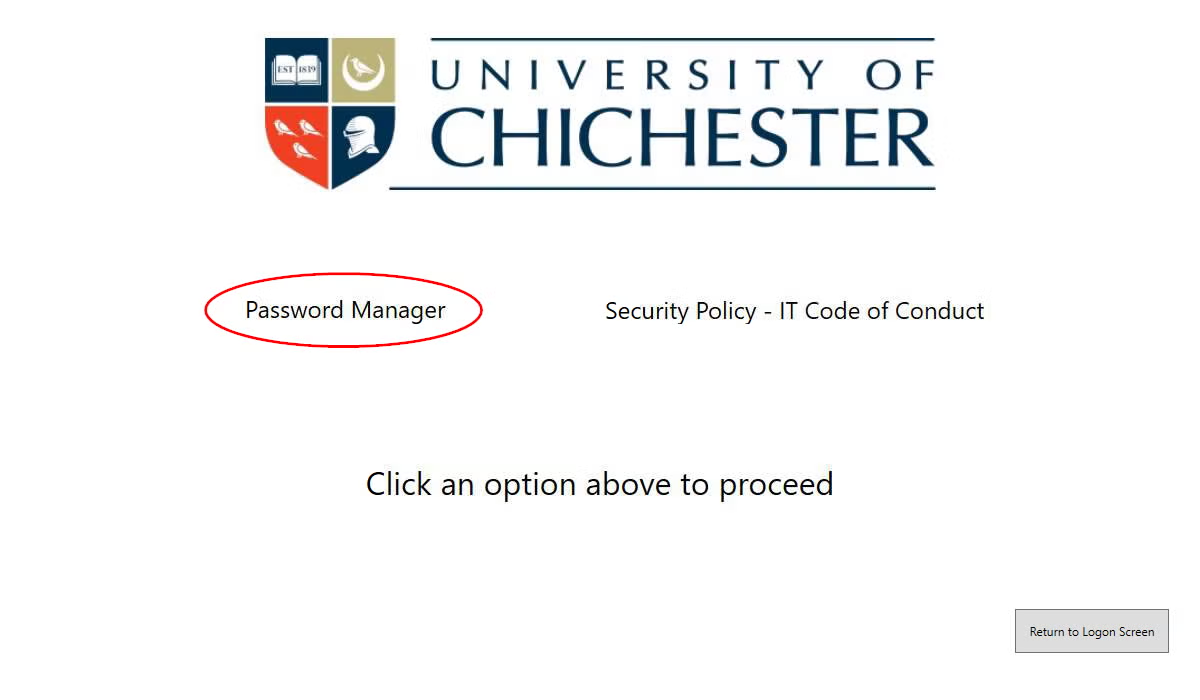
- Click ‘Password manager
Update your personal email address
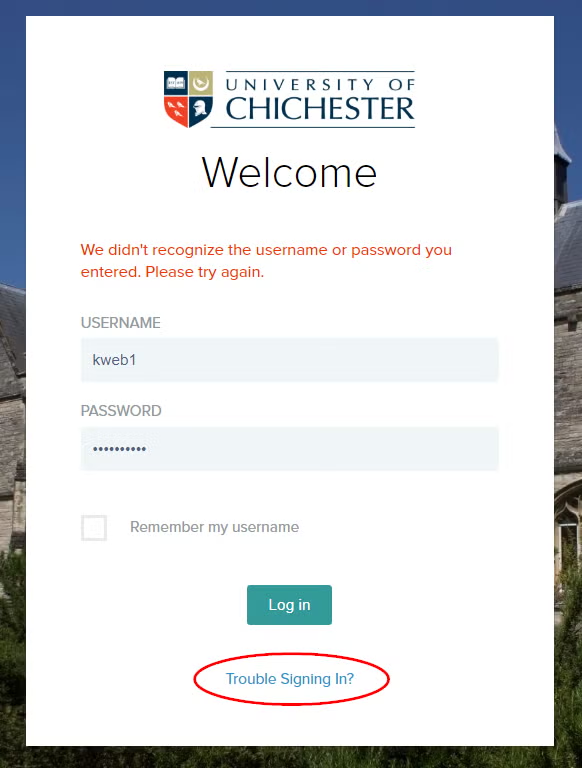
When you reset your password or unlock your account an email is sent to your personal email address.
Make sure your personal email address is correctly set using the student or staff guide below: