University Teams Backgrounds

< 1 min read

University Computers #

To change your Teams background on University computers

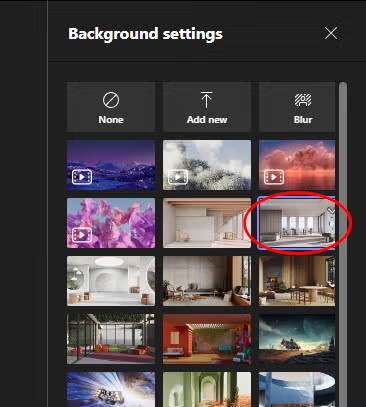
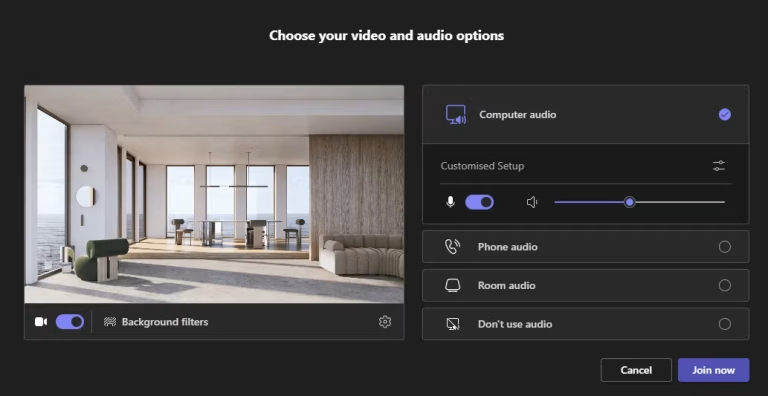
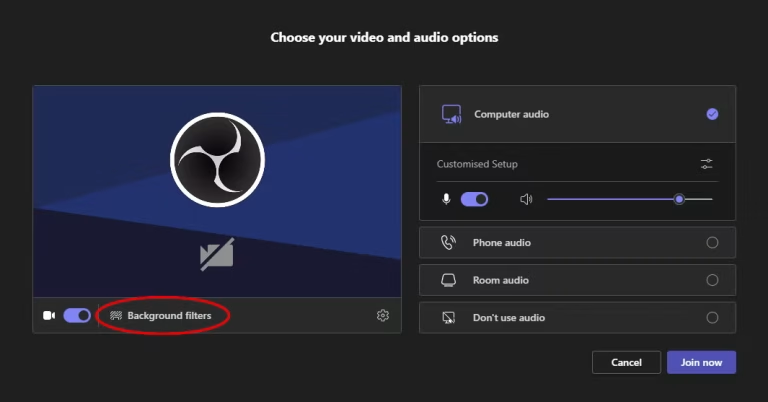
  • Open a Teams meeting – but before joining click ‘Background filters’
  • Choose a background image from the list
  • Your selected image should now be shown in the preview window
  • Join your meeting


If you don’t see any of the University corporate Teams backgrounds, please try the method below for personal computers.


Personal Computers #

Follow these instructions if you are using your own personal computer, or if the corporate Teams backgrounds are not appearing on your University computer.
  • Go to Marketing’s MS Teams Backgrounds page on the Staff Intranet
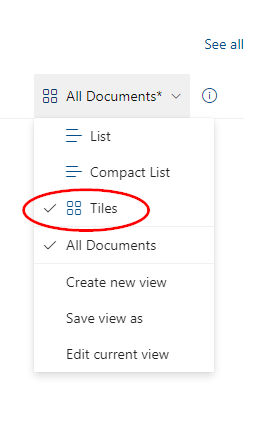
  • Switch the view to ‘Tiles’
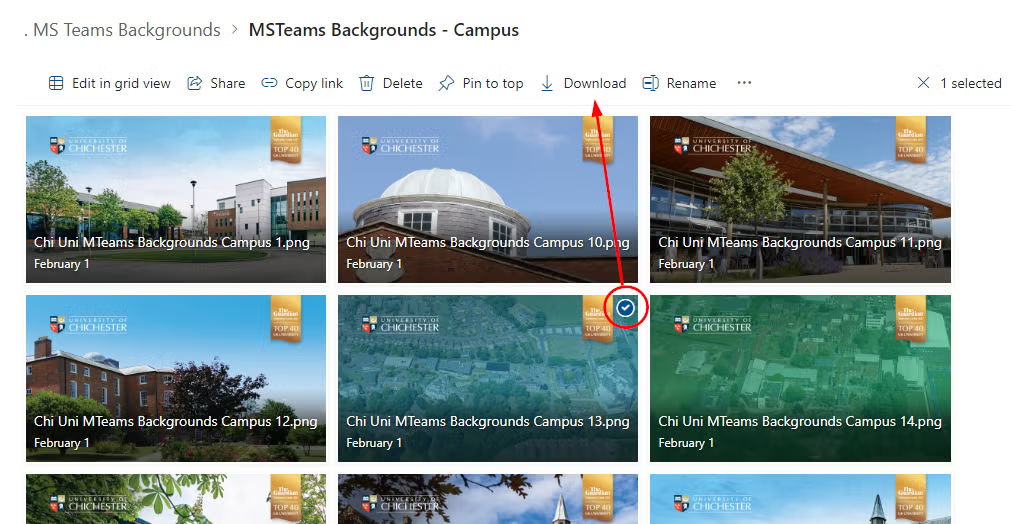
  • Navigate the folders to find an image you like
  • Tick the image and press ‘Download’ which saves the image to your computer
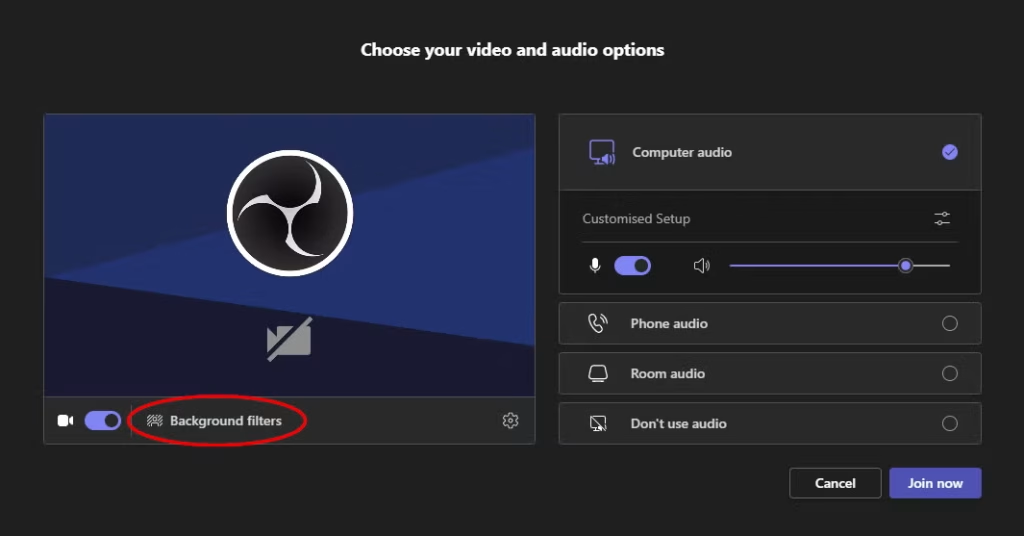
  • Open a Teams meeting – but before joining click ‘Background filters’
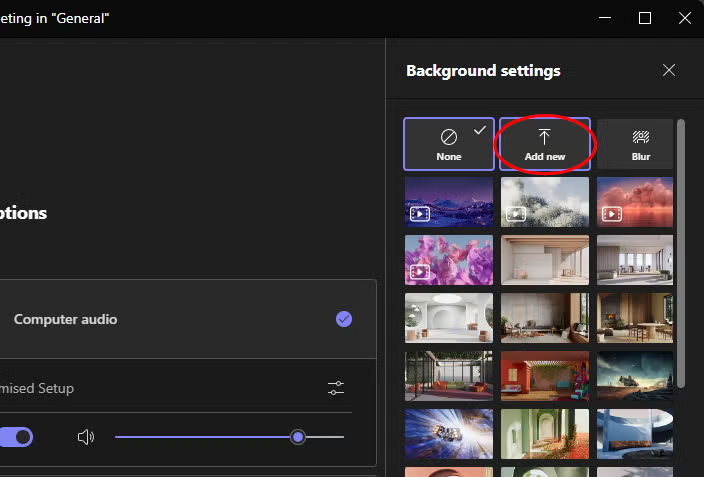
  • Click ‘Add new’
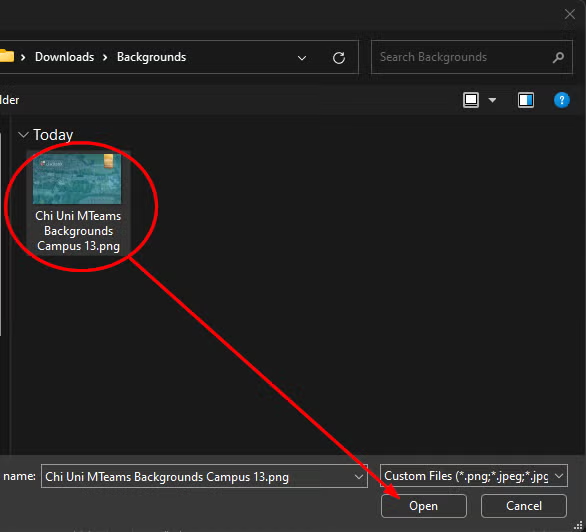
  • Choose the image that you saved on your computer and click ‘Open’
  • Your background image should now be loaded
  • Join your meeting
Was this article helpful?
Updated on January 21, 2026