As the ESports system removes all changes upon reboot, creating local file recordings of gameplay is impractical.
Therefore, we have created an onsite streaming server, to which you can direct your OBS / Streamlabs etc output. Anything streamed to this server will then save to MP4 file on the University network.
Where do I find the server settings?
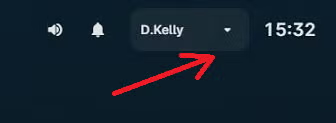
Within the ggLeap environment, click on your username in the top right corner:
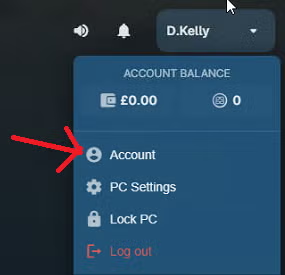
Select “Account” from the drop-down:
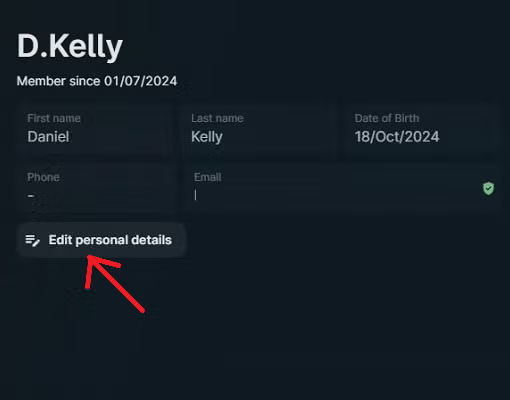
Then select “Edit Personal Details”:
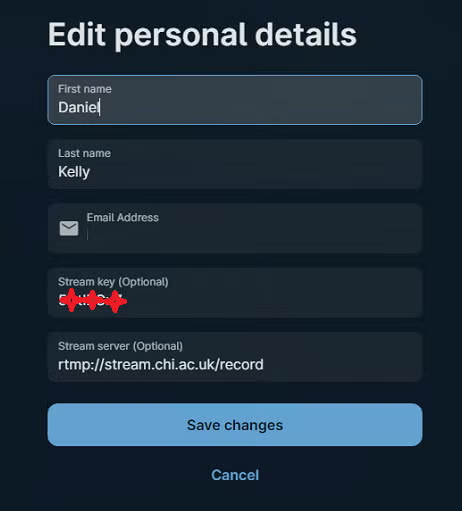
From there, you’ll see the extra hidden fields with the server and stream key details.
You can add these as a “Custom Server” in OBS, and start streaming
Where are the files stored?
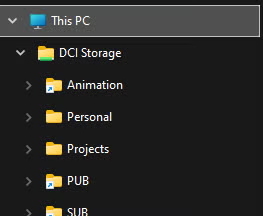
Once logged onto a normal University Windows machine, or a University Mac, the files can be found under “DCI Storage”, under the Personal section.
You should see a folder with your username, in which you’ll find your recordings.
If need be these can be directly accessed at the path \\uoc\storage\DCI\Personal (Windows) or smb://uoc/storage/DCI/Personal (Mac)
Can I stream from home?
Yes! If you want to record footage whilst playing on your own equipment, either at home or in halls, just make a note of the details from the ggLeap system and they should work at home too.