Changing Voicemail Settings

1 min read

If you are a staff member you will be able to change your voicemail preferences within the Teams app. You will be able to change if your number simultaneously ‘also rings’ another group or individual or what happens when a call is unanswered and the length of time before the voicemail starts. You will also be able to change your voicemail greeting as well.

Accessing the voicemail settings #

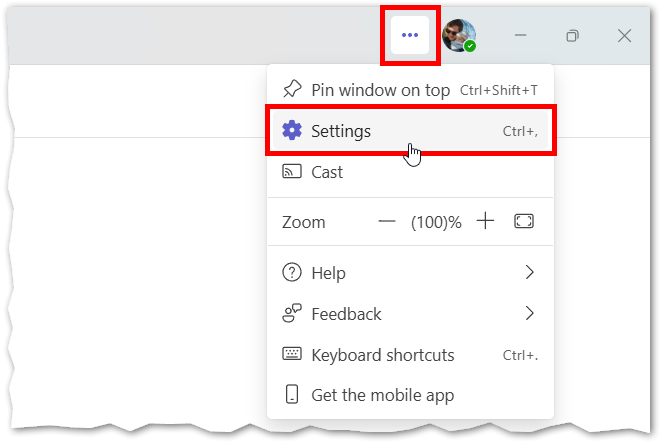
To access settings, click the ‘…’ menu in the menu ribbon, next to the maximise, minimise and close button and select settings:  

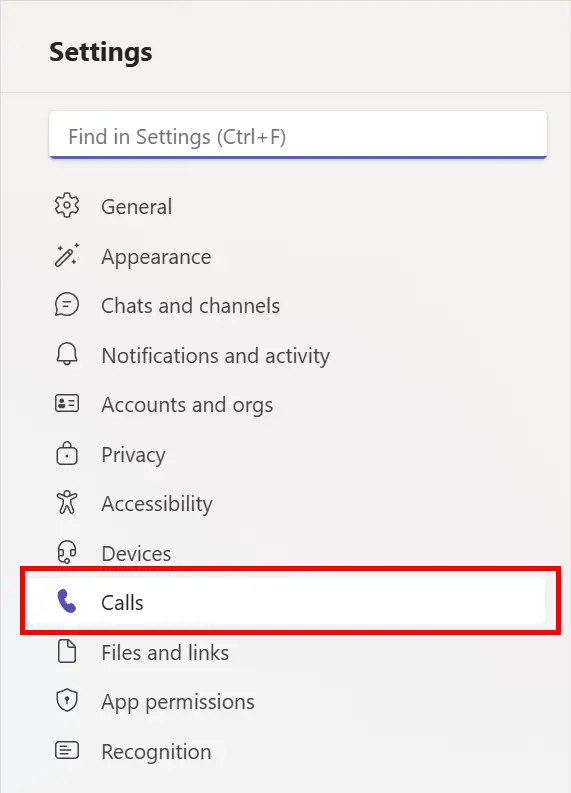
In the settings menu, select ‘Calls’ on the left hand side: 

This image shows selecting settings from the dot dot dot menu.

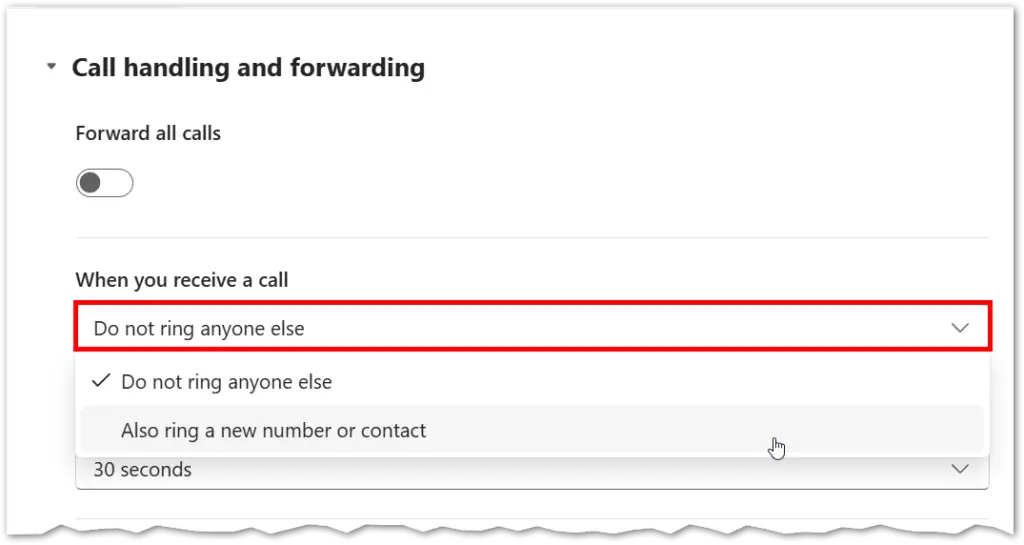
‘When you receive a call’ options 

This menu will allow you to choose from a number of options. When you receive a call, would you like to ‘also ring’: 

  • Do not ring anyone else (default)
  • Also ring a new Number or contact

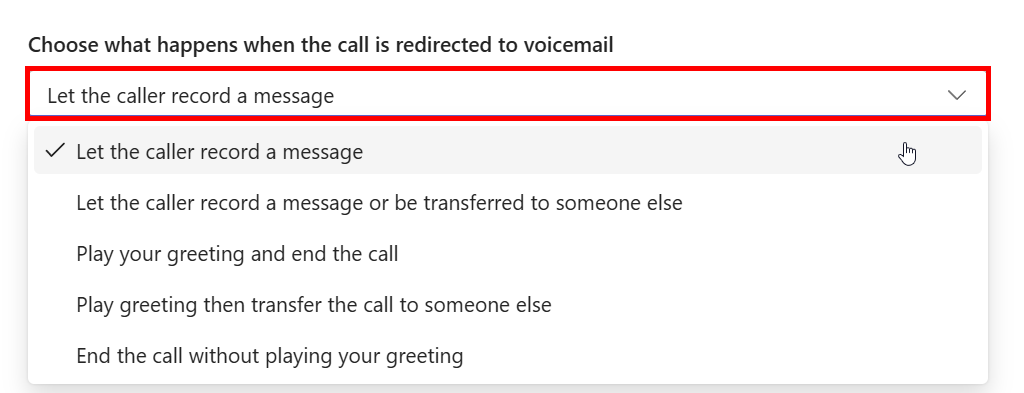
‘Choose what happens when the call is redirected to voicemail’ options

This menu will allow you to change what happens when your teams call goes unanswered: 

  • Let the caller record a message
  • Let the caller record a message or be transferred to someone else
  • Play your greeting and end the call
  • Play greeting and then transfer the call to someone else
  • End the call without playing your greeting.
This image shows the 'choose what happens when the call is redirected to voicemail' menu.

Changing your voicemail Greeting #

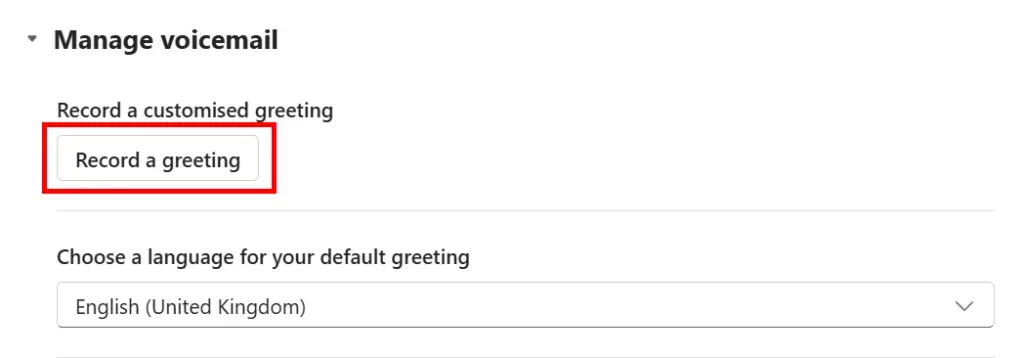
To change your voicemail greeting, scroll down the ‘calls’ menu in the teams settings, until you see ‘Manage Voicemail’:  

Once in this menu you can select ‘record a greeting’  button to open a call to the voicemail channel: 
This will open a call with the voicemail voice prompts, you can use the keypad to select ‘2’ on the dial-pad in order to select ‘listen to or change your voicemail message’:  
listen to the voice prompts and press the appropriate numbers until you are happy with your result. you can end the call or hang up to finish.

Call answer rules

This menu will allow you to change what happens when your voicemail is reached: 

  • Let the recorder make a message (default)
  • Let the recorder make a message or be transferred to someone else
  • End the call without playing your greeting
  • Play your greeting and end the call
  • Transfer the call to someone else

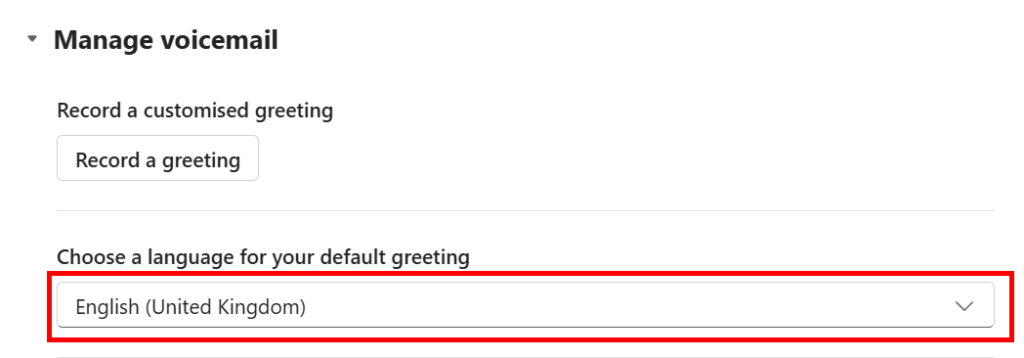
Greeting Language

The default language is English (United States) which can be changed to English (United Kingdom): 

This image shows the language controls for the voicemail greeting.

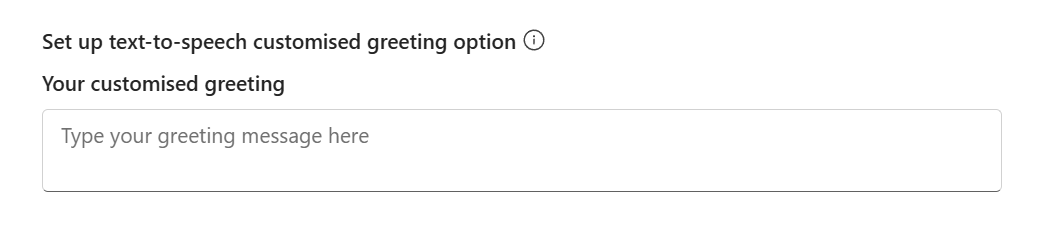
Text to speech Customised greeting option

If you would prefer to use a text to speech robot voice to generate your greeting you can click into the fields available at the bottom of the voicemail settings window: 

This image shows the Text-to-speech option in the calls menu of teams.
Was this article helpful?
Updated on January 13, 2026