Resource Booker – Book a Room #
Resource Booker is the University of Chichester’s online system for booking rooms. This can be accessed by going to https://resourcebooker.chi.ac.uk
To log in you will need to use your University email address then Username and password.
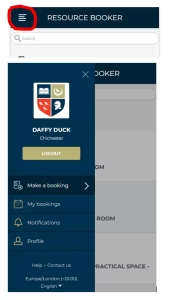
On the left of the home page on a PC/Laptop/tablet is the menu on a Mobile Device the menu can be found by clicking on the menu item at the top left of the screen.
From the menu you can:
- Make a Booking
- View your bookings
- See Notifications
- View your Profile
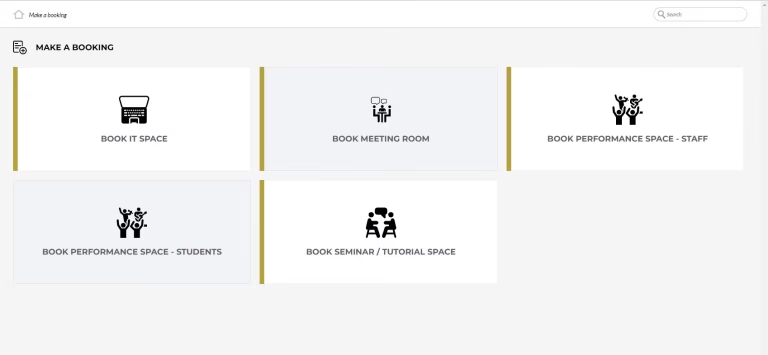
The Resource Booker dashboard is tailored to each user. Meaning you will only see booking tiles relevant to you.
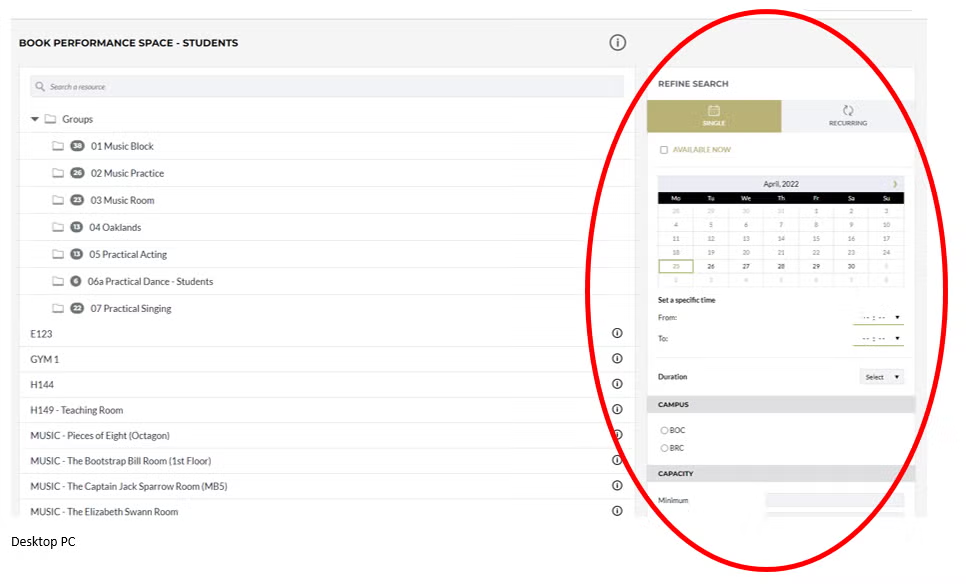
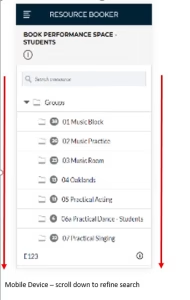
Once you click on the tile representing the type of booking you wish to make, it will display the rooms available and a section for you to “refine your search”. This will display to the right of the list of rooms on a PC/Laptop/tablet or below the list of rooms on a Mobile Device.
There are two ways of booking a room through resource booker. The preferred method is to refine your search by adding your booking criteria to search for rooms that are available on the specified date and time. Alternatively, you can select rooms from the list and search for availability.
Book a room using Search criteria

If you know the date and time you need book, use the “Refine your Search” section to update the list of available rooms based on your search criteria:
- Date
- Start time
- Finish time
- Duration
- Campus
- Minimum and Maximum capacity
- Accessible Room
As you enter your search criteria, the number of rooms available will update accordingly.
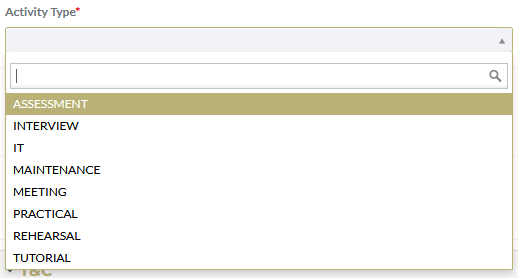
Select your desired room from the list and the booking form will open pre-populated with the date and time, check these are correct, fill in the following fields:
- Booking title – A short description of your activity for example: Dance Rehearsal or Team Meeting. It is not necessary to include your name.
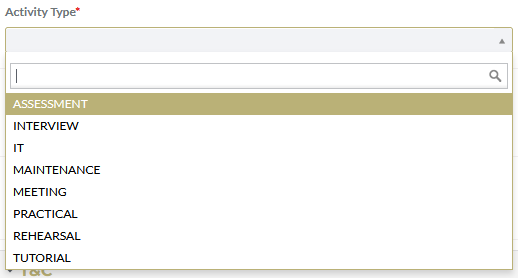
- Activity Type
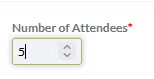
- Number of attendees
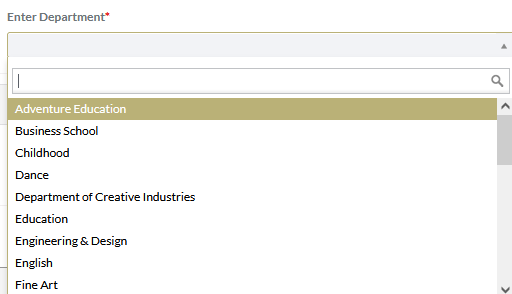
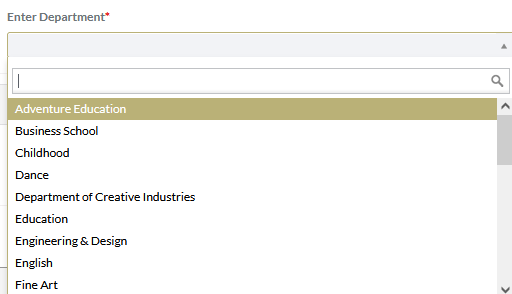
- Department
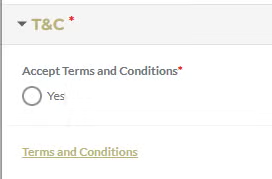
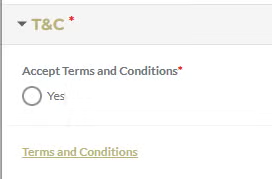
- Read and accept the terms and conditions
- then click on “book”
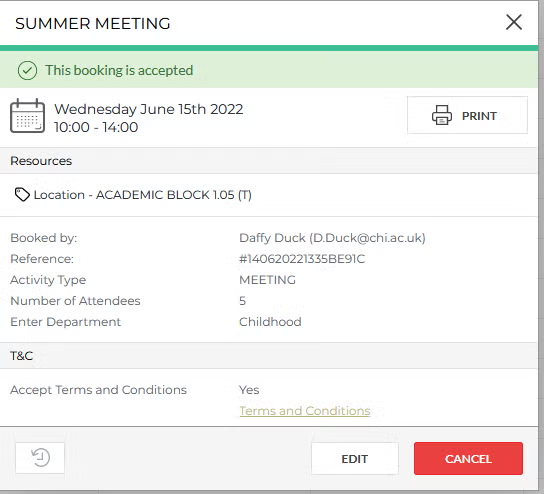
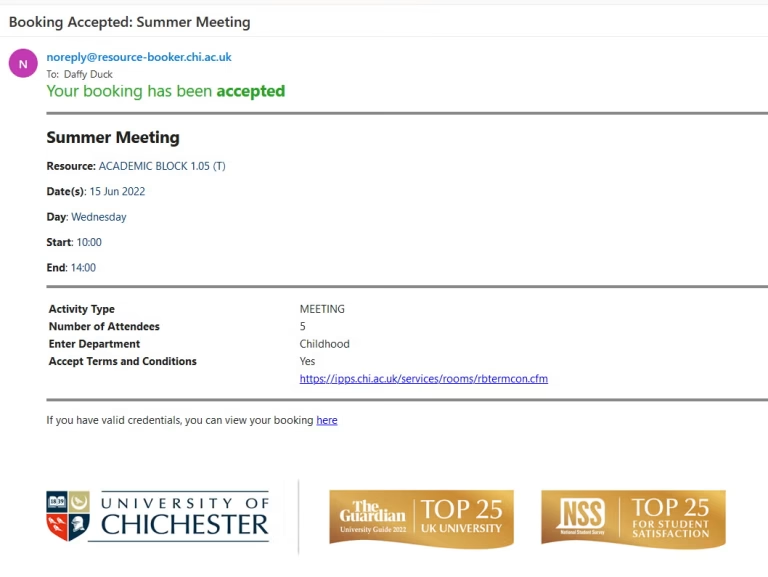
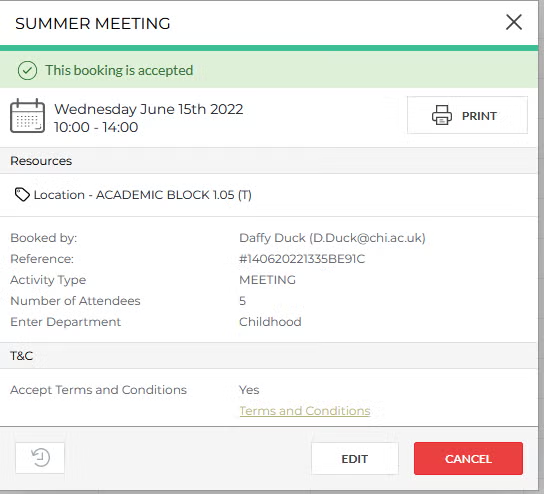
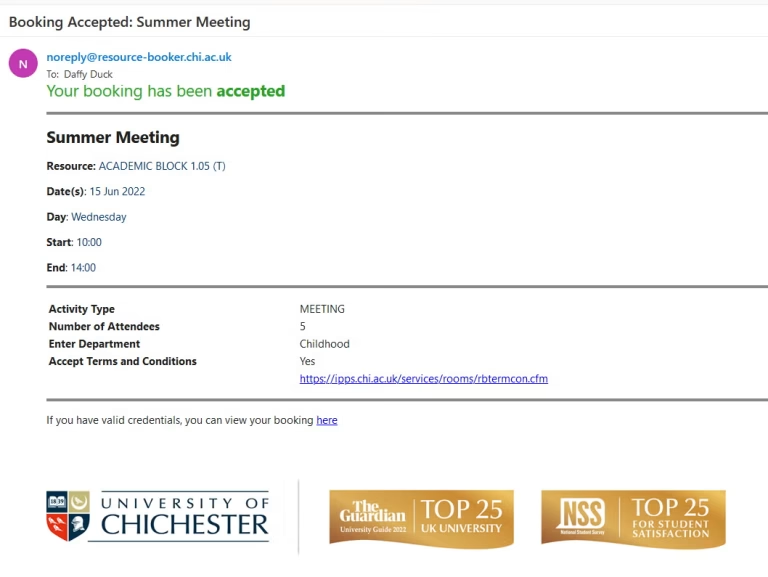
This will bring up a summary of the booking in a pop-up box . Click on the “X” in the top right-hand corner to close this. An email notification of your booking will be sent directly to you.
Book a particular room
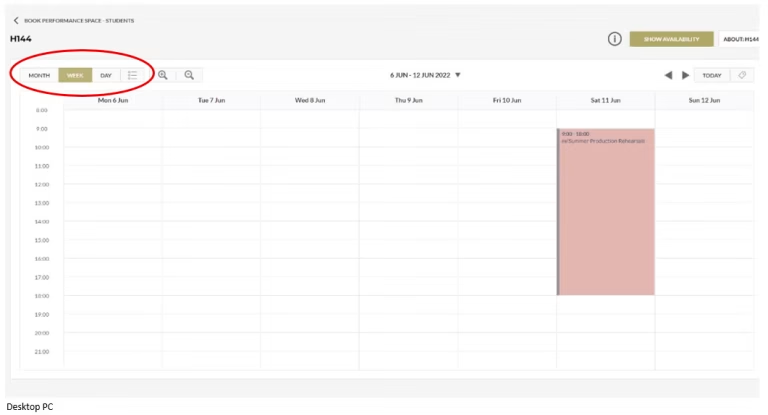
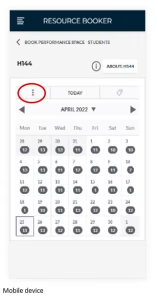
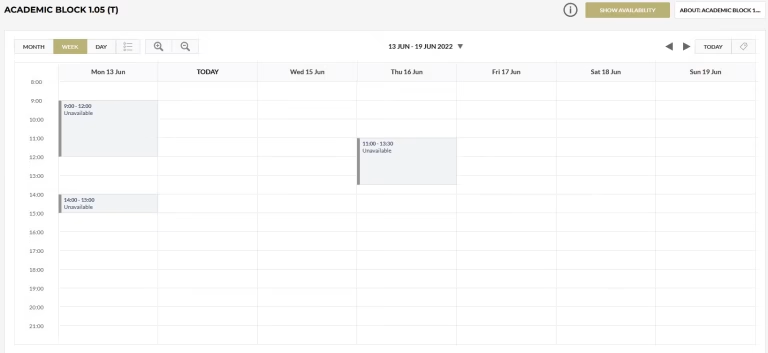
If you know the room you wish to book and you are flexible with dates and times, you can search for it by typing the name of the room into the search field at the top of the screen. Once the room is displayed in the list you can click on the room and it will show a calendar for the selected room. This defaults to Week view on PC/Laptop/Tablet and Month view on a mobile device.
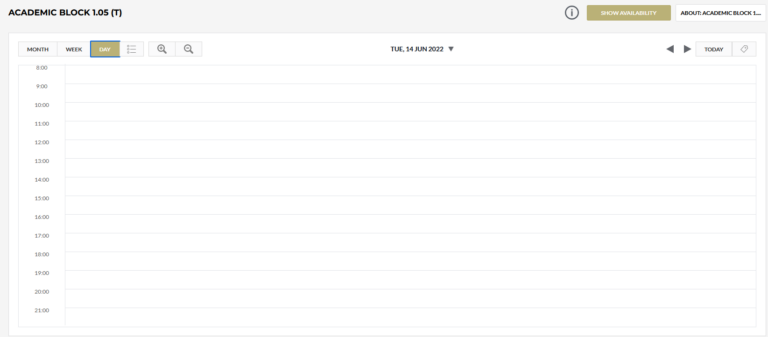
You can change the calendar view between Month, Week (PC/Laptop/Tablet only), Day and Agenda by clicking on the radio buttons at the top of the calendar view.
The easiest way to identify available space is through either week view or day view.
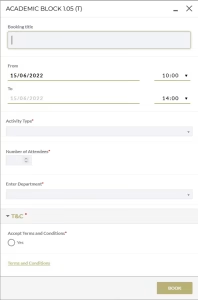
Once you have identified an available slot for your booking, click once and it will bring up a booking form , pre-populated with the time and date, check these are correct (update if necessary), fill in the following fields:
- Booking title – A short description of your activity for example: Dance Rehearsal or Team Meeting. It is not necessary to include your name.
- Activity Type
- Number of attendees
- Department
- Read and accept the terms and conditions
- then click on “book”
This will bring up a summary of the booking in a pop-up box . Click on the “X” in the top right-hand corner to close this. An email notification of your booking will be sent directly to you.
Editing or Cancelling a Booking
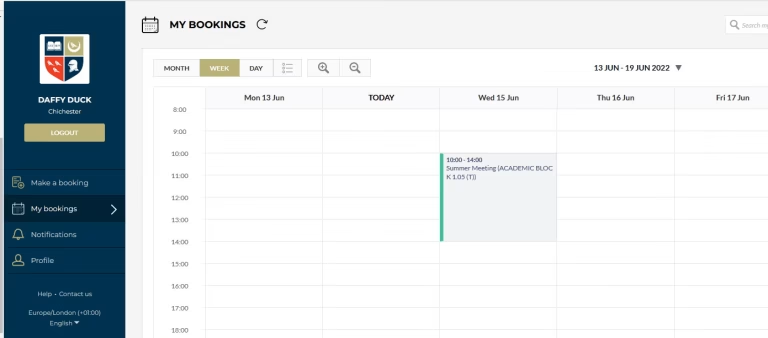
To Edit or Cancel a booking you firstly need to find the booking on your My Bookings Calendar
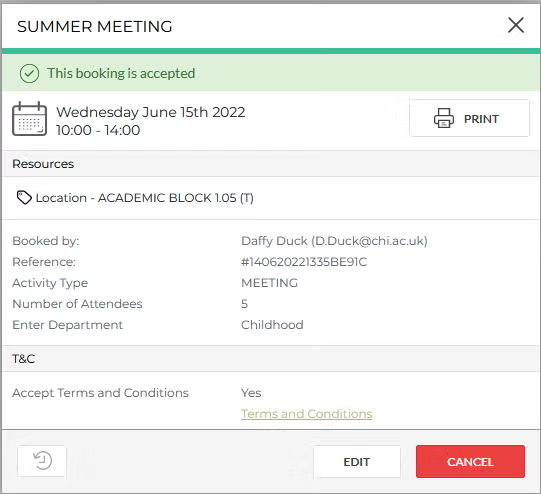
When you click on booking you wish to Edit or Cancel a pop up window showing the booking details will open
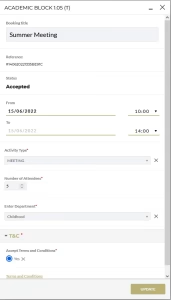
To Edit: Click on the Edit button and this will open the booking form for you to edit your booking. Once you have made changes a new confirmation email will be sent.
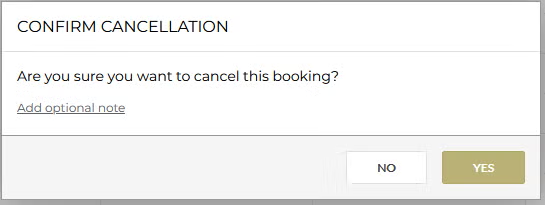
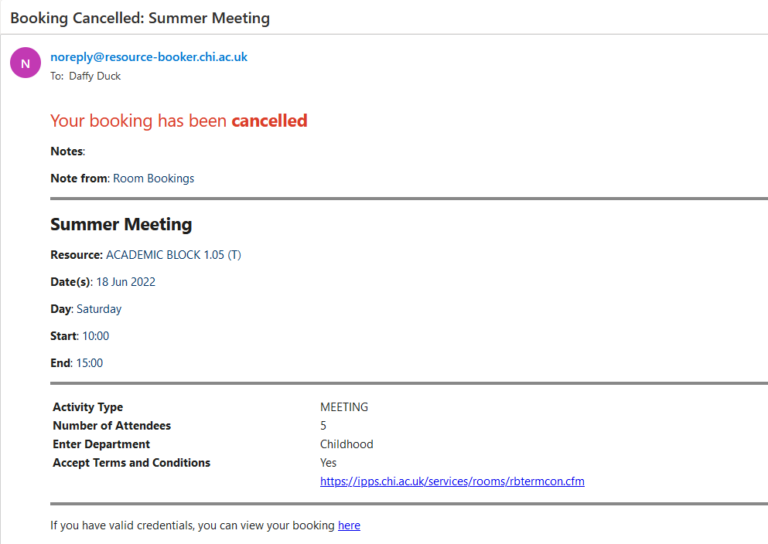
To Cancel: Click on the Cancel button and this will open a Confirm Cancellation window Click Yes to confirm that you want to cancel the booking. An email will be sent confirming the cancellation.