Students and staff* are entitled to a free subscription of Microsoft Office for use on personal PCs, Apple Macs, iOS, and Android devices, which includes
Teams
Word
Excel
PowerPoint
OneNote
Outlook
OneDrive
*Certain contracted and hourly paid staff may not be entitled to this benefit.
Follow these steps to download the application via your web based University email account
If you already have an earlier version of Microsoft Office installed, it is recommended that you firstly uninstall Office from ‘Settings/Apps/Apps & features’ and reboot your computer
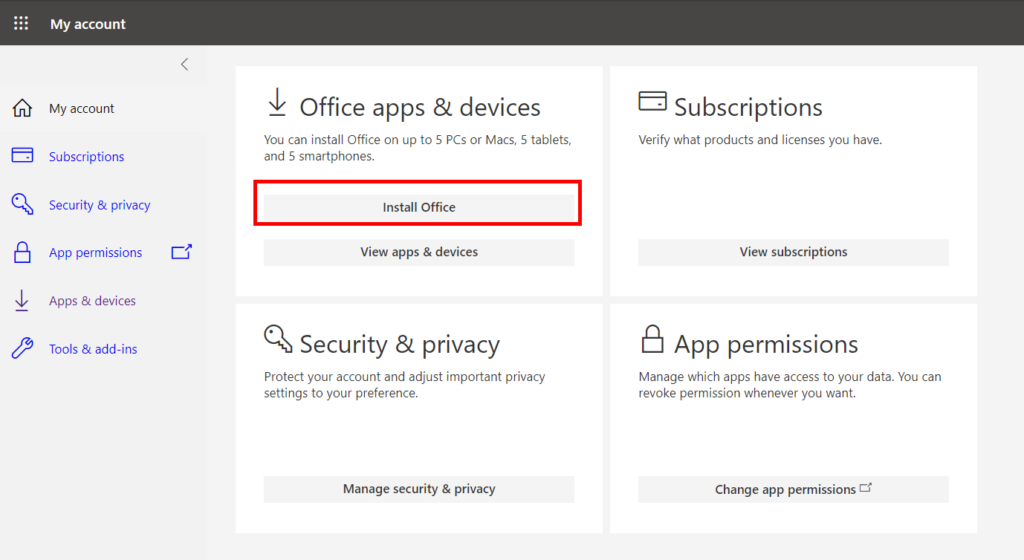
Click ‘Install Office’ from the menu on the top left (see image below)
When your installation file has been downloaded, run the .exe (Windows) or .pkg (Mac) file and follow instructions until the package is installed.
If prompted to enter either a product key or sign in, click ‘Sign in to an existing Office subscription’ then authenticate with your full University email address – not just your username
How many machines / devices can I run this subscription on?
Each user can install Microsoft Office on up to
5 PCs or Macs
5 tablets (Windows, iPhone & iPad, and Android)
5 phones.
Is this a full version Office?
Yes, this is the full version of Microsoft Office, available for Windows PC, Apple Mac, iPhone , and Android platform, and all are available for offline use.
How long will the free subscription of Microsoft Office last for?
You will be licensed for the duration of your course(s) / employment because the licence is linked to your University email account.
Where can I find Microsoft 365 training resources?
Microsoft provide some excellent training guides via the following link