
(if you are unsure which it is, contact the SIZ)
1. Generic Accounts (Delegated Access)
These are separate accounts where named users are granted delegated access.
Permissions allow you to read, send, and manage email on behalf of the account, depending on the level granted.
Outlook – Sharing your generic account’s Mailbox guide
2. Shared Mailboxes
Shared mailboxes use permissions in Outlook, once access has been assigned to a user, they can add the mailbox by typing in the email address without the need for a password.
Outlook – Managing a Shared Mailbox guide
Requesting or Changing Permissions #
All permission changes to Generic Accounts and Shared Mailboxes are now handled by IT.
If you require access to be added, removed, or updated, please log a job via SupportMe.
IT will apply the correct permissions and notify you when the request is complete.
Opening a mailbox in your account #
Once permissions to access a mailbox have been set by IT, you will receive a communication to say this has been actioned. At this stage the user can ‘open’ the shared mailbox in Outlook, whilst logged in as themself:
Open Outlook in your browser Mail.chi.ac.uk or the Outlook Desktop App.
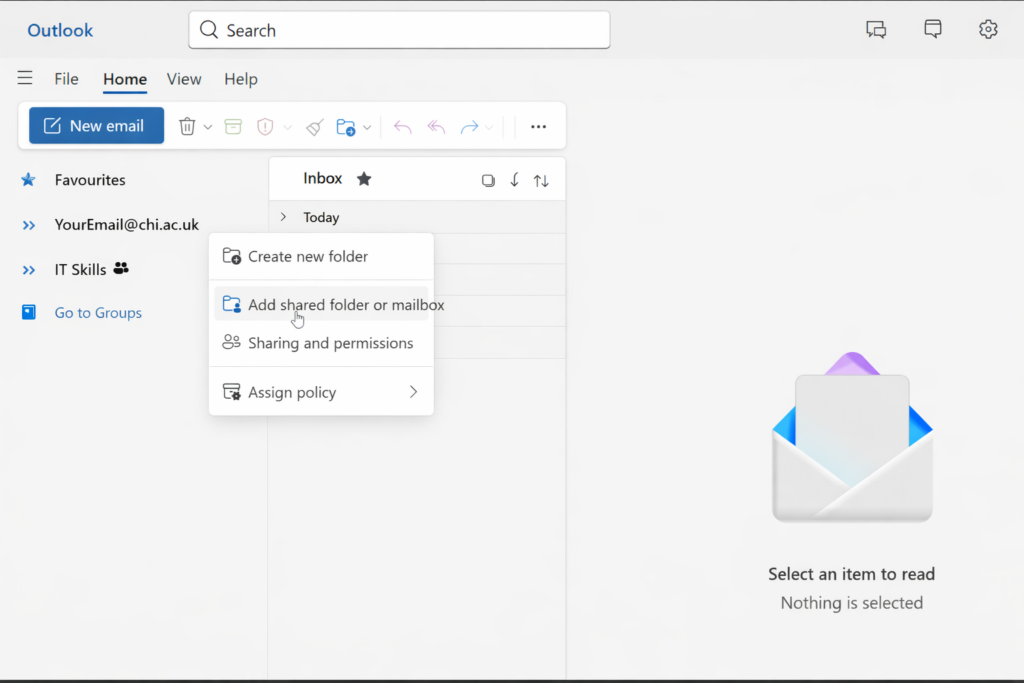
In the left-hand folder navigation pane, right‑click Your email address (or click the … that appears when the cursor hovers over it).
Select Add shared folder or Mailbox
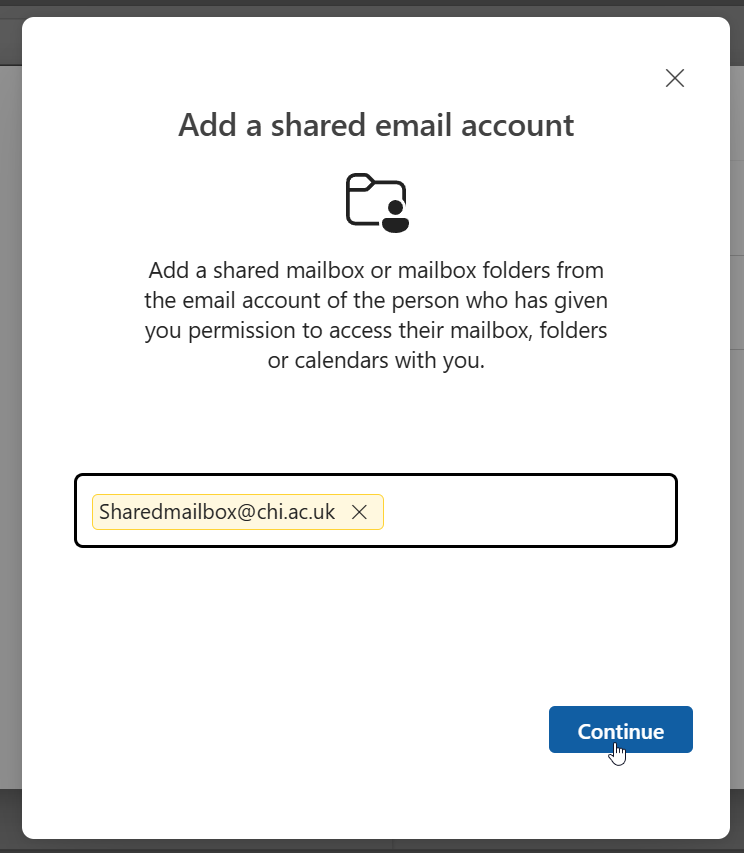
Type the name or email address of the shared mailbox.
Choose it from the list, then select Continue.
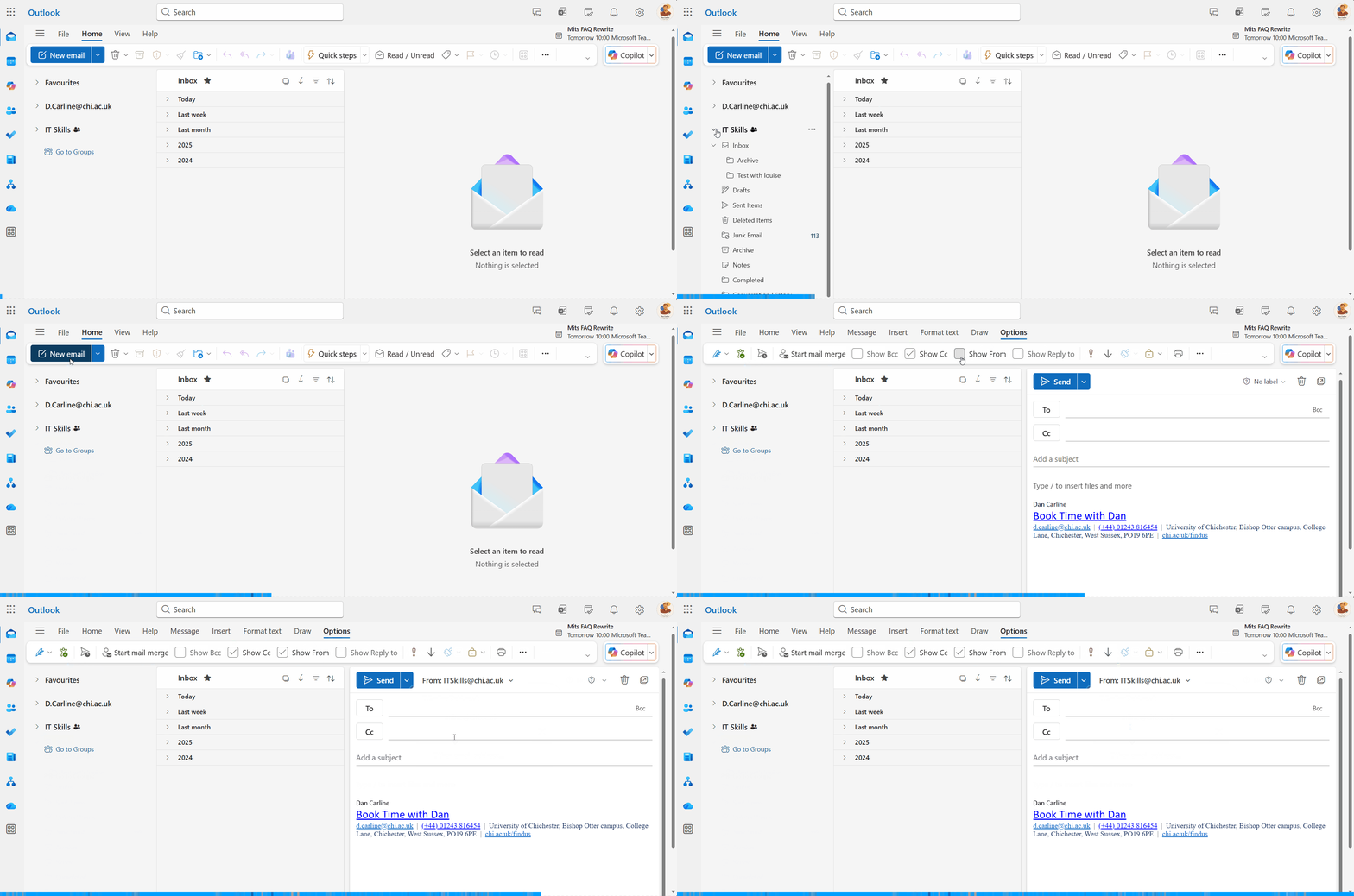
The shared mailbox will now appear in your folder list below your own account. You may need to click the > symbol to collapse your own email folders, or scroll down, to see the new mailbox added.
- You will also need to enable the from field. To do this, open a new email, select options and tick the ‘Show from’ checkbox. You should then see the from field at the top of a new email.
1. Picture
2. Picture
3. Picture
Archived
Terminology:
Generic Account – A network account, created before April 2024 and does not have a person’s name in the email address e.g. elearning@chi.ac.uk. This will have an Microsoft 365 account, with email and calendar which can then be shared with other individuals. These accounts will have a password, which can only be access from a University computer. Access to these accounts should be delegated using permissions in Microsoft 365. The password should be used for account permissions changes only.
Managed Account: This might be a member of staff that wish to ‘delegate’ access to their mailbox or calendar, to another member of staff who can then read/reply to emails and maintain their calendar. For example, a PA managing an account on behalf of their manager, or the same as a generic account
Shared Mailbox: This is an online only account, created after April 2024 which has email and calendar, but does not have a network account or password. This does not have a person’s name in the email address (e.g. elearning.chi.ac.uk). Shared Mailboxes are the new terminology for shared email accounts, and will eventually replace Generic Accounts completely.
Delegate – the person who is going to be, or has been, given access to another account listed above.
Part 1: Sharing the Generic Account or Shared Mailbox:
Generic accounts were provided before April 2024. If you have a Generic Account, please follow step 1a.
Shared Mailboxes are accounts created after April 2024, and will eventually replace Generic Accounts. If you have a Shared Mailbox, follow step 1b:
1. Sharing your mailbox,or generic account with other people
Managing the permissions on your Shared Mailbo
Part 2: Accessing the account as a Delegate
2. Accessing a managed account (another user’s mailbox, Generic or Shared Mailbox) in Outlook