Outlook – Managing a Shared mailbox

3 min read

A Shared Mailbox is an email account that does not have a network account password and there is no account to log in with to make changes. Unlike Generic accounts, where permissions management is normally done by logging into a computer, Shared Mailboxes need to be handled differently. 

Shared Mailboxes typically have their permissions managed at the top level of the account. If you require someone to have access to your Shared Mailbox, or someone to be removed, then you will need to ask an IT Admin to make these changes.  You can request any access changes via SupportMe

Changing Shared Mailbox Permissions

If you want to grant, remove, or change access for an individual to your Shared Mailbox, please raise a request using supportme.chi.ac.uk.  

We will need to know: 

  • The Shared Mailbox you need permissions changing for 

  • The names of the individuals that need adding/removing. 

  • The permissions below (‘Send on Behalf Of’, ‘Send As’ or ‘Read and Manage’). 

Shared Mailbox Permission Levels 

There are Three types of permissions that can be granted: 

  • Send On Behalf Of: Another individual can send on behalf of the Shared Mailbox, this option displays the individual that sent the email, as well as the name of the Shared Mailbox. For example, ‘Fred Bloggs on behalf of Student Support’. 
  • Send As: Another individual can send as the account, meaning that emails sent from the Shared Mailbox, will be received by the name and email address of the Shared Mailbox. 
  • Read and Manage: Granting this to another individual will provide access to all email and calendar information within the Shared Mailbox. The individual will have the ability to manage folder permissions, create calendar appointments, and delete and move emails,. But they will not have the ability to send emails or calendar invitations. If you wish to give the individual the ability to send emails, you must request ‘Read and Manage’ in combination with one of the Send options above. 

Opening a mailbox in your account

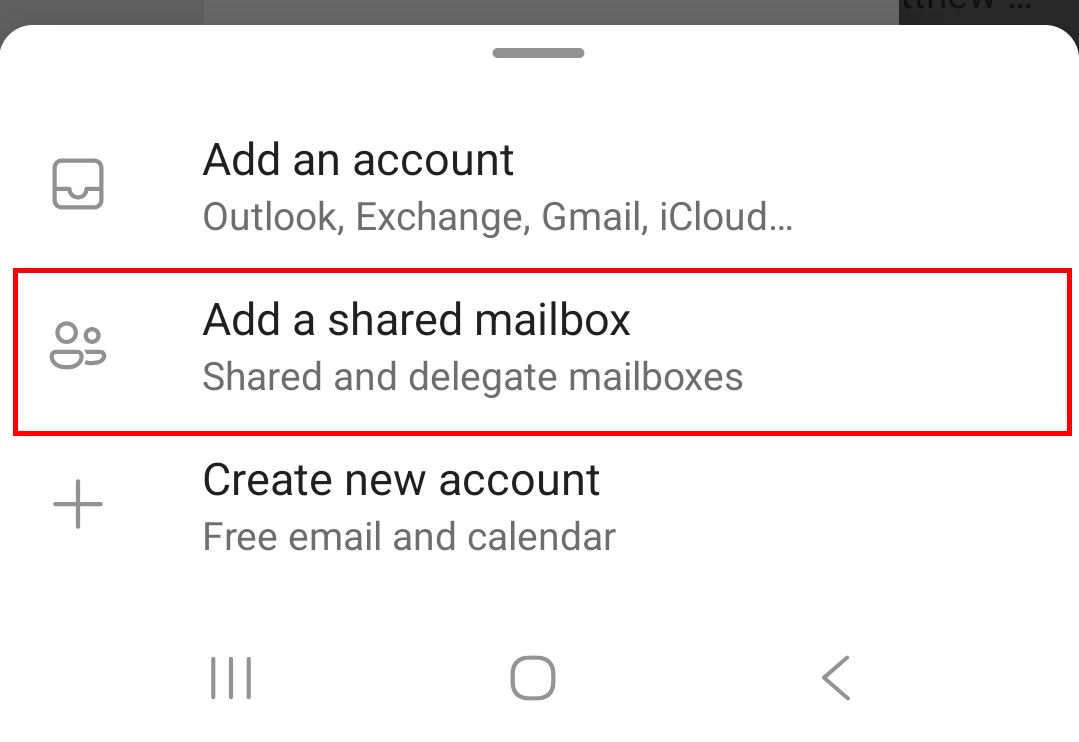
Once permissions to access a mailbox have been set by IT, you will receive a communication to say this has been actioned. At this stage the user can ‘open’ the shared mailbox in Outlook, whilst logged in as themself:

  • Open Outlook in your browser Mail.chi.ac.uk or the Outlook Desktop App.

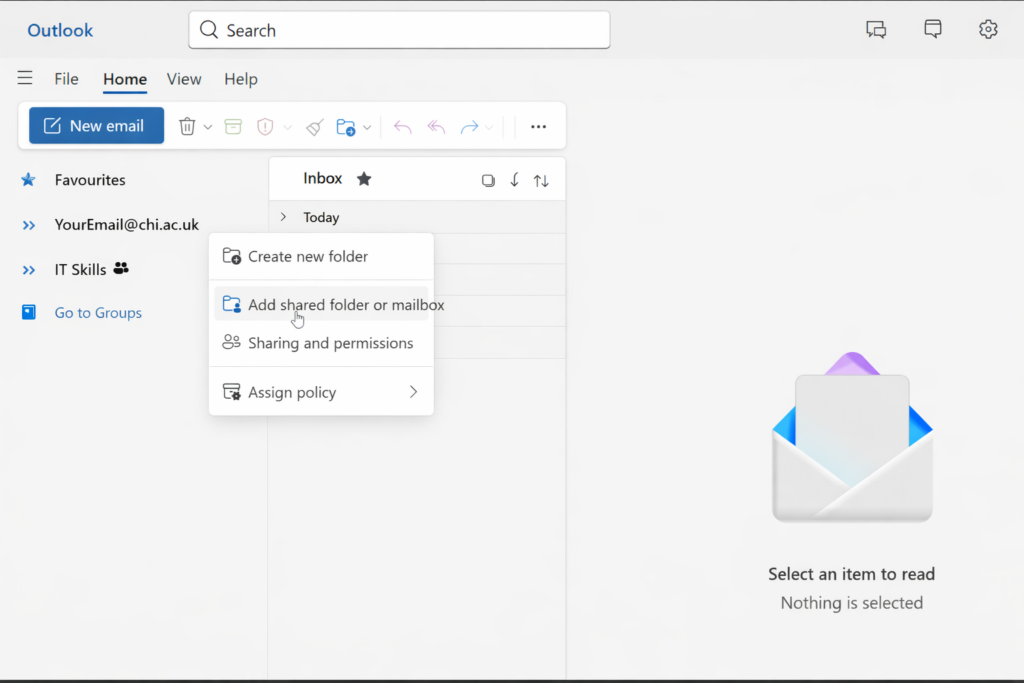
  • In the left-hand folder navigation pane, right‑click Your email address (or click the that appears when the cursor hovers over it).

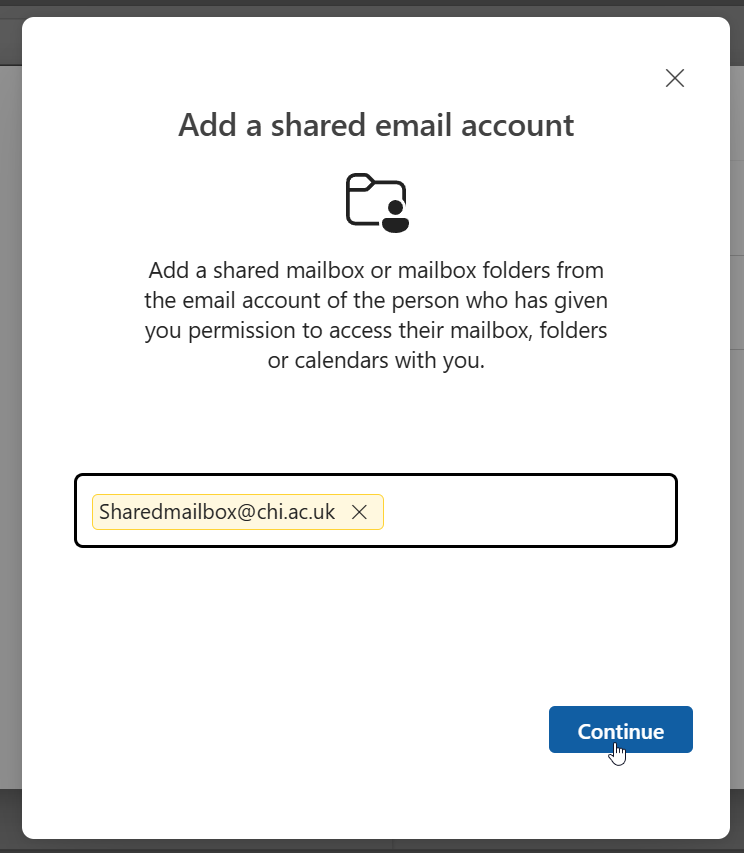
  • Select Add shared folder or Mailbox

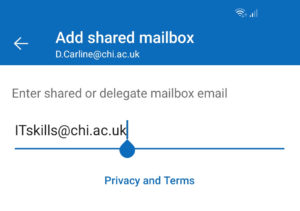
  • Type the name or email address of the shared mailbox.

  • Choose it from the list, then select Continue.

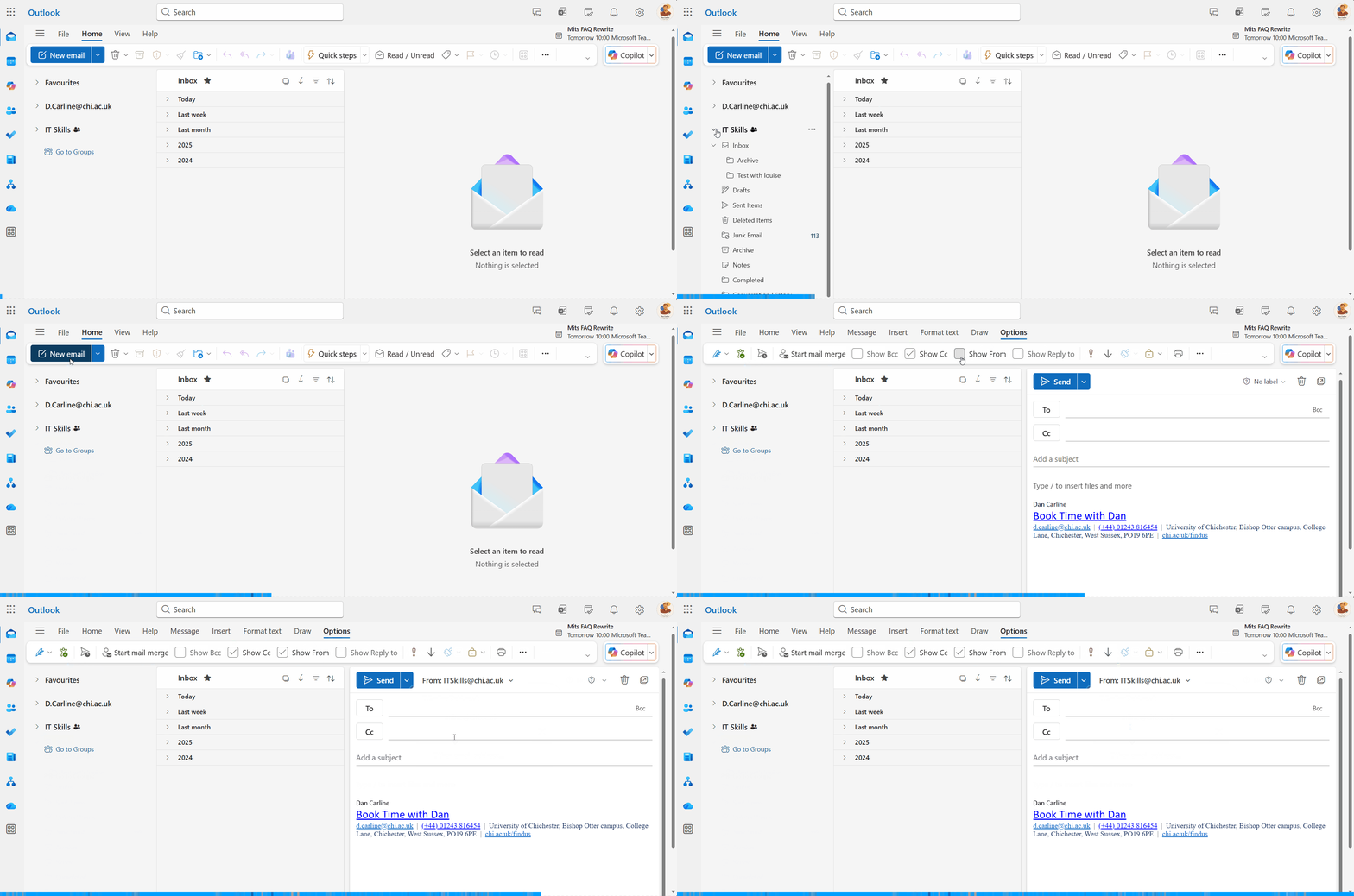
  • The shared mailbox will now appear in your folder list below your own account. You may need to click the > symbol to collapse your own email folders, or scroll down, to see the new mailbox added. 

  • You will also need to enable the from field. To do this, open a new email, select options and tick the ‘Show from’ checkbox. You should then see the from field at the top of a new email.
This image shows right-clicking the email to "add shared mailbox or folder"
This image shows adding the email address of a shared mailbox.
This animation shows expanding a shared mailbox in outlook.
Was this article helpful?
Updated on January 26, 2026