You are here

H Drive

Once you have been upgraded to Windows 7 you will  have:

  • Staff - 1GB of storage space on your H Drive for files and folders
  • Students - 750mb of storage space on your H Drive for files and folders

To access your work files in Windows 7 click the 'Windows Explorer' icon in the taskbar:

Once opened, you should see something similar to this (the Shared Drive is for staff only):

A diagonally facing black arrow indicates that this option is already expanded, but can be collapsed by clicking on the arrow itself

A right facing white arrow indicates that this option is collapsed, but can be expanded by clicking on the arrow itself

To access your work files and folders click 'documents' which is within 'Libraries':

Or open the H Drive and then 'My Documents'.

Note all four of the following options on the far left:

Favourites

This can be used for frequently used folders. The 'download' folder is there as default. These favourites should not be confused with Internet favourites.

Libraries

Libraries can show you documents from multiple folders

If you keep documents in more than one folder or drive eg:

  • H:\My Documents (your standard work folder)
  • D:\Docs (an external hard drive)
  • E:\My Docs (USB stick)

Then you can add all these folders to your 'Documents Library'. Then all your documents from all chosen locations are shown together in one folder.

Computer

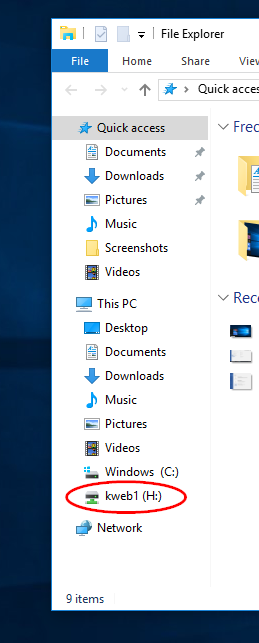
Here you will see all your mapped drives including USB drive and H Drive

Network

Network will not be used and can be ignored.


Microsoft Video

For a more detailed look at accessing your files, including an explanation on how libraries work, this video is available from Microsoft:

http://windows.microsoft.com/en-US/windows7/help/videos/finding-your-files

GOLF