What is Track Changes and Why Use It? #
Track Changes is a feature in Microsoft Word that records all edits made to a document, including insertions, deletions, and formatting changes. It is essential for collaborative work because it allows multiple people to review, comment, and approve changes without losing the original content. Using Track Changes ensures transparency, makes reviewing easier, and helps maintain version control in shared documents.
1. Turn On Track Changes
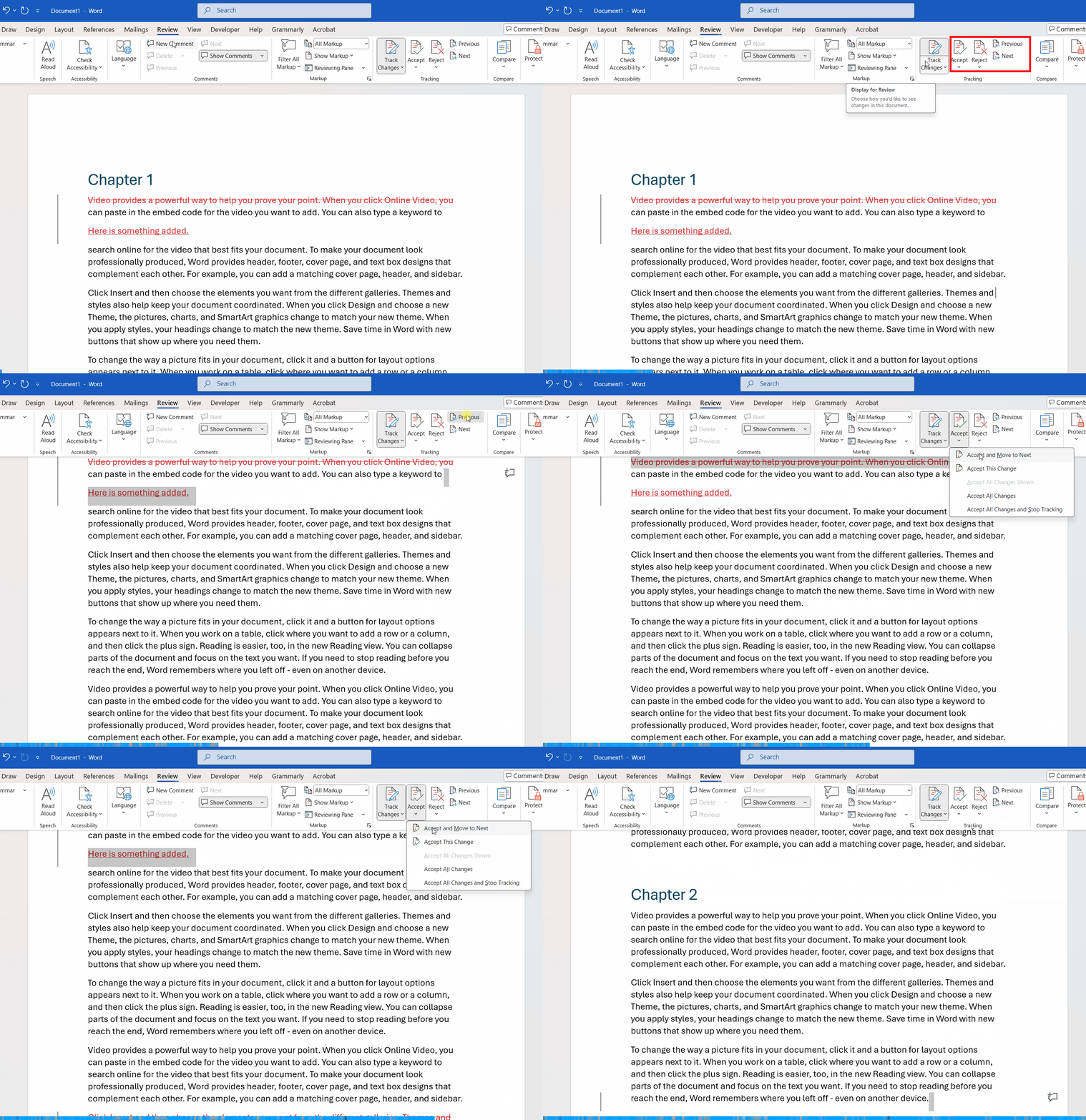
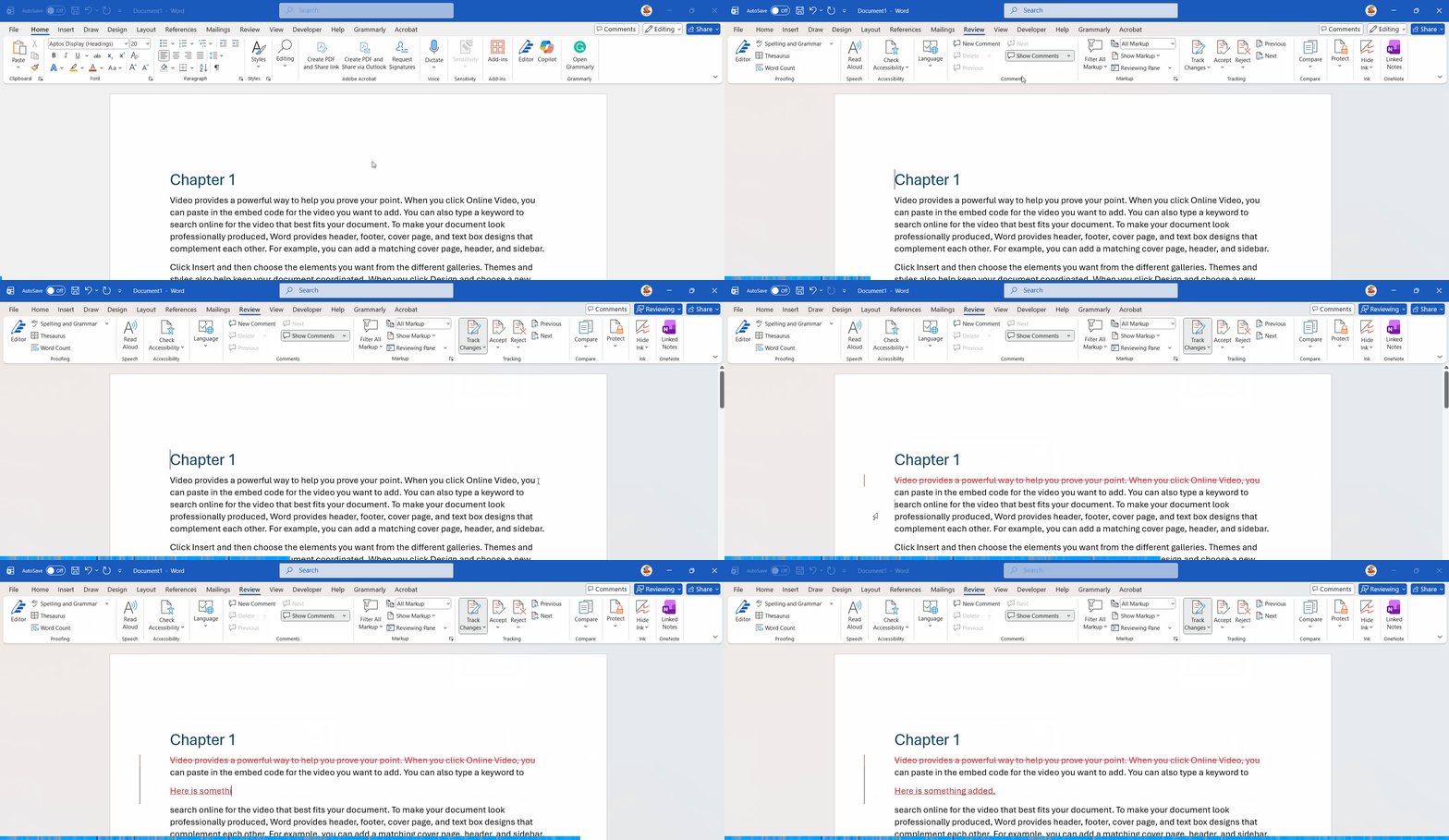
- Open your document in Word.
- Go to the Review tab on the Ribbon.
- In the Tracking group, click Track Changes.
- When enabled, any edits (insertions, deletions, formatting changes) will be marked in the document.
Picture
2. Customize How Changes Appear
- In the Review tab, click the drop-down arrow next to Track Changes.
- Select Change Tracking Options to adjust:
- Color coding for insertions and deletions.
- Formatting marks for changes like bold or italics.
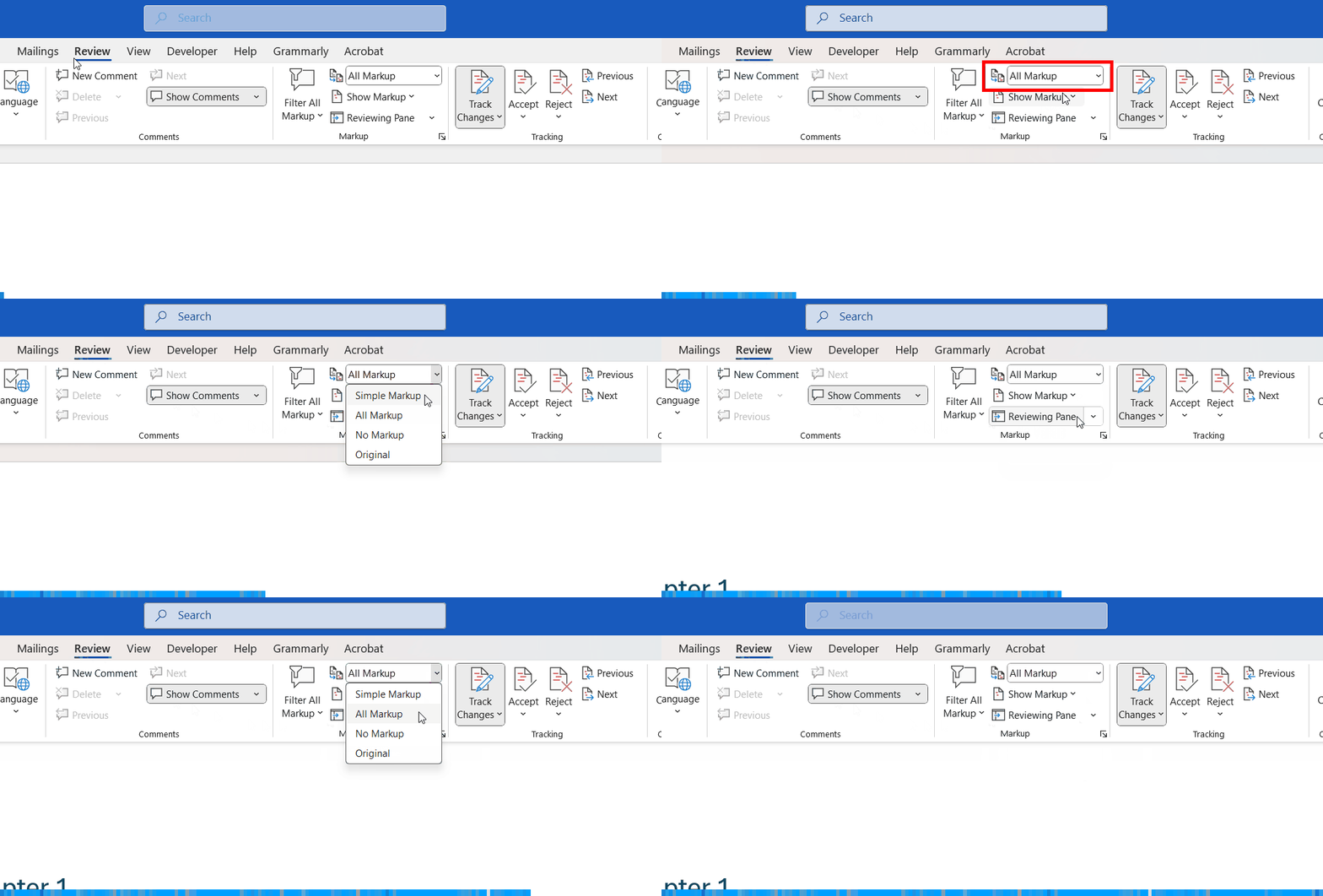
- Use Simple Markup for a clean view or All Markup to see every detail.
Picture
3. Reviewing Changes
- Go to the Review tab.
- Use Previous and Next in the Changes group to navigate through edits.
- Click Accept or Reject to confirm or discard each change.
- To accept or reject all changes at once, use the drop-down menu under Accept or Reject.
Picture
4. Show or Hide Markup
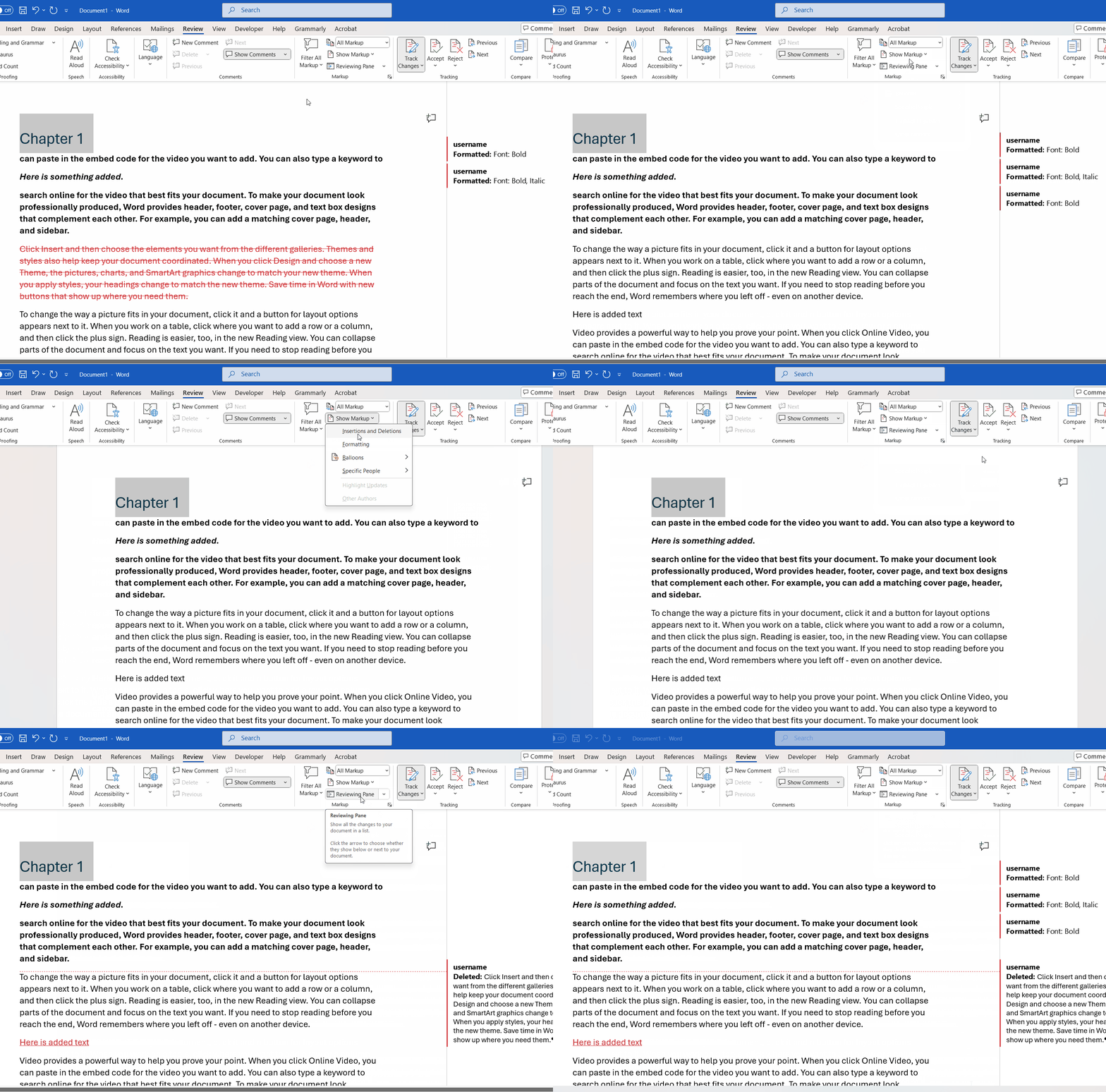
- In the Tracking group, click Show Markup.
- Select which elements to display:
- Comments
- Insertions and Deletions
- Formatting
- Use Reviewing Pane for a summary of all changes.
Picture
5. Turn Off Track Changes
- Go to the Review tab.
- Click Track Changes again to disable it.
- Note: Turning off Track Changes does not remove existing markup, it only stops tracking new edits.
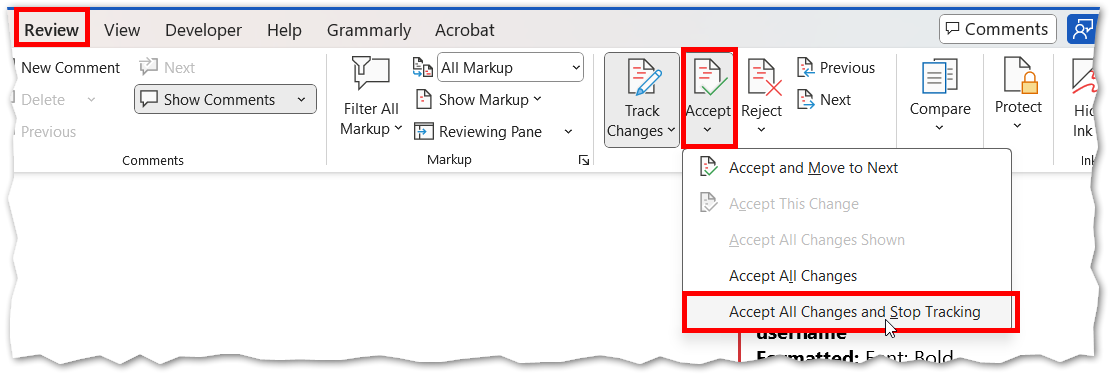
- Click Accept All Changes, and Stop Tracking
Picture