Word – Page view options

1 min read

1. Changing Page Views

  1. Go to the View tab on the Ribbon.
  2. In the Views group, choose one of the following:
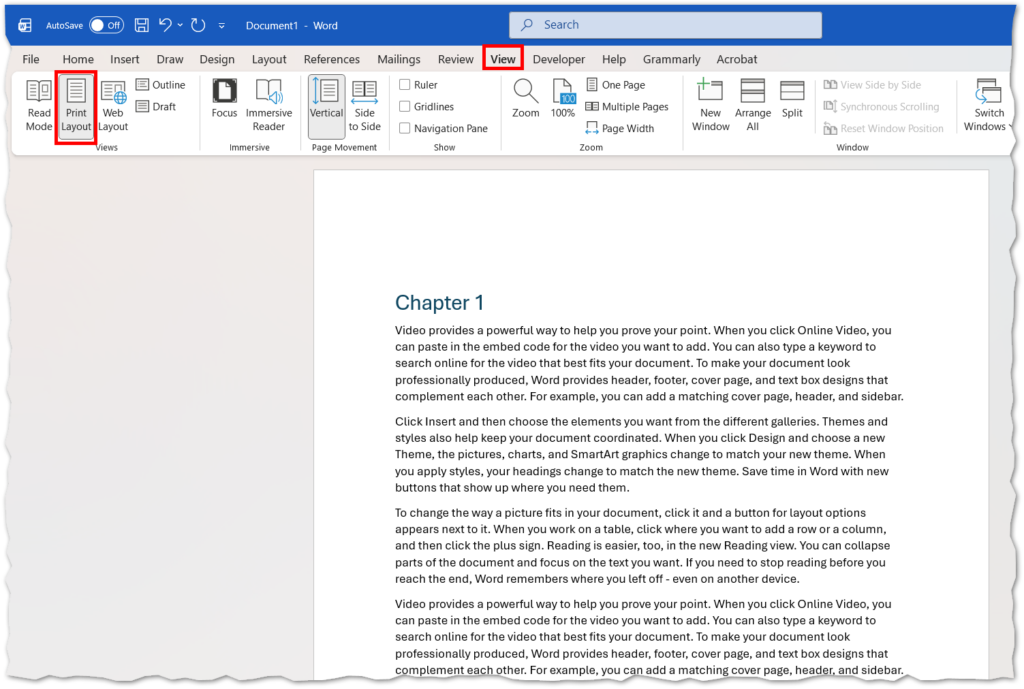
    • Print Layout (Default View): Shows the document as it will appear when printed, including margins, headers, and footers.
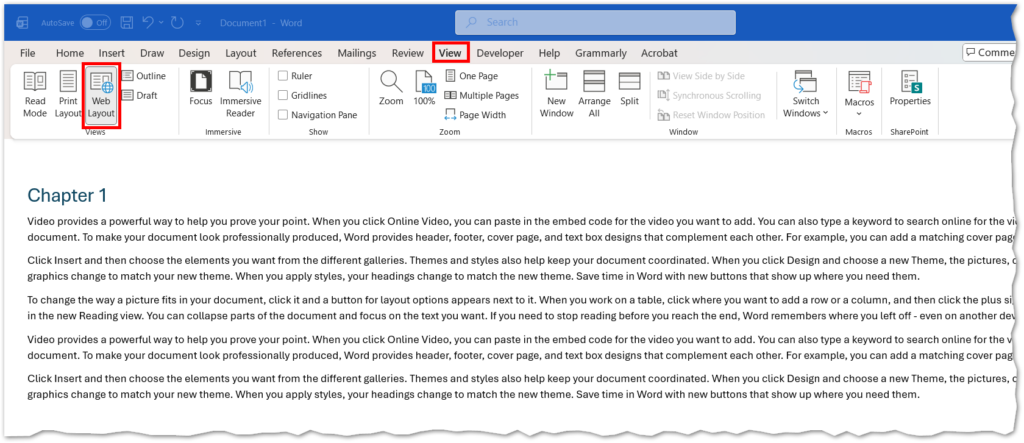
    • Web Layout: Displays the document as a web page without page breaks or margins.
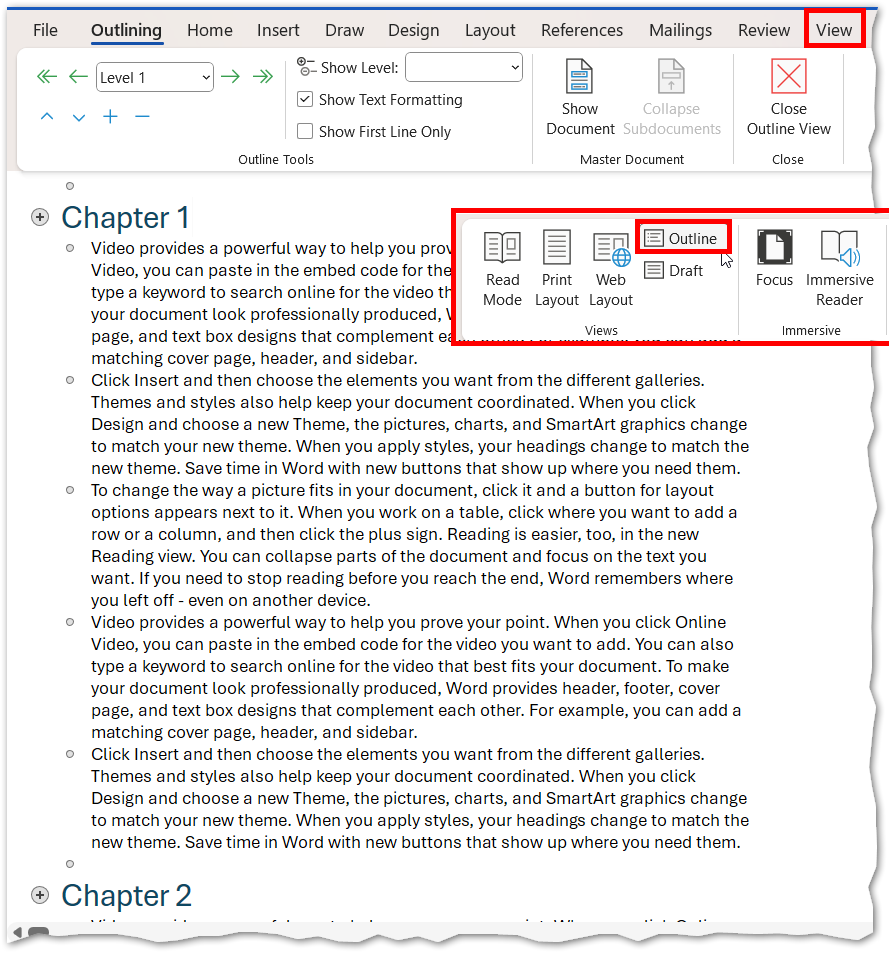
    • Outline View: Presents the document in an outline format for easy navigation and reorganization.
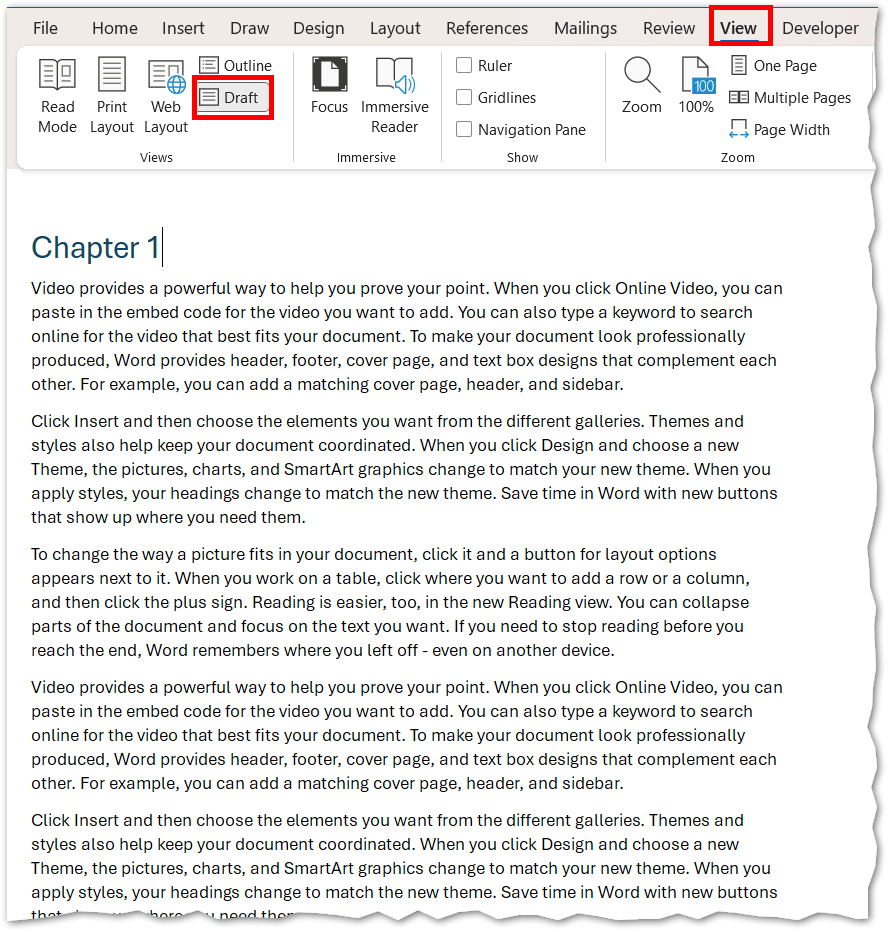
    • Draft View: Simplifies the layout for faster editing by hiding headers, footers, and certain formatting.
This image shows the view tab of the menu ribbon with print layout selected.
This image shows the view tab in the menu ribbon with web layout selected.
This image shows the outline view in the view tab of the menu ribbon.

2. Zoom and Multiple Page View

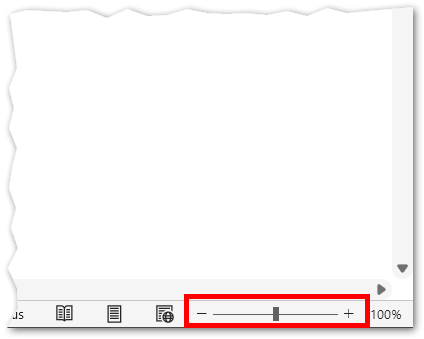
  1. At the bottom-right of the Word window, use the Zoom slider to adjust magnification.
  2. For more options:
    • Go to View → Zoom.
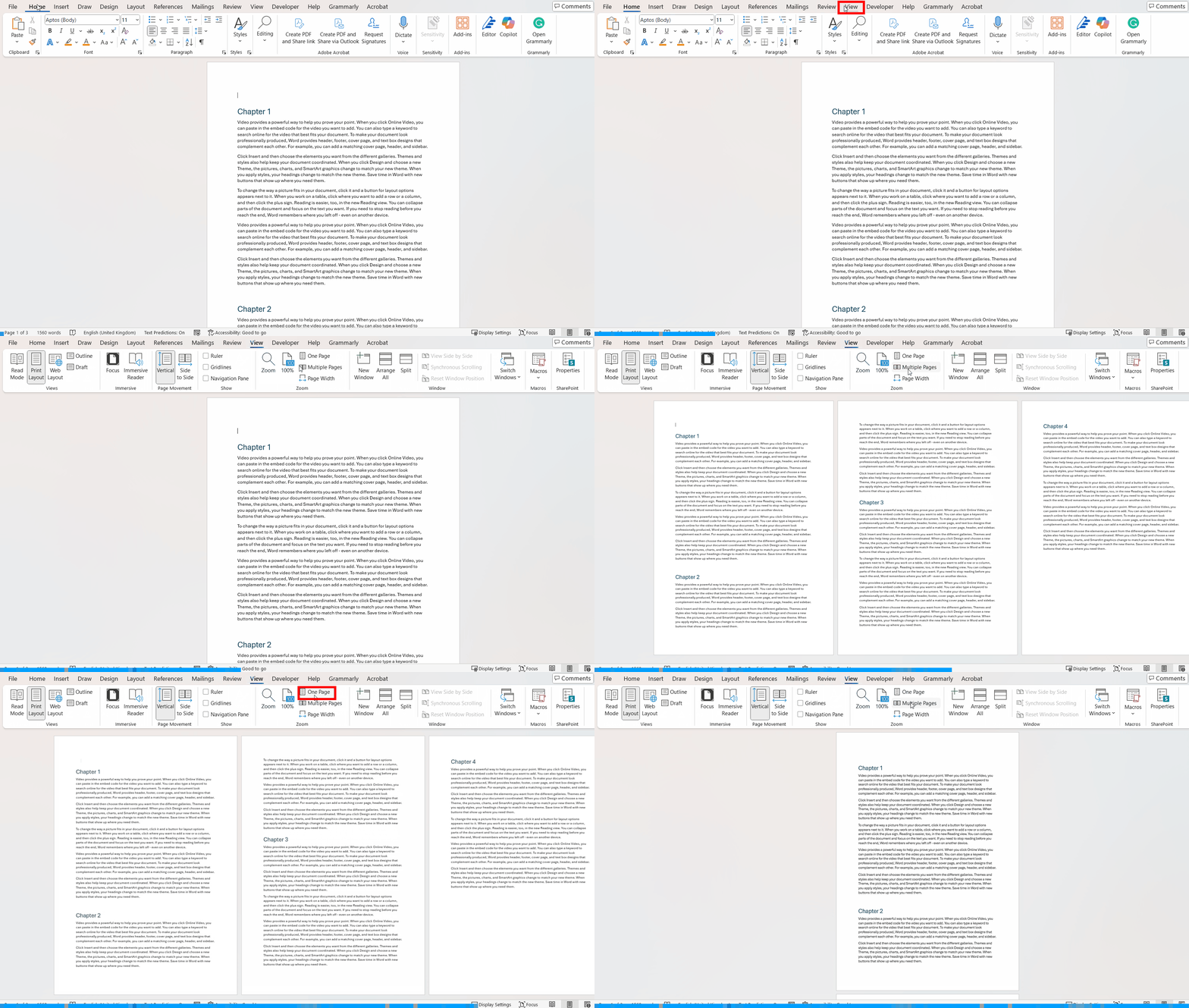
    • Select Multiple Pages to view two or more pages side by side.
    • Choose the number of pages you want to display for easier comparison.
This image shows the zoom tools in Microsoft Word.
This image shows using the Multiple pages button in the view tab to display multiple pages at once.

3. Opening Multiple Windows

  1. Go to the View tab.
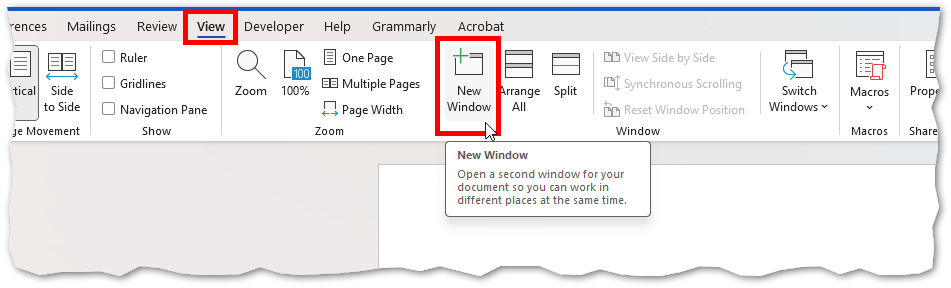
  2. Click New Window to open another instance of the same document.
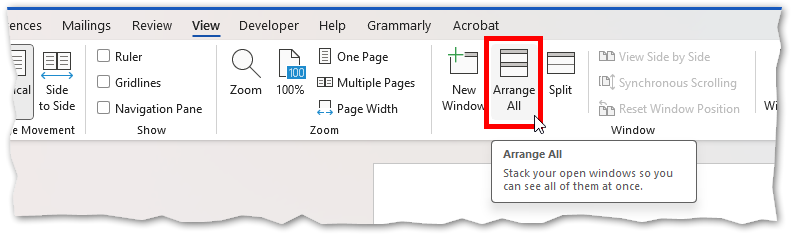
  3. Use Arrange All to display multiple windows side by side.
  4. Use Switch Windows to toggle between open document windows quickly.
This image shows creating a new window to show a different point of the same document.
This image shows the arrange all button you can select to put windows side-by-side.
Was this article helpful?
Updated on January 13, 2026