Word – Page Numbering

1 min read

Page numbering adds sequential numbers to your document, usually in the header or footer. It’s essential for reports, dissertations, and any multi-page document. You can easily apply it through the entire document just by inserting them.

Insert Page Numbers #

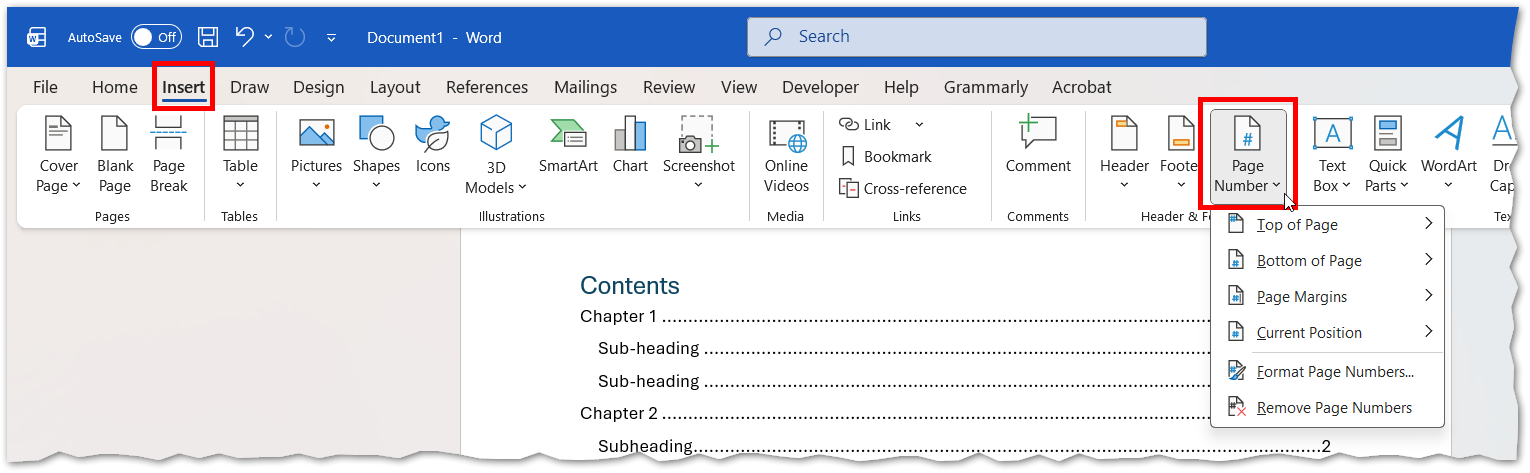
  1. Go to the Insert tab.
  2. Click Page Number in the Header & Footer group.
  3. Choose:
    • Top of Page (Header)
    • Bottom of Page (Footer)
    • Page Margins
    • Current Position (where your cursor is)
This image shows adding page numbers from the Insert tab in the menu ribbon.

Format Page Numbers #

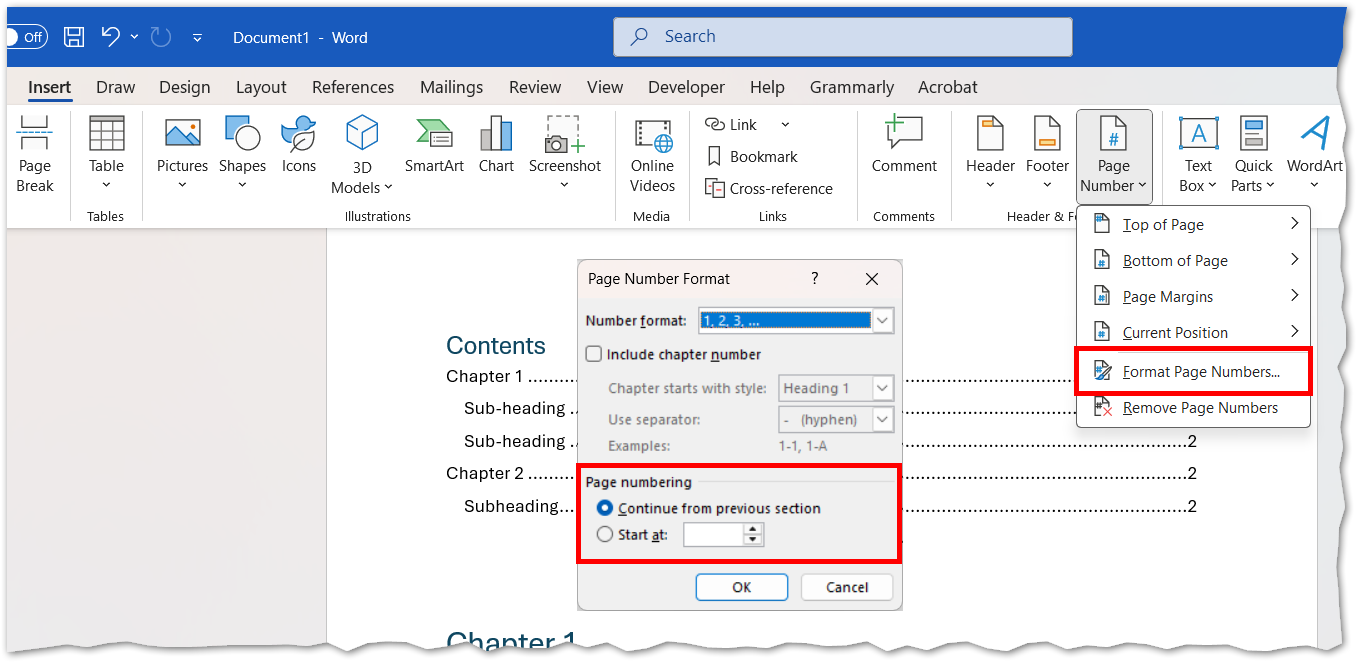
  • After inserting the numbering, click Format Page Numbers in the Page Number menu.
  • Options include:
    • Number format (e.g., 1, 2, 3 or i, ii, iii)
    • Include chapter number
    • Start at (set a custom starting number)
This image shows formating the page numbers using the Page number format window.

Restart Numbering in a Section #

To restart numbering or use different formats:

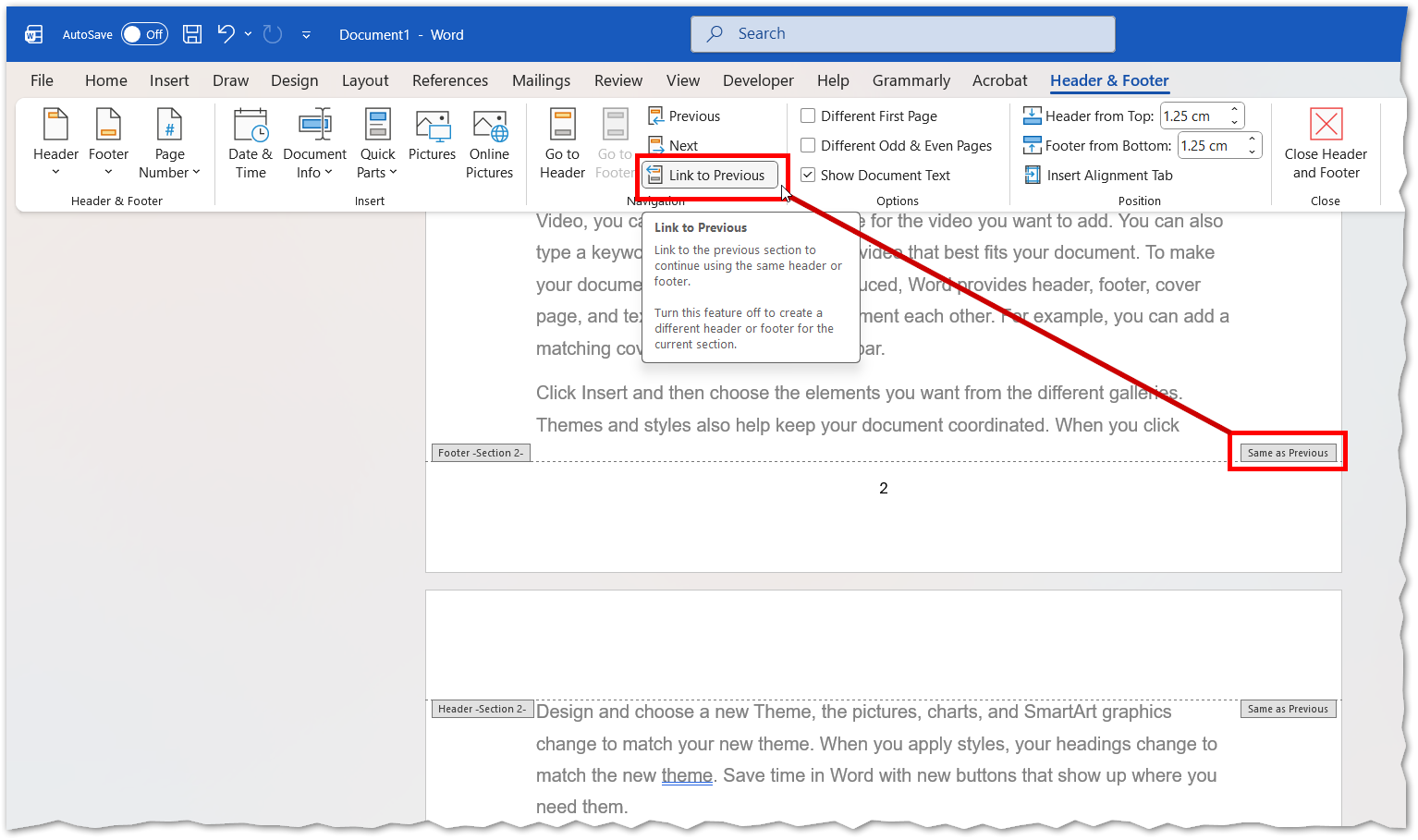
  1. Insert a Section Break (Layout → Breaks → Section Break).
  2. Double-click the header/footer in the new section or edit it.
  3.  With the header/footer menu accessed, turn off Link to Previous.
  4. Insert and format page numbers for that section..
This image shows unlinking a section from the previous section.

Remove Page Numbers #

  • Go to InsertPage NumberRemove Page Numbers.
  • Or delete them manually from the header/footer.
Was this article helpful?
Updated on January 12, 2026