Syncing a SharePoint storage area with your computer

1 min read

Syncing a SharePoint storage area allows you to access shared files directly from File Explorer on Windows. This means you can work with documents as if they were stored locally, while keeping everything synchronised with the online SharePoint site.

Accessing the SharePoint Site #

SharePoint sites can be accessed in different ways, depending on how the content was created or shared:

SharePoint Sites (e.g., “UoC Staff”)
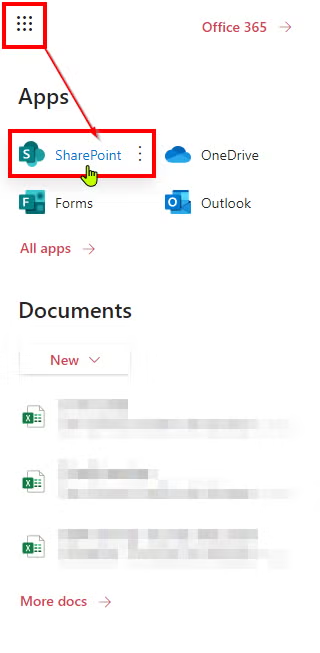
  1. Click the Email/Office 365 app launcher.
  2. Select SharePoint.
  3. Choose the SharePoint site you are a member of, such as UoC Staff.
  4. Open the area you want to sync.
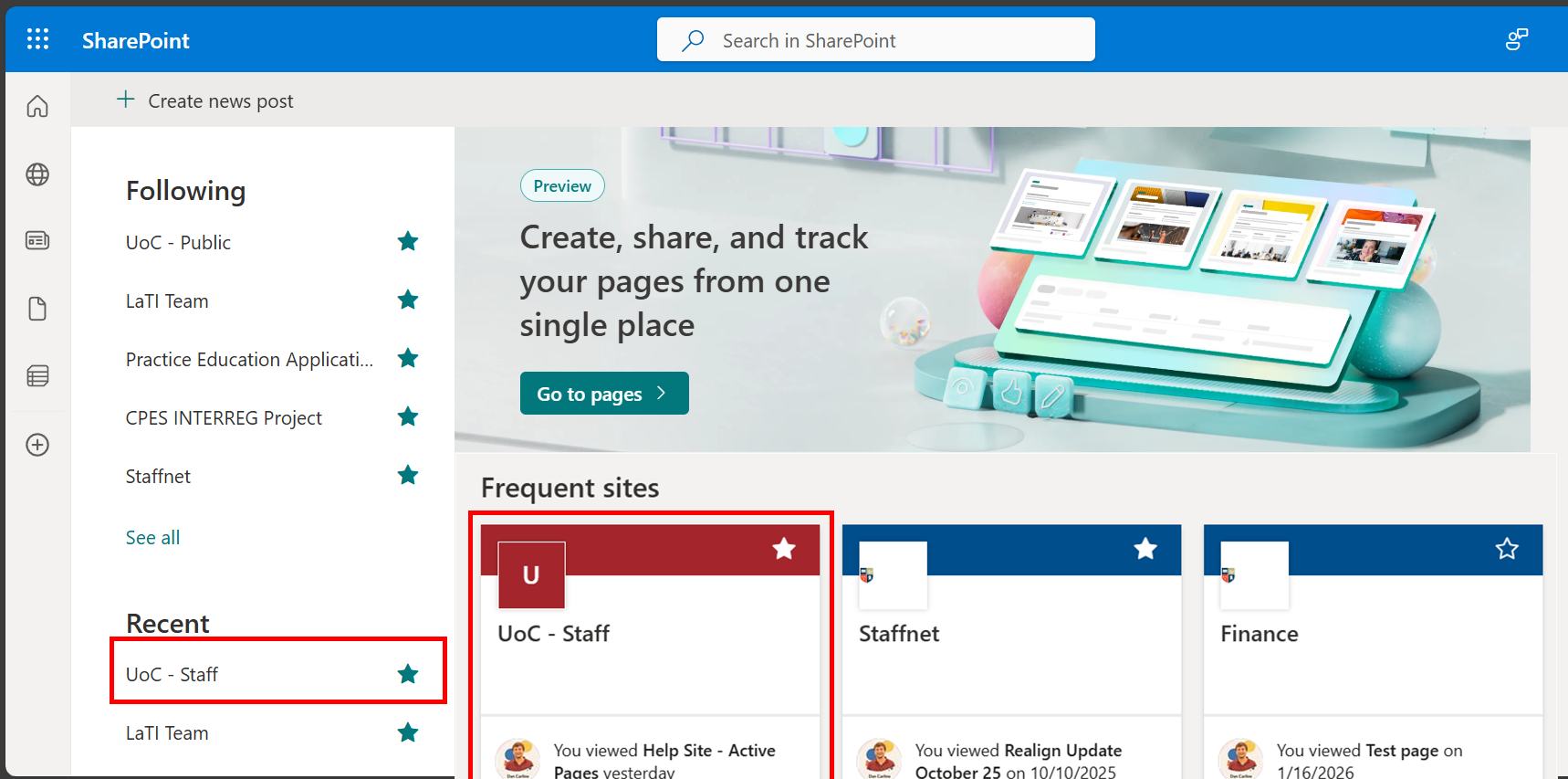
This shows the office 365 menu with sharepoint selected.
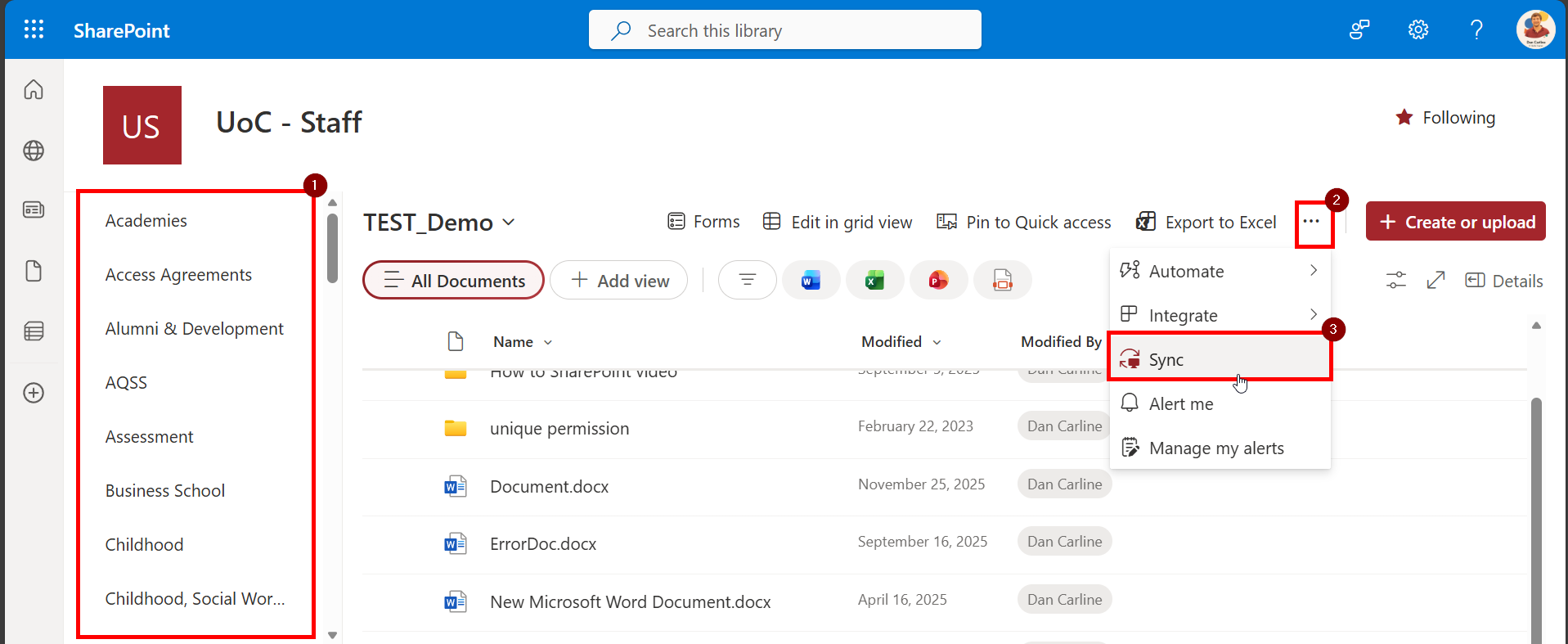
This image shows selecting UOC staff from the list of Sharepoint sites available.
This image show a sharepoint file area with the Sync button selected.
Teams File Areas

Files shared within a Microsoft Teams channel are stored in SharePoint behind the scenes.

To access them for syncing:

  1. Open Microsoft Teams.
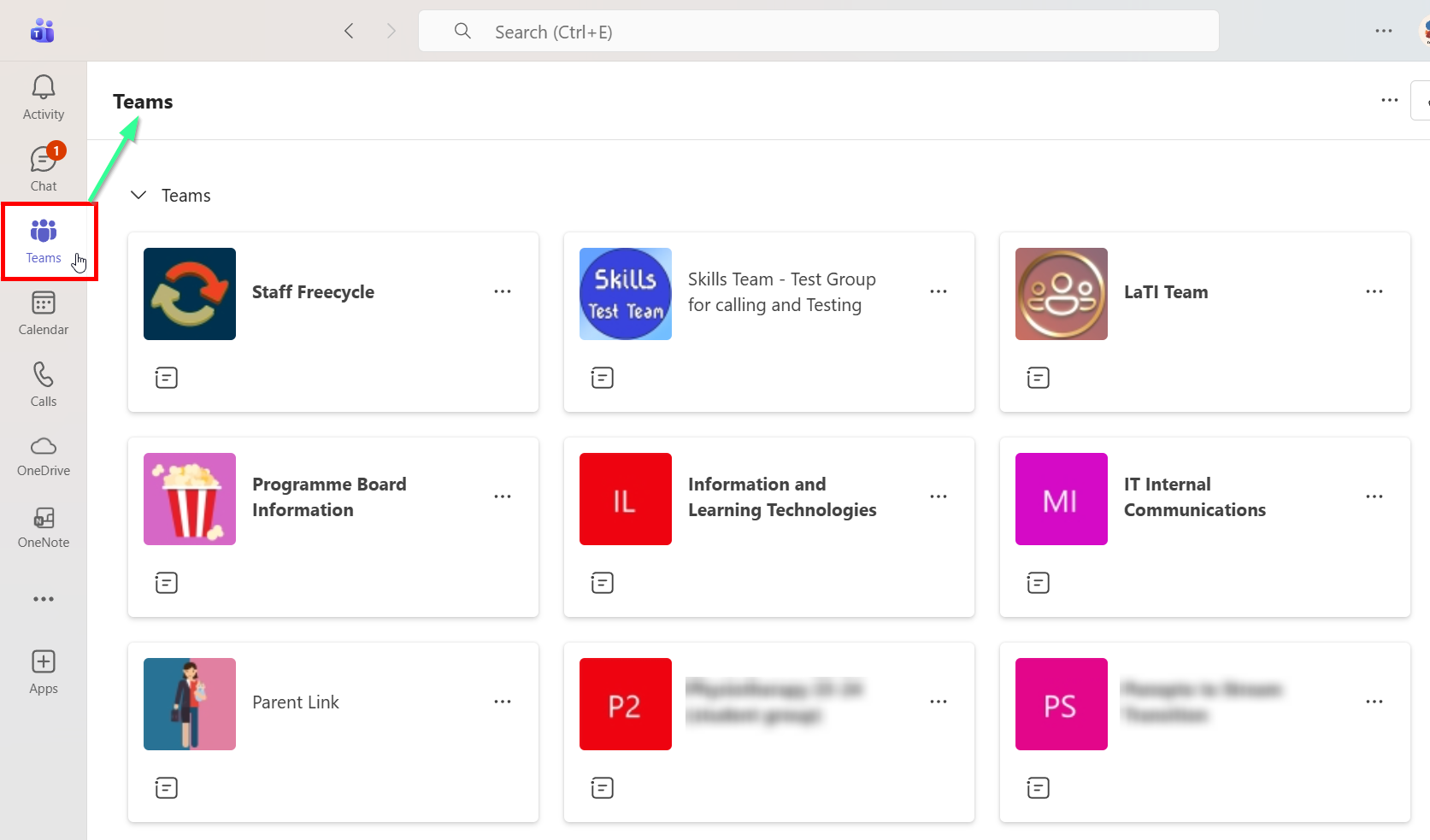
  2. Select Teams from the left-hand menu.
  3. Choose the relevant Team and channel within the team.
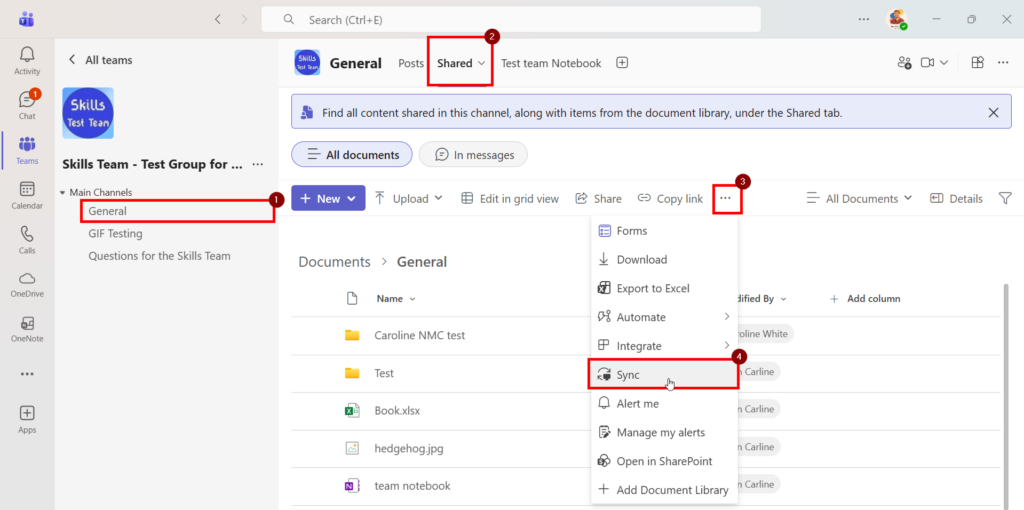
  4. Open the Shared/Files tab.
This image shows accessing a teams area within the teams app.

Syncing an area/folder

Once you have opened the site in your browser:

  1. Navigate to the document library you want to sync. (It Is wiser to sync top level folders than subfolders)
  2. Click the Sync button in the menu ribbon.
  3. When prompted, choose Open with OneDrive to start the sync.
Your files will now begin syncing using the OneDrive app installed on your computer. (Windows already includes OneDrive)

Viewing Synced Areas in File Explorer

To find your synced folders:

  1. Open File Explorer.
  2. In the left-hand panel, look for the University of Chichester section.
  3. Expand it to view all synced SharePoint and Teams folders.
These folders give you full offline access. Any changes you make will automatically sync when you reconnect to the internet.
Was this article helpful?
Updated on January 20, 2026