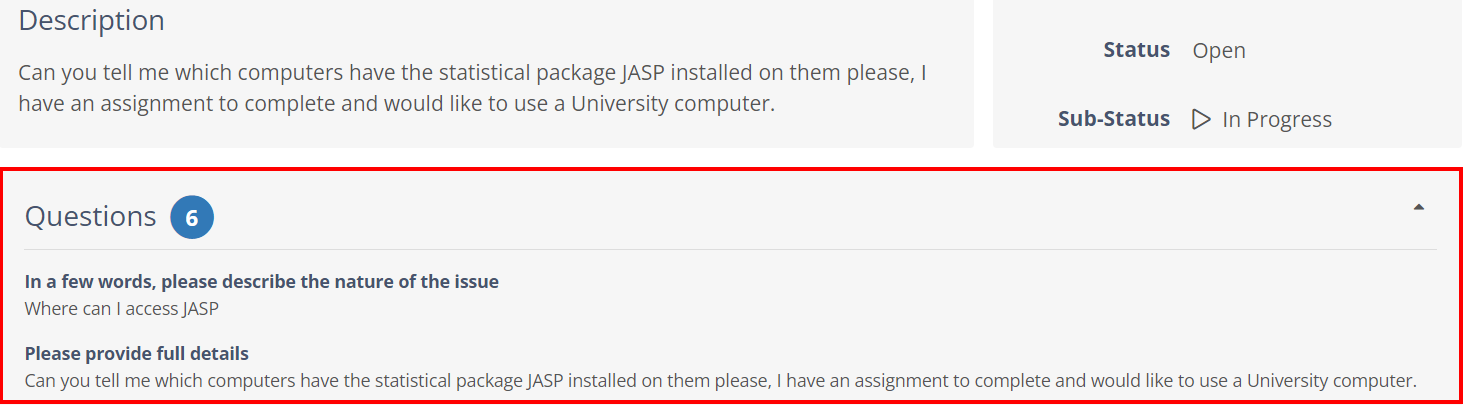
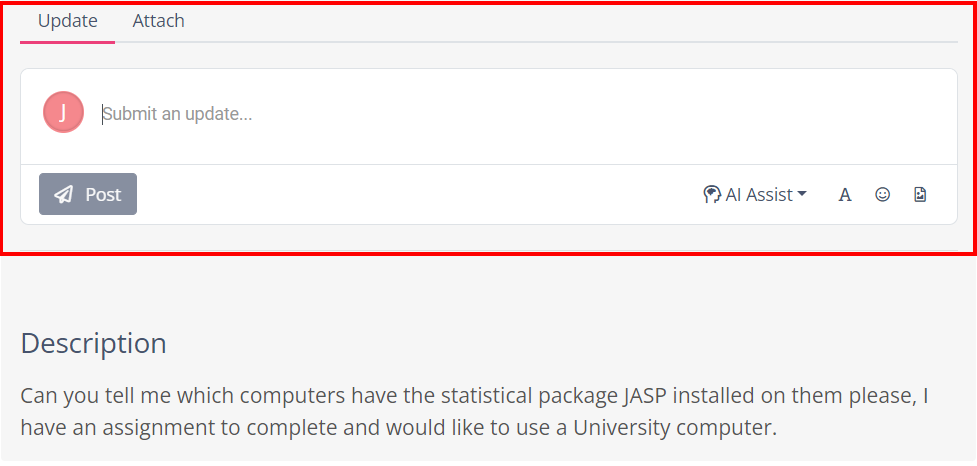
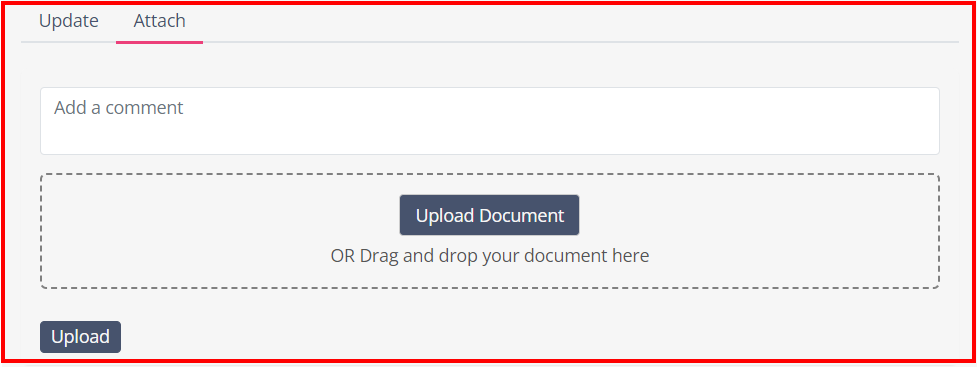
SupportMe is a self-service portal for raising support calls e.g. IT Support calls, reporting lost property, requesting library books to be sent cross-campus for you etc.
Calls can also be logged to Estate Management via the ‘Request Estates Support’ link on the SupportMe home page, e.g. for reporting issues with power sockets, heating, plumbing etc. For help on logging calls for Estates, click here.
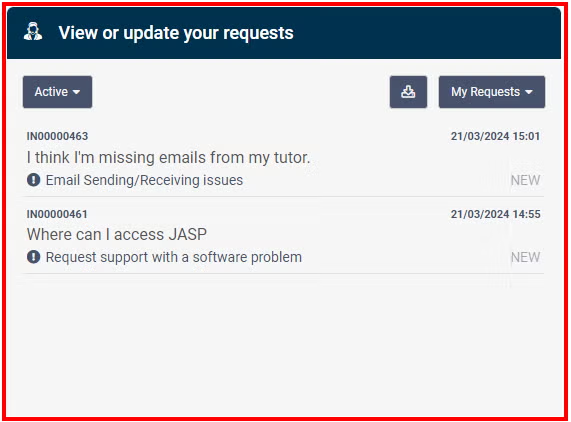
Once your call is logged it will be forwarded to the appropriate team, and you will receive a confirmation email with a call reference number to your university email account.
If you are unable to use the online service or visit us in person then please email the Support and Information Zone at help@chi.ac.uk or phone the SIZ on (01243 81) 6222
Request Estates Support
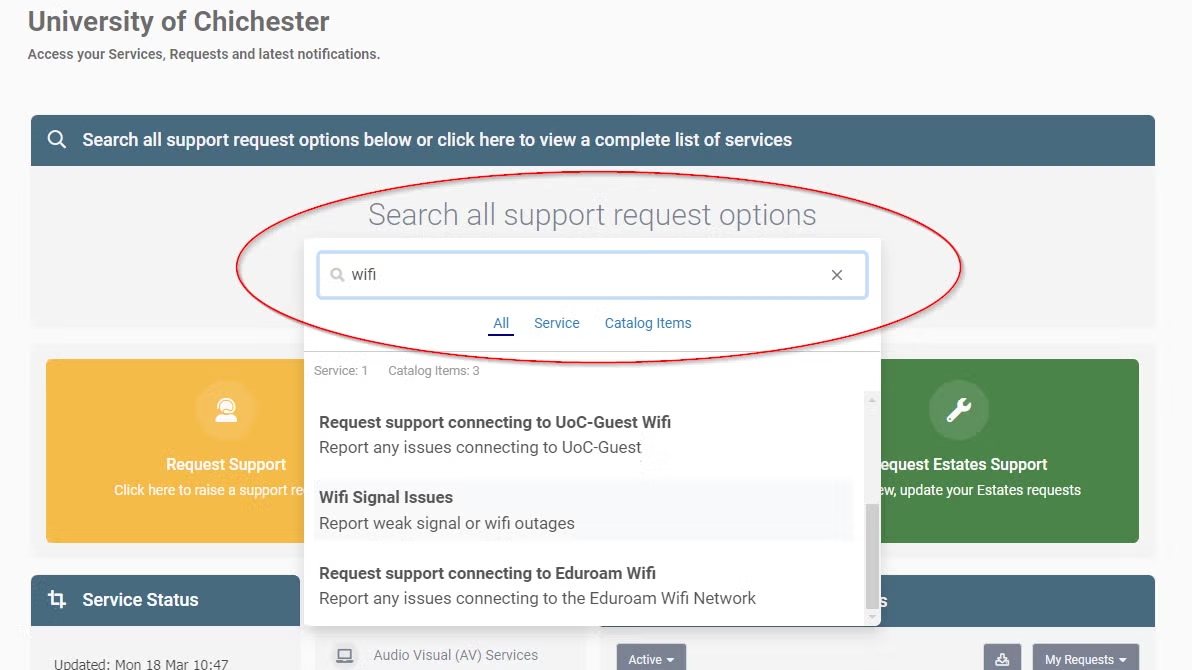
Raising a support request – e.g. IT, Finance, Business Applications, Moodle etc#
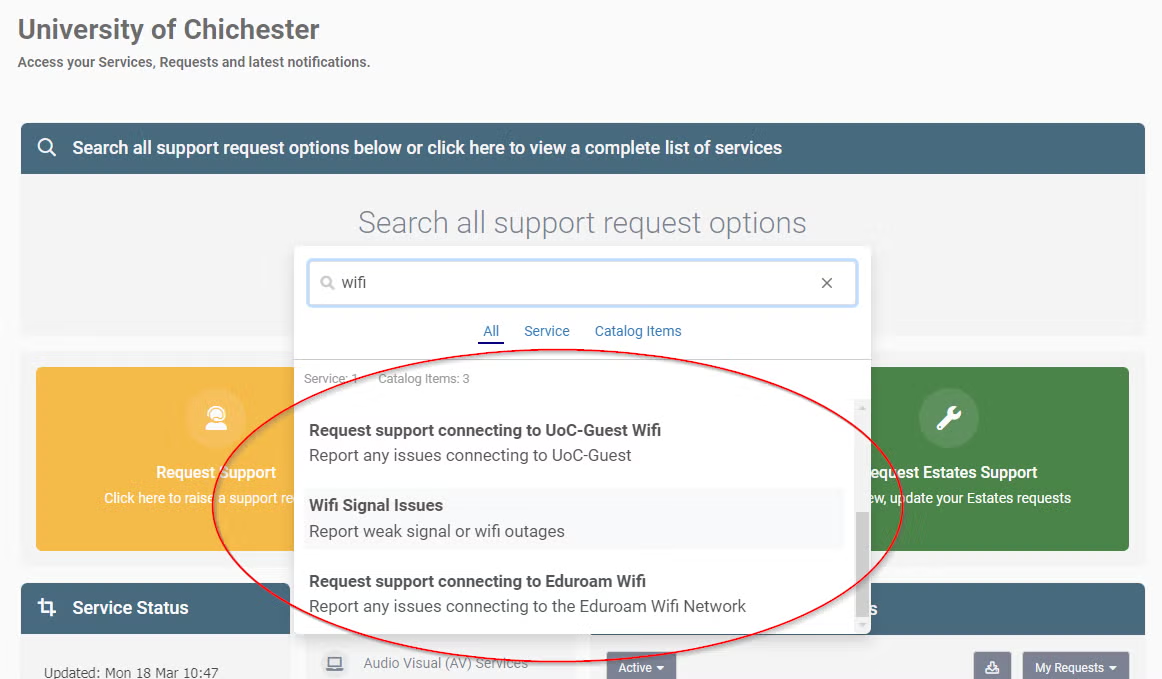
One-word searches will return the best results e.g. wifi
Select from the available results
Complete the corresponding questions and submit the form by selecting the finish button.
If you know the service you require support for, you can go directly to each individual service
2. By navigating:
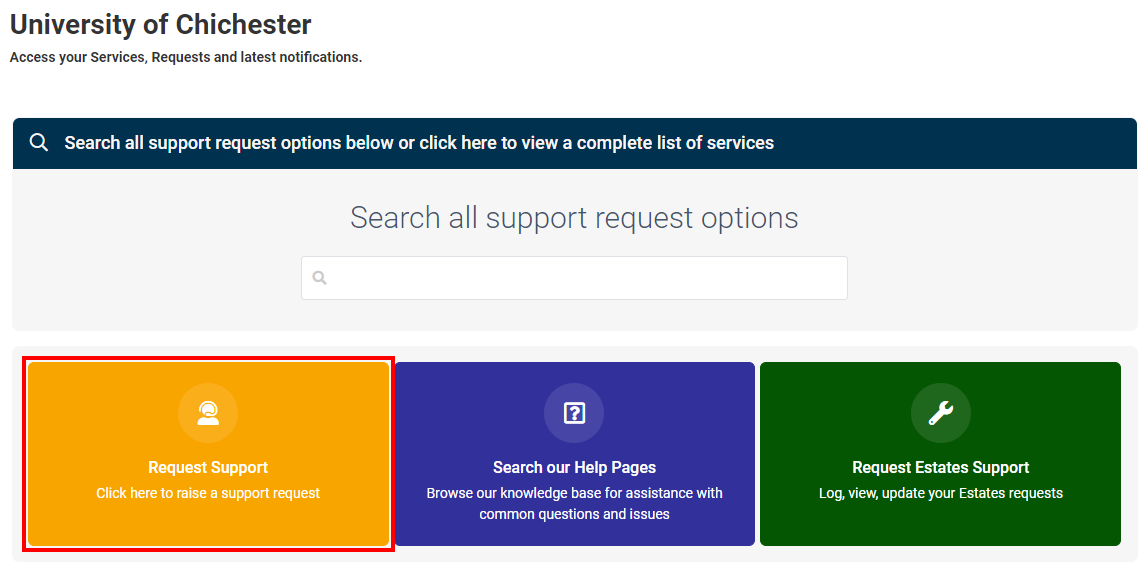
From the home page, click Request Support
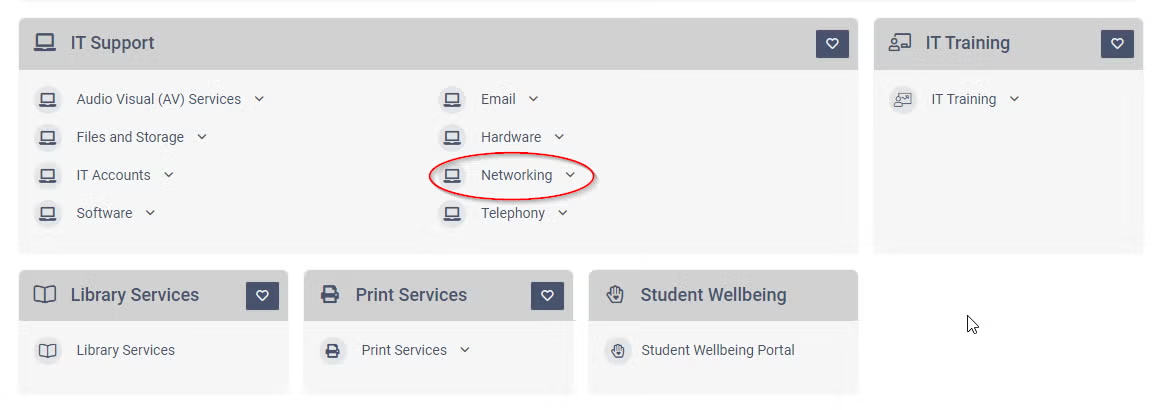
You will need to locate a service to raise a request against. All of our services are shown in alphabetical order. Navigate down the page until you reach the required service
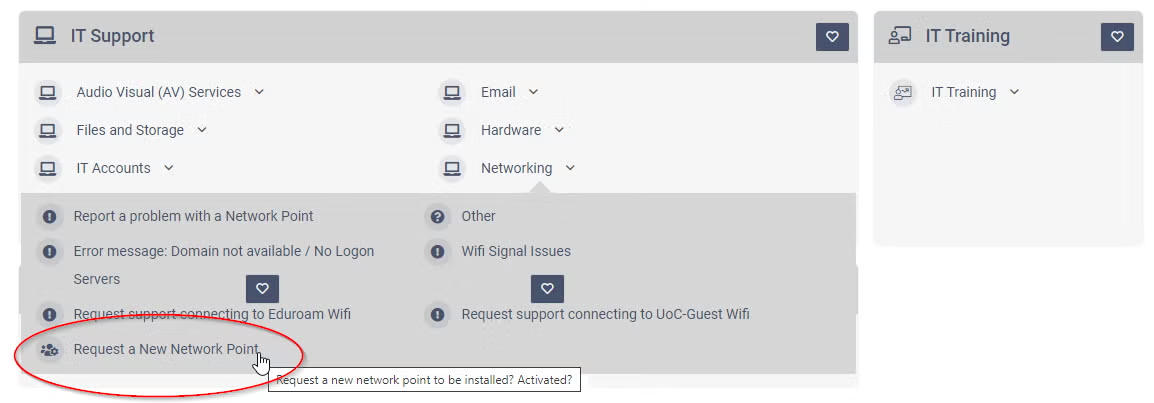
Under each service are categories, select a category to see the available requests that can be raised
Complete the corresponding questions and submit the form by selecting the finish button
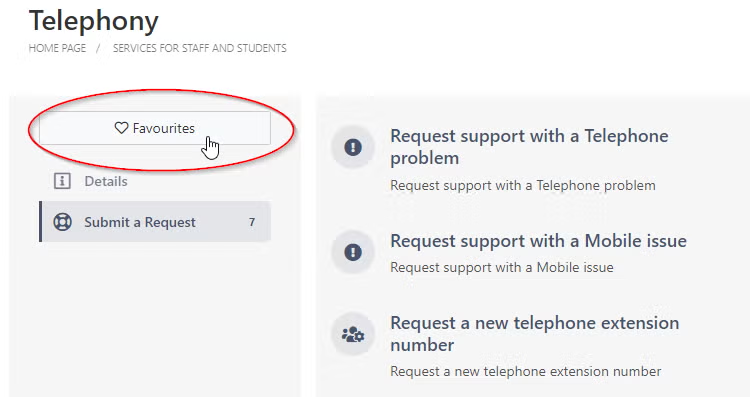
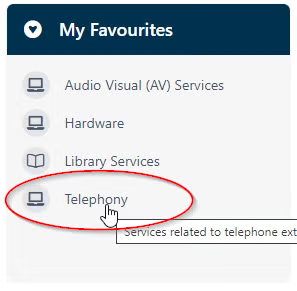
For speed and ease of use, you can add the services you use most often to the My Favourites section on your SupportMe home page
For a service to appear in the My Favourites section, from the Request Support button navigate to the service and select the heart symbol next to the service’s name. The heart will change colour
Back on the SupportMe home page, it will be listed in the My Favourites block
To remove a service from My Favourites, deselect the relevant heart icon