
Create and watch videos all in one place
Clipchamp (previously called Stream) is Microsoft’s easy‑to‑use video recorder and editor: a tool designed to make video creation accessible to everyone, including those with little or no editing experience. It allows you to combine video clips, images and audio, as well as add text overlays, transitions and filters. Users also have access to a wide range of royalty‑free media, including stock video, music, sound effects, stickers and backgrounds. Because Clipchamp works directly in the browser, staff and students can get started quickly without needing specialist software or high‑powered devices.
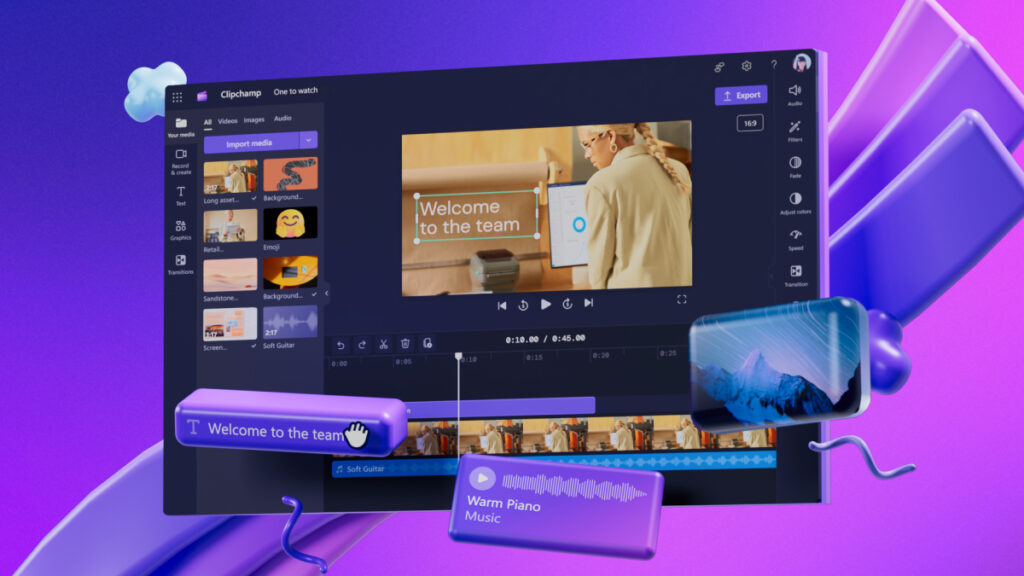
Clipchamp offers a simple but powerful way to support digital learning
Students can create:
- presentations
- demonstrations
- reflective pieces
- assessments and portfolio content
Staff can produce:
- teaching materials
- module introductions
- walkthroughs
- feedback videos
Clipchamp for education integrates with Microsoft 365 services (Teams, OneDrive and SharePoint), making it easy to store, manage and share videos securely within the university. Whether enhancing teaching, promoting digital literacy or encouraging creative expression, Clipchamp provides a flexible and approachable platform for video production across the curriculum.
How to access Clipchamp
When accessing your University email (mail.chi.ac.uk), you can access Microsoft 365 applications from the “waffel” in the top-left.
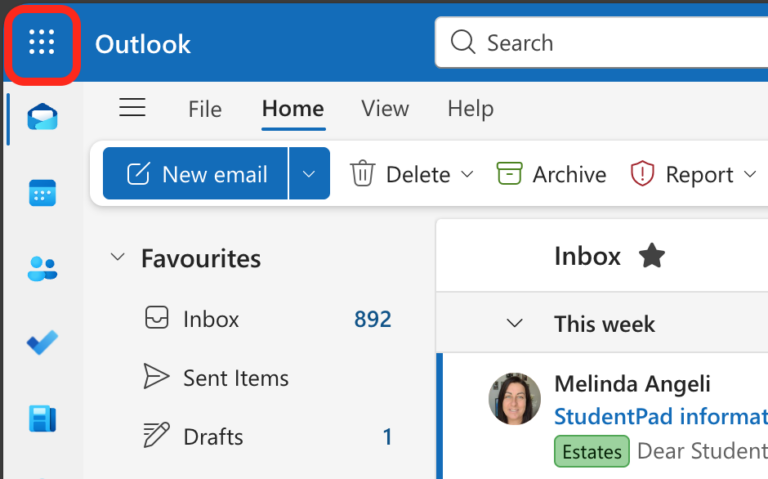
This will open up a list of popular applications.
If Clipchamp isn’t listed here, select to see More apps
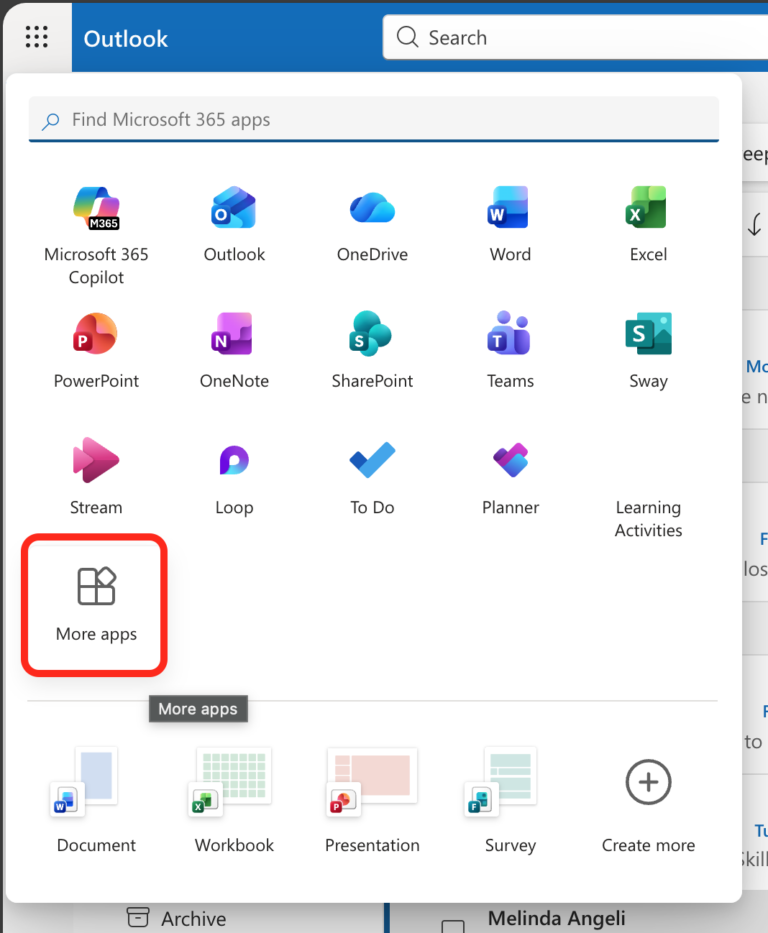
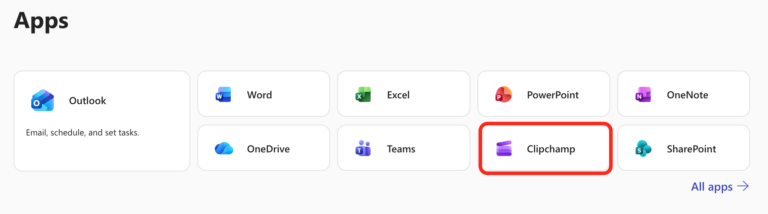
Select Clipchamp from the list
Making a recording
When accessing Clipchamp, you’ll see the option to Create a new video from the options at the top of the page
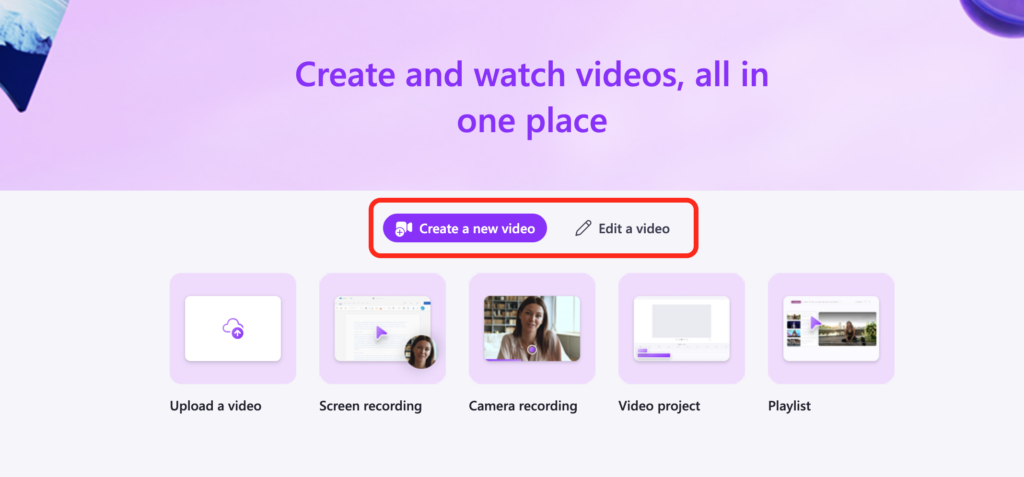
This will display a few different types of recordings you can make:
- Upload a video
- Useful for if you already have a video you want to make available via Clipchamp
- Screen recording
- Record your computer screen (you can also include webcam video and audio)
- Camera recording
- Record from your webcam
- Video project
- Start to build a complex video project, incorporating multiple assets
- Playlist
- Create a list of previously created videos
Lecture recording #
As Clipchamp recording is limited (15-30 minutes depending on version), if you are looking to create longer recordings, such as recording a lecture, then we would recommend that you use Microsoft Teams
Sharing recordings
Clipchamp recordings are stored in OneDrive or SharePoint and can be shared in the same way that you share any online document.
Sharing your recordings on Moodle (or elsewhere) #
Watch the video guide for Sharing your recordings on Moodle
- Navigate to the videos folder location (OneDrive/SharePoint/Teams)
- Tap on the … and select Share
- Next to the file name, tap on the Settings cog icon
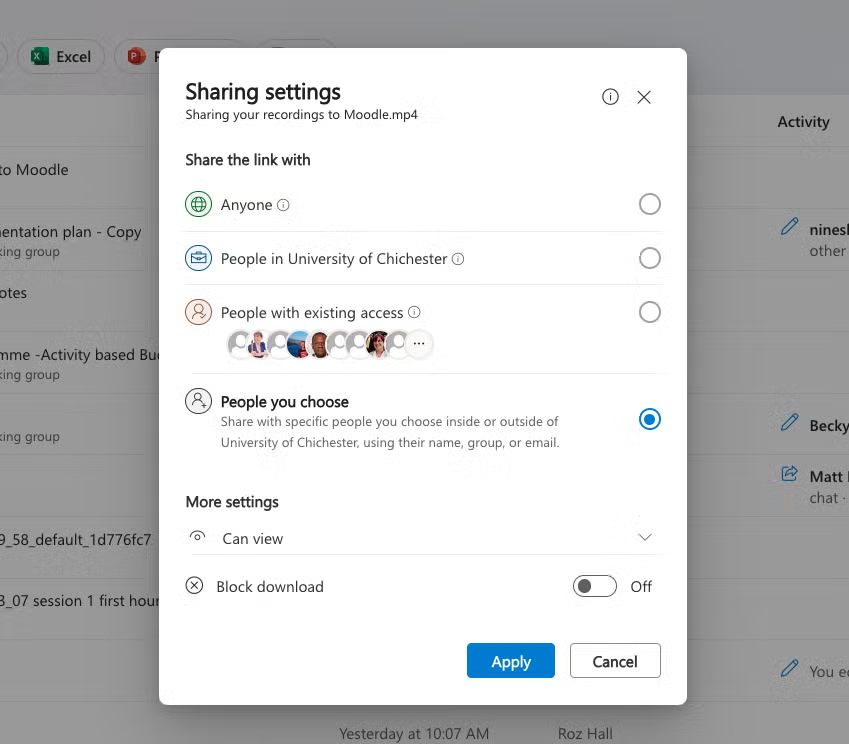
- Under the Sharing options, you can choose who you want to share the recording with
- People in the University of Chichester: meaning that they will have to login to view it
- Anyone: meaning that people will be able to view without logging in. This may include people outside of the organisation
- Once you have chosen who you want to share it with, under More settings, choose Can view (can not make changes)
- Select Apply
- Select the Copy link button
- This gives you a link that you can copy and paste into Moodle (or use elsewhere)
- Navigate to your Moodle page and paste in the URL
- You can do this by: enabling Edit mode and then Add a resource or activity and choosing Hyperlink
- Make sure that you name the resource clearly so that your students know to find the recordings there
Please Note: When needing to share the link again in future, make sure to use Manage Access rather than ‘Copy Link’.
General information on sharing from OneDrive
The files on your OneDrive are private until you share them.
- You can share individual files, or a folder full of files
- You can choose to share with individual people, to anyone at the university, or to anyone without having to login (this could include someone external from the organisation)
- When you share, you can choose for people to have editing access to the file, or to just be able to view.
This all works the same whether you’re sharing a Word document, a PowerPoint presentation, and image or a video.
For a detailed guide for sharing from OneDrive, please see Microsoft’s guide: Share OneDrive files and folders – Microsoft Support
Video editing
For more information and further guides, please see the list of Other resources below.