1 min read
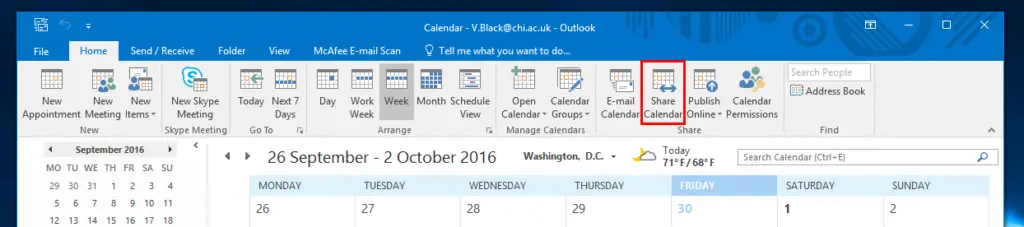
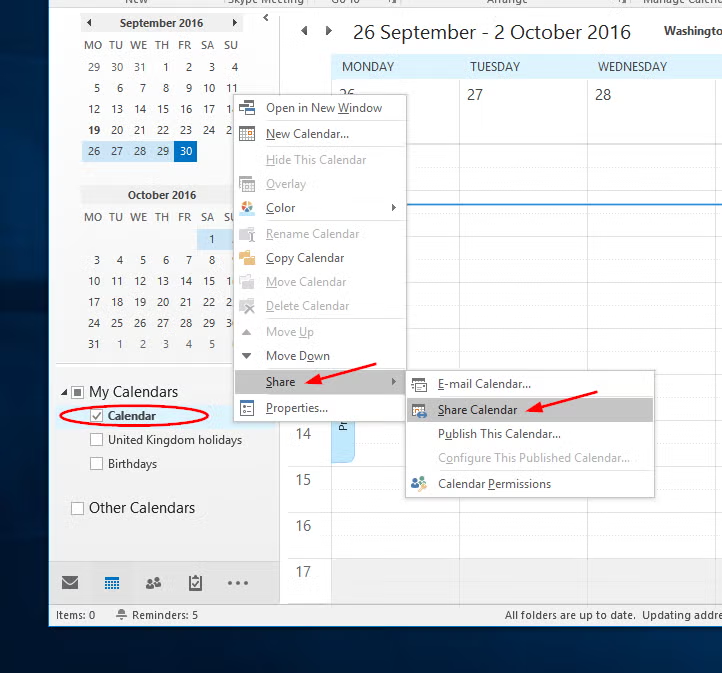
1.From Outlook calendar you can access the sharing invitation in two ways. Both take you to the same window:
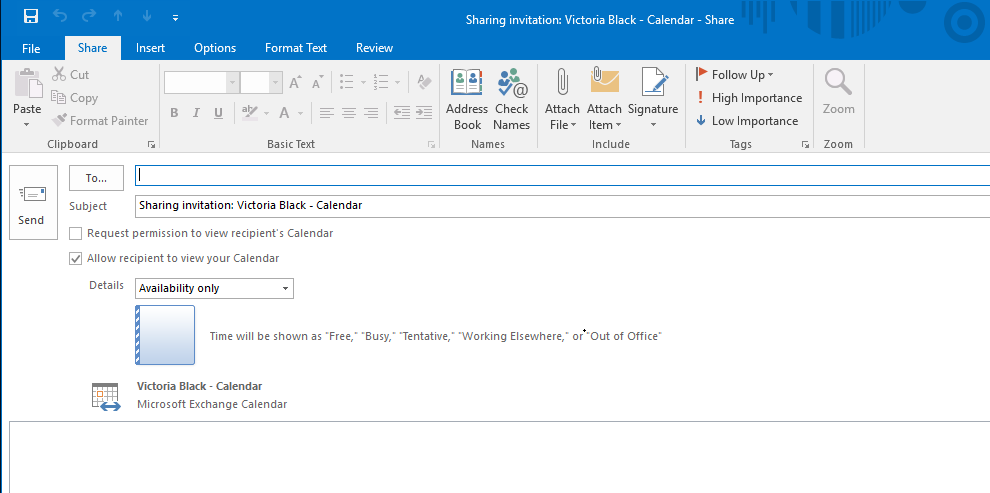
2.Whichever method you choose, the Sharing Invitation window will open. It looks like an email.
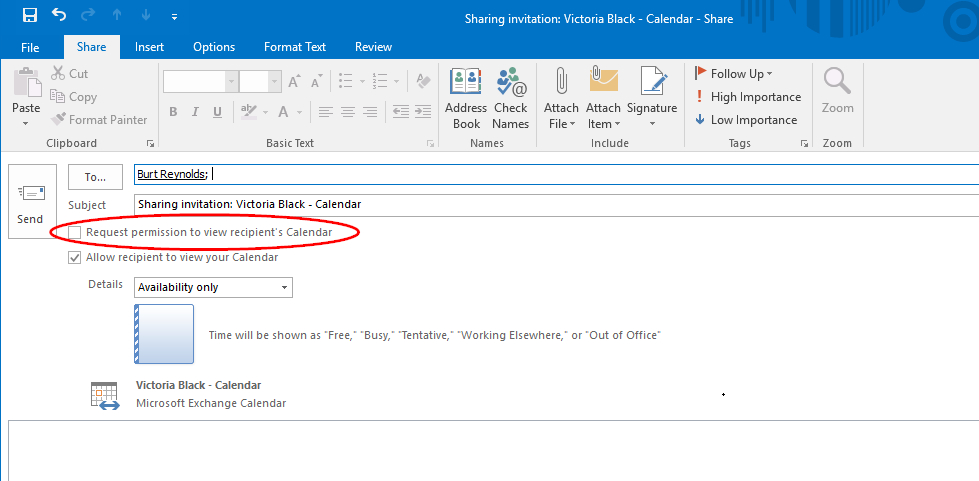
3.In the To field, enter the email address of the person you want to share your calendar with:
You can request permission to view their calendar by checking the relevant box
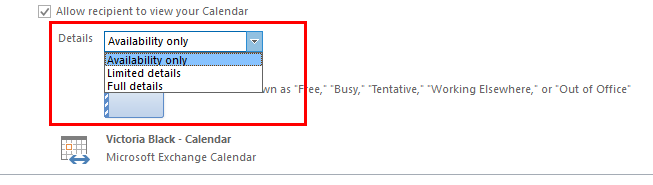
4.Choose the level of access you want to give to the person you are sharing with. More information about these levels is displayed underneath when you highlight one.
5. If you want to, enter a message in the box, as you would an email
6. And Send
A message asks you to confirm you want to share your calendar, select OK
When a colleague has shared a calendar, the person they have chosen to share it with will receive an email notification.
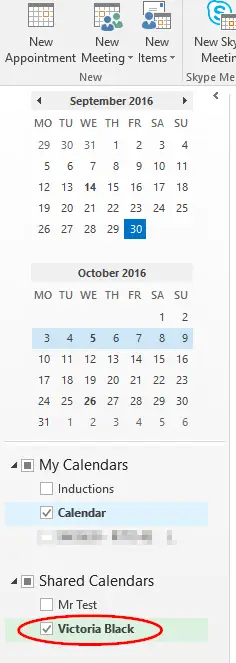
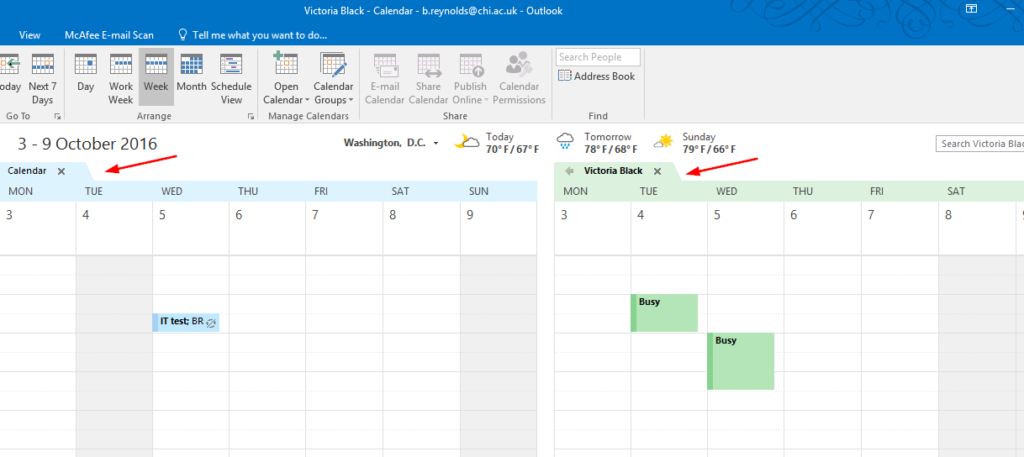
In the email, when the recipient clicks on the Open this Calendar button the shared calendar is added underneath their own:
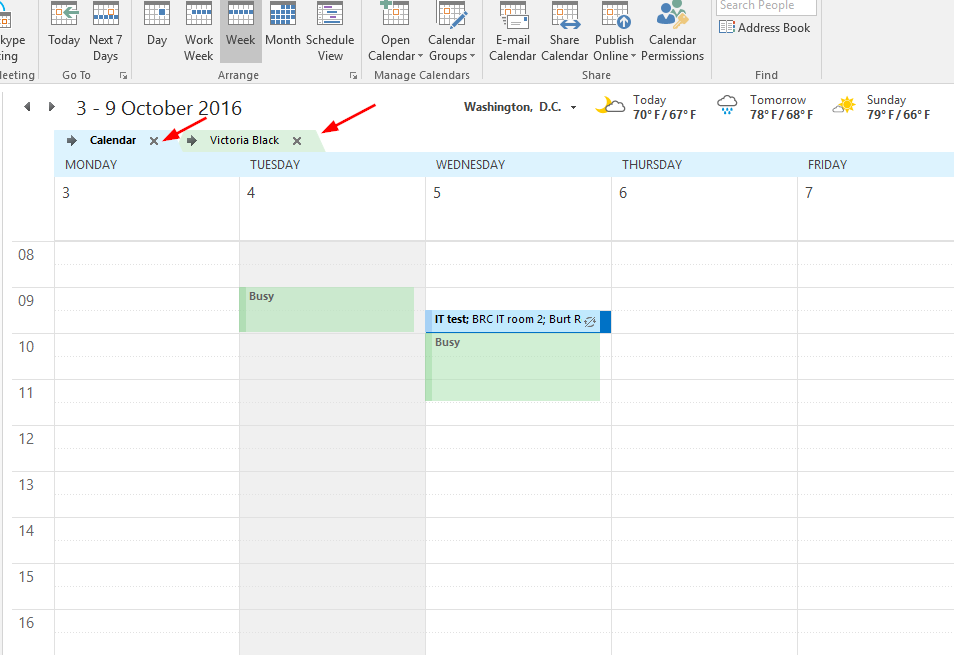
When the box next to the shared calendar is checked you can view it next to yours or as an overlay: