< 1 min read
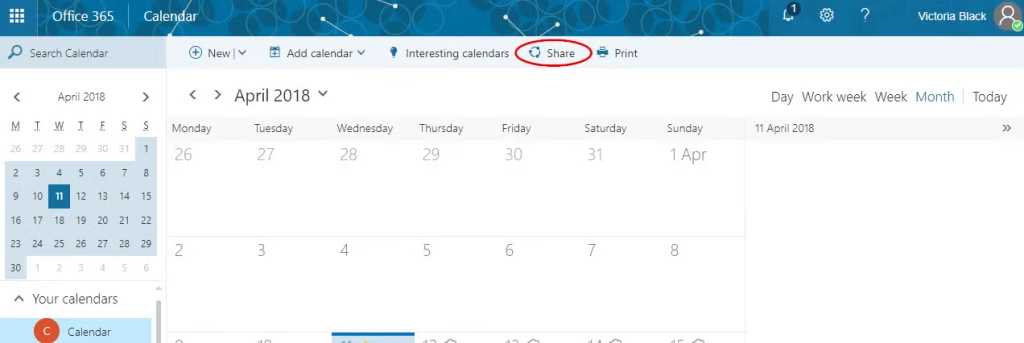
1.Open your Office 365 calendar2.Select the Share icon:
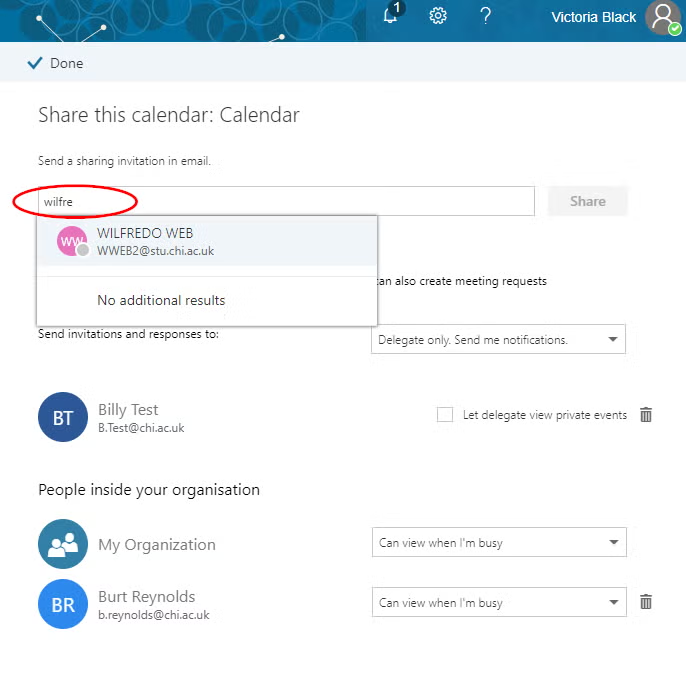
3.Start typing the recipient’s name in the Share with field and then select the recipient you want to share with.
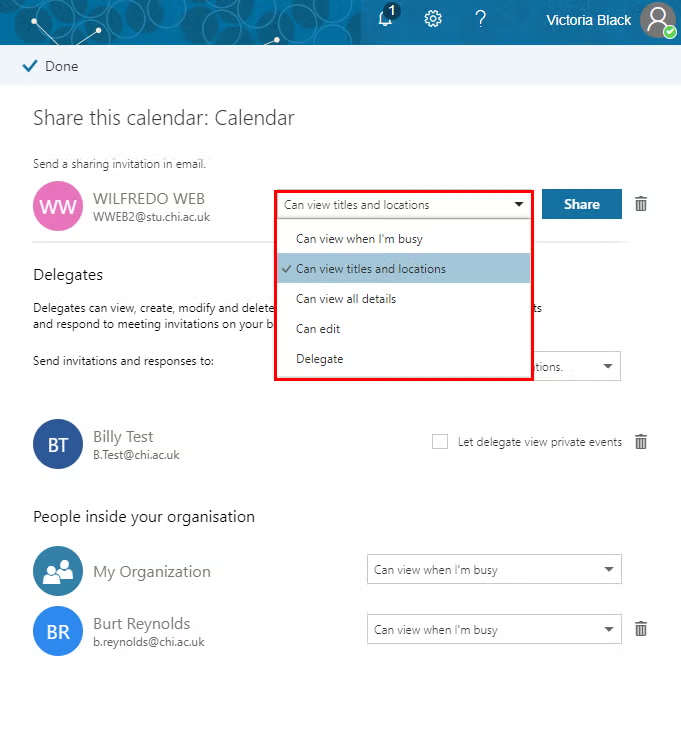
4.Next to their name, click the drop down box to select which information you would like to share with them You will have a choice of:
5. Once you have made your selection, click Share 6. The person will show in the list of those who you have shared your calendar with 7. Click Done
An email notification of the share will be sent to the person’s account
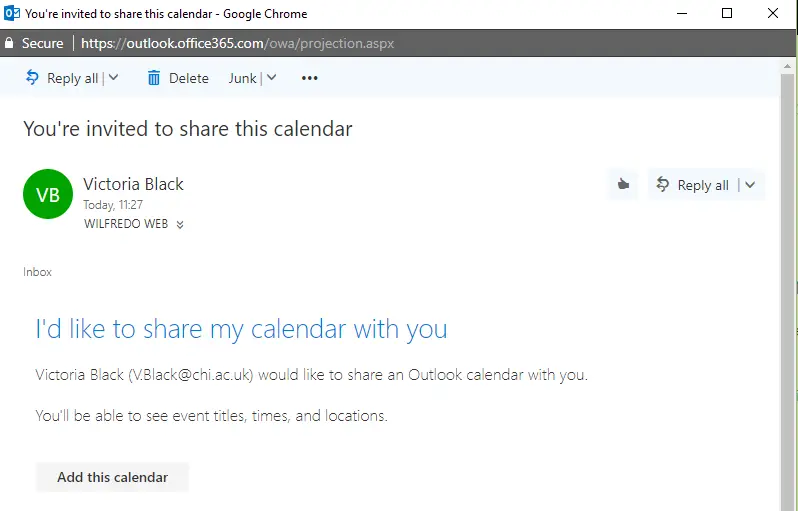
1.The recipient will receive an email invitation entitled I’d like to share my calendar with you
2.Click Add this calendar
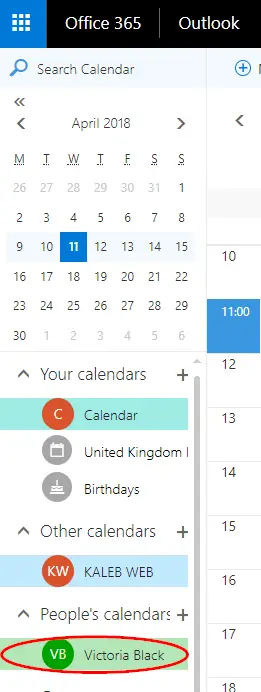
3.The view will change to the Calendar and you will see the shared calendar appear under Other Calendars in the recipient’s Office 365 calendar list
When selected, you will see their calendar according to the permissions you have been given.