Setting up your staff signature on your University email

4 min read

When you send an email, it is good practice for the recipient to know who sent the email along with additional information about yourself. We have provided instructions on this page which show how to set up your Email signature and automatically apply it to all University email communications, both internally and externally.

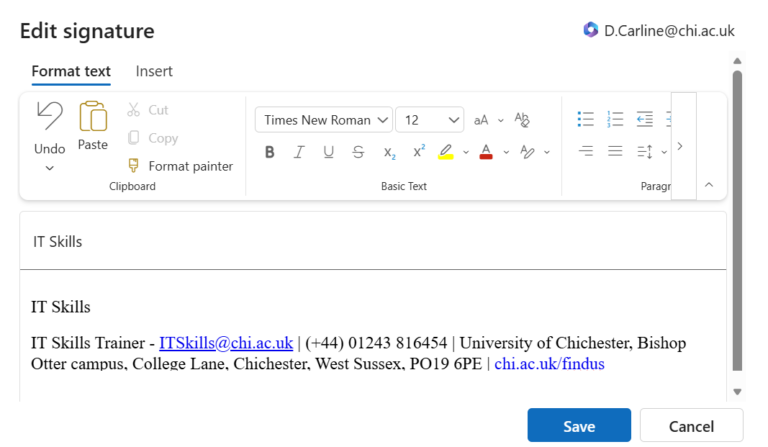
Below is the standardised email signature for staff. Using the guides below, simply download the Word document and follow the steps closely to copy the signature for your main campus base. Once done you will then need to customise it with your own information:

Setting up your staff signature on your University email_May2024_v2

The University branding will automatically be applied to emails sent to external participants (non @chi.ac.uk addresses). This means that you do not have to apply any Univeristy logo images in your signature.

You may, however, insert additional images such as professional accreditation or memberships beneath the email signature text show in the document above.

We have provided instructions on how to set up your signature for the different ways that you can access your emails. If the following instructions aren’t applicable to your email software, please get in touch with our IT Skills adviser: ITSkills@chi.ac.uk


Outlook 2016 / 2019 (desktop application)

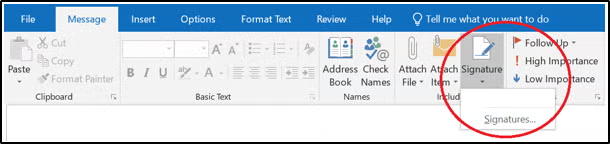
1. Start composing a new email. Under the Message menu, select Signature and then the Signatures sub menu.  

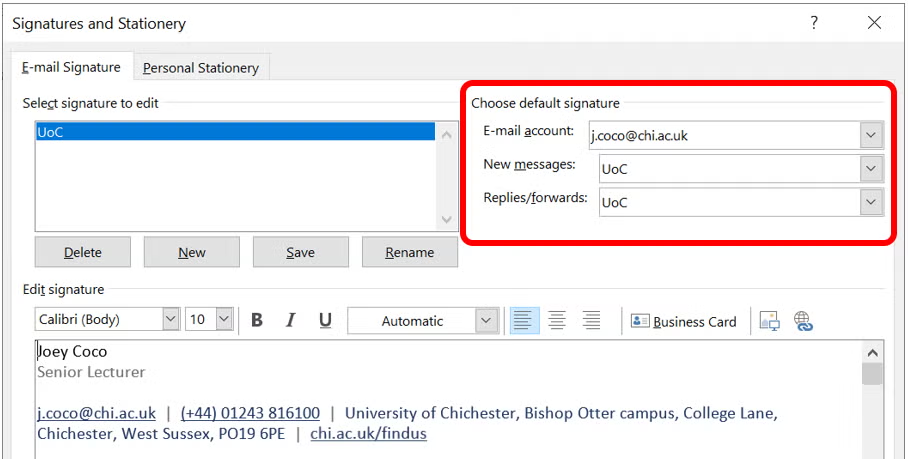
2.  From the menu, click New to create a new signature, and give it a name. For example, ‘UoC’.

3. In the Edit Signature Field please copy and paste the text from the Word document above. If it doesn’t copy over correctly, try pasting over the text and image separately. 

4. Please ensure that you complete the information that is specific to you, including Name, Job Title, email and telephone number. Also complete the address for whichever campus you’re based. 

5. Ensure that all internal and external emails now use this new signature by making it the Default Signature.

6. Click Ok. Any new emails and replies will now use this signature.

7.Feel free to send yourself a test email to make sure the signature looks ok.

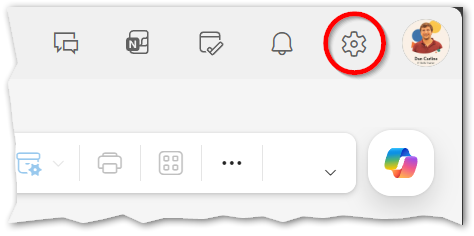
  1. From your inbox, click on the cog in the top right-hand corner, followed by View all Outlook settings.

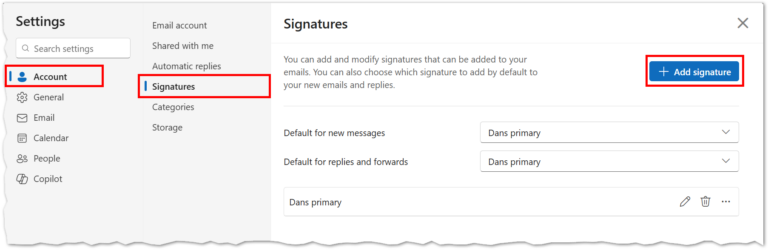
2. From the Email settings, select Compose and reply under the Layout section. 

3. Check the tick boxes “Automatically include my signature on new messages I compose” and “Automatically include my signature on messages I forward or reply to”. Copy the signature template in the Word document above, and paste it into the space where you can edit your signature. Note:You must copy the text and image separately for them to both appear correctly.

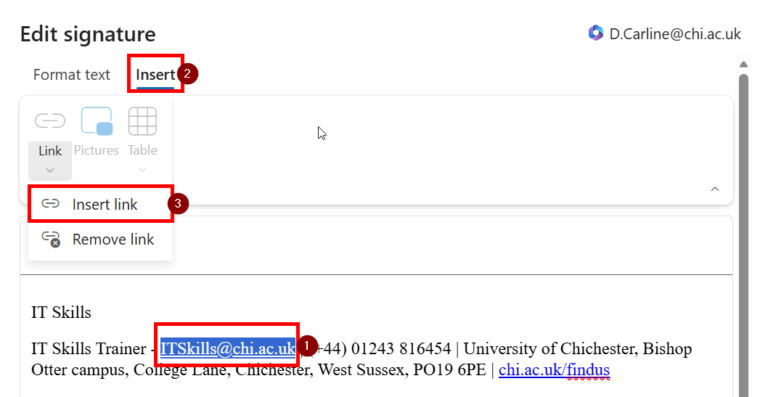
4. Now please amend the details (Name, role, email address, phone number) to reflect your personal details. When updating the email, make sure that the hyperlink is also updated. Highlight it and select the hyperlink icon to check.  

5. Click Save and you can return to your Email Inbox.

6. Feel free to send yourself a test email to make sure the signature looks ok.

  1. Start by logging in to your University Office 365 email account by using a web browser.
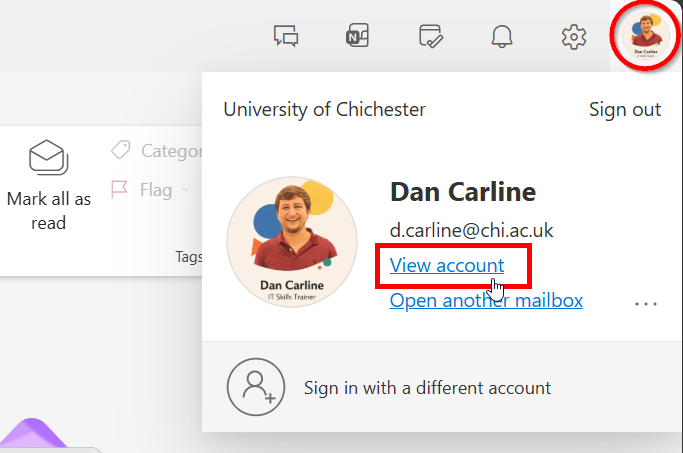
  2. From any Office 365 feature, click on the round circle in the top right-hand corner. This is your avatar. This will show as your initials if you don’t have a photo currently set up. Then click on My Profile

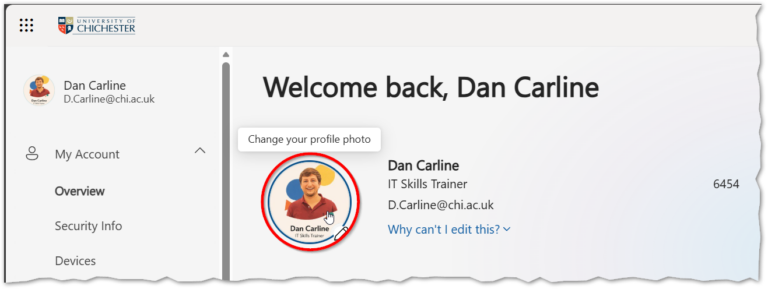
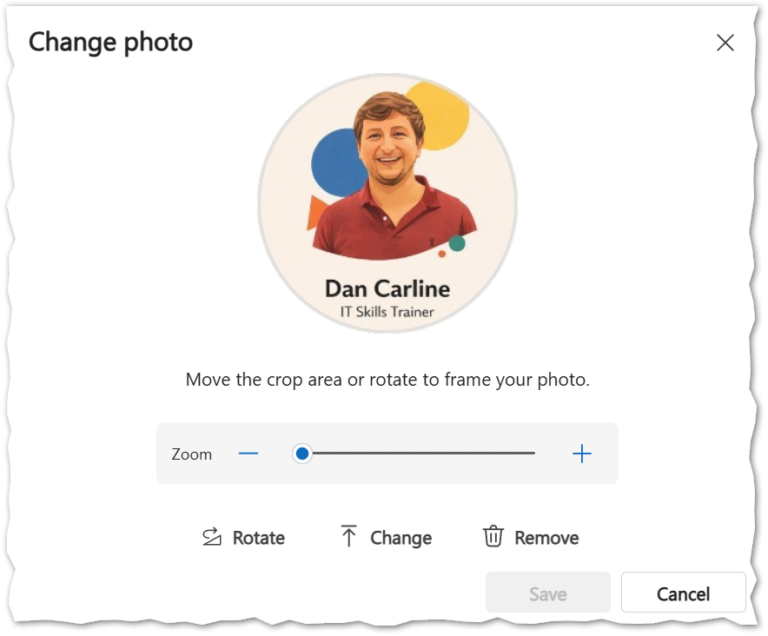
3. From your profile page, click on the camera next to your avatar, and then choose Upload a new Photo. Choose a photo from your files on your computer.

4. Once you have uploaded a photo, you can then scale and zoom into the photo so it fits within the circle. Once you are finished, select Set as profile photo.

When you are in a Teams meeting you can optionally apply a background image.

Instructions are available on a separate page: 

Was this article helpful?
Updated on January 19, 2026