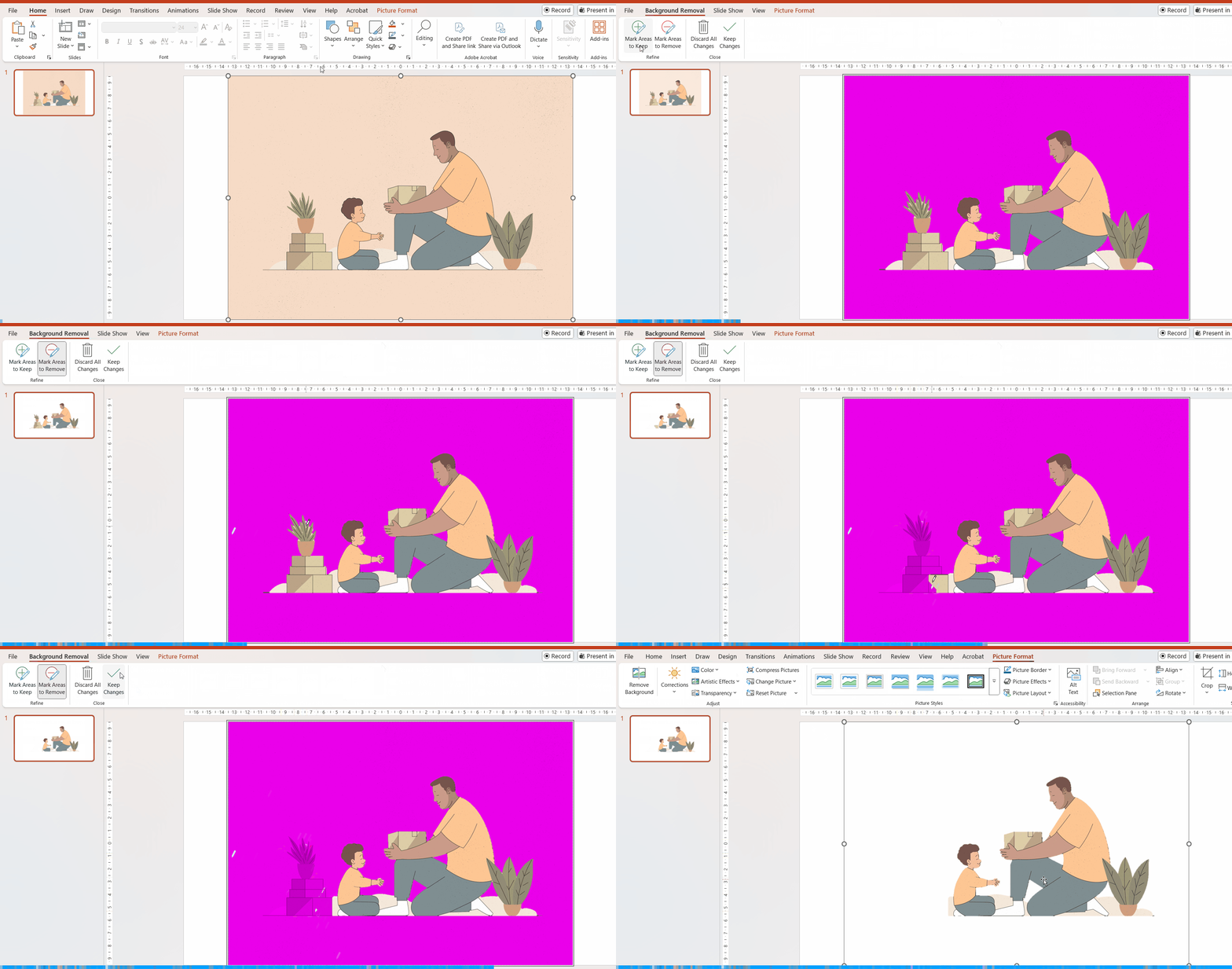
PowerPoint includes a built‑in feature that allows you to remove the background from an image. While the tool works best with high‑resolution images that have a clear distinction between foreground and background, it is still useful when you need to create a quick cut‑out without searching for specialist stock images.
1. Insert Your Image #
Before removing the background, you must first add your image to the slide.
If you’re unsure how to insert an image, there is a separate guide available on adding images to PowerPoint.
2. Select the Image #
Click the image once with the left mouse button. When selected, the image will display resize handles—small white circular markers around the edges.
3. Open the Remove Background Tool #
- With the image selected, go to Picture Tools – Format in the ribbon.
- Click Remove Background.
This tab only appears when an image is selected.
4. Adjust What PowerPoint Removes #
PowerPoint will attempt to automatically identify the foreground and background. Areas highlighted in purple will be removed when you apply the changes.
However, the automatic selection is rarely perfect. You can refine it using these tools:
- Mark Areas to Keep – draw over areas that should remain visible
- Mark Areas to Remove – draw over areas that should be removed
Continue adjusting until the preview shows exactly the result you want.
5. Apply the Changes #
Once satisfied, click Keep Changes. Any purple‑shaded areas will be removed.