Inserting a Shape
Shapes and text boxes are both available from the Insert tab on the ribbon.
- Go to Insert on the ribbon.
- Select Shapes.
- Choose your desired shape and click and drag on the slide to place it.
Editing a Shape or Text Box
PowerPoint, like the rest of the Office suite, uses contextual formatting menus. These appear only when an object (shape, textbox, image, etc.) is selected.
- When you click on a shape or text box, a dedicated formatting section appears in the ribbon.
- If nothing is selected, this area stays empty.
Using the Edit Shape Menu
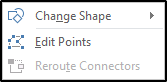
Once a shape is selected, you can access Edit Shape on the left side of the contextual formatting menu.
You will see two main options:
1. Change Shape
This displays the same menu used to insert shapes. You can switch to a different shape entirely—useful for turning a standard text box into a more visually interesting shape.
Picture
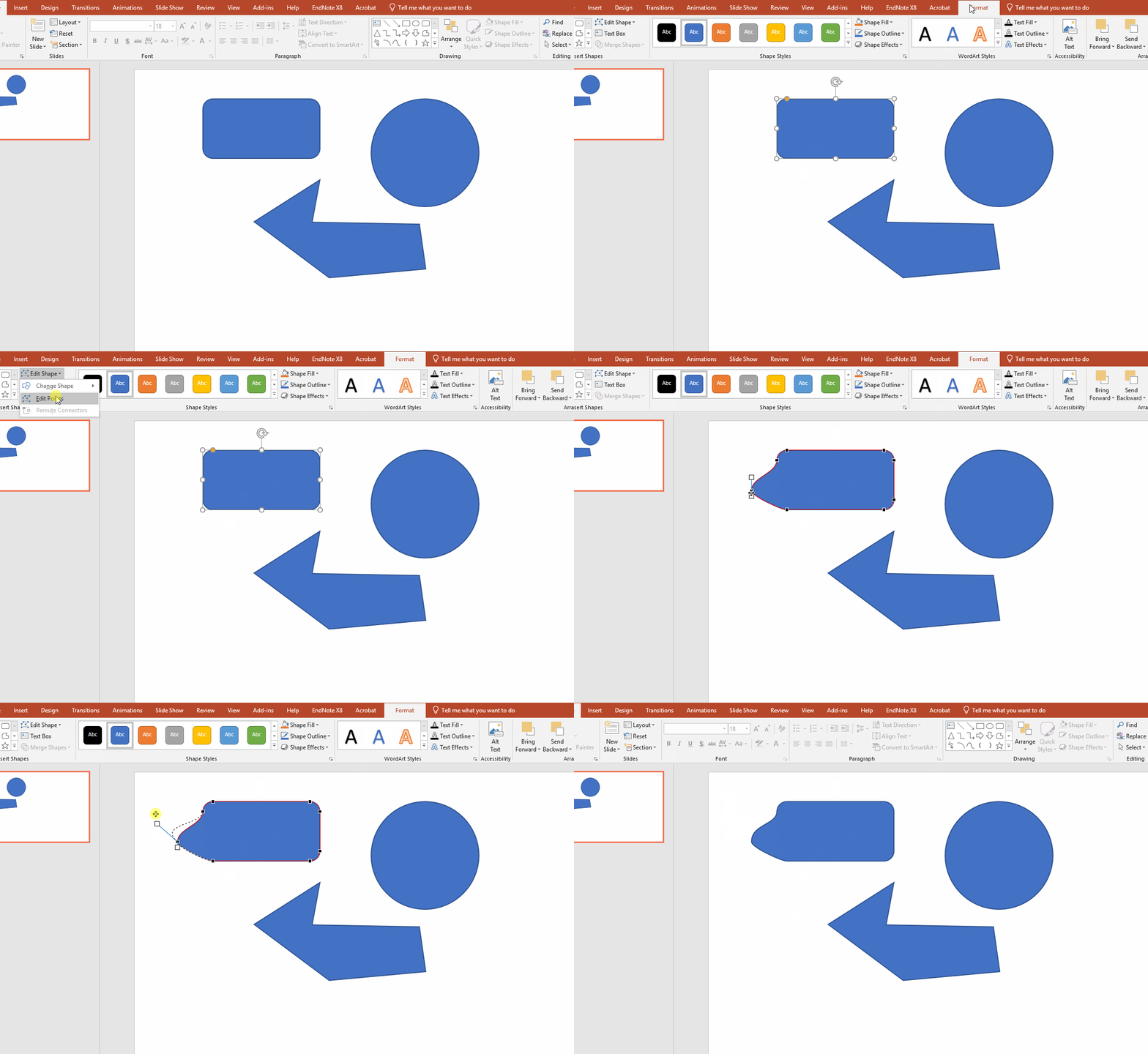
2. Edit Points
This option reveals the shape’s vertices (corner points) as black dots.
- Each point can be dragged to alter the shape’s outline.
- Right‑click the outline and select Add Point to insert an additional vertex.
Picture
3. Bézier Handles
When you select a vertex, two white “handles” appear. These Bézier handles control the curve of the corner.
- Dragging them changes the smoothness or sharpness of the line.
- If the handles align in a straight line, the corner becomes smooth.
Picture
Fill Colour
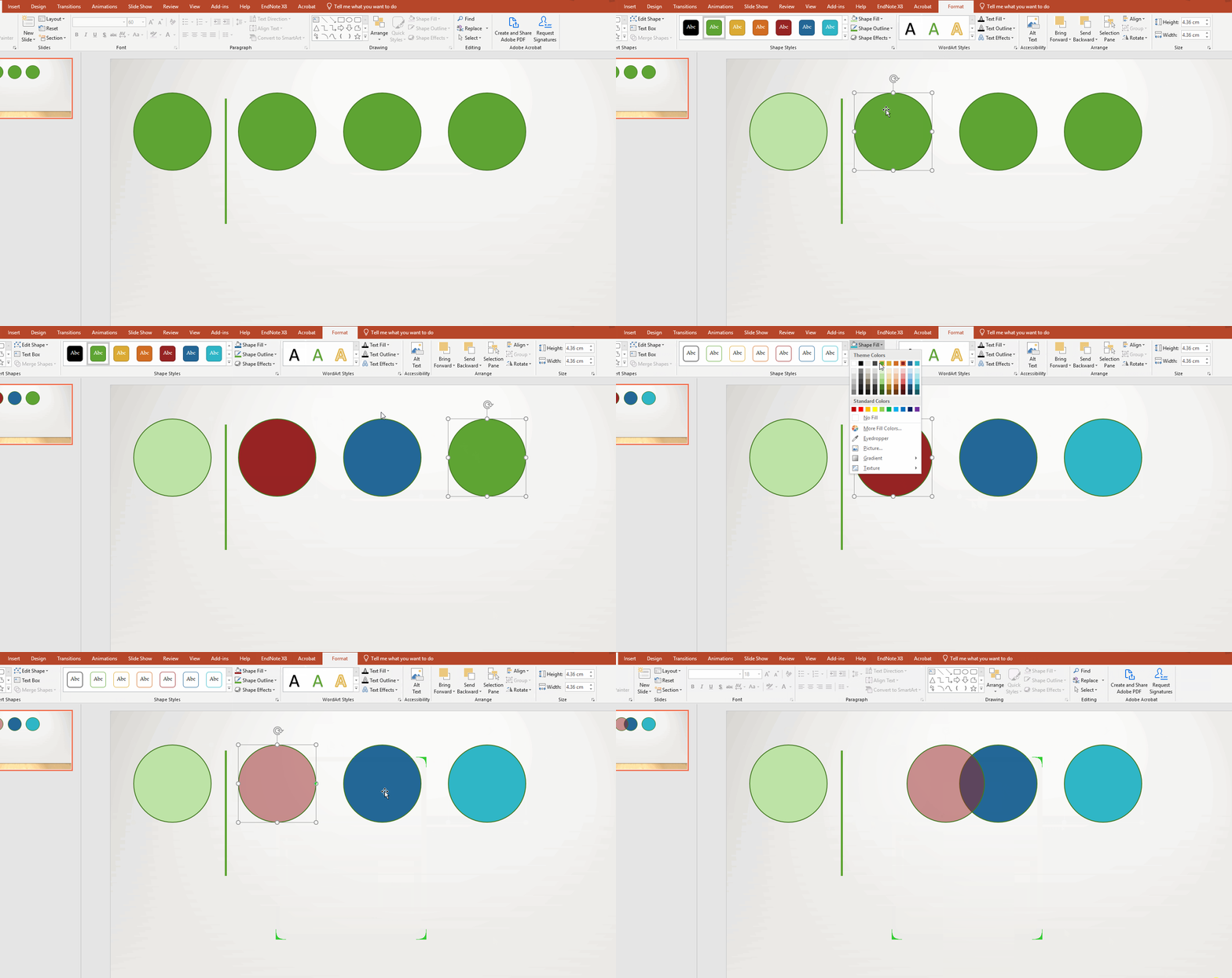
Fill colour controls the inside colour of your shape.
- Access this from the contextual formatting menu under Fill.
- Additional transparency and custom colours are available under More Fill Colours.
Picture
Shape Outline
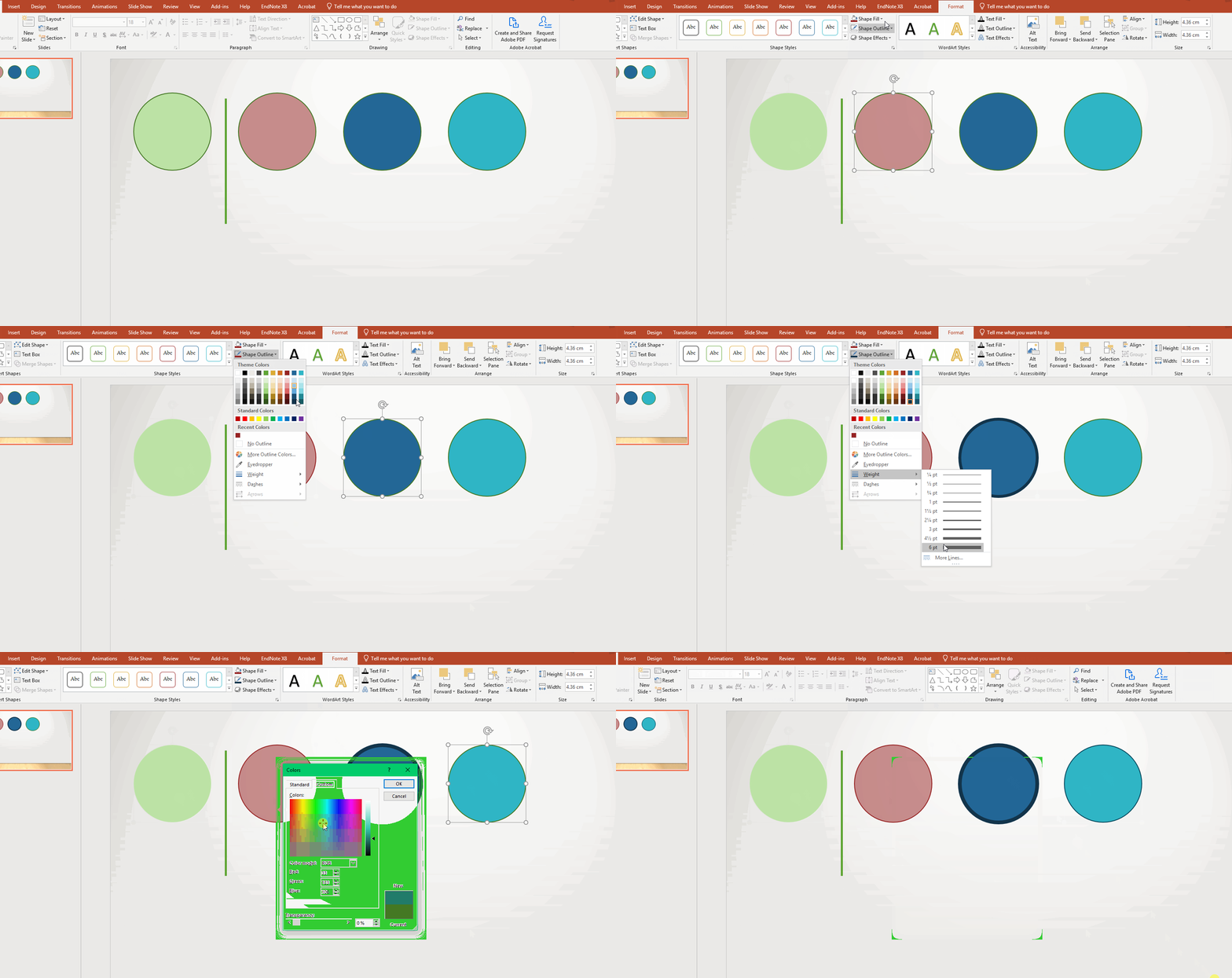
Shape outline refers to the line around the edge of your shape. PowerPoint allows:
- No outline
- Different line thicknesses
- Dashed or perforated outlines
Picture