PowerPoint – Adding Notes to your presentation (Presenter View)
1 min read
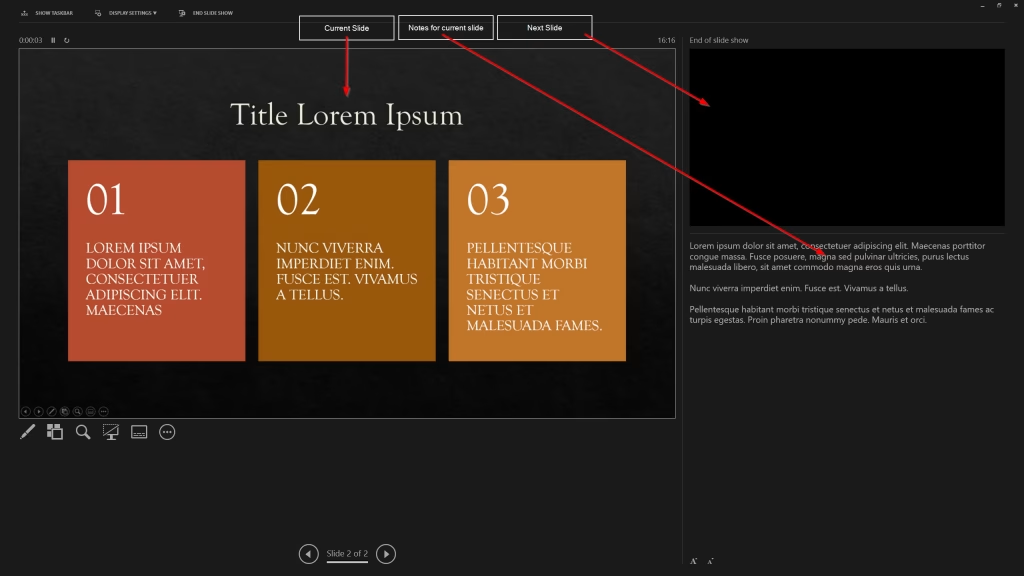
Presenter View in Microsoft PowerPoint allows you to deliver your presentation full‑screen to your audience while privately viewing your notes, the current slide, and a preview of the next slide.
To use Presenter View, you must have two display devices, such as a laptop screen and a projector or a second monitor
Presenter View works in Teams with a small but important condition: Do not share your entire screen.
To use Presenter View in a Teams meeting:
In Teams, select Share → PowerPoint Window, and choose your presentation.
Once shared, press F5 in PowerPoint to enter full‑screen presentation mode.
If you are using multiple monitors, Presenter View will appear on one screen with the audience seeing the full‑screen slide on the other.
If you are using a single monitor, right‑click the slide and select Show Presenter View. Your audience will still see the full‑screen presentation while you see your notes.