PowerPoint allows you to apply animations to any object on a slide, including shapes, images, and text boxes. Animations fall into three main categories: Entrance, Emphasis, and Exit
You can apply more than one animation to the same object. You can also change the order in which animations occur using the Animation Pane.
Applying Your First Animation
- Select the object you want to animate by left‑clicking it.
- Open the Animations tab on the ribbon.
- Choose an animation type:
- Green = Entrance animation
- Yellow = Emphasis animation
- Red = Exit animation
Once selected, the animation is immediately applied and will play on click during the presentation.

Types of Animations
- An Entrance animation means the object will not appear on the slide until the animation is triggered.
- An Exit animation makes the object disappear after it has been visible.
Entrance & Exit Animations
Entrance & Exit Animations
- Appear – Quickly flashes in (no effect options)
- Fade – Fades in (no effect options)
- Fly In – Moves in from any of 8 directions
- Float In – Floats in from above or below
- Split – Reveals from one edge (up, down, left, right)
- Wipe – Clears from one edge (up, down, left, right)
- Shape – Grows in/out from centre using circle, box, diamond, or plus
- Wheel – Appears via a spinning wheel (choose number of “blades”)
- Random Bars – Appears in vertical or horizontal bars
- Grow & Turn – Spins and zooms in
- Zoom – Zooms in from object or slide centre
- Swivel – Spins around 360°
- Bounce – Bounces into place
Emphasis Animations
Emphasis Animations
- Pulse – Grows and shrinks (no effect options)
- Colour Pulse – Pulses with a colour outline
- Teeter – Rocks side to side
- Spin – Rotates clockwise or counter‑clockwise
- Grow/Shrink – Changes size
Applying Multiple Animations
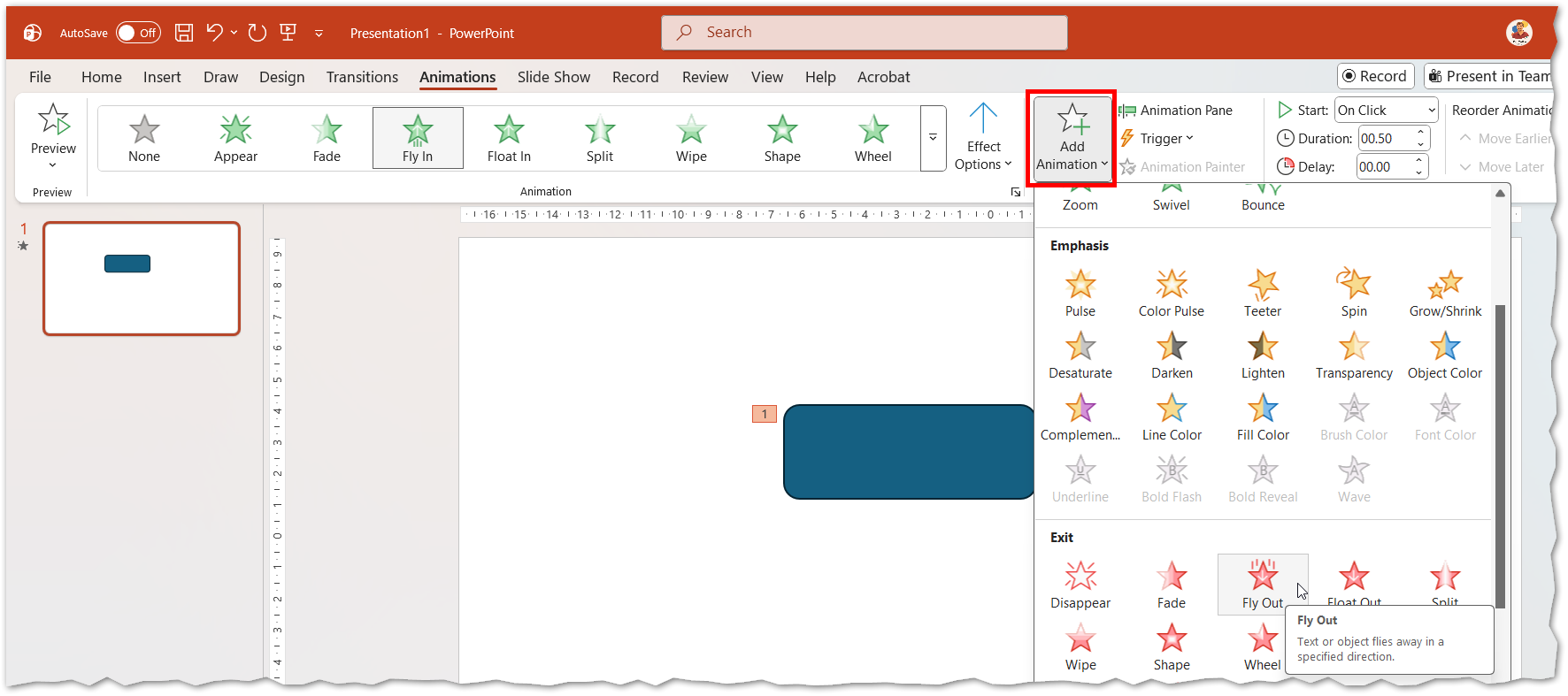
You can apply more than one animation to the same object. To avoid overwriting an existing animation, always use Add Animation in the Advanced Animation group rather than clicking a new animation directly.
| You must use Add Animation to apply additional effects; otherwise, the new effect replaces the previous one. |
Picture
Adjusting Animation Order – Animation Pane #
Animations play in sequence based on the order they are applied. You can modify their order in the Animations Pane (Move Earlier / Move Later) or assign different start behaviours.
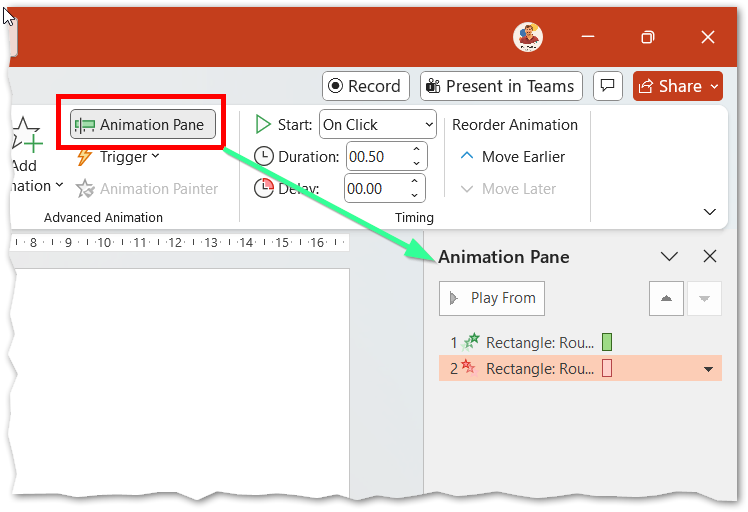
When opened, the Animation Pane displays:
- A numbered list of all animations on the current slide
- The sequence in which animations will play
- Icons indicating the type of animation (entrance, emphasis, exit, motion)
- Stacking numbers when animations play at the same time
Each item can be right-clicked in the animation pane to choose from different behaviours:
- On Click – Plays when you click
- With Previous – Plays at the same time as the previous animation
- After Previous – Plays automatically after the previous animation
Picture