
Staff MFA Help page
This page provides guidance for University Staff when using MFA, how you can set up MFA, and a FAQ (frequently asked questions).
We encourage all staff to visit the enrolment link below to set up MFA:
- MFA enrolment (the University’s MFA service hosted by Ping Identity)
Ping will ask you to enrol using an MFA pairing method of your own preference.
Listed below are the MFA pairing methods, along with instructions for setting up each method:
- PingID Mobile app
- PingID Desktop App
- Authenticator app – such as Microsoft Authenticator
- Using a personal email address – do not use your University email address
You will be required to set up an MFA pairing method from above. However, IT Services highly recommends setting up two pairing methods, which will provide a backup in the event of you not having access to your chosen method. (eg, your mobile phone stops working).
The following video explains the enrolment with an iOS device:
When will I be prompted to authenticate with MFA?
Most online threats come from external sources. When a University network account is accessed from a personal device it is often difficult to determine if the authentication attempt is genuine.
As a member of staff, you will have been provided with a University computer to access your network account. However, there may be an occasion where you will need to use a personal device, or a University provided mobile phone to authenticate to University network services.
You will be prompted with MFA when accessing network services under the following circumstances:
- On your personal device, both on and off-campus.
- On a University provided mobile phone or tablet, both on and off-campus.
- On a University provided laptop and the VPN (GlobalProtect) has failed to connect, off-campus.
- Accessing HR Self Service.
MFA has been configured for a variety of University services which require you to authenticate with your network account before you can access. This includes, but is not restricted to:
- Microsoft 365 (Email, Teams, OneDrive, SharePoint, Staff Intranet)
- Moodle
The authentication session with MFA lasts four hours. Meaning that after four hours, you may be prompted again with MFA.
Once I have set up MFA, how do I manage my enrolled methods?
We would recommend that you use the MFA enrolment link to manage your pairing methods. You can also do this at any time you ask asked to complete an MFA authentication prompt.
- Visit the Manage MFA Devices link
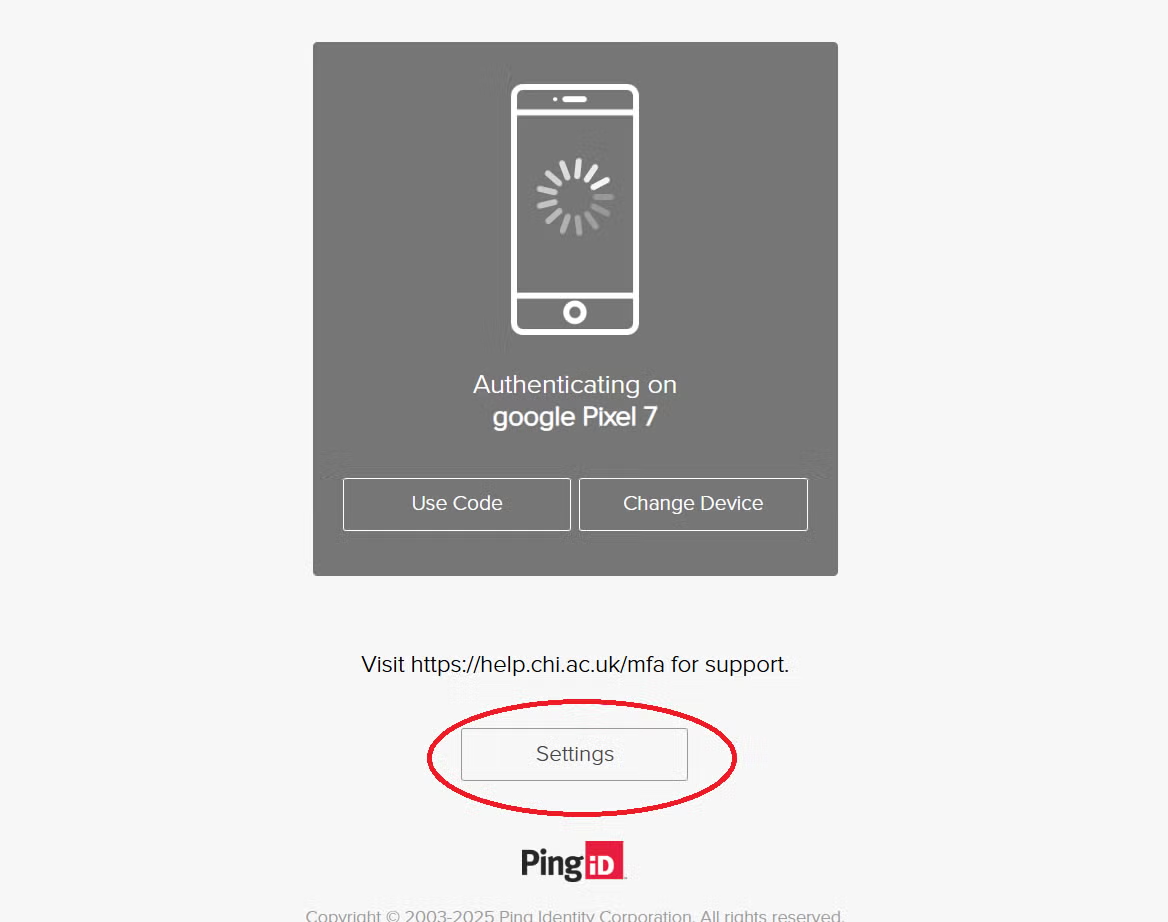
- You will be prompted to Authenticate with the PingID MFA service. At this screen click ‘Settings’ circled here:
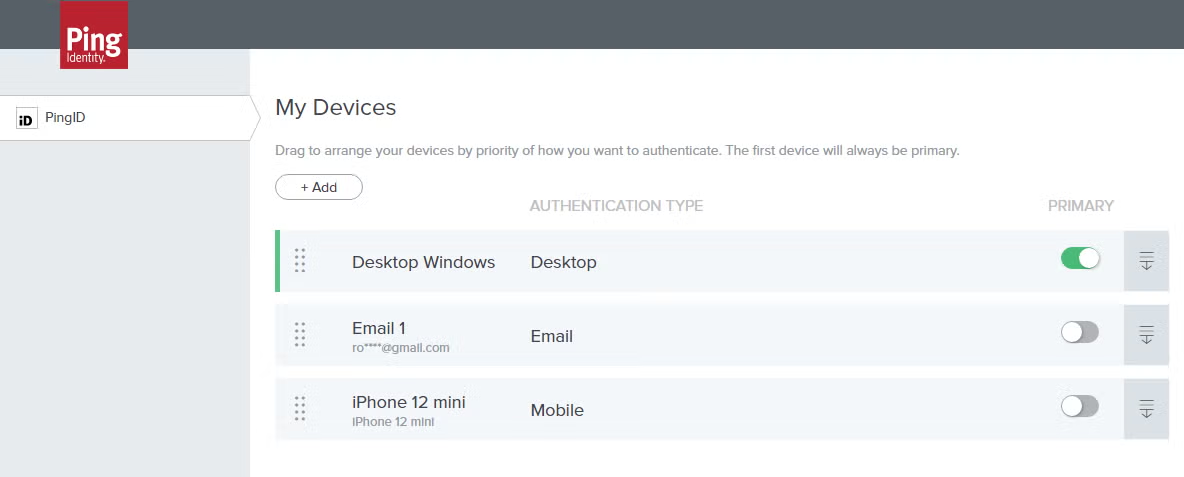
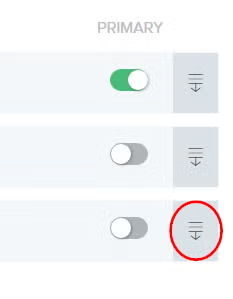
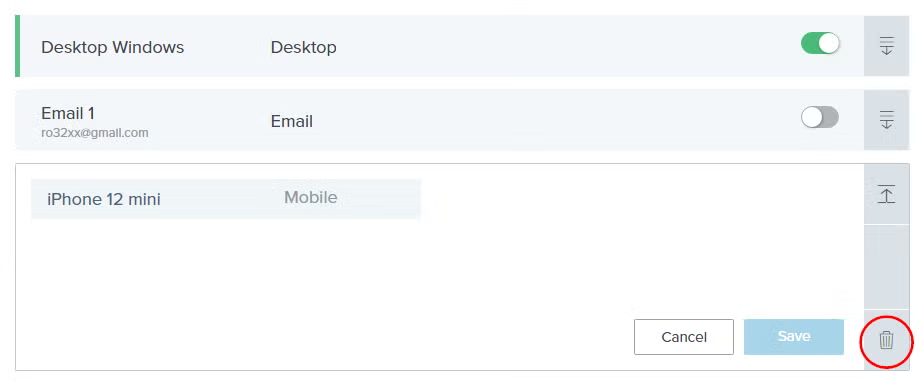
- You now have the option to manage your MFA methods / devices e.g. add, disable/enable devices or remove devices via the edit then bin buttons
How do I register an alternative, backup method?
It is highly recommended that you enrol a minimum of two MFA methods. This is just in case one method becomes unavailable.
- To add a new method, visit the My Devices page – authenticating with your username & password if prompted.
- At the next screen, before authenticating with MFA, click ‘Settings’ circled in the image here:
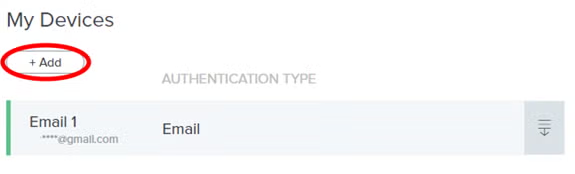
- You will be presented with a list of your enrolled methods
- Click ‘Add’ and follow on-screen instructions
FAQ
I never use a personal device, should I enrol?
Yes. MFA will significantly improve the security of your staff network account, and it is highly recommended that you enrol, even if you do not use a personal device.
Can I register my University email address as an enrolment method?
No. MFA is designed to protect your University email account, and if you’re prompted to authenticate with MFA you will be unable to access your University email account to get access to the One Time Passcode (OTP).
I have started using MFA with another service related to my role at the University but is provided externally (eg. HESA) Do I still have to enrol?
Yes. Whilst you may have set up MFA with an external service provider, you will still be required to set up MFA on your University network account specifically.
Can I use SMS or a Telephone Call as an enrolment method with MFA?
No, these services have not been enabled for staff.
Can I advise students to enrol?
No. Students will be provided a different MFA service, which will be communicated separately. The guidance on this page only applies to staff.
Can I proceed without enrolling?
IT Services highly recommends enrolling with MFA to ensure that your account is protected to the best standard. Furthermore, should you not enrol, you may be prompted for MFA for certain services that require a higher degree of security, even on University provided computers.
I manage a generic account; will I need to set up MFA for this account too?
No. MFA will be rolled out to generic accounts in a separate way at a later date. This will be communicated separately.
I facilitate access to guest, contractors, or collaborative partner students. How will they be affected?
These roles will not be affected by the MFA rollout for staff. MFA will be enabled for these accounts at a later date, and will be communicated with separately.
How often will I be prompted to authenticate?
University services accessed through a web browser will time out after 4 hours of inactivity, this is the same for authenticating with your password or with MFA. Mobile Apps (For example, Microsoft Outlook for Mobile) have a longer inactivity timeout set by the application vendor, and will not require authentication as frequently as access through a web browser.
What if I’m prompted for MFA, and I don’t have my authentication method with me?
It is highly recommended that you enrol at least two devices with MFA. Guidance on managing your enrolment methods can be found above under the section entitled ‘How do I register an alternative, backup method?’