SmartArt is a feature in PowerPoint, Word and Excel, that allows you to create professional diagrams and visual representations of information quickly. It’s ideal for illustrating processes, hierarchies, relationships, and lists in a visually appealing way without manually designing shapes.
1. Insert SmartArt
Open your PowerPoint presentation.
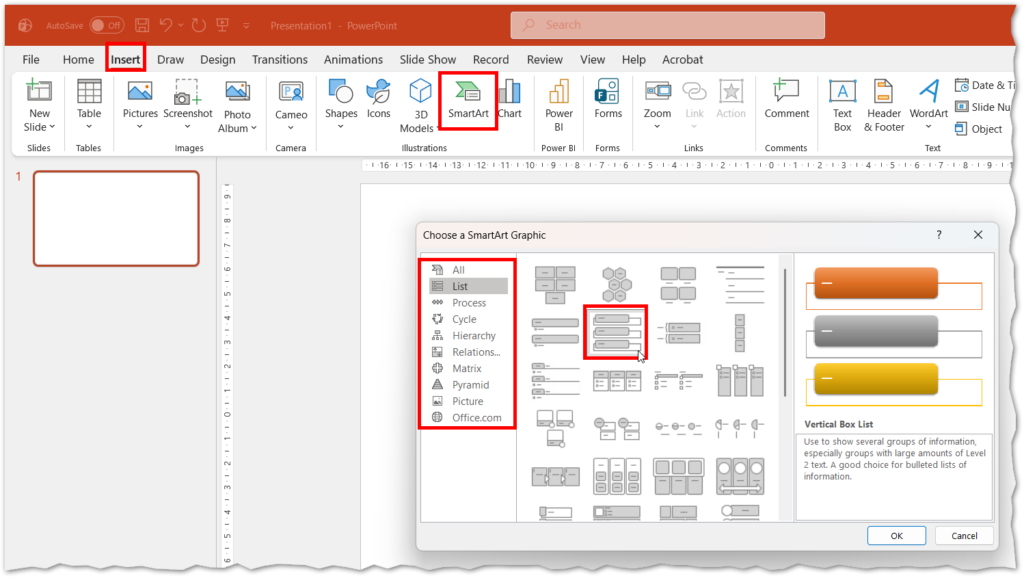
Go to the Insert tab on the Ribbon.
In the Illustrations group, click SmartArt.
The Choose a SmartArt Graphic dialog box will appear.
Select a category such as:
List: For bullet points or sequential items.
Process: For workflows or steps.
Cycle: For repeating processes.
Hierarchy: For organizational charts.
Relationship: For comparisons or connections.
Click OK to insert the SmartArt graphic on your slide.
Picture
2. Add and Edit Text
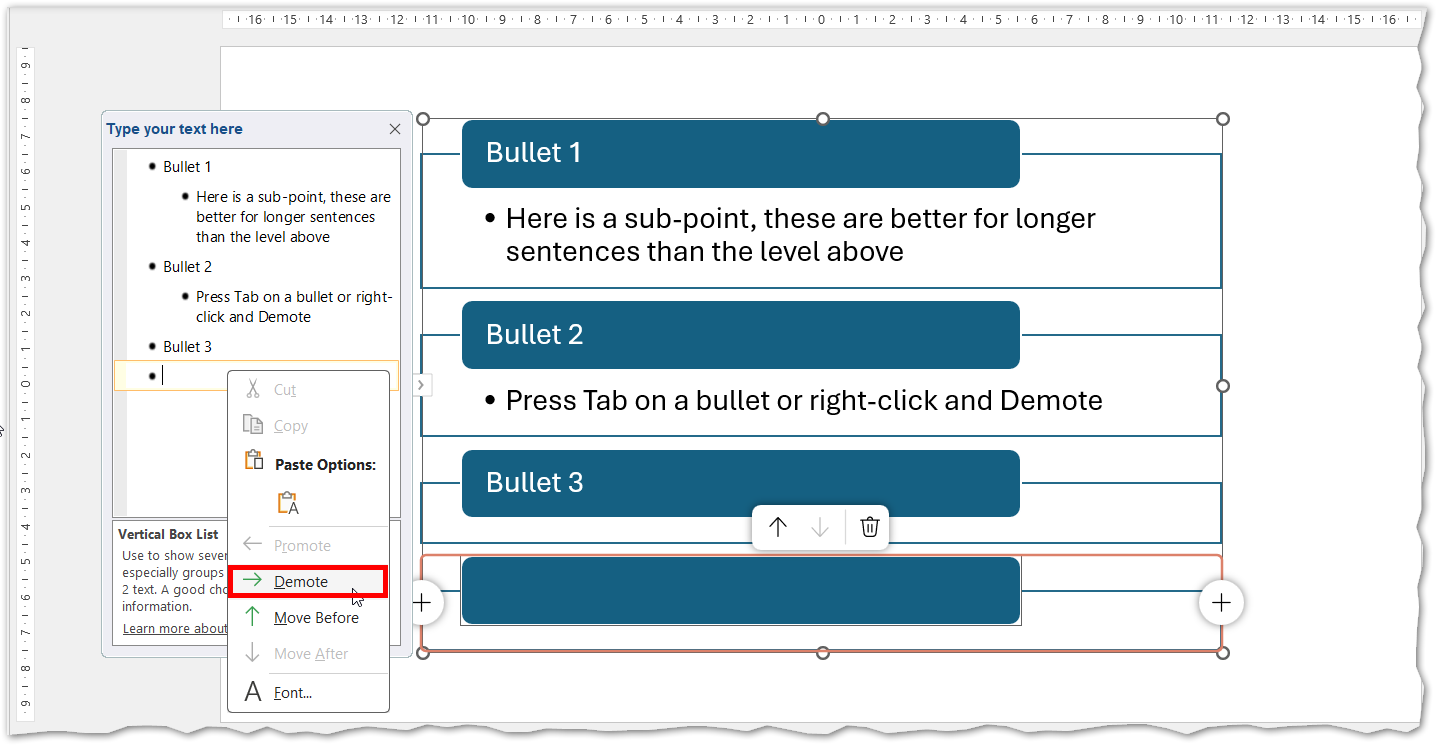
Click inside the SmartArt graphic or use the Text Pane (accessible via the SmartArt Tools → Design tab).
Type your text in the placeholders.
Press Enter to add new items (bullet points)
or press Tab on a point to create sub-levels.
Picture
3. Customize SmartArt Design
Select the SmartArt graphic.
Go to SmartArt Tools → Design tab.
Use options to:
Change the layout (e.g., switch from a list to a process diagram).
Apply SmartArt Styles for different visual effects.
Change colors to match your theme.
4. Resize and Position SmartArt
Drag the corners to resize the graphic.
Use alignment tools in the Format tab for precise positioning.
Best Practices
Choose a layout that suits your content type (e.g., process for steps, hierarchy for organizational charts).
Keep text concise for readability.
Use consistent colours and styles to maintain a professional look.