What Is Grouping and Why Use It? Grouping allows you to combine multiple objects—such as shapes, images, text boxes, or SmartArt—into a single unit. This makes it easier to move, resize, or format them consistently. Grouping is especially useful when creating complex layouts or designs that need to stay aligned.
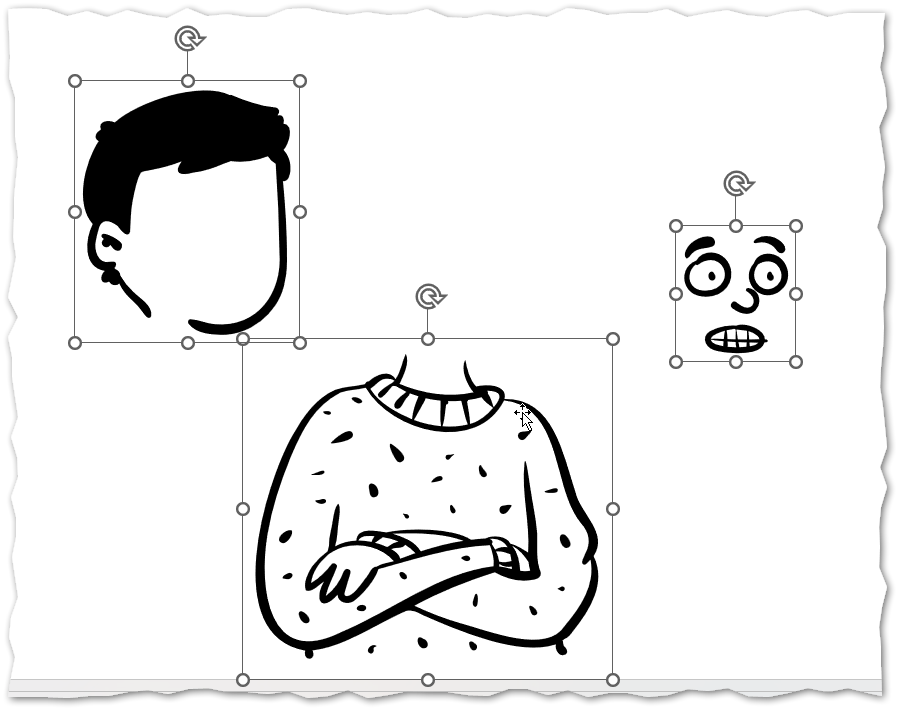
1. Select the Objects
Hold down Shift (or Ctrl) and click each object you want to group.
Ensure all objects are highlighted.
Picture
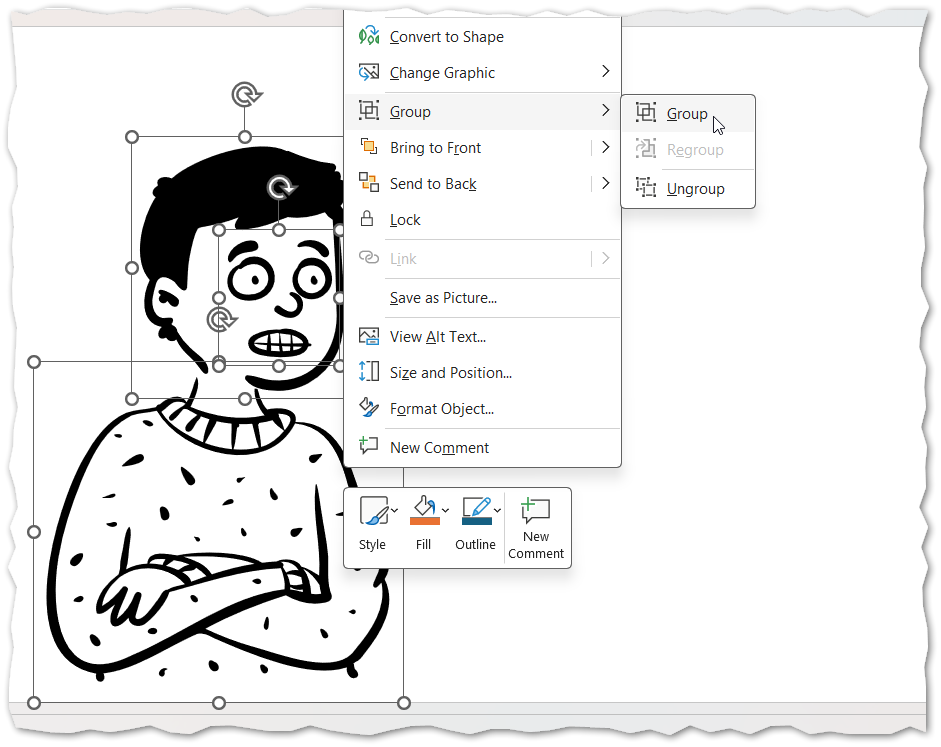
2. Group the Objects
Go to the Home tab or Shape Format tab (depending on the application).
In the Arrange group, click Group, then select Group from the drop-down menu.
The selected objects will now act as one combined object.
Picture
3. Ungroup Objects
Select the grouped object.
Go to Arrange → Group → Ungroup.
The objects will return to individual elements for separate editing.
4. Regroup Objects
After ungrouping, you can quickly regroup the same objects:
Select one of the previously grouped objects.
Go to Arrange → Group → Regroup.
Best Practices
Group related items before aligning or distributing them for consistent spacing.
Use grouping to lock design elements together when creating templates or complex diagrams.
Remember that grouped objects can still be formatted individually by selecting them within the group.