PowerPoint – Footnotes and Endnotes

2 min read

What Are they? and Why Use Them?
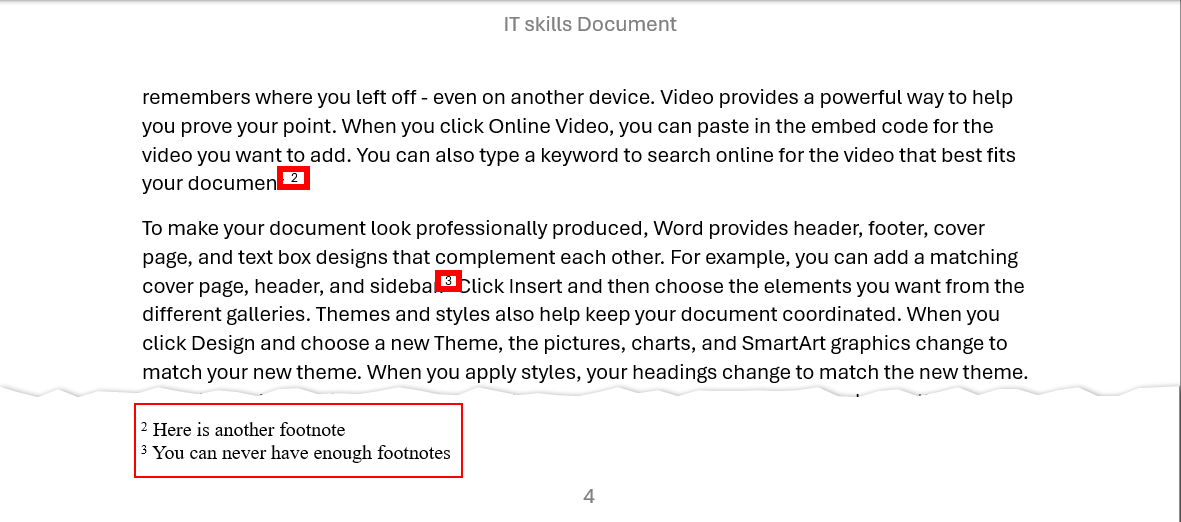
Footnotes and endnotes allow you to provide additional information, references, or citations without interrupting the main text. Footnotes appear at the bottom of the page, while endnotes are placed at the end of the document. They are essential for academic writing, research papers, and any document that requires detailed referencing.
This image displays footnotes on a page in Word.

1. Inserting a Footnote

  1. Place your cursor where you want the footnote reference to appear.
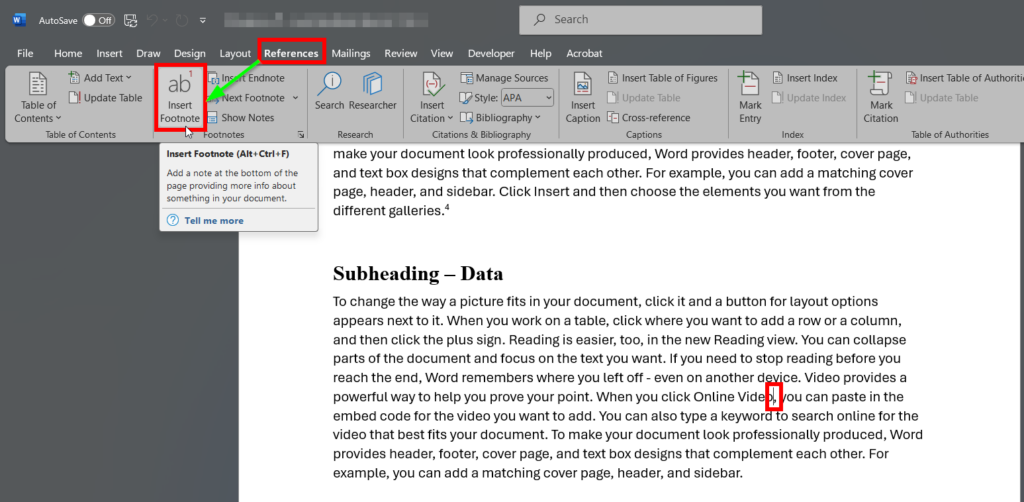
  2. Go to the References tab on the Ribbon.
  3. In the Footnotes group, click Insert Footnote.
  4. Word will add a superscript number in the text and create a corresponding space at the bottom of the page.
  5. Type your footnote text in the space provided.
This image shows the insert footnote button in the menu ribbon.

2. Inserting an Endnote

  1. Place your cursor where you want the endnote reference to appear.
  2. Go to the References tab.
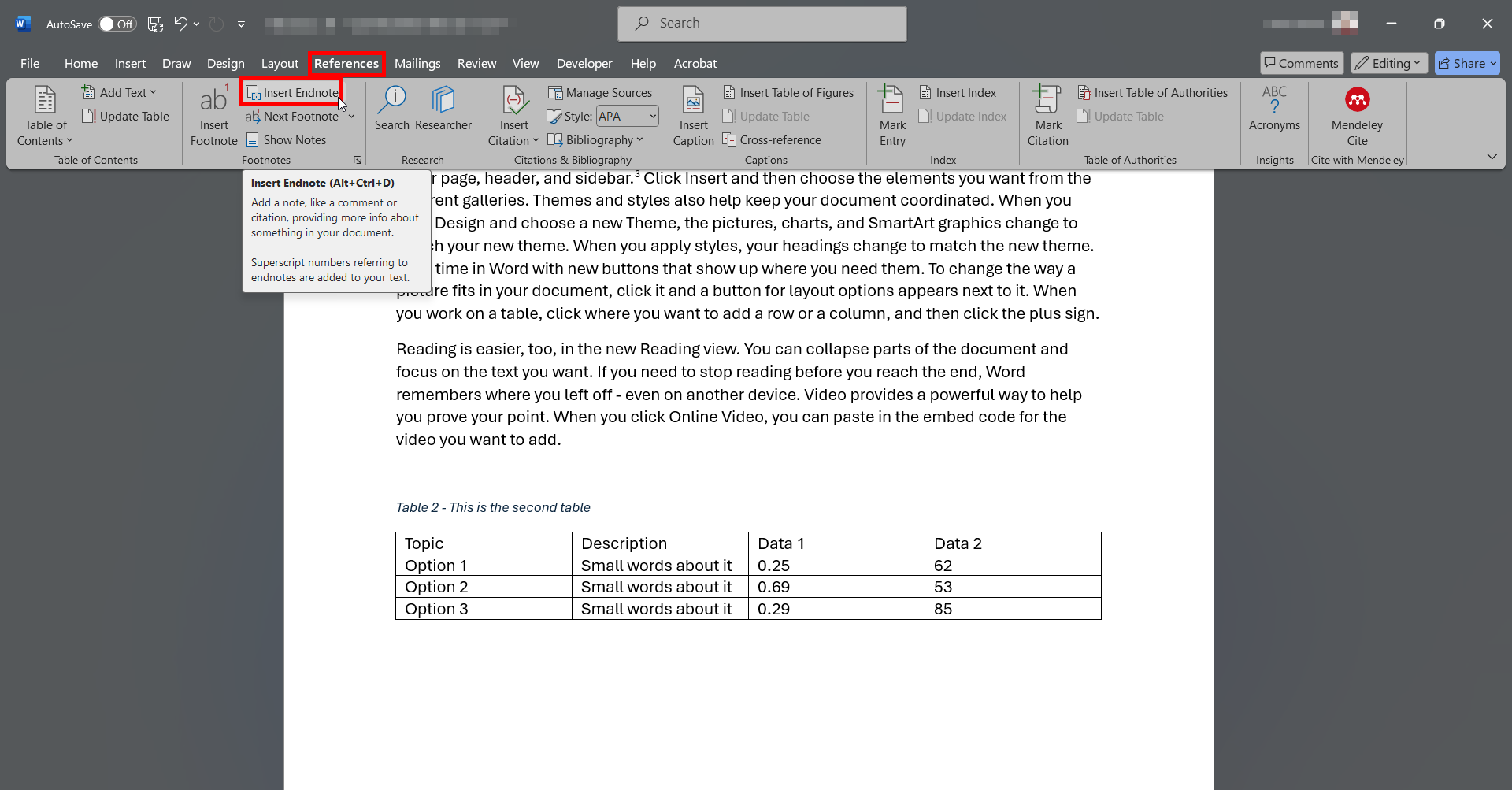
  3. Click Insert Endnote in the Footnotes group.
  4. Word will add a superscript number and create a section at the end of the document for your endnote text.
This image shows the menu ribbon with the insert Endnote option selected.

3. Navigating Between Notes

  • Use the Next Footnote and Previous Footnote buttons in the References tab to move through notes quickly.
  • Alternatively, click the superscript number in the text to jump to its note.

4. Changing Footnote and Endnote Options

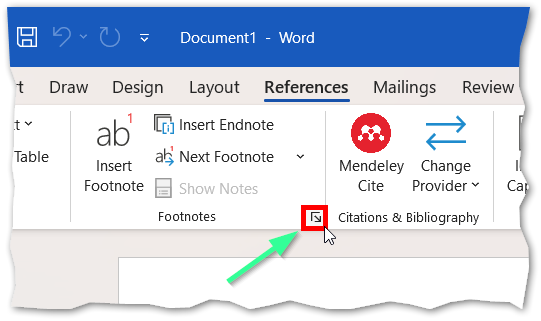
  1. In the References tab, click the small arrow in the Footnotes group to open the Footnote and Endnote dialog box.
  2. Adjust settings such as:
    • Location (bottom of page or end of document)
    • Number format (e.g., 1, 2, 3 or i, ii, iii)
    • Continuous numbering or restart per section

5. Converting Footnotes to Endnotes (and vice versa)

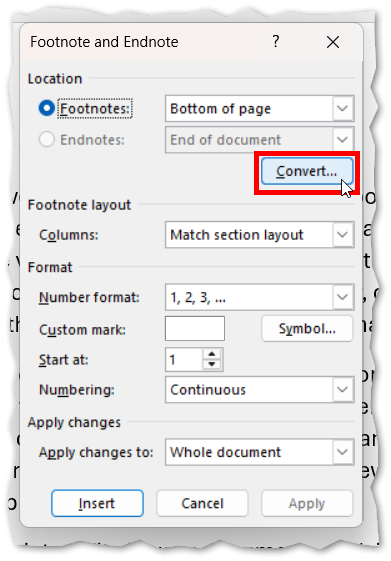
  1. Open the Footnote and Endnote dialog box.
  2. Click Convert.
  3. Choose to convert all footnotes to endnotes, all endnotes to footnotes, or swap them.
This image shows the location of the footnote dialog box in the menu ribbon.
This image shows the footnote dialog box with the convert option selected.

Best Practices

  • Use footnotes for brief explanations or references on the same page.
  • Use endnotes for lengthy citations or additional details that would clutter the page.
  • Keep numbering consistent throughout the document for clarity.
Was this article helpful?
Updated on January 20, 2026