
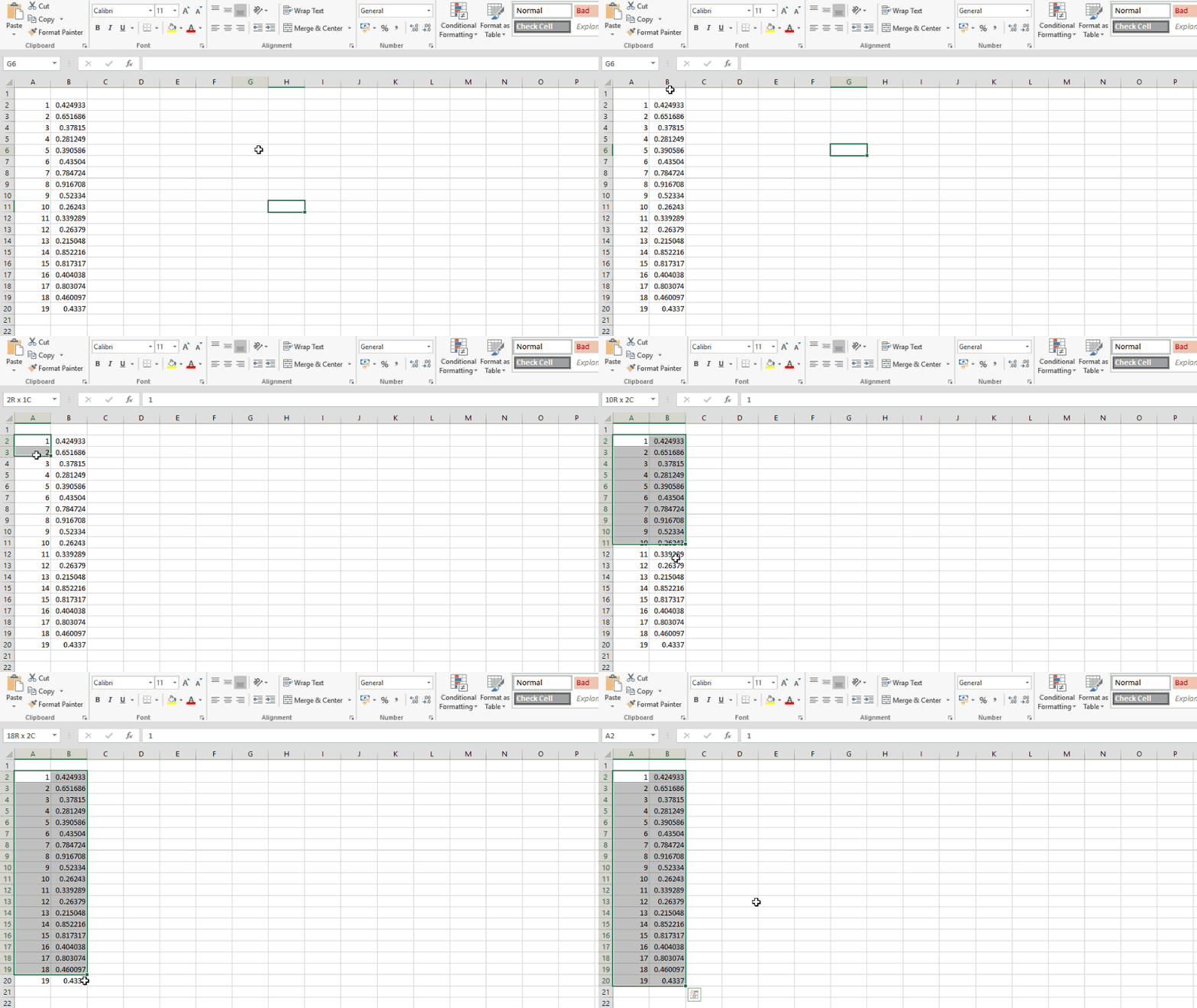
1. Click and Drag #
-
How it works:
Left-click the cell where you want to start your selection, then hold the mouse button and drag across the range you want to highlight. -
Best for:
Small selections or when using a mouse feels more intuitive.
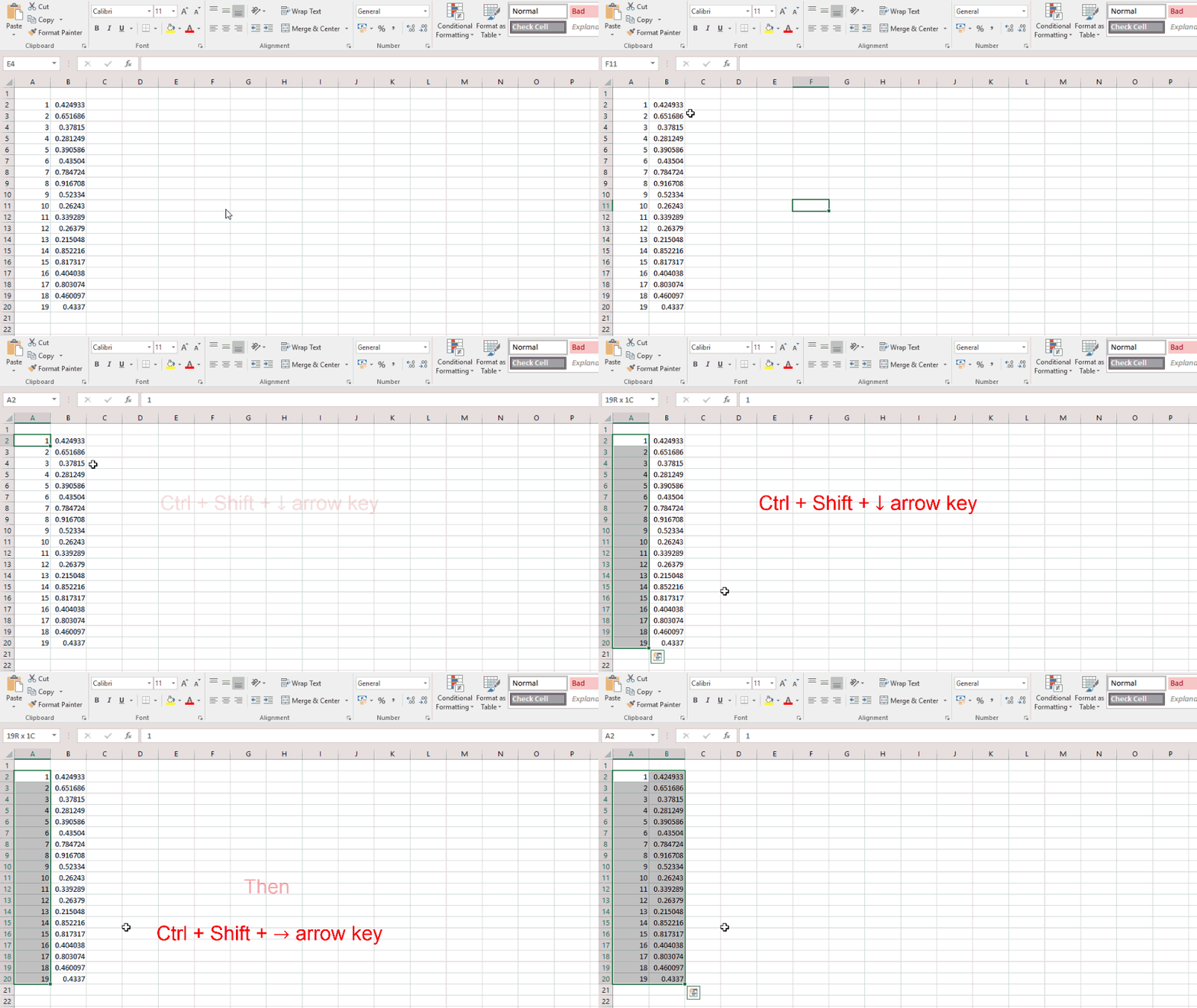
2. Ctrl + Shift + Arrow Keys #
How it works:
Click the starting cell. Then hold Ctrl + Shift and press an arrow key in the direction you want to expand the selection.Tip:
This method selects everything until the first blank cell. If your data has gaps, press the shortcut again to continue expanding over the gaps. You can also press the reverse direction to subtract from your selection.Best for:
Quickly selecting large continuous ranges of data.
3. Go To (F5) #
How it works:
Click anywhere inside the data range. Press F5 (or use Ctrl + G) to open the Go To dialog. Click Special. Choose Current Region to select the entire contiguous block of data around your active cell.
Other options in Go To Special:
- Blanks: Select all empty cells in a range.
- Formulas: Highlight cells containing formulas.
- Constants: Highlight cells with fixed values.
Best for:
Selecting entire data regions or specific types of cells without manual scrolling.