Excel – Number Formatting

4 min read

Excel can handle many different number formats, but you should regularly choose the appropriate format for the cells containing your data. If you don’t, you may encounter problems when performing calculations or presenting data in a specific way.

Common Number Formats:

  • Date
  • Time
  • Percentage
  • Monetary value
  • Fraction
  • Text
Date

Dates can be displayed in various formats, such as short (01/01/00) or long (1st Jan 2000). However, Excel still treats dates as numbers. For example, 42831 represents the date 06/04/2017, while 0 corresponds to 01/01/1900. Note that Excel cannot process dates before 01/01/1900.

Typing a date into a cell usually changes its format automatically, but you can switch between formats to see the underlying numeric value. It’s good practice to assign the same number format to entire columns or rows so that any new data is automatically converted without manual intervention.

To change a cell’s format, select the cells you want to modify and use the Number Format box shown in the ribbon.

Excel provides two formats for monetary values: Currency and Accounting.

  • Currency: Displays the currency symbol next to the value.
  • Accounting: Aligns the currency symbol to the far left of the cell, separate from the value.

Percentages are stored as numbers less than 1. For example:

  • 0.5 = 50%
  • 0.05 = 5%

If you don’t want to type the “%” symbol every time, you can enter the value as a decimal and then apply the Percentage format to convert it.

Time formatting can be tricky because times are stored as numbers that Excel converts into time values. It’s hard to predict the numeric value for a specific time, so it’s best to enter times in the format HH:MM:SS (hours, minutes, seconds).

You can also switch between 12-hour and 24-hour formats by selecting More Number Formats… from the bottom of the Number Format drop-down menu.

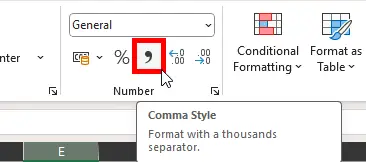
Large numbers can be hard to read, especially with multiple zeros. Use the Thousands Separator to add commas:

  • 1000 → 1,000
  • 10000 → 10,000
  • 100000 → 100,000
  • 1000000 → 1,000,000
 
Showing the comma button in number formatting section of the menu ribbon

By default, every cell uses the General format, which applies no special rules. Excel will leave data as typed unless it resembles a recognized format (e.g., date or time).

You can customize formats by selecting More Number Formats… at the bottom of the drop-down menu. This allows you to:

  • Change currency symbols
  • Adjust date display styles
  • Create custom formats for specific needs

For more details on writing custom number formats, refer to the official Excel guide.

Was this article helpful?
Updated on January 8, 2026