Using Freeze Panes in Excel
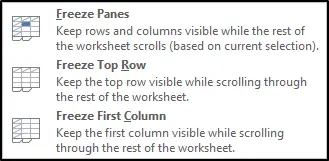
The Freeze Panes feature lets you lock specific rows or columns in place, so they remain visible no matter where you scroll in your worksheet.
Where to Find It
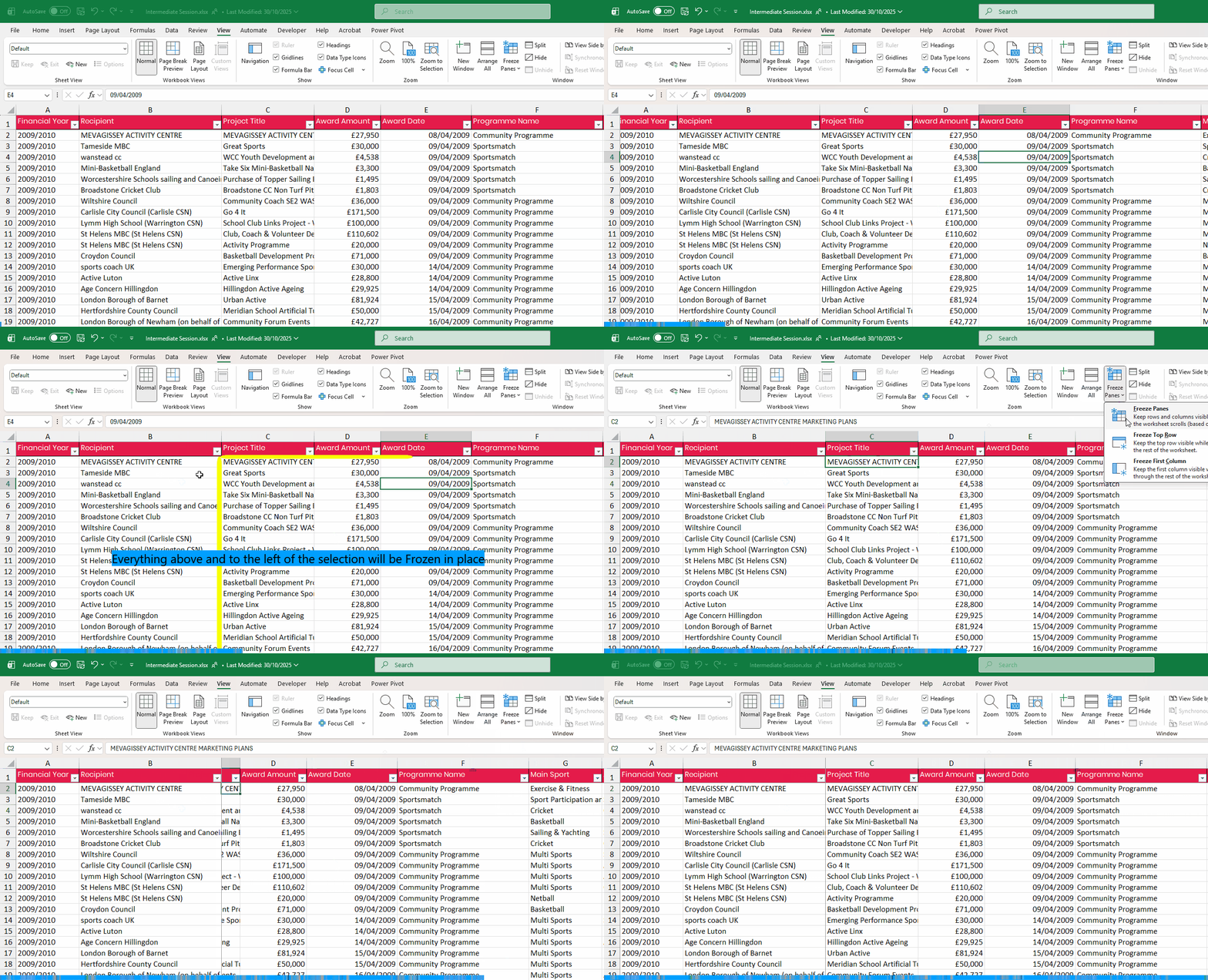
- Go to the View tab on the Ribbon and open the Freeze Panes drop-down menu.
Options Available
- Freeze Top Row
Keeps the top row visible while the rest of the worksheet scrolls.
- Freeze First Column
Locks the first column in place while you scroll horizontally.
Freeze Panes (Manual Selection)
Lets you freeze everything above and to the left of the selected cell.- Select a cell (e.g., C2)
- Go to View → Freeze Panes → Freeze Panes
- Everything above row 2 and to the left of column C will remain visible as you scroll.