Step by step guides #
Windows
Connecting to eduroam
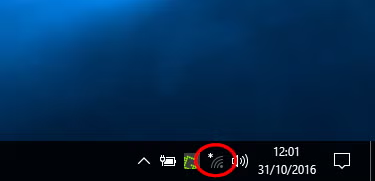
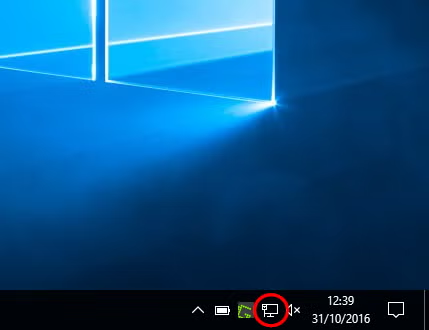
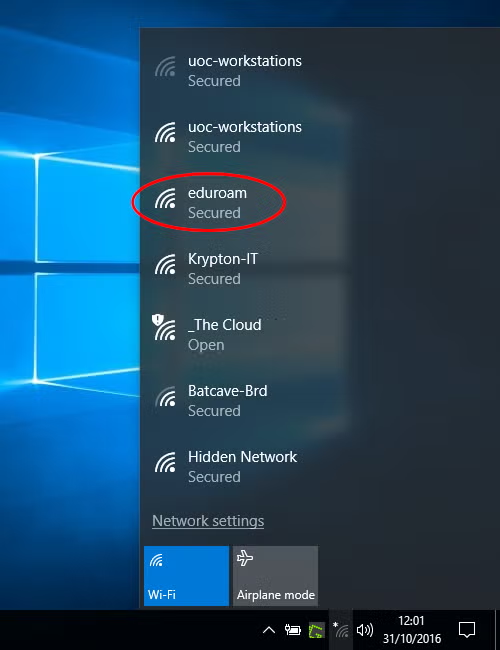
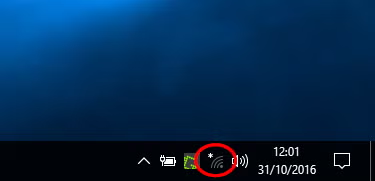
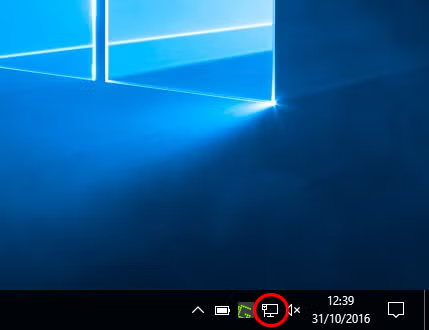
- Left-click the network icon in the system tray. This is next to the time/date in bottom right corner and may look like a dot with a curved lines or a computer screen with a cable
- From the list of networks click ‘eduroam‘
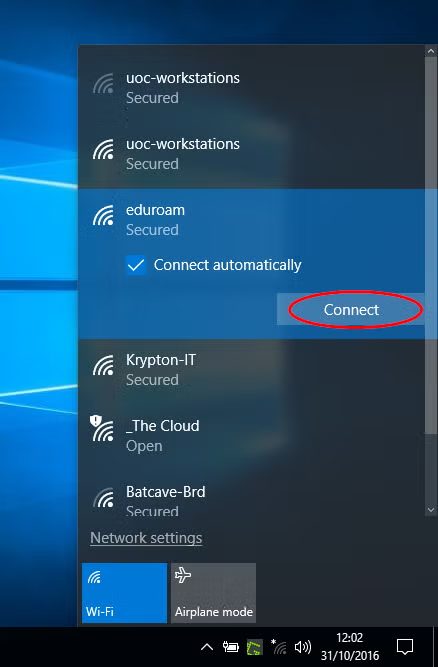
- Decide if you want to connect automatically, then click ‘Connect‘
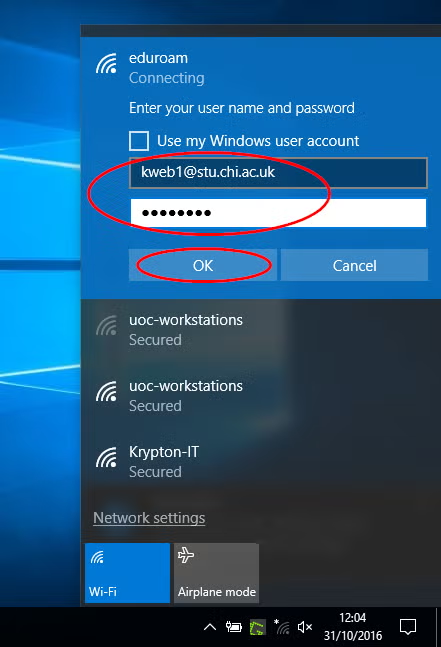
- Input your University email address and password (not your username), then click ‘Ok‘
Student example: dweb1@stu.chi.ac.uk or 2504934@stu.chi.ac.uk
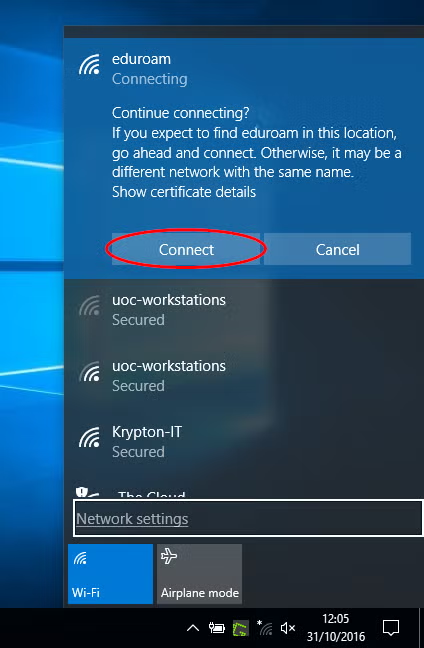
Staff example: b.reynolds@chi.ac.uk - Click ‘Connect‘ when prompted to continue
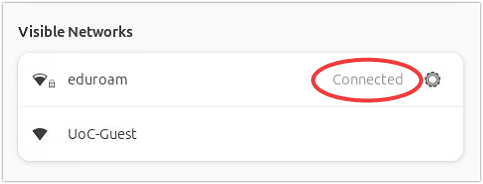
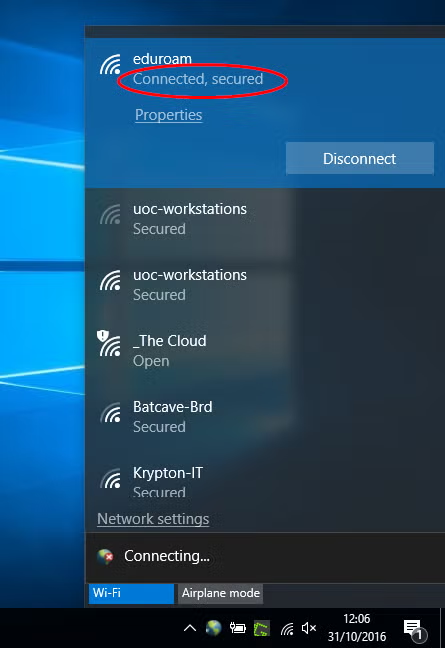
- If your email address and password was successfully entered, you’ll see the word ‘Connected‘ appear under the eduroam network
Wi-Fi connection problems
If you are still having difficulties connecting to Wi-Fi after following instructions on this page, please get in touch with the SIZ by emailing help@chi.ac.uk or by phone on 01243 816000.
Removing the eduroam Wi-Fi network
- Click the network icon in the system tray. This is next to the time/date in bottom right corner and may look like a dot with a curved lines or a computer screen with a cable
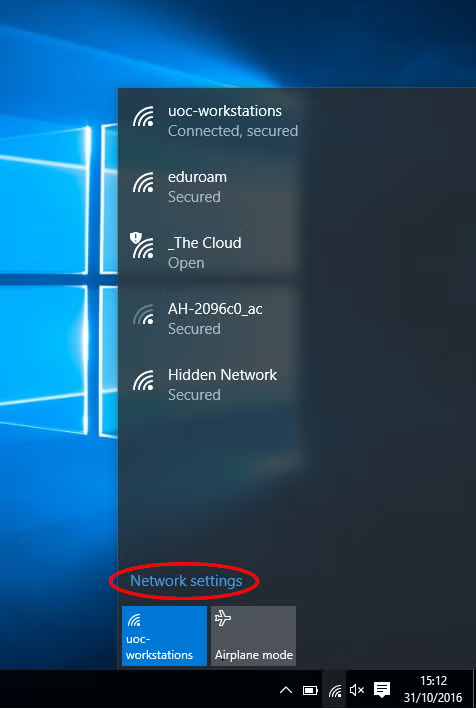
- Select ‘Network settings’
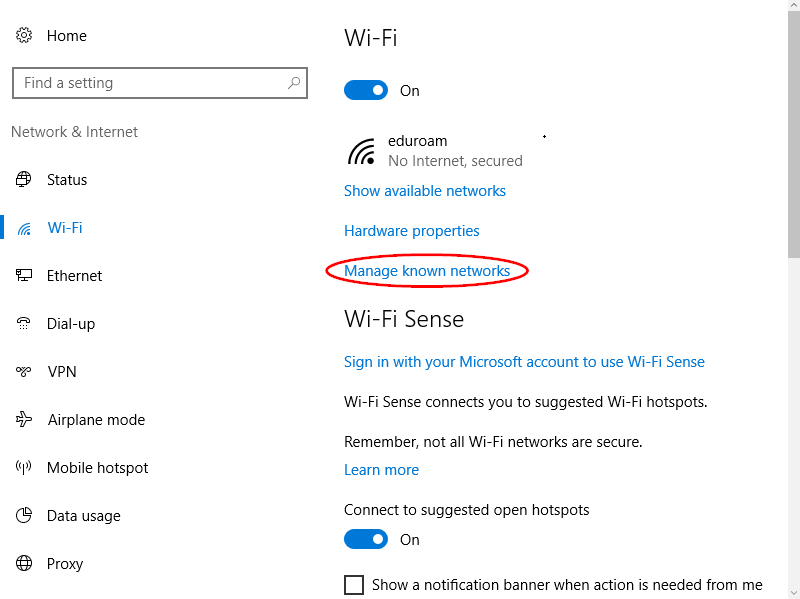
- Choose ‘Manage known networks’
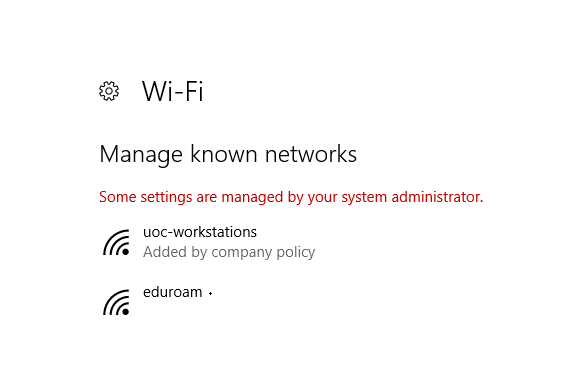
- From the list of known networks, select the one you would like to edit
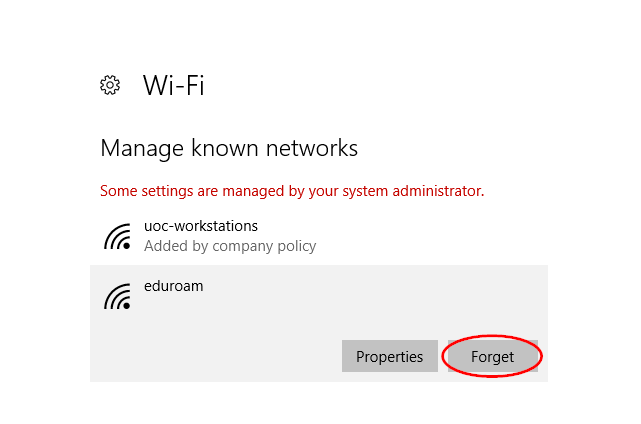
- Select ‘Forget‘
Apple Mac
Connecting to eduroam
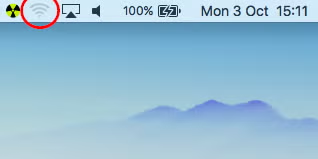
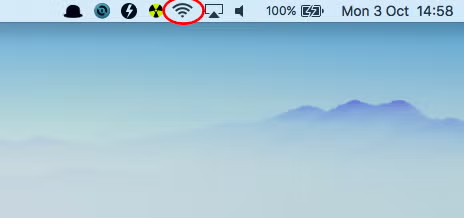
- Click on the Wi-Fi status icon in the top menu bar
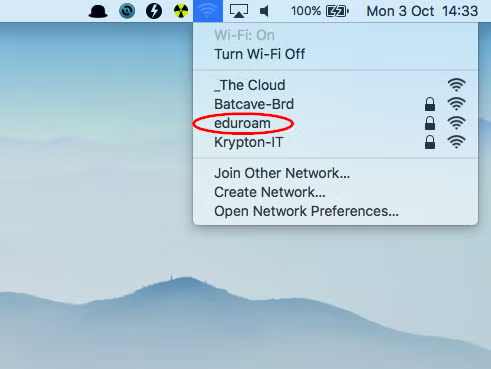
- Check Wi-Fi is turned on, then select ‘eduroam‘
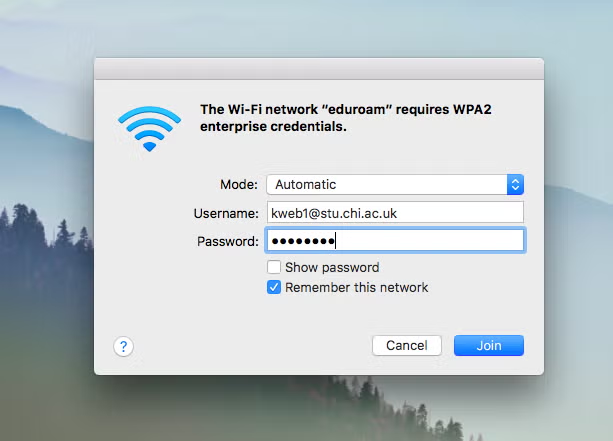
- Insert your university email address and network password
selecting ‘Remember this network‘ and click ‘Join‘ - If prompted to verify certificate, click ‘Continue‘ entering your Mac username and password, and click ‘Update Settings’
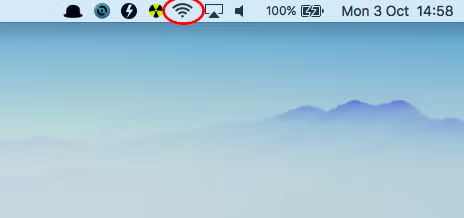
- You should now be connected, with the Wi-Fi status icon showing active
Wi-Fi connection problems
If you are still having difficulties connecting to Wi-Fi after following instructions on this page, please get in touch with the SIZ by emailing help@chi.ac.uk or by phone on 01243 816000.
Removing the eduroam Wi-Fi network
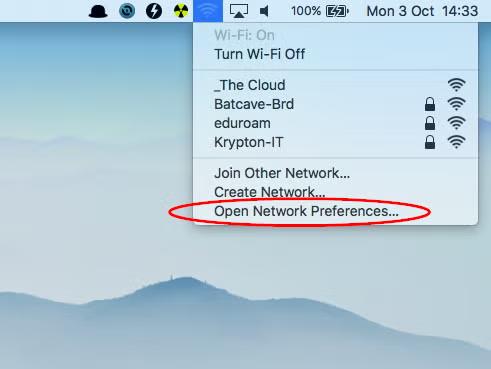
- Click on the Wi-Fi status icon in the top menu bar
- Select ‘Open Network Preferences’ from the dropdown menu
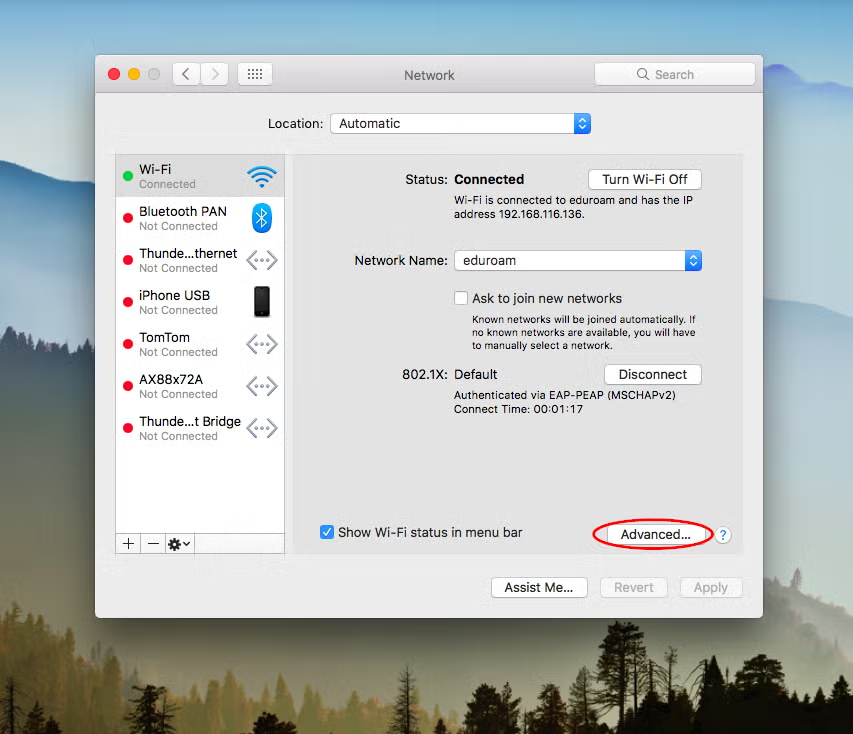
- Click ‘Advanced’
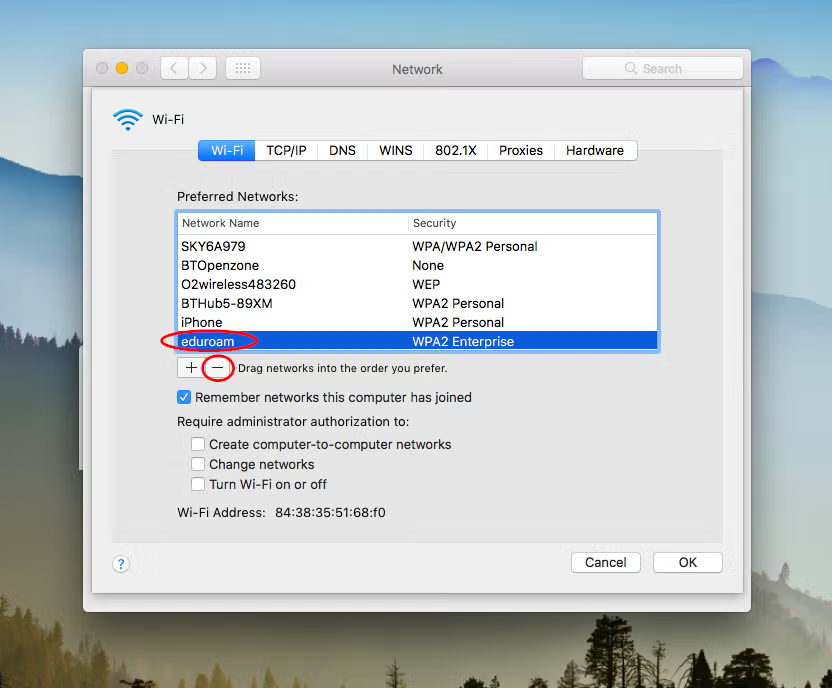
- Make sure ‘eduroam‘ is highlighted, and click the ‘minus’ sign to remove the eduroam network
- Finally click ‘OK’ then ‘Apply‘ to save, which will auto disconnect from Wi-Fi
For older versions of Mac OSx you may need to manually click ‘Disconnect‘
iPhone and iPad
Connecting to eduroam
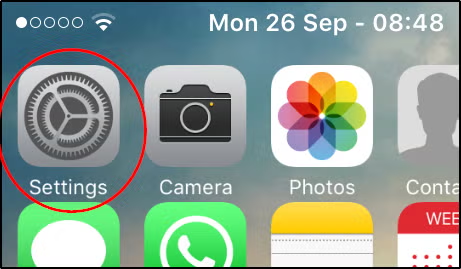
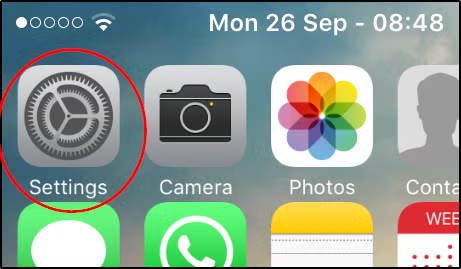
- Tap ‘Settings‘ on your iPhone/iPad
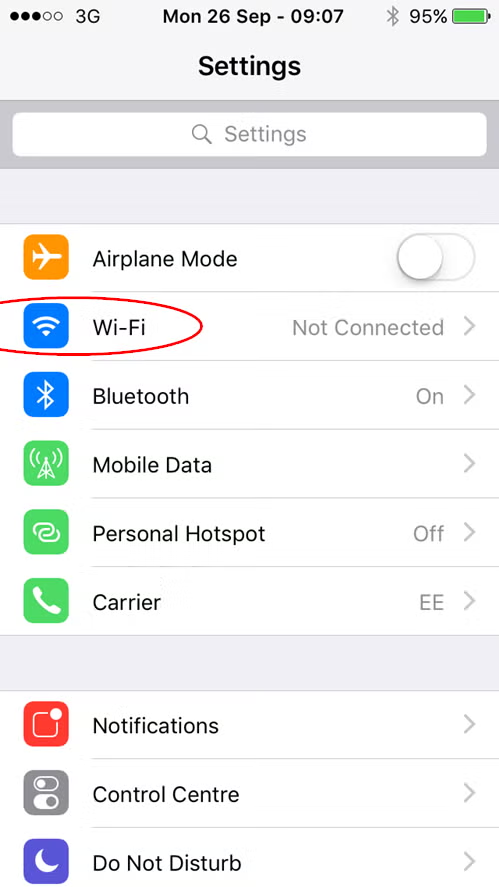
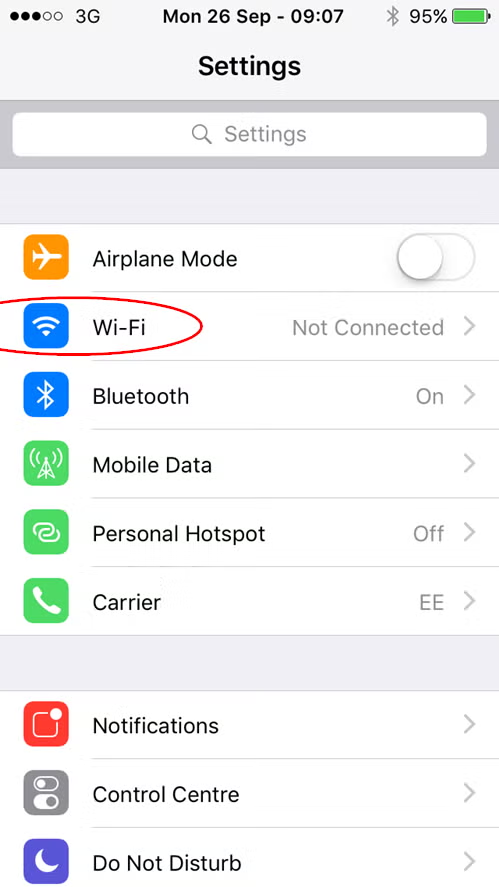
- Choose’Wi-Fi’
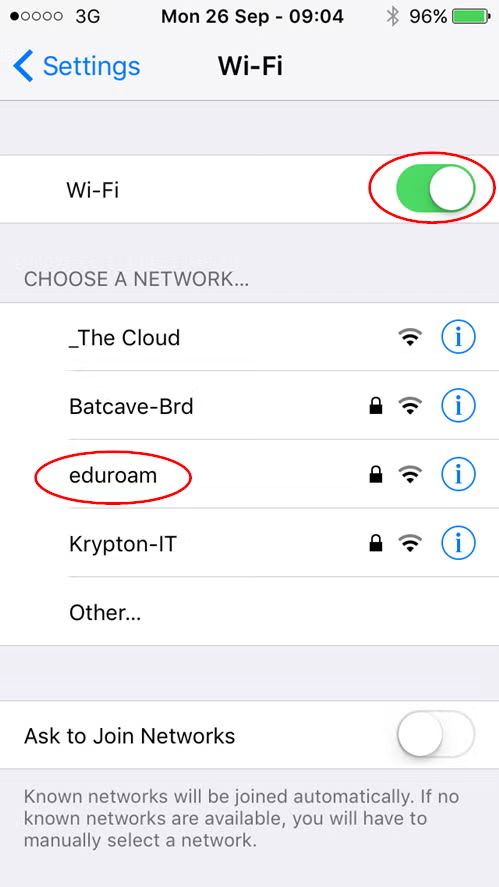
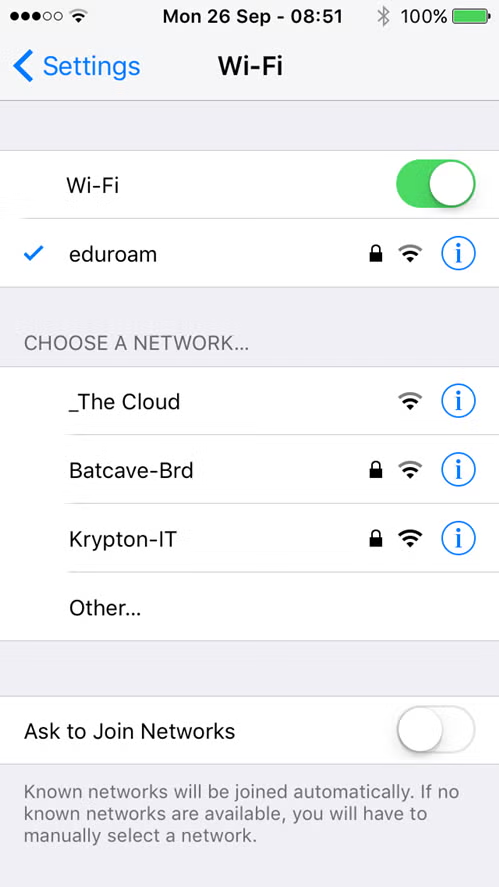
- Make sure Wi-Fi is on, then select the ‘eduroam‘ network
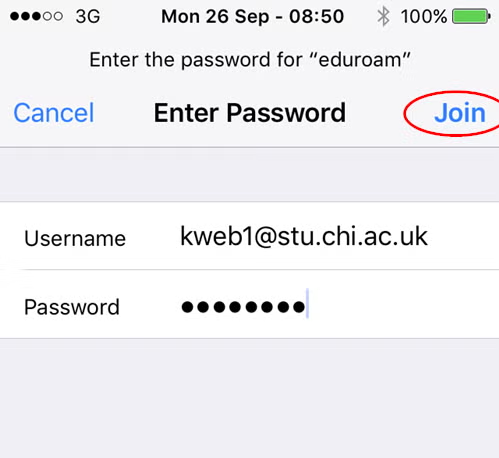
- Enter your University email address and password, then tap ‘Join‘
- Student example: cweb1@stu.chi.ac.uk or 2598734@stu.chi.ac.uk.
- Staff example: b.reynolds@chi.ac.uk
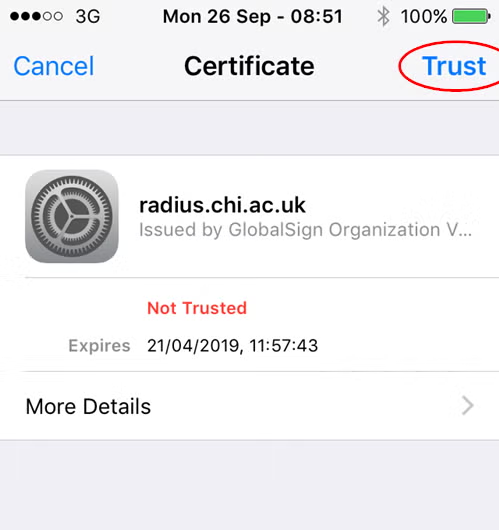
- Click ‘Trust‘ for the GlobalSign certificate
- If you see a tick to the left of eduroam then you’re connected
Wi-Fi connection problems
If you are still having difficulties connecting to Wi-Fi after following instructions on this page, please get in touch with the SIZ by emailing help@chi.ac.uk or by phone on 01243 816000.
Removing Wi-Fi networks
- When in range of the Wi-Fi network, tap ‘Settings‘ on your iPhone/iPad
- Choose ‘Wi-Fi’
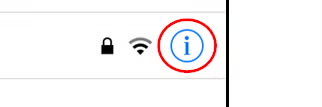
- On the list of Wi-Fi networks, tap the ‘i‘ icon next to eduroam
- Tap ‘Forget This Network’
- You will be asked to confirm this action, tap ‘Forget‘ if you do indeed want to forget this network
Android
Connecting to eduroam
- From home screen select the ‘Programs/Apps’ icon, then choose ‘Settings‘
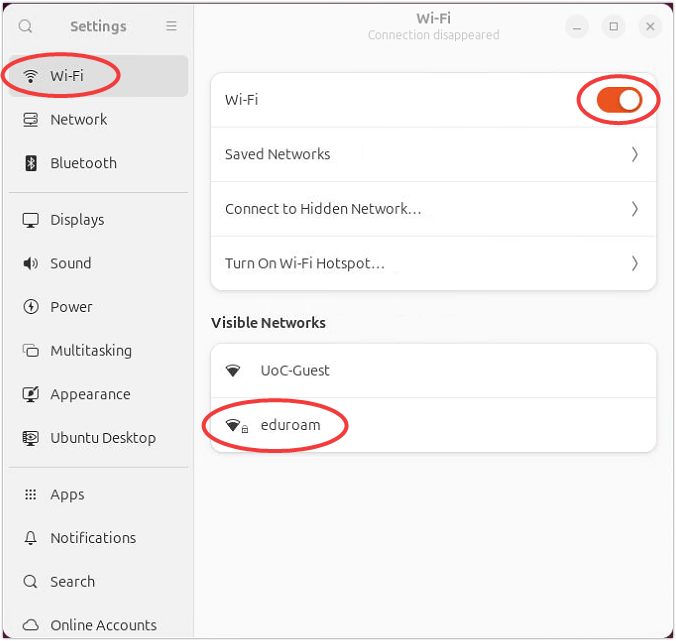
- Make sure the Wi-Fi switch is on then tap ‘Wi-Fi’
- Choose the ‘eduroam‘ network
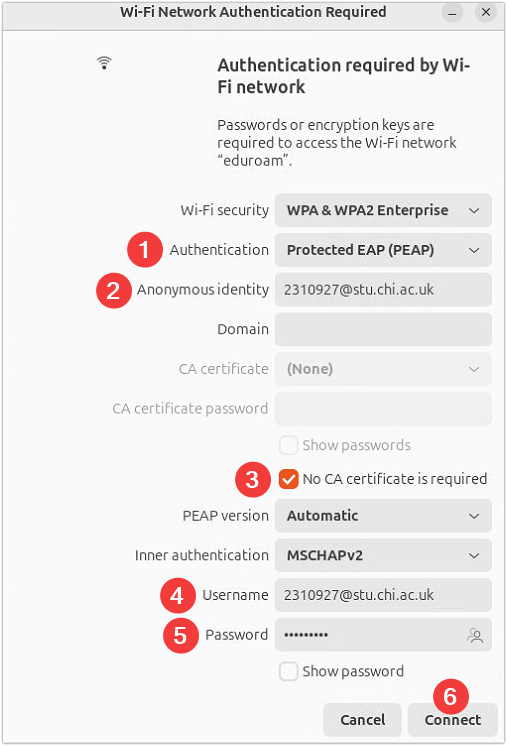
- Set the following authentication information, then ‘Connect‘
EAP method | PEAP |
Phase 2 authentication | MSCHPAV2 |
CA certificate up to Android 11 | ‘Do not check/validate’ or ‘Please select’ |
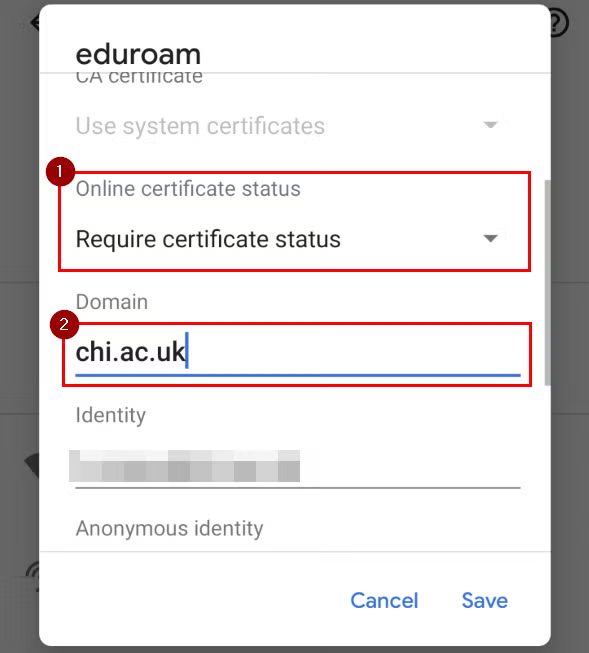
CA certificate Android 11 onwards | ‘Use system certificates’ then set Online certificate status (1) to ‘Require certificate status’ and set Domain (2) to ‘chi.ac.uk’ |
Identity | Your university email address e.g. 2310927@stu.chi.ac.uk (for Google Pixel devices see section below) |
Password | Your university password |
Google Pixel devices (eduroam)
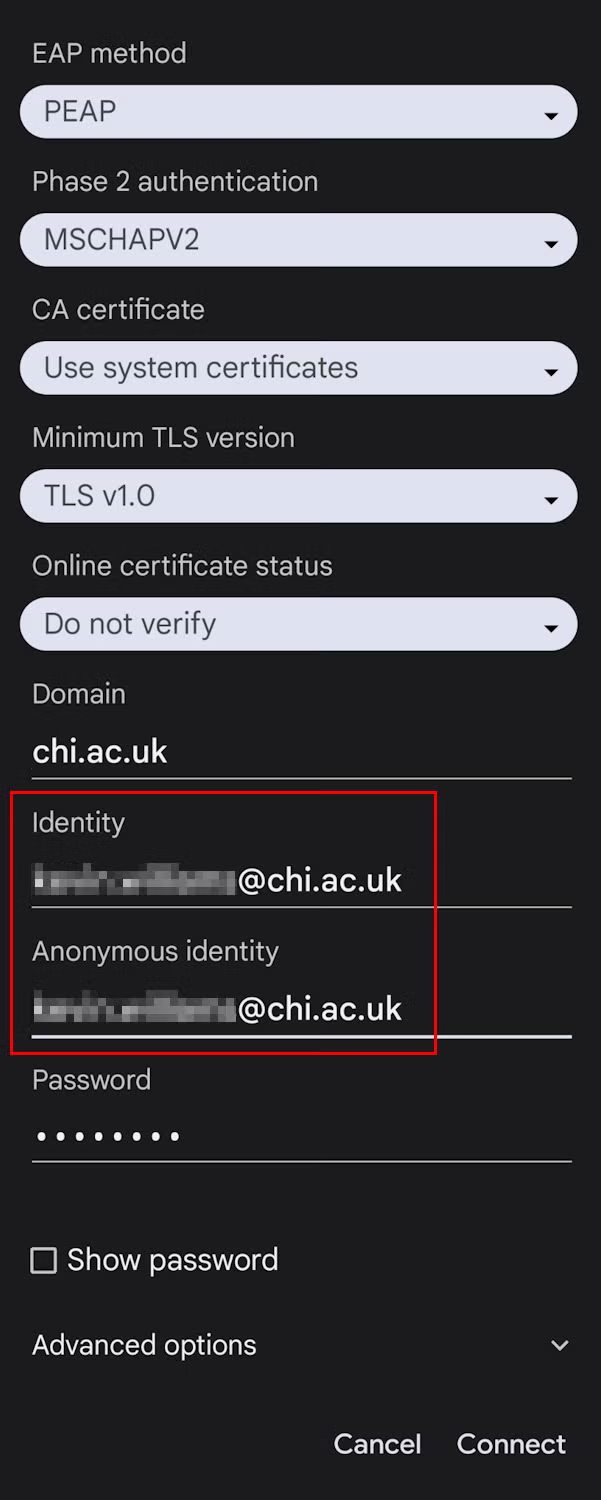
Some newer Google Pixel devices require you to input your email address into both the ‘Identity’ and ‘Anonymous Identity’ fields.
Manually installing the CA certificate
For older versions of Android you may need to manually install a certificate, then connect to eduroam setting the ‘CA certificate’ to ‘GlobalSign’.
eduroam Services #
The eduroam service at Chichester does not use any application or interception proxies
The University of Chichester (UoC) is a participating organisation in eduroam(UK) and has:
- Visited organisation status which allows visitors to UoC, from other member institutions, to access the network using the credentials provided by their home institution.
- Home organisation status which allows UoC users who are visiting an instiution that is a member of eduroam (including eduroam(UK)) to access the network using their UoC credentials
eduroam links: