Changing the background colour in Word can make your document more visually appealing and easier to read. It’s particularly useful for creating marketing materials, posters, or presentations where design matters. It can also help reduce eye strain when reading on-screen by using softer colours instead of bright white.
1. Apply a Page Colour
Open your document in Word.
Go to the Design tab on the Ribbon.
In the Page Background group, click Page Color.
Choose a colour from the palette, or select More Colors for custom options.
2. Use Fill Effects
Click Page Color and select Fill Effects.
Choose from:
Gradient: Apply a smooth colour transition.
Texture: Use built-in textures for a patterned background.
Pattern: Apply simple patterns with two colours.
Picture: Insert an image as the background.
3. Printing Considerations
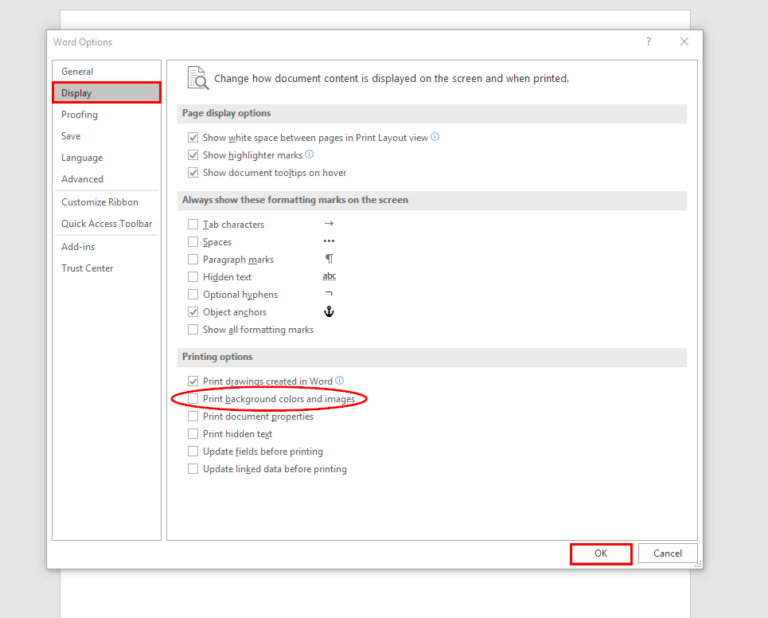
By default, Word does not print background colours or images to save ink.
To enable printing:
Go to File → Options → Display.
Under Printing options, check Print background colors and images.