Access to the Business School Webserver is provided by a username and password sent to you in an email. If you don’t have an email with these details, and you feel you should have access, then please log a support call at https://supportme.chi.ac.uk or speak with your lecturer.
In your welcome email, you should have two SSH key files. These keys are used to authenticate with the server, and which key you use depends on the compatibility of the software you are planning to use. Save the files from the email to a convenient and secure location, as you will need these later.
SSH Key Permissions
Some application require that your SSH key(s) are stored with very strict file permissions. If you receive an error regarding permissions, please try the following:
From a Mac or Linux: Open a terminal, and issue the command chmod 400 yourkey.key
From Windows:
- Right click the key file and select Properties -> Security -> Advanced.
- Click “Disable Inheritance” followed by “Convert Permissions…”
- Remove all entries from the list other than your own username, and the SYSTEM account.
- Click OK to save
PuTTY
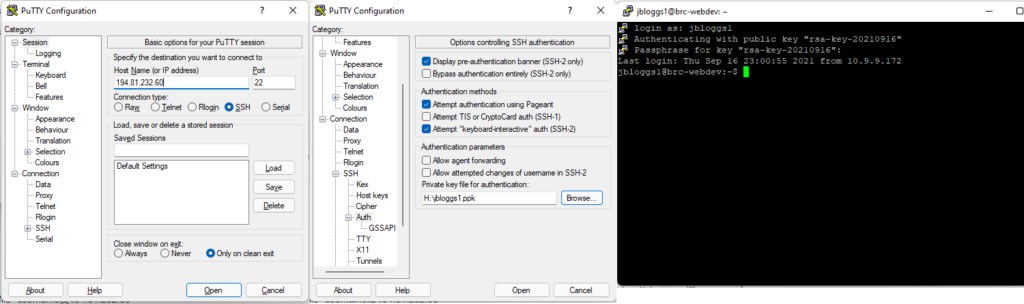
**PuTTY uses the key file ending in .ppk**
Hostname: 194.81.232.60
Under Connection->SSH->Auth menu, browse and select the key file ending in .ppk
Click Open, and enter your username and password when prompted
Windows Powershell / Mac Terminal / Linux Terminal

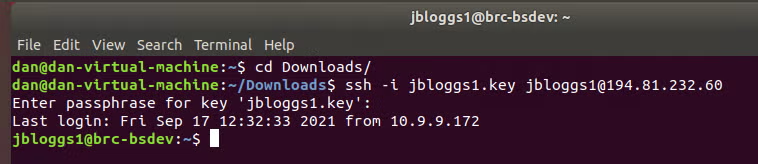
**These use the key file ending in .key**
Connect using the command:
ssh -i “Path_To_.key_file” username@194.81.232.60
FileZilla
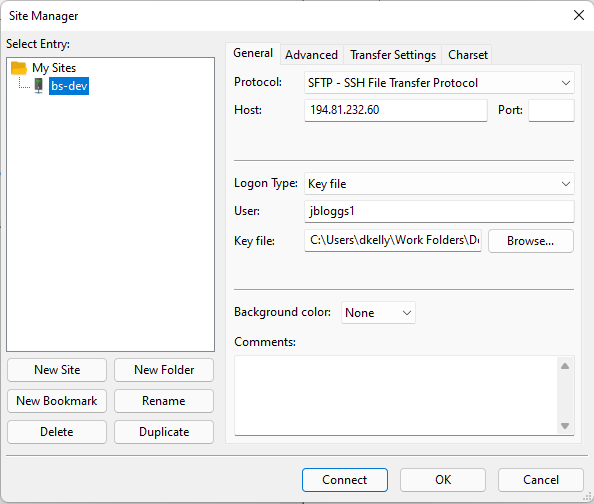
**FileZilla uses the key file ending in .ppk**
Create a new connection with the following settings:
Protocol: SFTP
Host: 194.81.232.60
Logon Type: KeyFile
User: Your_Username
Key File: Path to where you saved the .key file
MySQL Workbench
**This uses the key file ending in .key**
There is a persistent bug in MySQL workbench that has been present since 2016, which means it does not work correctly over SSH with key files.
As a result, we have to do a small workaround and manually create the SSH tunnel instead of having MySQL Workbench do it for us.
Before opening MySQL Workbench, run the following command in Powershell/MacOS/Terminal (depending on your operating system) to create an SSH tunnel:
ssh -N -L 3306:127.0.0.1:3306 -i ‘path_to_your_key’ username@194.81.232.60
Once you have authenticated, you will see no output – minimise the window and leave it running. If there is a problem, you will get an error message.
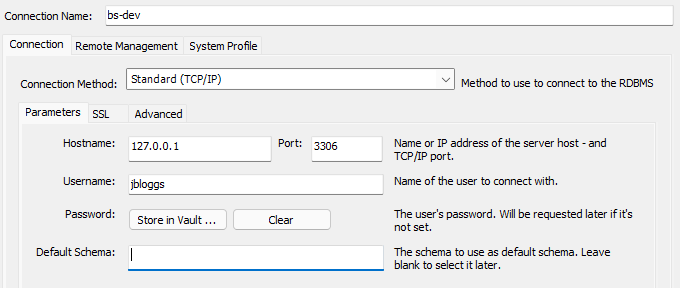
From then, you can MySQL Workbench with standard connection settings, just altering the username, like this: