H5P makes it easy to create, share and reuse HTML5 content and applications. H5P empowers everyone to create rich and interactive web experiences more efficiently.
H5P content is responsive and mobile friendly, which means that users will experience the same rich, interactive content on computers, smartphones and tablets alike.
There are a variety of H5P activities available, visit the H5P site to experience them first hand.
H5P can be shown as a link to the activity that the student can click to access, or the H5P activity can be embedded into your page.
Create a H5P activity
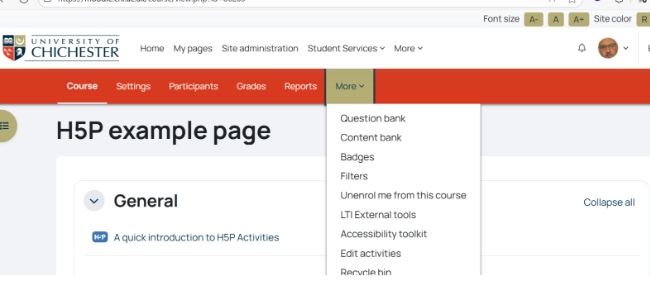
First you need access the Content Bank. Select More in the Moodle module menu bar, then select Content Bank.
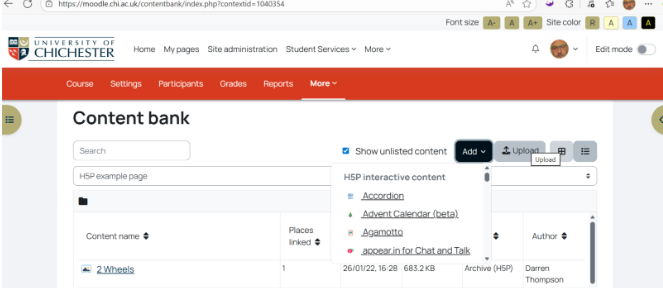
From here you can choose to uploada pre created H5P package, or Add a new H5P using the drop-down menu
Select the activity type you have chosen to use, and the Activity editor will display.
You now need to complete each section with your required content and tell H5P if the response is True or False. Then click Save.
This is the same way that all and every H5P activity will need to be added.
Be advised: some of the activities that are a little more complicated to set up also have a Tutorial (also below), we strongly suggest you follow these for the following when setting up your activity.
Follow the prompts in the H5P editor to set up your activity
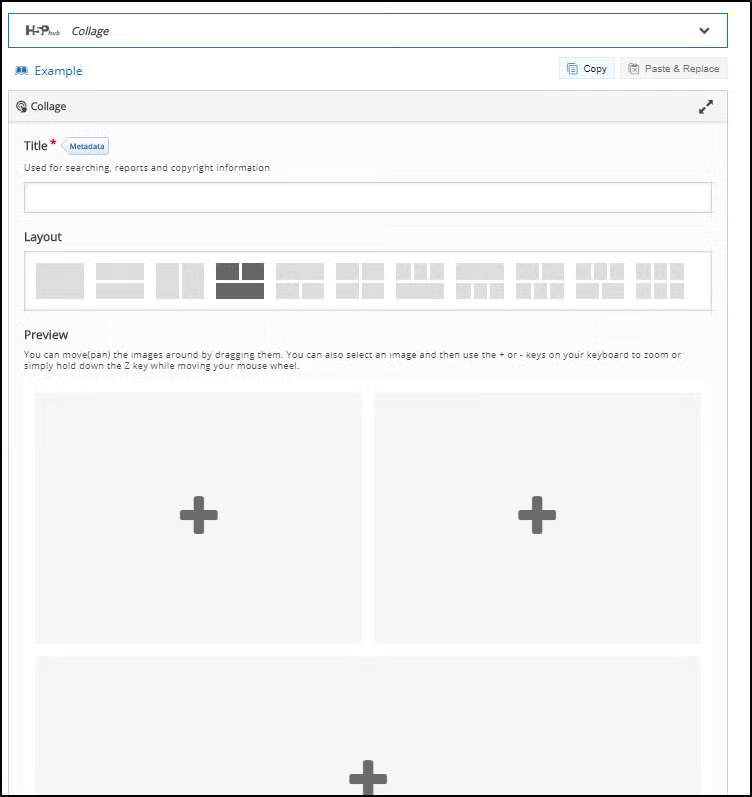
For example, the collage allows you to choose your layout and then add images by clicking on the grey boxes to upload your images from your computer:
When you have set it up, it will appear as a clickable link on Moodle, it can be left like that for the students to click on and open the activity or you can copy the embed code and insert it via HTML in a text box to make the activity appear directly on your Moodle page.
Adding an H5P activity to the Moodle module
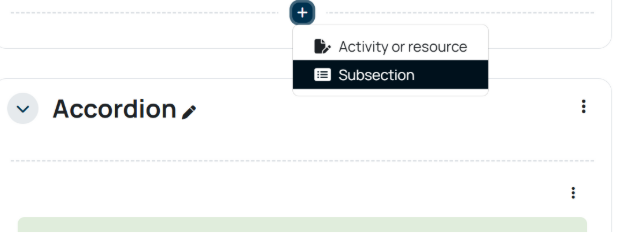
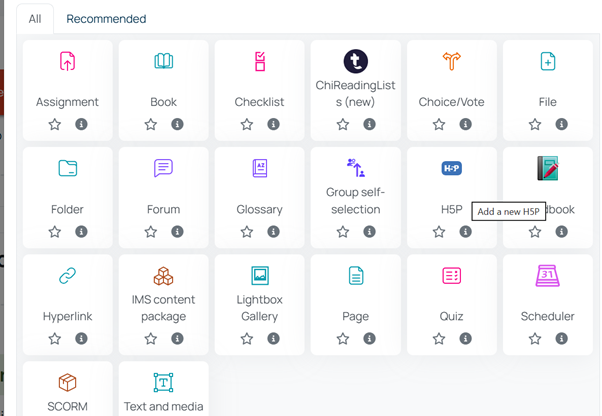
Next you need to create your activity. Within the Moodle module page, and with editing turned on, click on the + icon, then Add and Activity or resource in the topic you want to add it to and choose Add a new H5P Activity
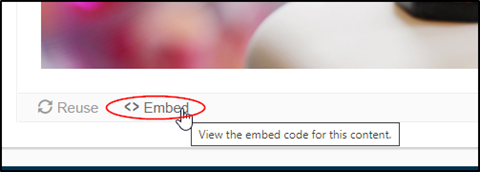
Click on your H5P activity and click on Embed in the bottom left
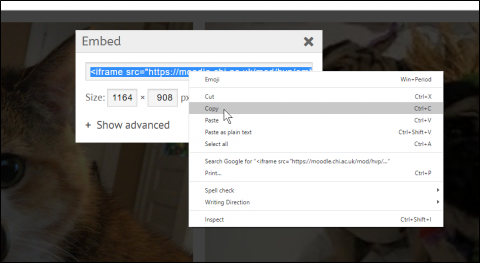
The screen will go opaque and show the embed code, you may need to scroll back up the screen to see it. Click on the code, select it all (ctrl A) and then copy it.
Then navigate back to your main page, and add a text box in the topic you wish the H5P activity to appear on the page.
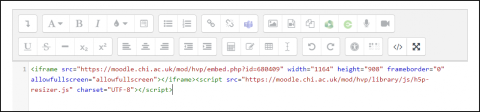
Click on the button on the left to open up the second row of options and then select the HTML button
The rest of the buttons will appear greyed out, paste your embed code into the text box
then click save and return to course, and your H5P activity should be embedded into the Moodle page.
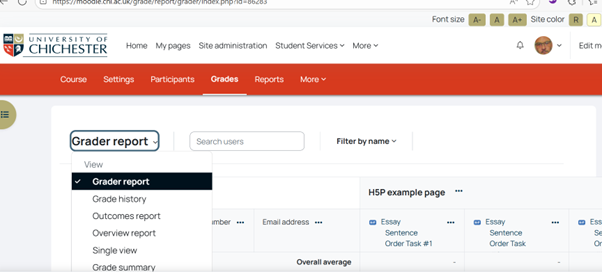
If you have set your students a task using H5P you can get the results through the Grades button. This can be found in the Moodle module menu:
There are several reports available in this page, however, if you click on an activity you will see the results for that activity and can click on a student to see their individual answers