Page numbering adds sequential numbers to your document, usually in the header or footer. It’s essential for reports, dissertations, and any multi-page document. You can easily apply it through the entire document just by inserting them.
Section breaks are required for partial numbering
If you have pages or sections of your document you don't wish to have numbering in. You will need to use Section breaks to seperate these parts of your document from the rest.
Insert Page Numbers
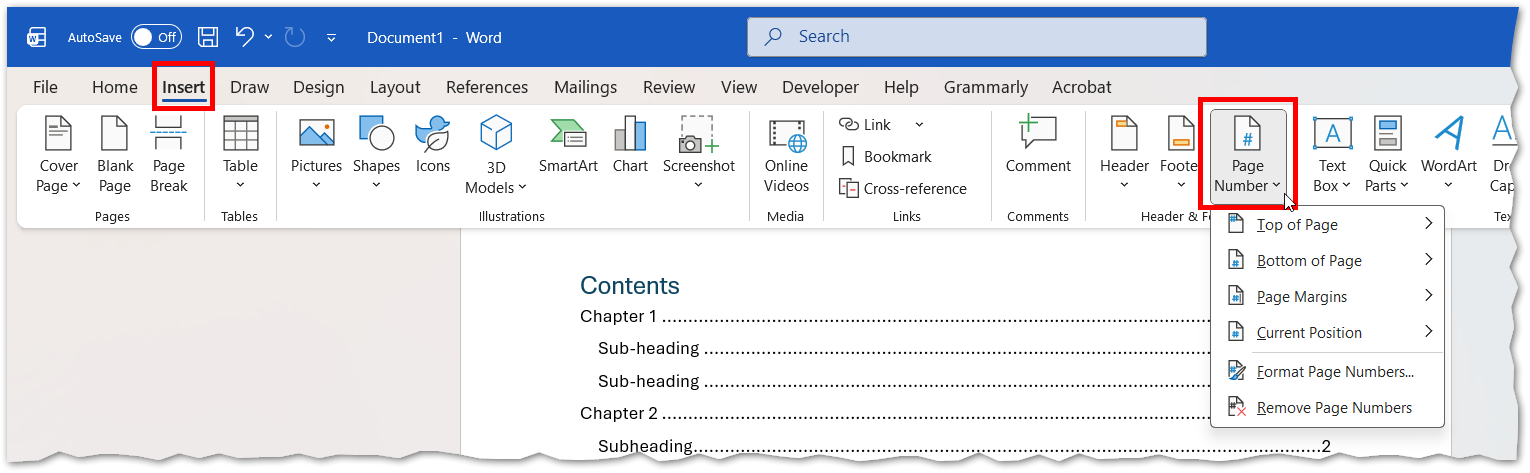
- Go to the Insert tab.
- Click Page Number in the Header & Footer group.
- Choose:
- Top of Page (Header)
- Bottom of Page (Footer)
- Page Margins
- Current Position (where your cursor is)
Picture
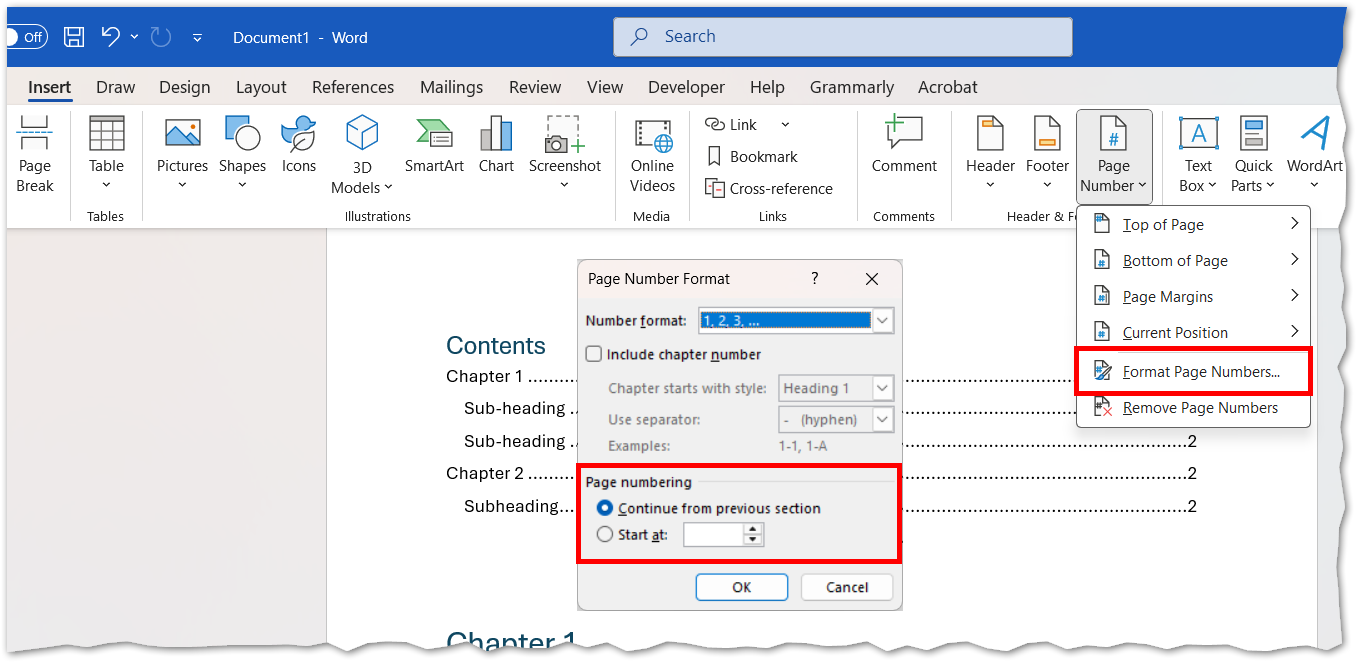
Format Page Numbers
- After inserting the numbering, click Format Page Numbers in the Page Number menu.
- Options include:
- Number format (e.g., 1, 2, 3 or i, ii, iii)
- Include chapter number
- Start at (set a custom starting number)
Picture
Restart Numbering in a Section
To restart numbering or use different formats:
- Insert a Section Break (Layout → Breaks → Section Break).
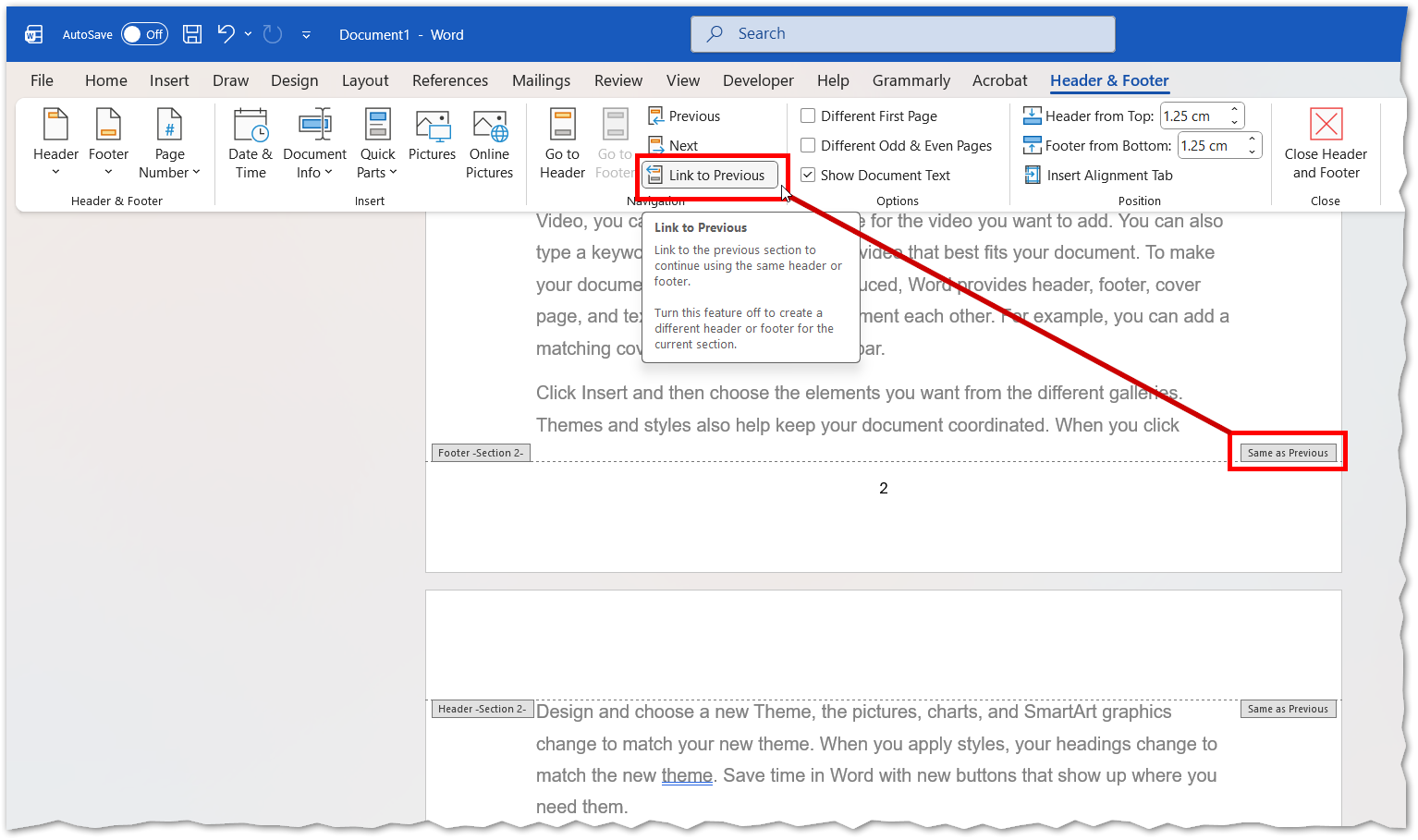
- Double-click the header/footer in the new section or edit it.
- With the header/footer menu accessed, turn off Link to Previous.
- Insert and format page numbers for that section..
Picture
Remove Page Numbers
- Go to Insert → Page Number → Remove Page Numbers.
- Or delete them manually from the header/footer.