Word – Page & Section Breaks

1 min read

What Are Breaks? #

Breaks control how content flows in your document.

  • Page Break: Moves text to the next page without starting a new section.
  • Section Break: Moves text to the next page and splits your document into sections so you can apply different formatting (e.g., headers, footers, page orientation) to each part.

When to Use Them #

  • Page Break: For starting a new page without changing layout (e.g., new chapter).
  • Section Break: For changing page orientation, margins, headers/footers, or numbering in part of the document.
This image shows the Word menu ribbon in the layout tab to select page or section breaks.

Insert a Page Break #

  1. Place your cursor where you want the new page to start.
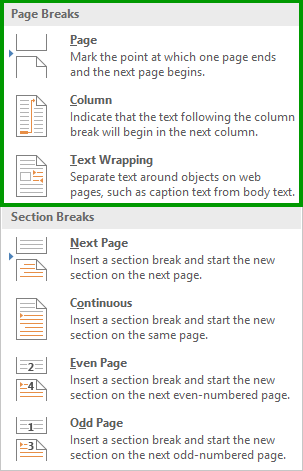
  2. Go to InsertPage Break or press Ctrl + Enter (Windows) / Cmd + Enter (Mac).
This image shows the page break options in the menu ribbon.

Insert a Section Break #

  1. Place your cursor where you want the new section to begin.
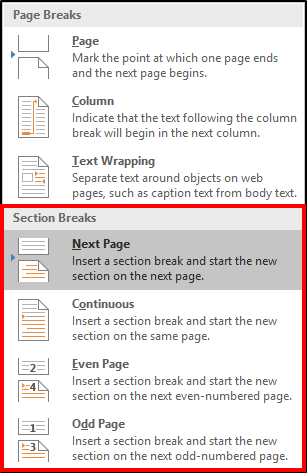
  2. Go to LayoutBreaksSection Breaks.
  3. Choose:
    • Next Page: Starts a new section on the next page.
    • Continuous: Starts a new section on the same page.
    • Even Page / Odd Page: Starts a new section on the next even or odd page.
This image shows the section break options in the menu ribbon.

View Breaks #

To see where breaks are, click ¶ Show/Hide on the Home tab. This displays hidden formatting marks, including page and section breaks. We have a guide available on this here.

Was this article helpful?
Updated on January 12, 2026