An automatic Table of Figures lists all the figures (images, charts, diagrams) in your document along with their page numbers. It updates automatically as you add or remove figures, making it ideal for reports, dissertations, and technical documents.
Why Use It?
Saves time: No need to manually type figure lists or update page numbers.
Professional structure: Creates a polished, consistent layout.
Dynamic updates: Reflects changes instantly when figures move or captions change.
How It Works
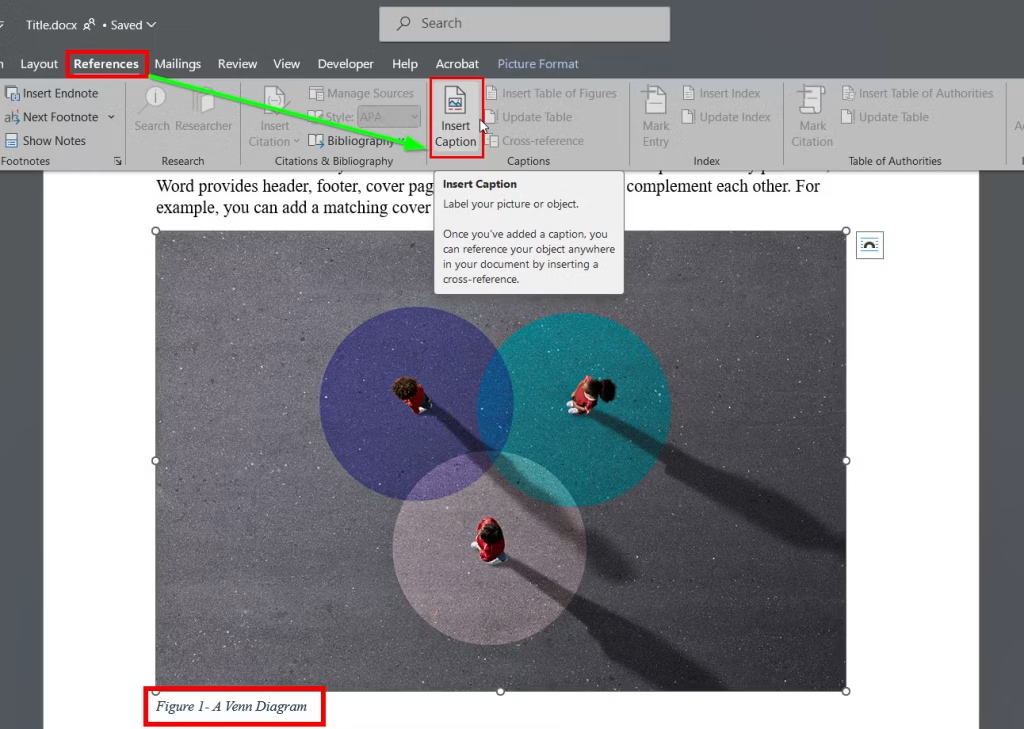
Word builds the Table of Figures from captions applied to images or objects. If you haven’t added captions, the table won’t work correctly.
Add Captions to Figures
Select the figure (image, chart, etc.).
Go to References → Insert Caption.
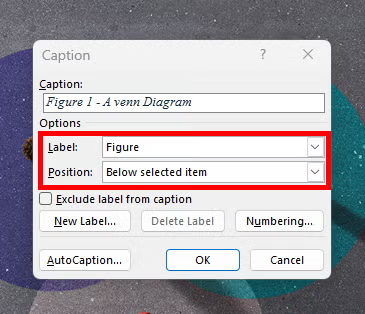
Choose Label (e.g., Figure, Table) and type your caption.
Click OK.
1. Picture
2. Picture
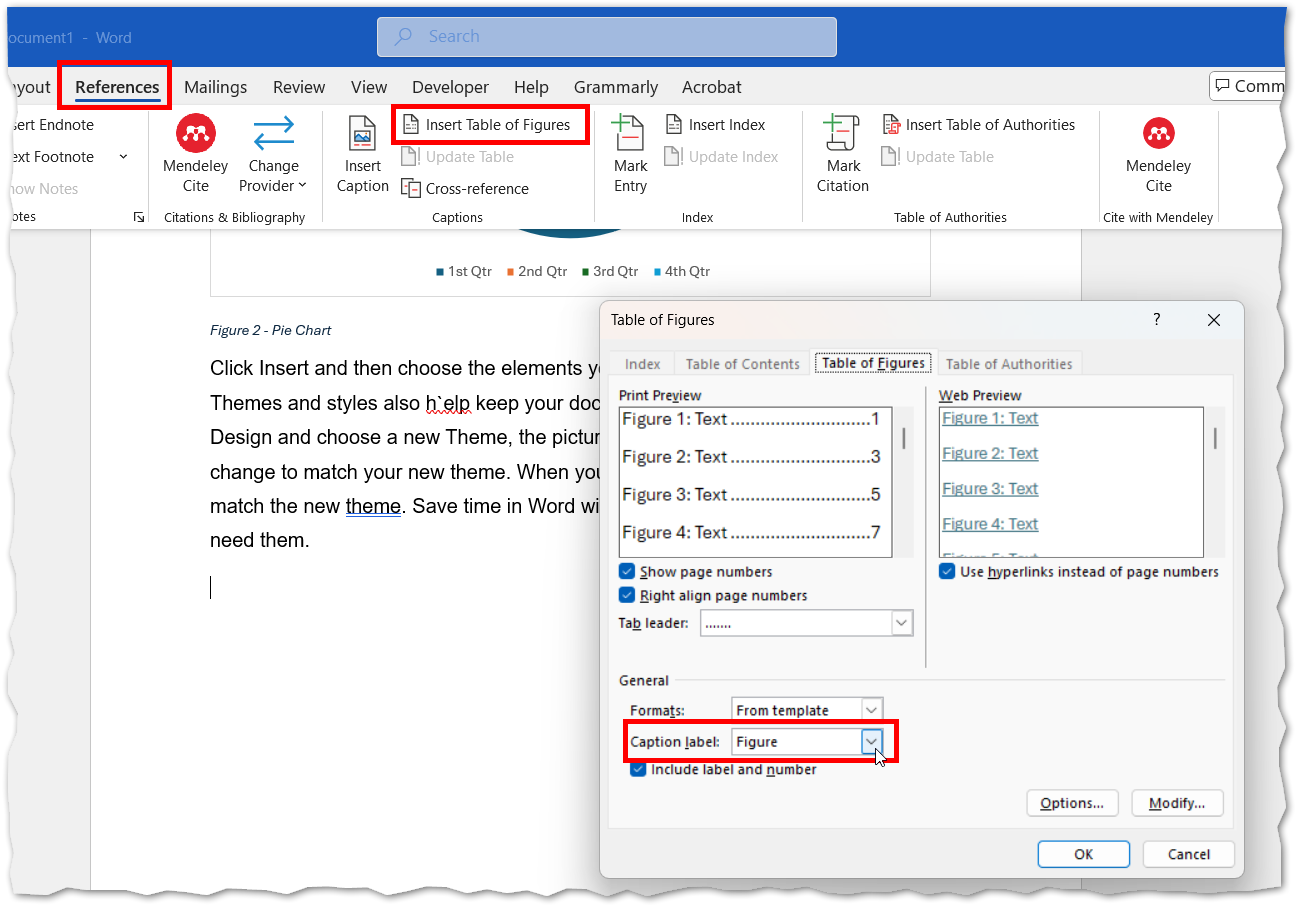
Insert an Automatic Table of Figures
Place your cursor where you want the table.
Go to References → Insert Table of Figures.
Choose a format and click OK.
1. Picture
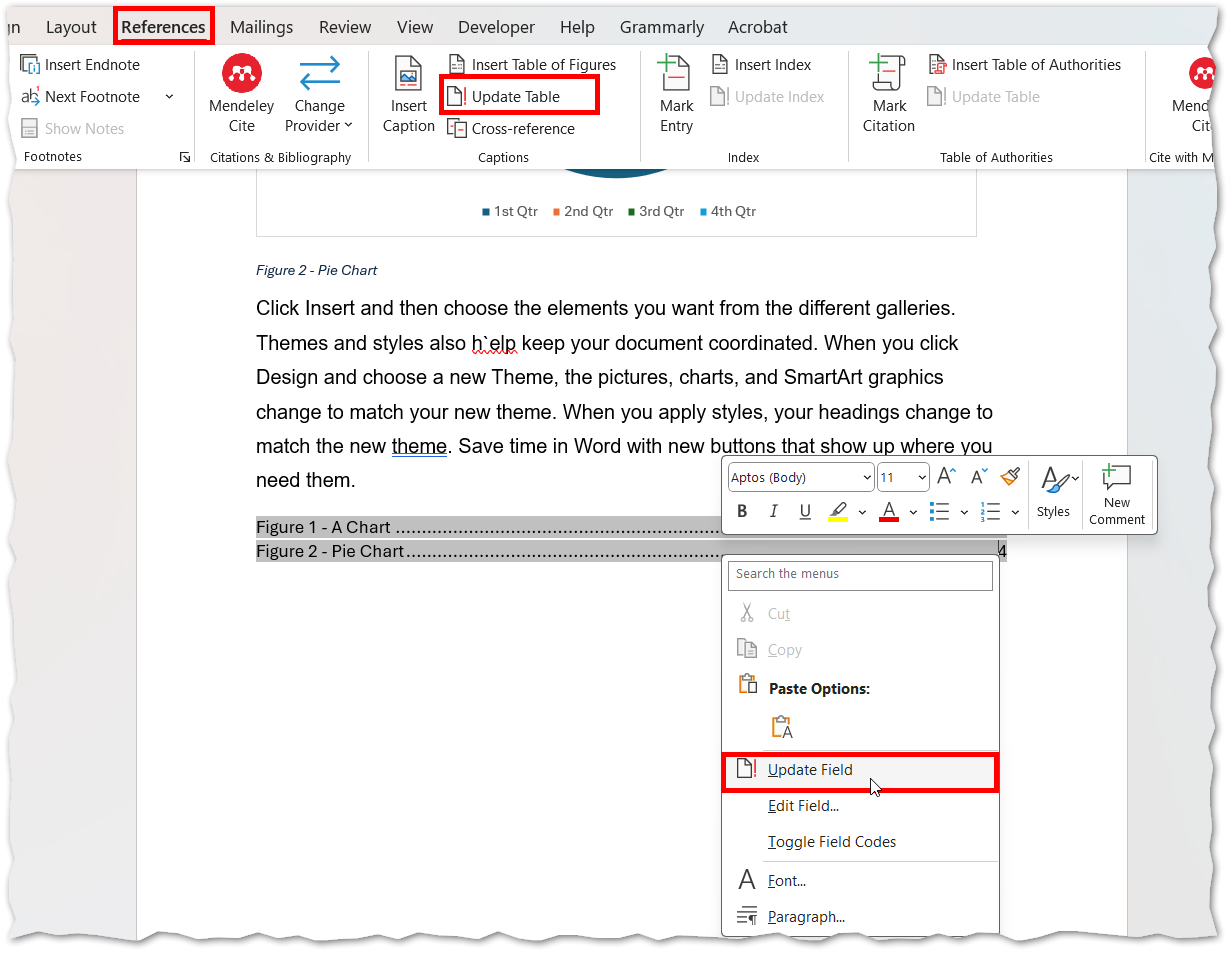
Update the Table
Click anywhere in the table.
Select Update Table from the references menu tab, to refresh page numbers or captions.
Or right-click the table itself and select Update Table