An automatic Table of Contents (TOC) in Word creates a clickable list of headings from the style gallery in your document, making navigation easy and professional. It updates automatically as you add or change sections, no manual editing required.
Why Use an Automatic TOC?
Saves Time: No need to manually type or update page numbers.
Dynamic Updates: Changes in headings or page numbers are reflected instantly.
Professional Structure: Ideal for reports, dissertations, and manuals.
Clickable Links: Readers can jump to sections with one click.
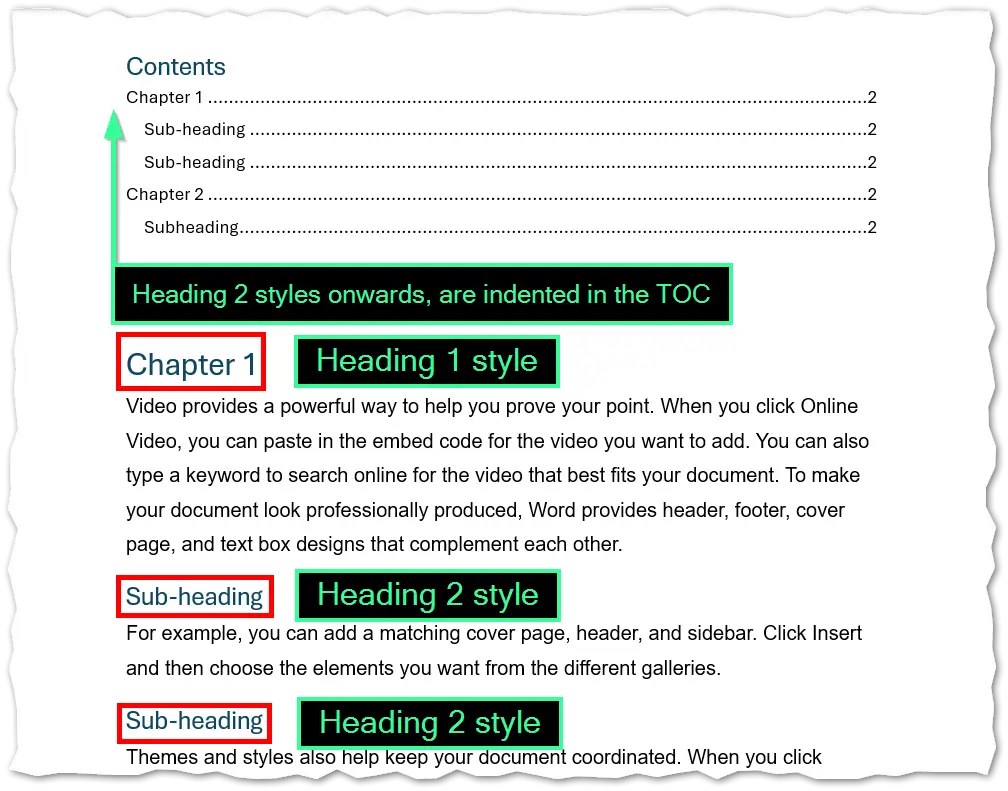
Word builds the TOC from Heading Styles (Heading 1, Heading 2, etc.). If you haven’t applied styles, the TOC won’t work properly. Using styles ensures consistency and enables advanced features like navigation panes.
Picture
Insert an Automatic TOC
Place your cursor where you want the TOC (usually after the title page).
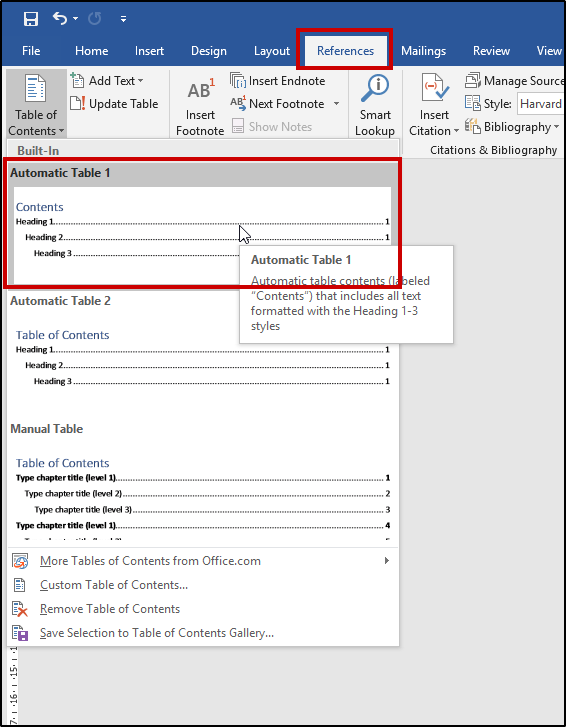
Go to References → Table of Contents.
Choose a built-in style (e.g., Automatic Table 1 or Automatic Table 2).
Word generates the TOC based on your heading styles.
Picture
Update the TOC
Click anywhere inside the TOC.
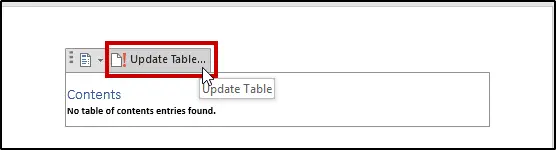
Select Update Table at the top of the contents.
Choose Update page numbers only or Update entire table.
Picture
Tips
Always use Heading Styles for section titles.
Insert the TOC after the title page for clarity.
Update the TOC before finalizing your document to ensure accuracy.