You can virus scan University files, folders, or devices.
If you believe you have a virus, or the scan results indicate you have, please contact SIZ immediately.
Single file / folder / USB scan #
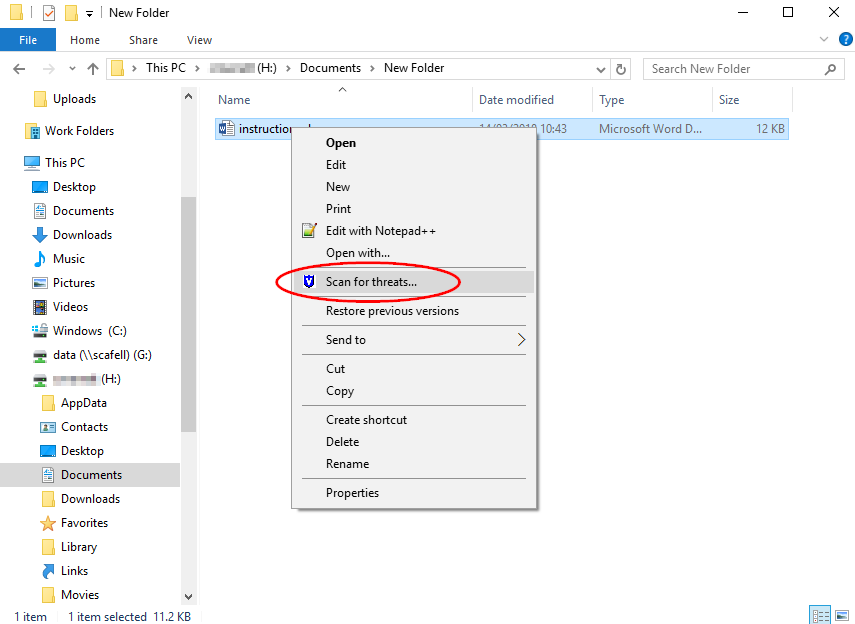
- Navigate to the file / folder/ USB in File Explorer
- Right click the file / folder / USB and select Scan for threats…
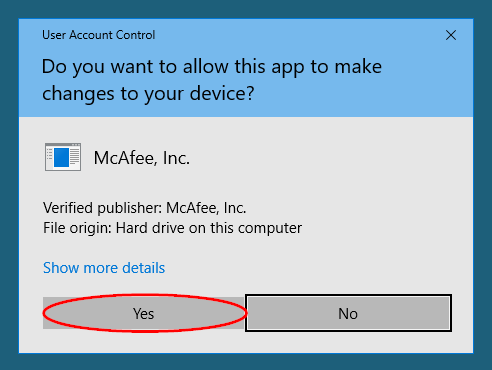
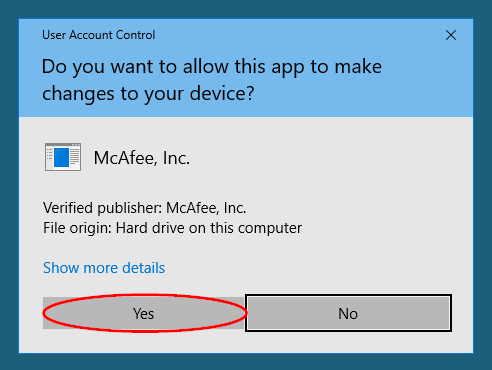
- You may see a McAfee message asking if you want to allow the app to make changes, select Yes
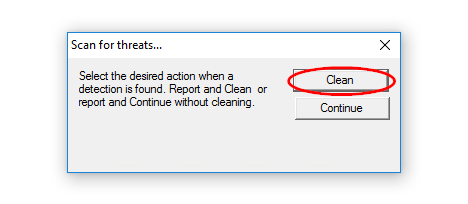
- On the scan for threats window, you can choose the action to be taken if a detection is made: report and clean (clean) or report and continue without cleaning (continue). We recommend Clean. Be aware that if a detection is made the file may be deleted
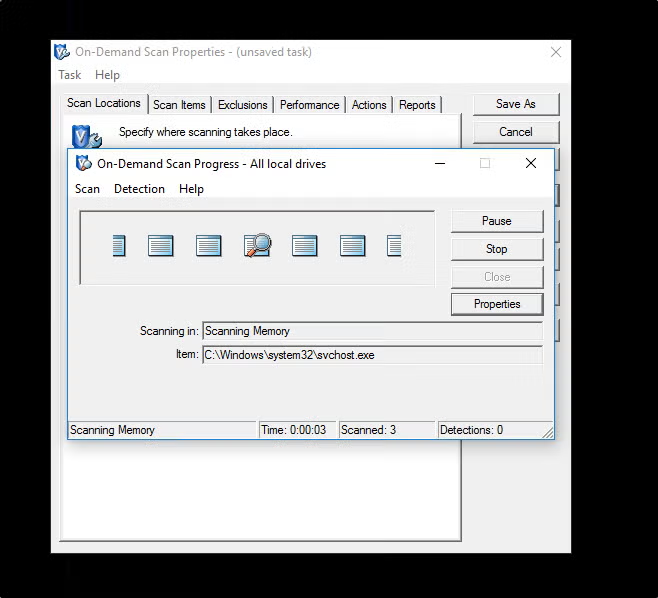
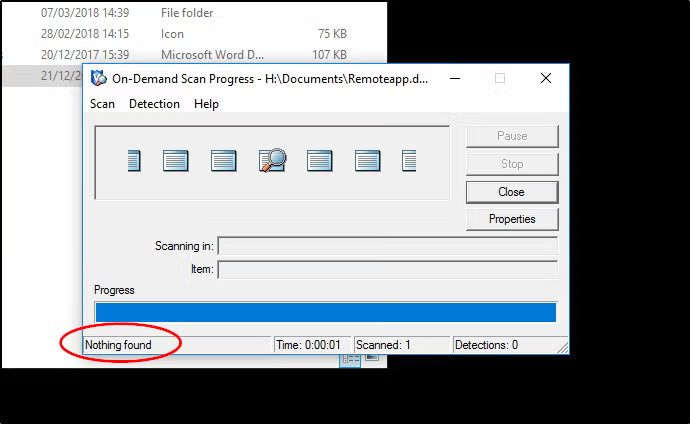
- You will see a progress bar, with the result of the scan displayed in the corner
Scan an entire computer #
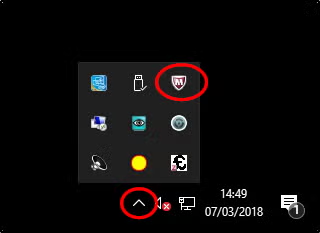
- Click the arrow in the task bar to open the system tray (it looks like a collection of small icons)
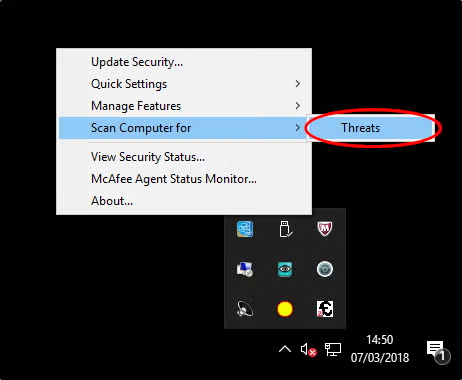
- Right click on the McAfee icon, and go to Scan Computer for, then Threats
- You may see a McAfee message asking if you want to allow the app to make changes, select Yes
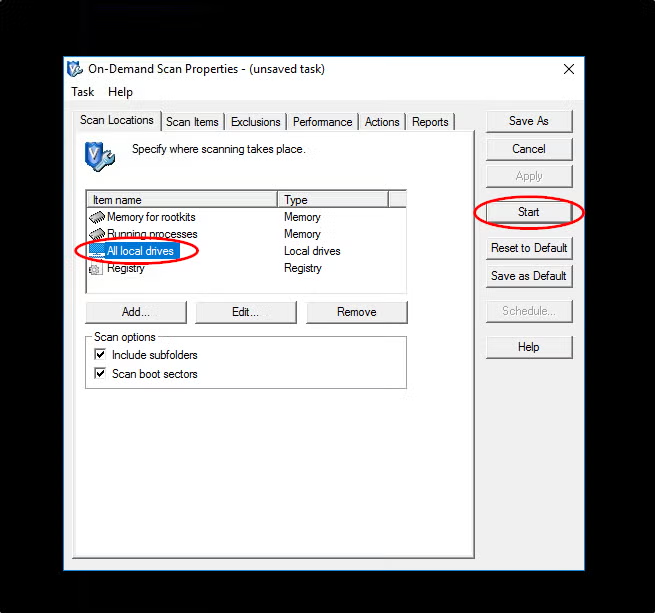
- Under the ‘item name’ column, select All local drives, and start Please be aware that if a detection is made a file may be deleted
- Leave the scan running. It may take some time and you might notice some impact on the computer’s performance while it continues If a detection is made there will be a message in the scan progress window