OneDrive is the University’s cloud‑based storage platform, giving you a secure place to store your work documents and access them from any device. Everything you save in OneDrive is automatically backed up, protected by Microsoft’s security tools, and available wherever you sign in with your University account on almost any device.
This page gives you an overview of what OneDrive is, how it fits into your everyday work, and what you can expect from the two dedicated pages on uploading files and on sharing and version control.
More Guides
What OneDrive is used for #
OneDrive is ideal for:
- Storing your personal work files in a secure location.
- Accessing documents across your devices (PC, Mac, mobile, and web).
- Moving between open access computers on-campus and personal devices at home.
- Keeping your files backed up automatically, even if something happens to your computer.
- Working on documents without needing to send email attachments (Sharing).
- Syncing files so they’re available offline or on personal devices.
For teamwork or department‑wide storage, SharePoint remains the recommended place to save shared resources. OneDrive is best for your individual work or files you want to prepare before sharing.
Key features
Anywhere access
Your files are available through the OneDrive app on your computer, the mobile app, or the web browser. Anything you add, change, or delete syncs across all your devices.
Automatic backup and Sync
The OneDrive desktop app keeps your files synced in the background. You can work in File Explorer or Finder as normal—everything updates automatically.
Easy collaboration
You can share files with colleagues, choose what level of access they have, and work in documents at the same time. The “Sharing and version control” page will cover this in more detail.
Version history
OneDrive keeps previous versions of your files. If you need to restore an earlier copy after a mistake or accidental overwrite, you can do so quickly.
Secure and protected
Files stored in OneDrive benefit from Microsoft’s built‑in security features, including encryption and threat protection.
Accessing OneDrive
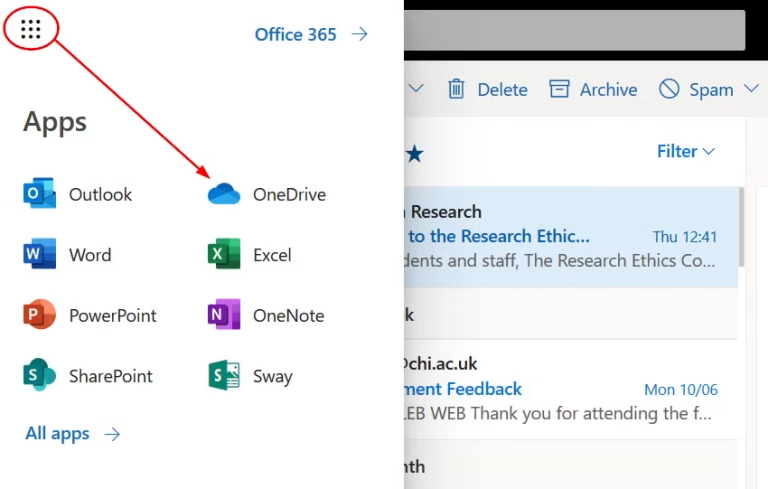
To access OneDrive, login to Email/Microsoft 365 then click OneDrive in the waffle menu. You can also ‘sync’ OneDrive with a computer so that the storage area is visible in File Explorer.
This happens automatically on University devices like Open-access computers. However you will need to ‘sync’ OneDrive manually with a personal computer to see your University OneDrive. See the page ‘Syncing OneDrive with a personal device’