USB Storage Devices

5 min read

This guide covers the use of USB storage devices including: how to encrypt, how to use, and what to do if you forget the password.

Before you start #

  • These instructions are for encrypting a USB storage device on a Windows computer, for use on a Windows computer
  • When the USB has been encrypted, it cannot be used on a Mac
  • The amount of time the USB takes to encrypt will depend on the size of the drive and the data already on it. You cannot turn the computer off or remove the memory stick while it is encryption. It can take anything from a minute to several hours
Encrypting the device
  1. Insert the USB storage device into a University Windows computer
  2. Open file explorer
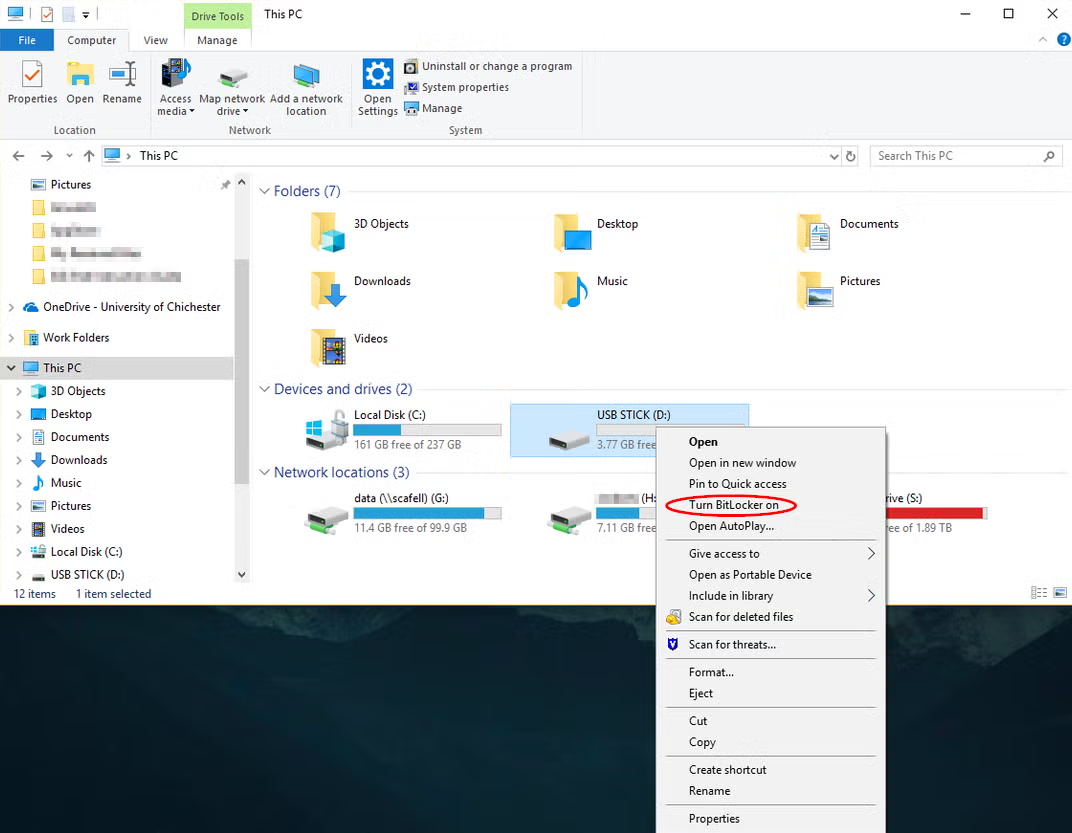
  3. Select the USB in file explorer   right click, and choose turn BitLocker on 
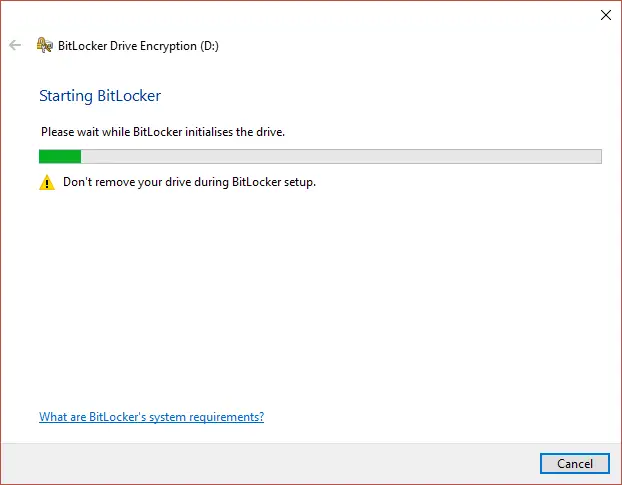
  4. You will see a ‘starting BitLocker’ message 
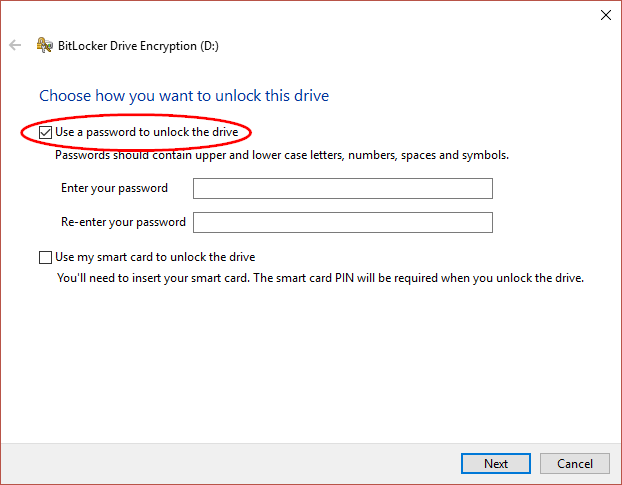
  5. The next screen asks how you want to be able to unlock the drive. Select ‘use a password to unlock the drive
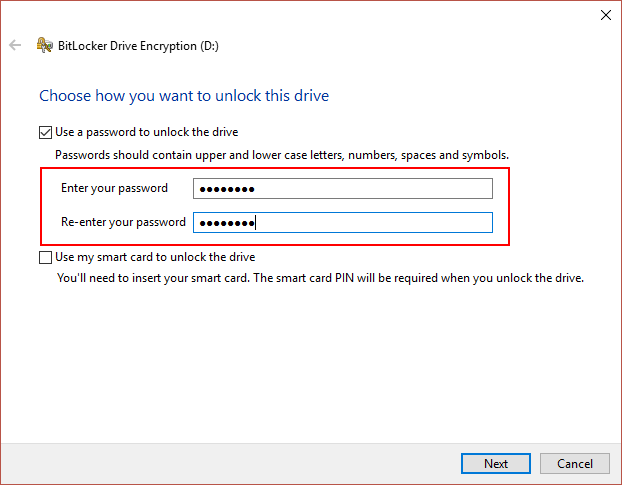
  6. Enter the password you would like to use. Select next 
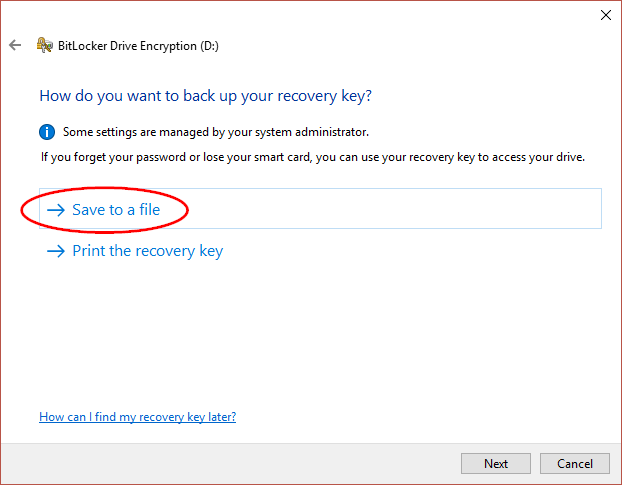
  7. You will be asked how you want to backup your recovery key. The key is used if you forget the password in the future.
    It is recommended to save the key to a file e.g. on your H drive 
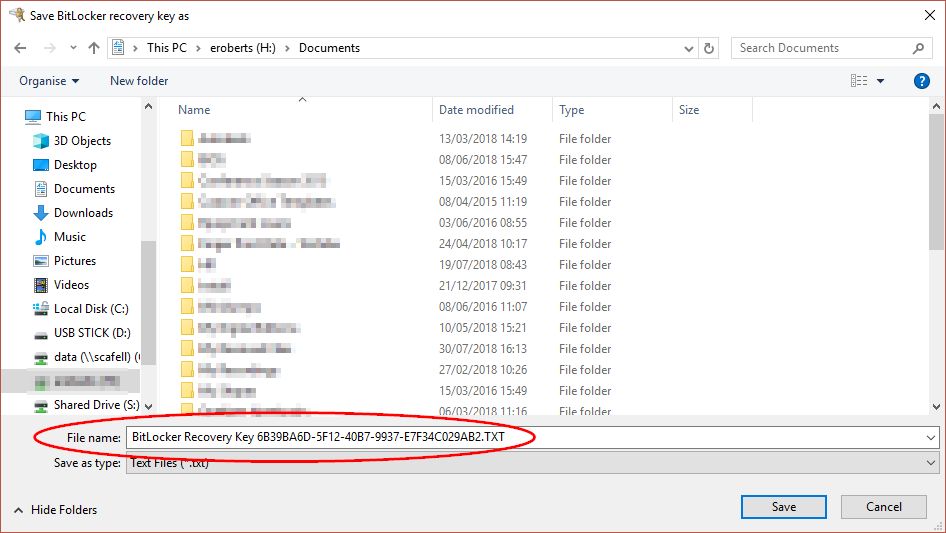
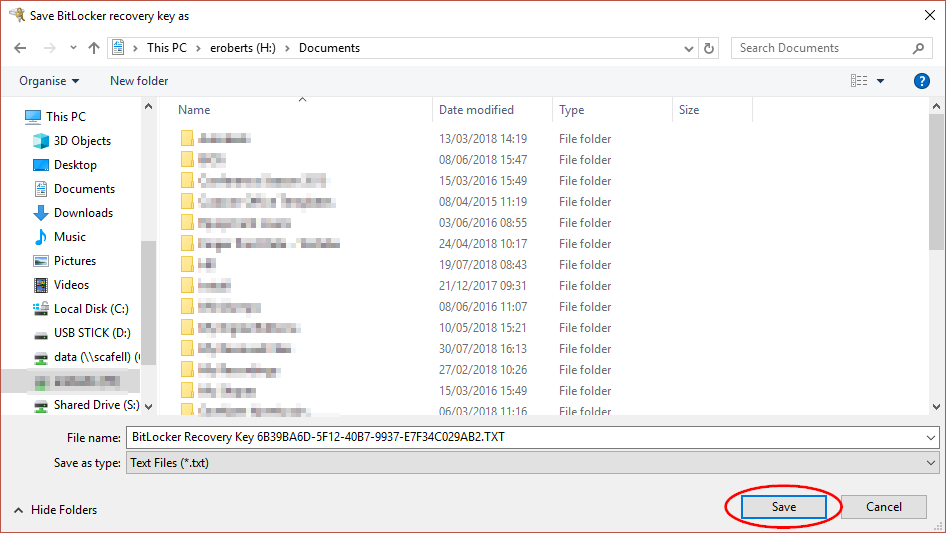
    Save the file with the suggested file name (do not rename)  
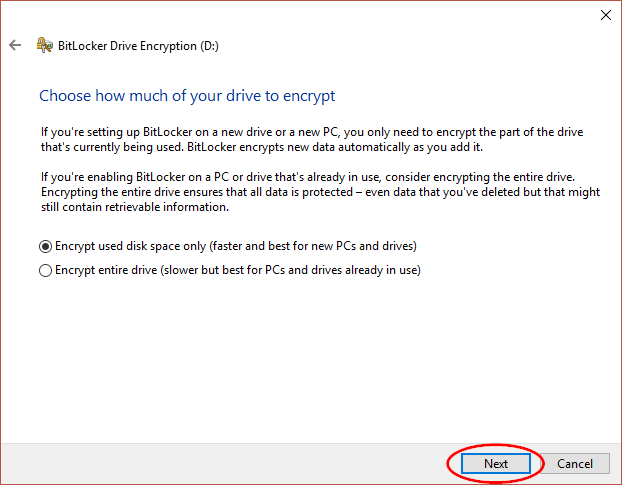
    Click Next
  8. Choose how much of your drive to encrypt. The choice you make will depend on your device and data. The options are to ‘encrypt used disk space only’ or ‘encrypt entire drive’. Make your selection and click Next 
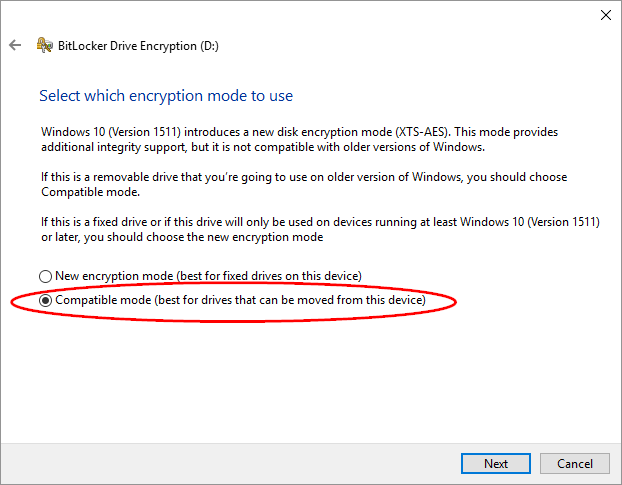
  9. The next window asks which encryption mode to use. We recommend ‘compatible mode’. Select Next
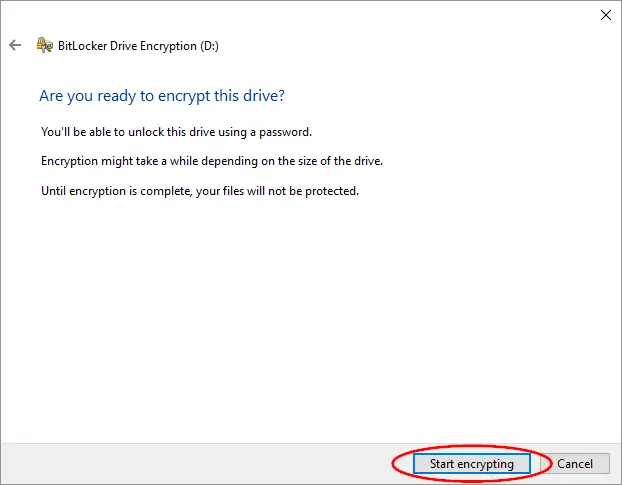
  10. You will see an ‘are you ready to encrypt this device’ prompt. If so, choose ‘start encrypting‘   
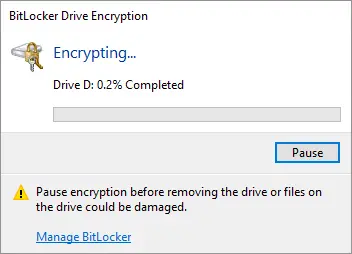
  11. The encryption begins and you will see a progress bar 
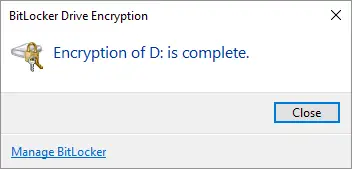
  12. When encryption finishes, a completed message is displayed 
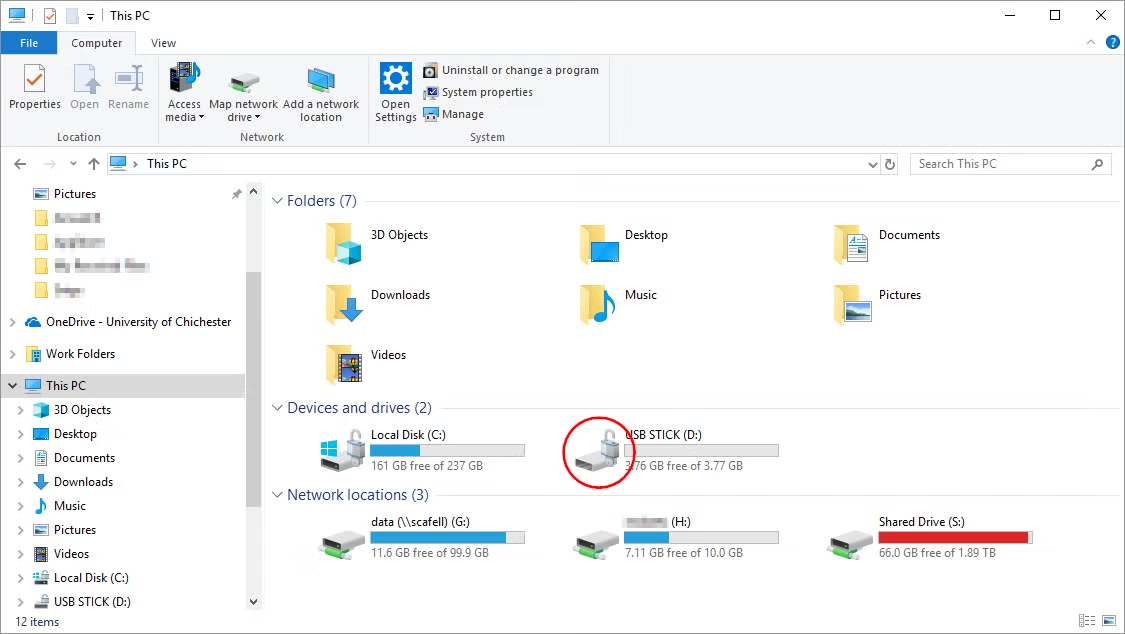
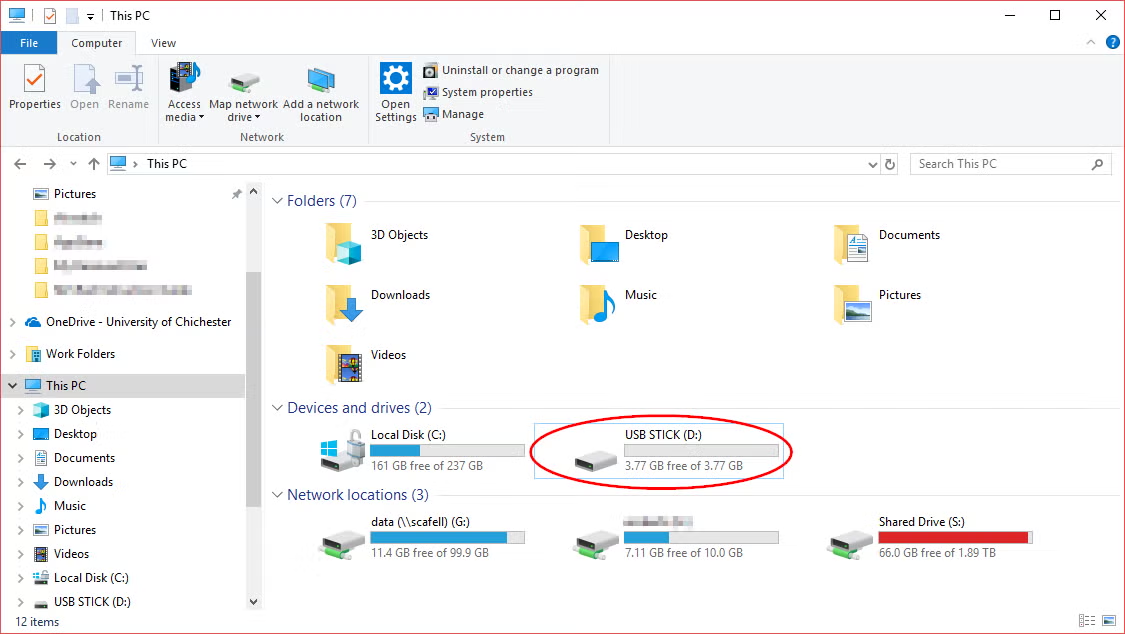
  13. Back in file explorer, the encrypted USB shows with a different icon 

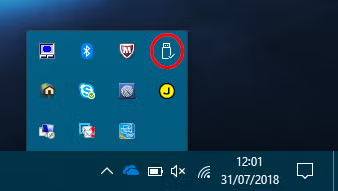
Each time you finish using the USB device, eject it before removing it. To do this, either right click the USB and eject, or right click the USB icon in the system tray and eject.

By ejecting it, you are ensuring the device is no longer in use.

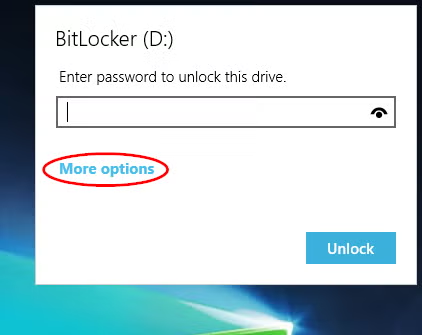
Each time you insert the device into your computer you will be prompted to enter the password: first you will get a message saying a USB device has been inserted, then the password prompt will show. You can also enter the password via the USB icon in file explorer.

  1. Insert the USB device and, at the password prompt, select ‘more options
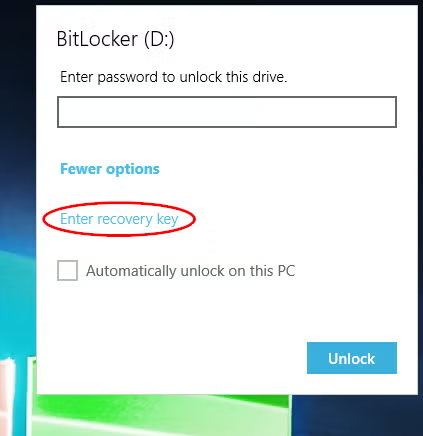
  2. Choose ‘enter recovery key
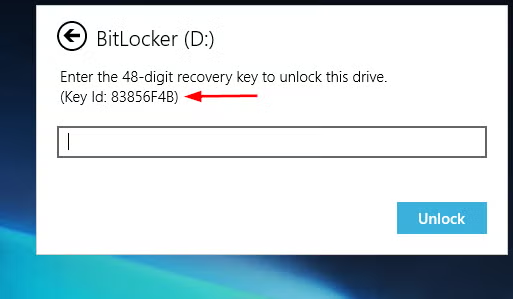
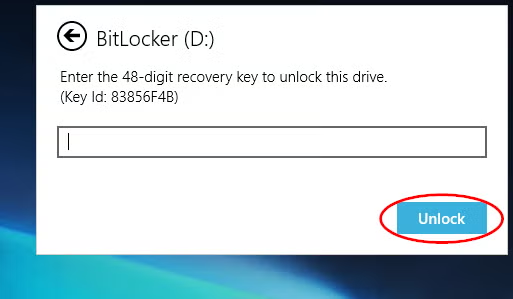
  3. You will be asked to enter the recovery key and shown the recovery key ID
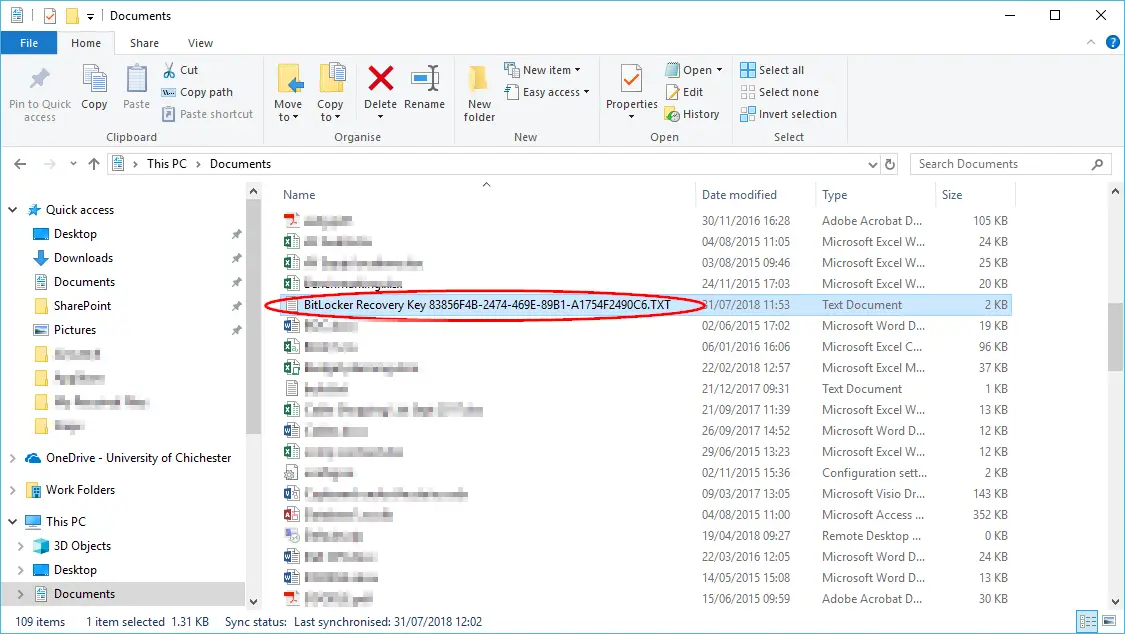
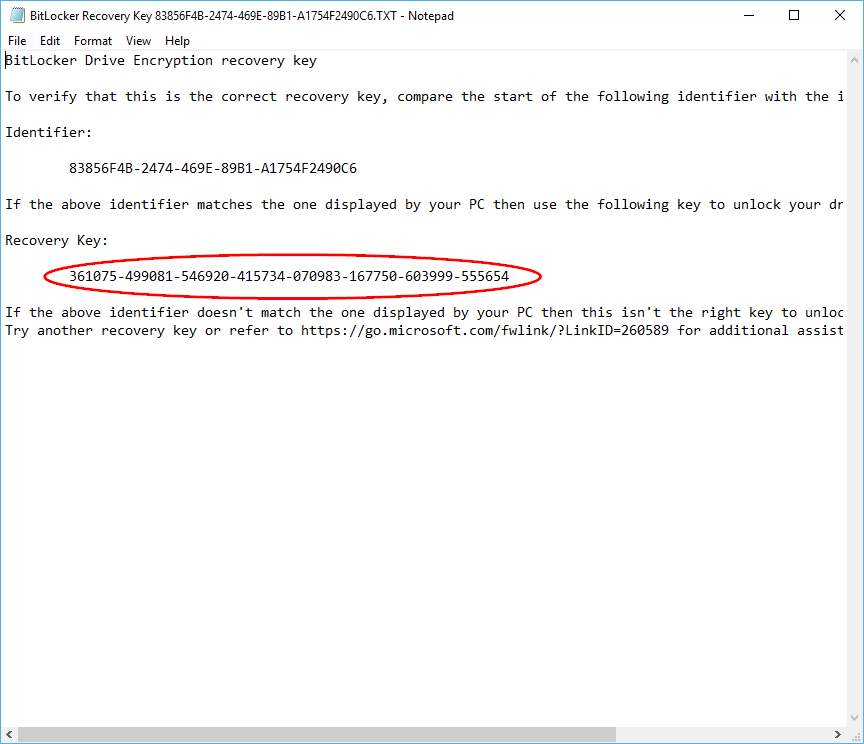
    The key ID matches the start of the recovery key file name that you were prompted to save when the USB drive was encrypted.
    Find the recovery key file in file explorer
    Open the recovery key file and copy key. It is a string of 48 characters
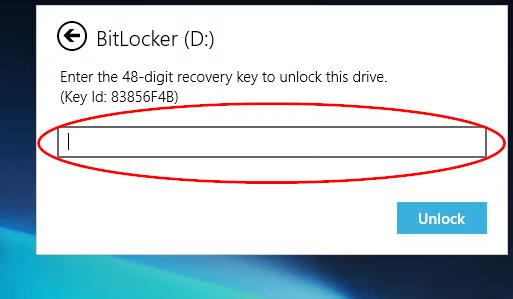
  4. Paste the key and click ‘unlock

Removing encryption will preserve the data on the device e.g. information is not deleted.

The amount of time it takes to remove encryption will depend on the size of the drive and the data already on it. You cannot turn the computer off or remove the memory stick while encryption is being removed. It can take anything from a minute to several hours.

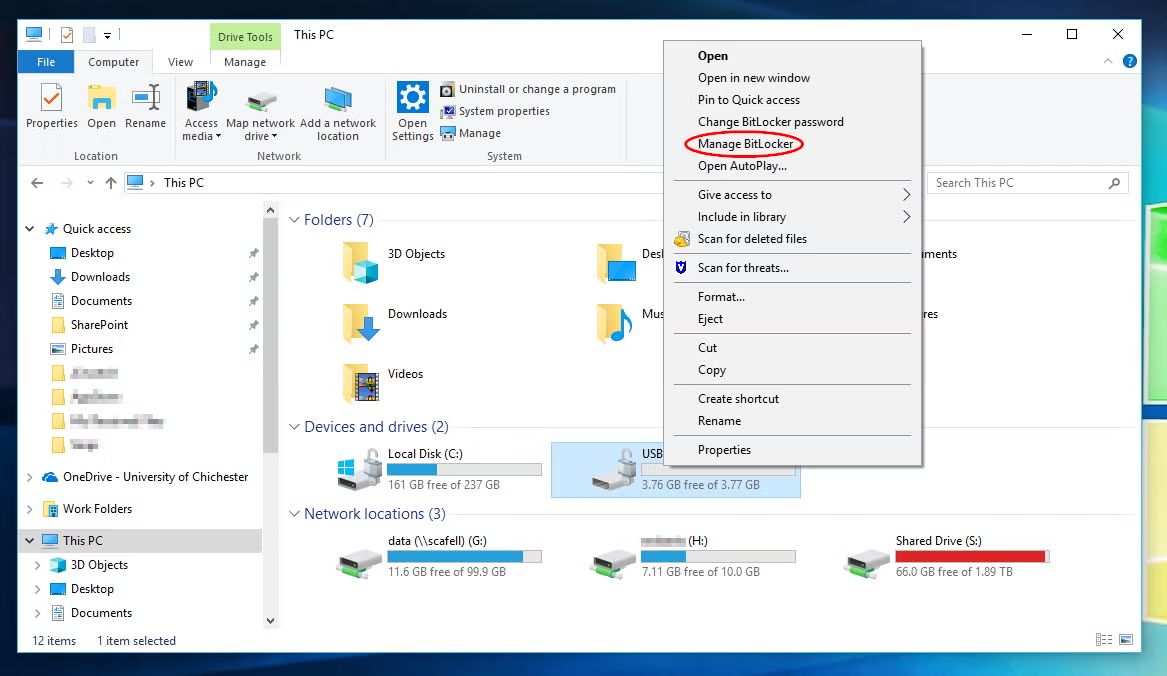
  1. Right click on the USB in file explorer and select ‘manage BitLocker
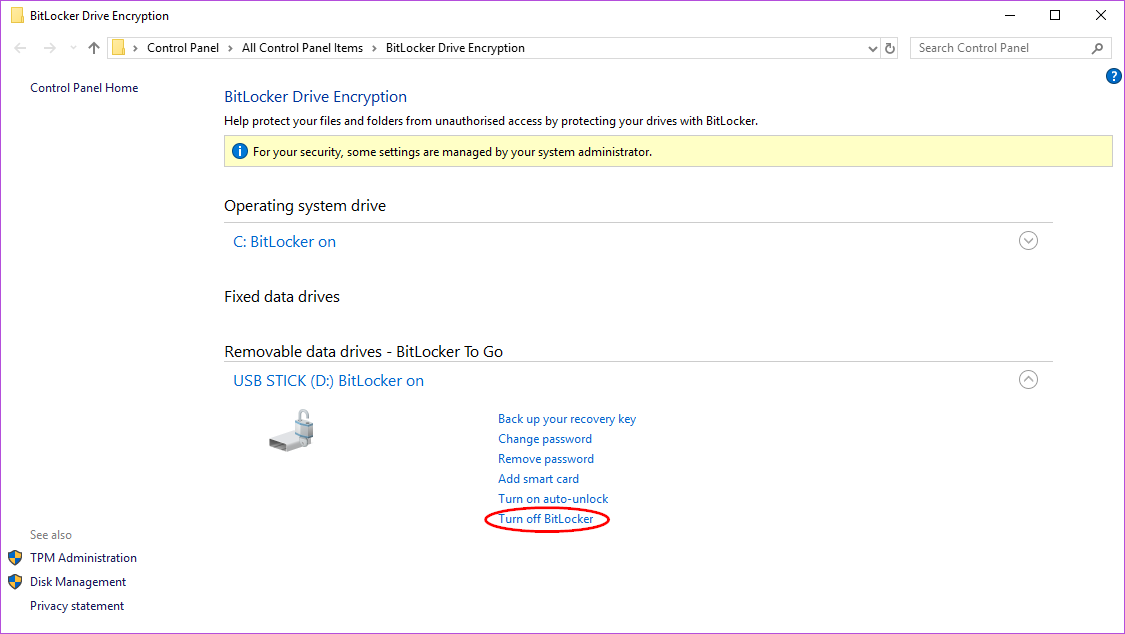
  2. Choose ‘turn off BitLocker’ 
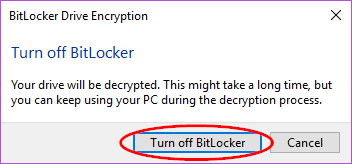
  3. Confirm you want to turn off Bit Locker 
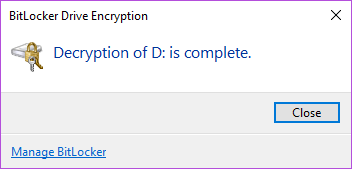
  4. When the decryption is complete there will be a message 

When encryption has been removed, the USB can be used on a Mac.

Was this article helpful?
Updated on January 8, 2026