As these files are often large, they are unable to go through our normal submission process through Moodle. They need to be shared with your lecturer through OneDrive.
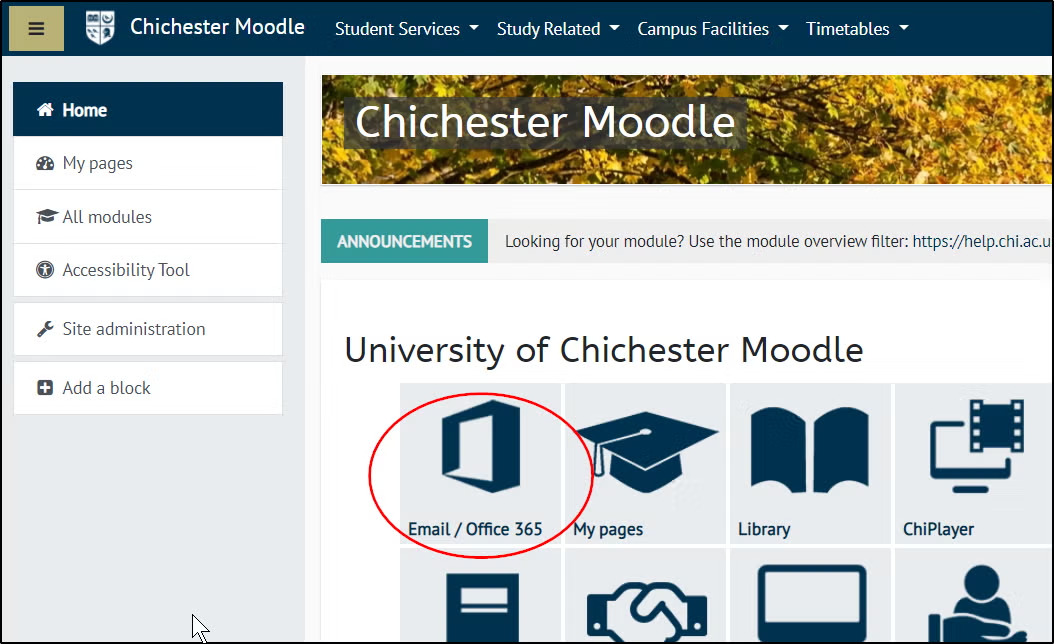
OneDrive can be accessed from Office 365 (which is where you find your student email online), to access it click on Office 365 from the front page of Moodle.
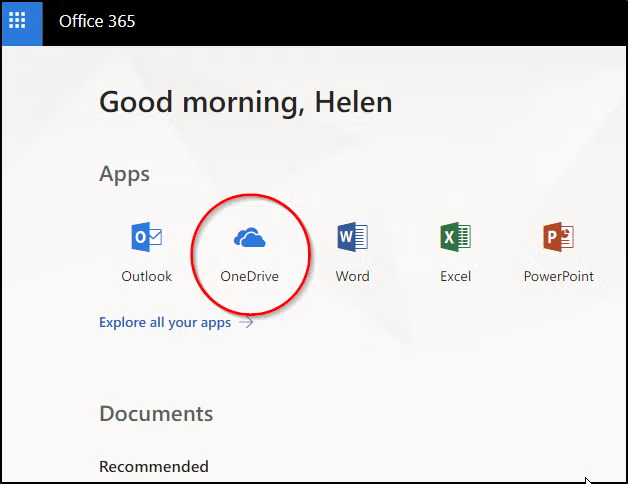
Then choose OneDrive from the office 365 front page (Note: from anywhere in Office 365 you can also click the waffle in the top left corner and choose OneDrive)
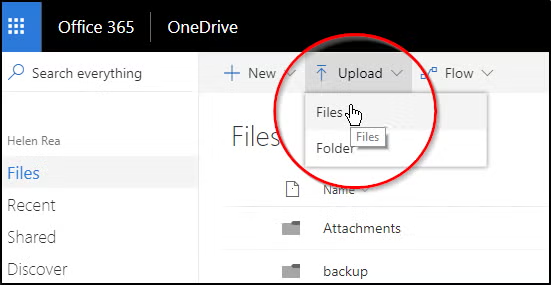
Once in OneDrive, you can upload your Solidworks file by clicking Upload and Files. You can then navigate to your file to upload it.
Change the name of your file to your student number.
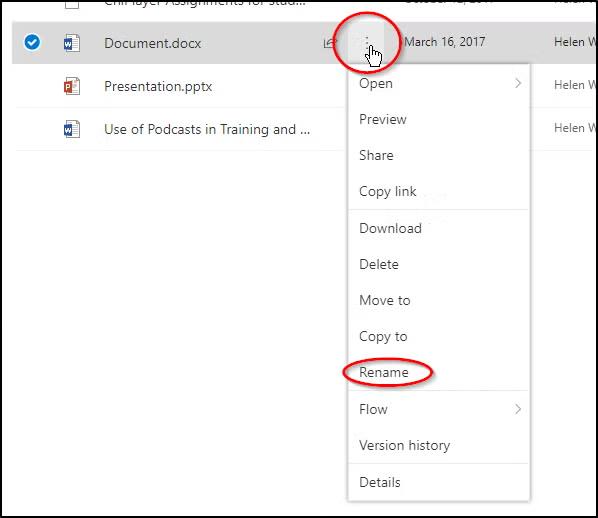
Hover over the file and click the 3 vertical dots, this gives you more options
Choose rename, then put in your student number and click save.
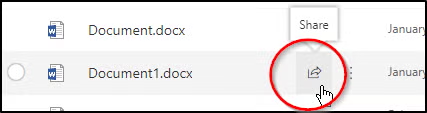
You will then need to share your file so that anyone who needs to mark your work can see it. To do this, hover over your uploaded file and click the Share icon.
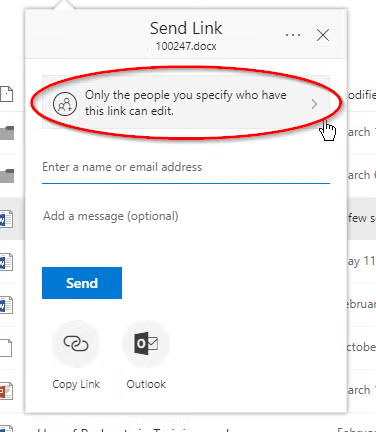
Then click on the box that starts Only the people you specify…
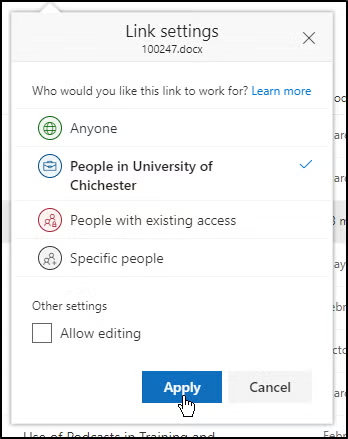
Select ‘People in the University of Chichester’ and untick allow editing and click Apply
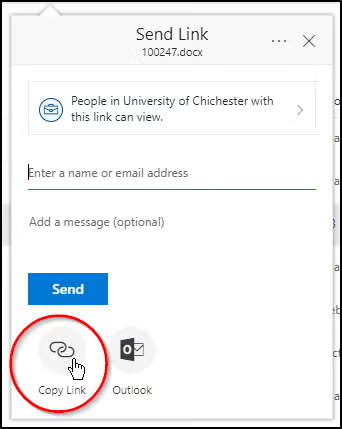
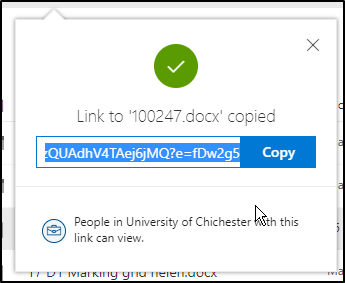
Then click Copy link
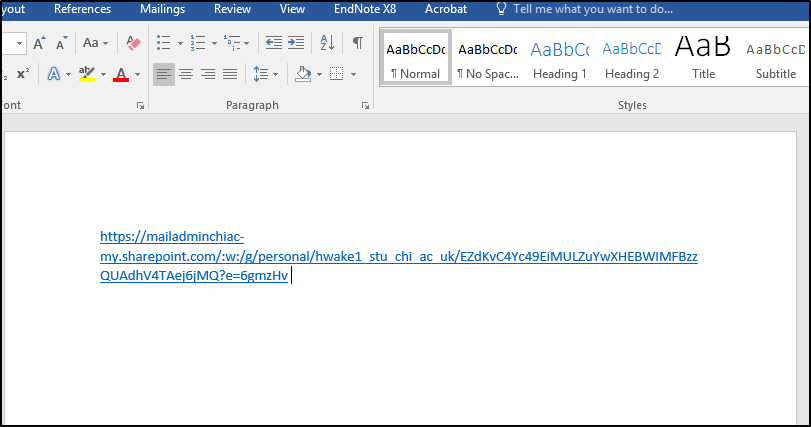
You will then be able to paste the link that it has generated into a new word document, save this and then upload it into your assignment link in Moodle in the same way as you would an assignment.