OneDrive is your cloud‑based storage area where you can keep files, folders and photos. Please check the Using OneDrive page if you are not familiar with OneDrive.
Linking Your University OneDrive Account on Windows
Windows includes the OneDrive application by default. Follow these steps to set it up.
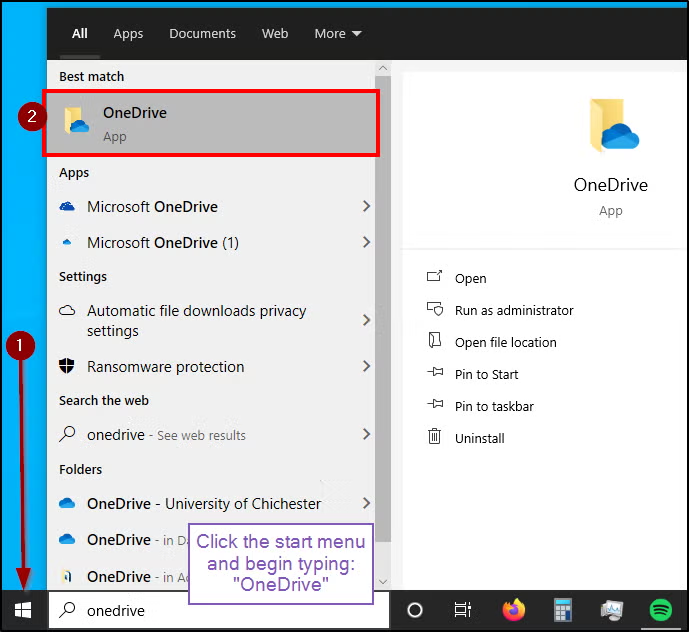
1. Open the OneDrive App
Open the Start Menu.
Type “OneDrive” in the search bar.
When the OneDrive app appears, open it to ensure it is running.
Picture
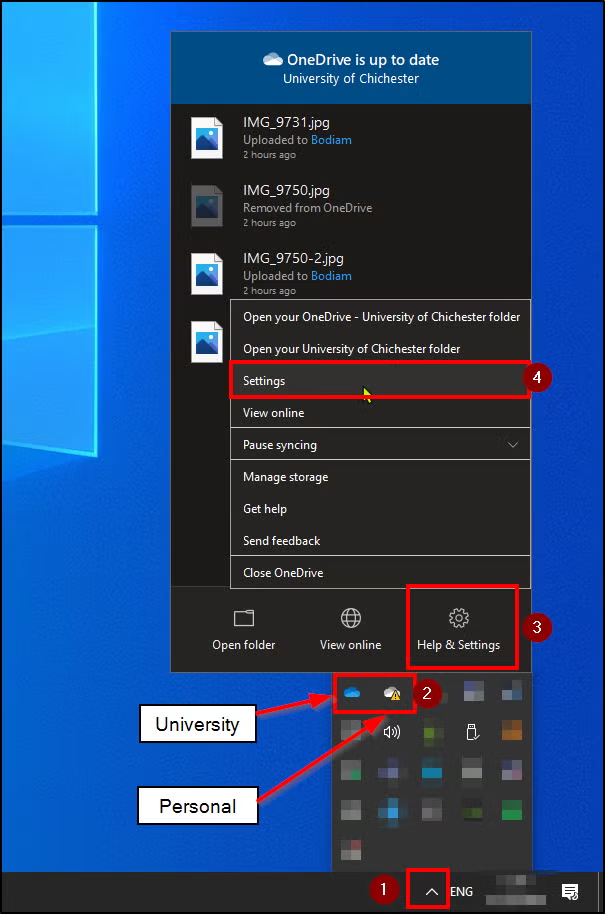
2. Access OneDrive Settings
Open the System Tray (bottom-right of your taskbar).
Click the cloud icon:
Blue cloud = University OneDrive account
White cloud = Personal Microsoft account (e.g., Outlook, Hotmail)
Right‑click the cloud icon and select Settings
Picture
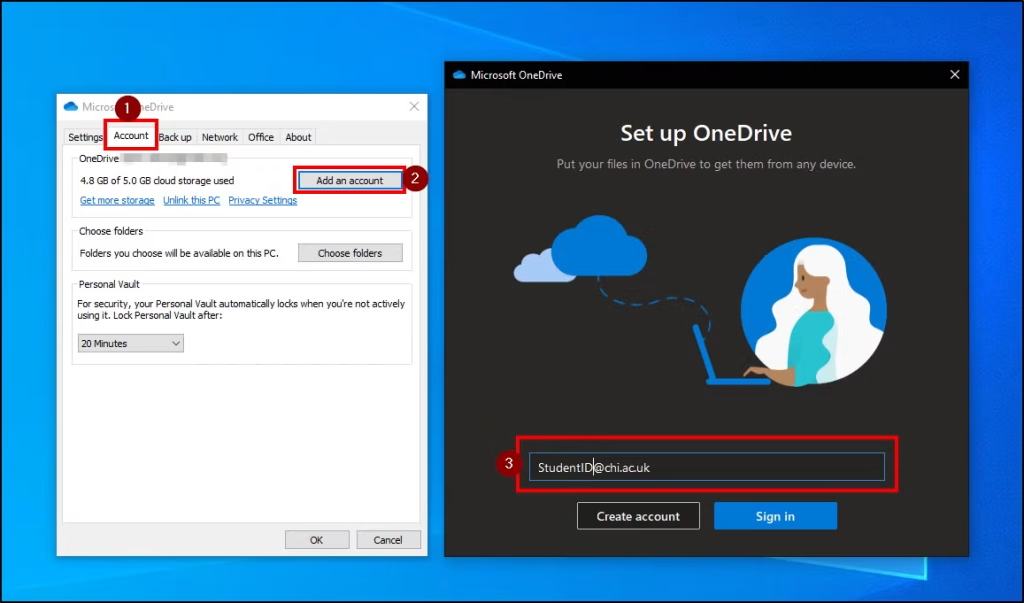
3. Add Your University Account
Open the Account tab.
Select Add an Account.
Enter your University email address and password when prompted.
Picture
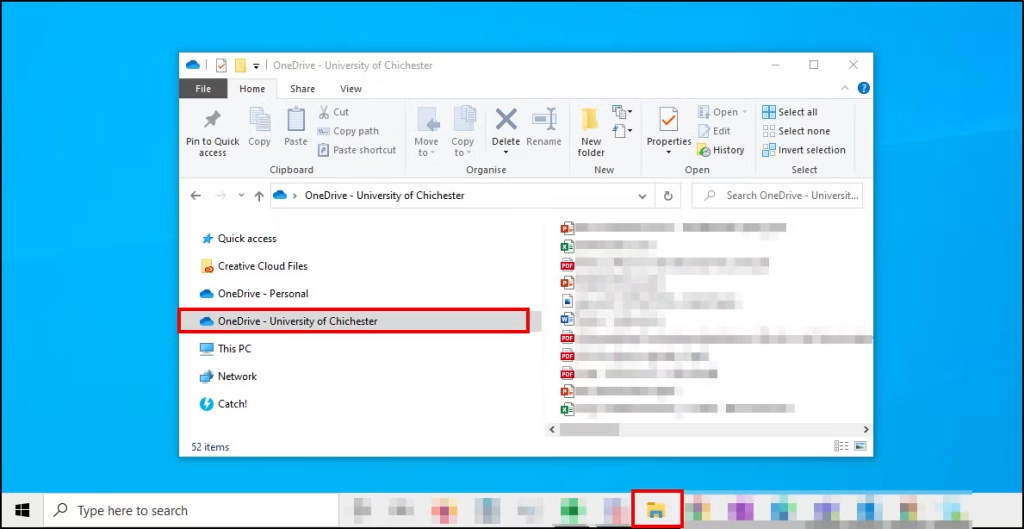
Once set up, your University OneDrive folders will appear in File Explorer.